Some PharmaERP modules give people tasks by themselves. For example, when a buyer records on a purchase order an expiry date that a supplier has offered, PharmaERP finds the sales orders that need that expiry accepted. The buyer gets an Expiry check task and the salesperson of each affected customer gets an Answer needed task. People see these tasks in My tasks and in the bell at the top of every page. The part of PharmaERP that raises, moves and closes these tasks is called the work engine.
Each module joins the work engine as a work pack. The pack describes the kinds of work the module creates, how each one can end and who gets it. Work Engine Admin is where the ERP administrator checks that a module's automatic tasks are set up correctly. With the right permission, you can also repair tasks that were not created. The page is used by ERP administrators, IT support and the business owner who decides when a module goes live.
1 Before you start
You need these rights in Roles, under the section WORK ENGINE, page Work Engine Admin:
To do this | You need | Ask |
|---|---|---|
See the menu link, open the page and read the status of every kind of work | View | Your administrator |
Use Re-run pack check and Run Repair | View and Update | Your administrator |
Switch a kind of work on or off | No right in PharmaERP. IT does it for the module | IT |
Rights are read when you sign in. After a change in Roles, sign out and sign in again. See Signing in.
Before anyone can be given the right to open this page, IT must do a one-off set-up. Until IT has done it, nobody can open Work Engine Admin. Everyone sees the Access Denied page, even the root user and the menu link is missing. If you cannot find the page, ask IT whether the set-up has been done.
Before you repair work for a module, IT must have run that module's set-up script. Until then the module shows Seeded No and Seed differs. For Run Repair to create tasks, there must also be work waiting in the module. If nothing is waiting, the result is "0 checked, 0 changed", which is correct.
To find the page:
Sign in to PharmaERP.
In the left menu open System Settings.
Under Roles & Access, choose Work Engine Admin. The link shows only if you have the View right.
You can also open My tasks (when it is shown) and click Work Engine Admin in its toolbar.
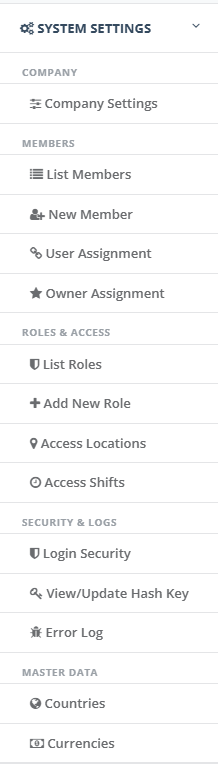
The picture above shows a menu where the Work Engine Admin link is not there yet, because the right has not been installed. Once it is installed and you hold View, the link appears under Roles & Access after your next sign-in.
1.1 The screen at a glance
Area | What it is for |
|---|---|
Heading and breadcrumb | The page name, a short explanation and links back to Dashboard and My tasks. |
Read at | When the status was read. Reload the page to read it again. |
Re-run pack check | Compares every module's set-up with its pack again. Only with Update. |
Red message box | Shows a message when the status could not be read. Hidden when empty. |
Module heading | The module's name and code and its check result: green Seed matches the pack or red Seed differs: these kinds of work are treated as off. |
List of differences | A red box, shown only when the check failed. One line per difference. |
Table of kinds of work | One row per kind of work with the columns Id, Kind of work, Module, Part of, Seeded, Switched, Pack check and Open work. |
Run Repair | Last column. Repairs that one kind of work. Only with Update. |
With View only, the Re-run pack check button and the Run Repair column are not shown.
What each column means:
Column | Meaning |
|---|---|
Id | The number of the kind of work. |
Kind of work | Name, code and a one-line description. |
Module | The PharmaERP module the task belongs to. Some names may look technical, for example Logistic_new. |
Part of | For a part of a bigger task, the code of that task. A dash for a top-level kind of work. |
Seeded | Yes if IT's set-up script has written this kind of work. No (red) if not. |
Switched | On (green) means saves create tasks. Off means they do not. When any kind of work is On, My tasks and the bell appear for users. |
Pack check | Passed (green) or Failed (red). A part fails when the task it belongs to fails. |
Open work | How many tasks of this kind are open, waiting on someone else or need a re-check. Resolved and cancelled tasks are not counted. |
How to read the three status columns together:
Seeded / Switched / Pack check | What it means | What you can do |
|---|---|---|
No / Off / Failed | Not set up. The module makes no tasks. | Ask IT to run the module's set-up script. |
Yes / Off / Passed | Set up correctly, not live yet. | Run Repair, then ask IT to switch it on. |
Yes / On / Passed | Live. Saves create and close tasks. | Run Repair after a reported problem. |
Yes / On / Failed | Treated as off although it says On. Saves keep the record but warn that the task list could not be updated. | Fix with IT, click Re-run pack check, then run Repair. |
Yes / Off / Failed | Set up, but it differs from the pack. Usually a wrong or old set-up script. | Fix with IT, click Re-run pack check. |
Yes / any / Failed after a fix | The page still shows the old result, because the result is remembered. | Click Re-run pack check. |
2 Step by step
2.1 Check how the automatic tasks are set up
Do this before a module goes live on automatic tasks, after IT has run a set-up script, after a new PharmaERP release or when users report that a save said the task list could not be updated.
Open System Settings, then Roles & Access, then Work Engine Admin.
Wait for the tables to appear. A Loading… line shows first. Check the Read at time.
For each module, read the heading. Green Seed matches the pack means the set-up is correct. Red Seed differs means its kinds of work are treated as off.
For each kind of work, read Seeded, Switched, Pack check and Open work.
Reading the page changes no task. If a module fails its check, PharmaERP also writes one warning to the Error Log with the WRK- reference shown in the module heading. This also happens the first time anyone opens the page after the server starts, so expect such entries while a module is not set up.
If a module has not been set up, the red box lists one line for each missing kind of work. Ask IT to run the module's set-up script, then follow the next task.
2.2 Re-run the pack check after a fix
PharmaERP remembers the result of a check, so a fix does not show by itself.
After IT confirms the set-up script has run or a fix was deployed, open the page.
Click Re-run pack check. The button is greyed out while the check runs.
Read the module heading again. It should say Seed matches the pack and the rows should show Seeded Yes and Pack check Passed.
If the check still fails, the red box says what differs. Send that text and the WRK- reference to the development team. Each re-run that still fails writes another warning to the Error Log.
If PharmaERP runs on more than one server, a re-run clears the old result only on the server that answered your click. Another server may keep showing the old result until it restarts. If the page still disagrees with what IT says, ask IT to restart the application.
2.3 Run Repair for one kind of work
Run Repair makes the tasks match the business records. It creates tasks for work that needs one, closes tasks whose work is finished and cancels tasks whose record no longer exists. Use it after the check has passed and before the module is switched on or later after a save warned that the task list could not be updated.
Run Repair creates real tasks for real people, even while the module is switched off. There is no preview. The only safeguard is the OK / Cancel question in your browser. Agree the timing with the business owner first.
Make sure the module heading says Seed matches the pack. Repair refuses a kind of work that fails the check.
On the row of the kind of work, click Run Repair. For Expiry confirmation, repair Expiry check first, then Answer needed.
Your browser asks you to confirm. Click OK to go on or Cancel to stop. If you click Cancel, nothing happens.
Wait while the line under the button says Running…. Do not close the page.
Read the result under the button. "Done: 3 checked, 3 changed" means 3 records were looked at and 3 tasks were created, changed or closed.
Reload the page to see the new Open work count. Repair does not refresh the count.
If Repair cannot finish, the line says "Not finished" with a reference. See Messages you may see and Troubleshooting.
Good to know about what Repair does:
It goes through the records in groups of 100. Each group is saved on its own. If one group fails, the groups before it stay saved.
Each change is written to the task's history as done by the system, reason Repair, with you as the person who started it. History cannot be changed later.
The owner of each new or changed task gets one line in their bell. You never get one for your own Repair.
A new task goes to the owner the module's rules choose, not to you. For example, Answer needed goes to the customer's active account owner or, if there is none, to the person holding the order with the most still to deliver. See User Assignment and Owner Assignment.
People do not see the new tasks live. They see them when their page loads or the bell reads again. Ask them to reload My tasks.
Running Repair a second time right away changes nothing, because nothing is missing any more.
2.4 Switch a module's tasks on
Switching on is shared between IT, the administrator and the business owner. It is done once for each module.
Step | Who | What is done |
|---|---|---|
1 | IT | Runs the one-off set-up that adds the page to Roles. You then give the right to the roles that need it |
2 | IT | Runs the module's set-up script. The page shows Seeded Yes and Switched Off |
3 | Administrator | Clicks Re-run pack check. The heading is green and Pack check shows Passed |
4 | Administrator | Clicks Run Repair for each kind of work of the module |
5 | Business owner | Decides the go-live date and tells users |
6 | IT | Switches the kinds of work on. For Expiry confirmation, IT also switches on the module's own setting. The page shows Switched On |
After step 6, My tasks and the bell appear for users within about five minutes.
2.5 A user reports "Saved, but the task list could not be updated"
The record was saved. Only its task was not created or updated.
Ask for the time of the save and the record, for example the purchase order number.
Open Work Engine Admin. If the module shows Seed differs, the set-up is the cause. Follow Re-run the pack check after a fix with IT.
If the set-up is fine, give the time to IT so they can find the matching entry in the Error Log. Once the cause is fixed, click Run Repair for that kind of work.
Tell the user that the record was saved all along and the task will appear after the repair.
3 Messages you may see
Message | What it means | What to do |
|---|---|---|
Access Denied page (the page heading reads "AccessDenied") | You do not hold the View right or the right is not installed yet. | Ask your administrator to tick WORK ENGINE, Work Engine Admin, View for your role in Roles, then sign out and in again. If nobody can open the page, ask IT to run the one-off set-up. See also Signing in. |
The work engine status could not be read. Reload the page. | The status could not be read because of a server error or a network problem. | Reload the page. If it stays, call IT with the time and see Error Log. |
(no message, you land on the Dashboard) | The page asked for its status or for a Repair, but your right was refused, for example because it was removed and you signed in again in another tab. | Ask your administrator to check your Work Engine Admin right in Roles, then sign out and in again. See Dashboard. |
Your sign-in has ended, so this page cannot load or save anything… with Sign in again | Your sign-in ended while the page was open. | Click Sign in again. You come back to the page. See Signing in. |
No work pack is installed yet. Each module joins the engine as a pack (Expiry first). | This release has no work pack or a pack is not valid and was left out. | Call the development team. Send the time and see Error Log. |
Seed differs: these kinds of work are treated as off (WRK-…) | The module's set-up does not match its pack. Its kinds of work make no tasks and saves warn. | Read the list of differences. Ask IT to correct the set-up, then click Re-run pack check. Send the WRK- reference to the development team if it stays red. |
Seed matches the pack | The module's set-up is correct. | Nothing to do. |
type … : no seed row | A kind of work has not been set up. | Ask IT to run the module's set-up script, then click Re-run pack check. |
… is '…' in the seed, '…' in the pack. | A set-up value differs from the pack, for example a label. | Send the line and the WRK- reference to the development team. IT corrects the set-up, then click Re-run pack check. |
… is off because its parent type … failed the check. | A part fails because the bigger task it belongs to fails. | Fix the bigger task first, then click Re-run pack check. |
Run Repair for CODE? It raises, closes or cancels the work that saves missed, as the System, with you as the actor. | You clicked Run Repair. | Click OK to go on or Cancel to stop. |
Running… | Repair is working. | Wait and keep the page open. |
Done: n checked, m changed | Repair finished. | Reload the page to see the new Open work count. |
Not finished: TASKS_PENDING WRK-… | The kind of work fails its check, so Repair did nothing. | Fix the set-up first. See Re-run the pack check after a fix, then run Repair again. |
Not finished: WRK-… | One or more groups of records could not be repaired. The other groups were saved. | Give the reference to the development team. When the cause is fixed, run Repair again. It only does what is still missing. See Error Log. |
Pick a kind of work. | Repair was asked without a kind of work. | Use the Run Repair button on a row. |
No installed work pack declares CODE. | The kind of work does not exist in this release. | Reload the page. If it repeats, call the development team. |
Repair failed. Reload the page. | The Repair request was refused or failed. | Reload the page and check that you still hold the Update right in Roles. If it repeats, call IT and see Error Log. |
Saved, but the task list could not be updated. It will be repaired. | Users see this on other screens when a save's task part failed. The record itself was saved. | Follow A user reports "Saved, but the task list could not be updated". |
4 Troubleshooting
4.1 Nobody can open the page, not even the root user
If you are a user:
Ask your administrator to check your role in Roles.
After the change, sign out and sign in again.
If you are an administrator:
Check that Work Engine Admin appears under WORK ENGINE in Roles. If it does not, the one-off set-up has not been done. Ask IT to run it.
When it appears, tick View and Update for those who run repairs, on each role that needs it. See Members for who holds which role.
Ask the people concerned to sign out and in again.
4.2 The page flashes an error and then opens the Dashboard
If you are a user:
Ask your administrator whether your Work Engine Admin right was changed. A removed right takes effect when you sign in again, so the page can still be open for a while after the right is gone.
Sign out and in again. See Signing in.
If you are an administrator:
Open Roles and check the role of the person. They need View to read the page and Update to use the buttons.
Ask them to sign out and in again.
4.3 The buttons are missing
You hold View but not Update. Re-run pack check and the Run Repair column show only with Update.
If you are an administrator, tick Update for the role in Roles. The person signs out and in again.
4.4 The page says Seeded Yes but Pack check still Failed
The result of the check is remembered. A fix does not show by itself.
Click Re-run pack check.
If the result still looks old, ask IT to restart the application, because another server may be answering.
4.5 A module says Switched On but users get no tasks
Read Pack check for the module. If it says Failed, the kind of work is treated as off, although it says On.
Ask IT to fix the set-up, then click Re-run pack check.
Click Run Repair for the kind of work to create the tasks that were missed.
4.6 Users cannot see My tasks or the bell
Open the page and look at Switched. My tasks and the bell appear only when at least one kind of work is On.
After IT switches a kind of work on, wait up to five minutes. Ask users to reload their page.
4.7 Run Repair gave "Done: 0 checked, 0 changed"
This is correct when no work is waiting in the module. If you expected tasks, check with the module's users that the record exists, for example an expiry question that is still waiting. Then run Repair again.
4.8 Repair ran, but the user does not see the task
Ask the user to reload My tasks. Repair does not refresh pages that are already open.
Check that the Open work count changed after you reloaded Work Engine Admin.
Remember that tasks go to the owner the module chooses, not to the person you expect. See Owner Assignment and User Assignment.
4.9 Repair is slow, the page times out or two people ran it at once
Wait for the Running… line to finish. A large Repair runs while you wait on the page. Run it outside busy hours.
If the page times out, reload it and run Repair again. Groups already saved stay saved and Repair only does what is still missing.
If you see "Not finished" after two people ran the same Repair together, run it once more on its own.
If none of these solve the problem, see Error Log for what to send to support and I cannot sign in or cannot open a page.
5 Good to know
Reading the page changes no task. Re-run pack check changes no task and sends nothing to anyone.
Run Repair works while a module is switched off, so a module can be prepared before go-live. Run it close to go-live.
A kind of work can show Switched On and still create no tasks if its Pack check is Failed. Always read the two columns together.
The page shows kinds of work and counts only. It never shows a customer, supplier or person by name and anyone with View sees the counts for all owners.
Switching on or off is not done on this page and is not recorded in PharmaERP. Keep your own note, for example in the change ticket.
Every failed check writes a warning to the Error Log: once when the page is first read and again each time you click Re-run pack check. Identical warnings within 10 seconds are written only once.
Rights changes in Roles apply at the next sign-in. See also Login Security for sessions.
See also: Signing in, Dashboard.
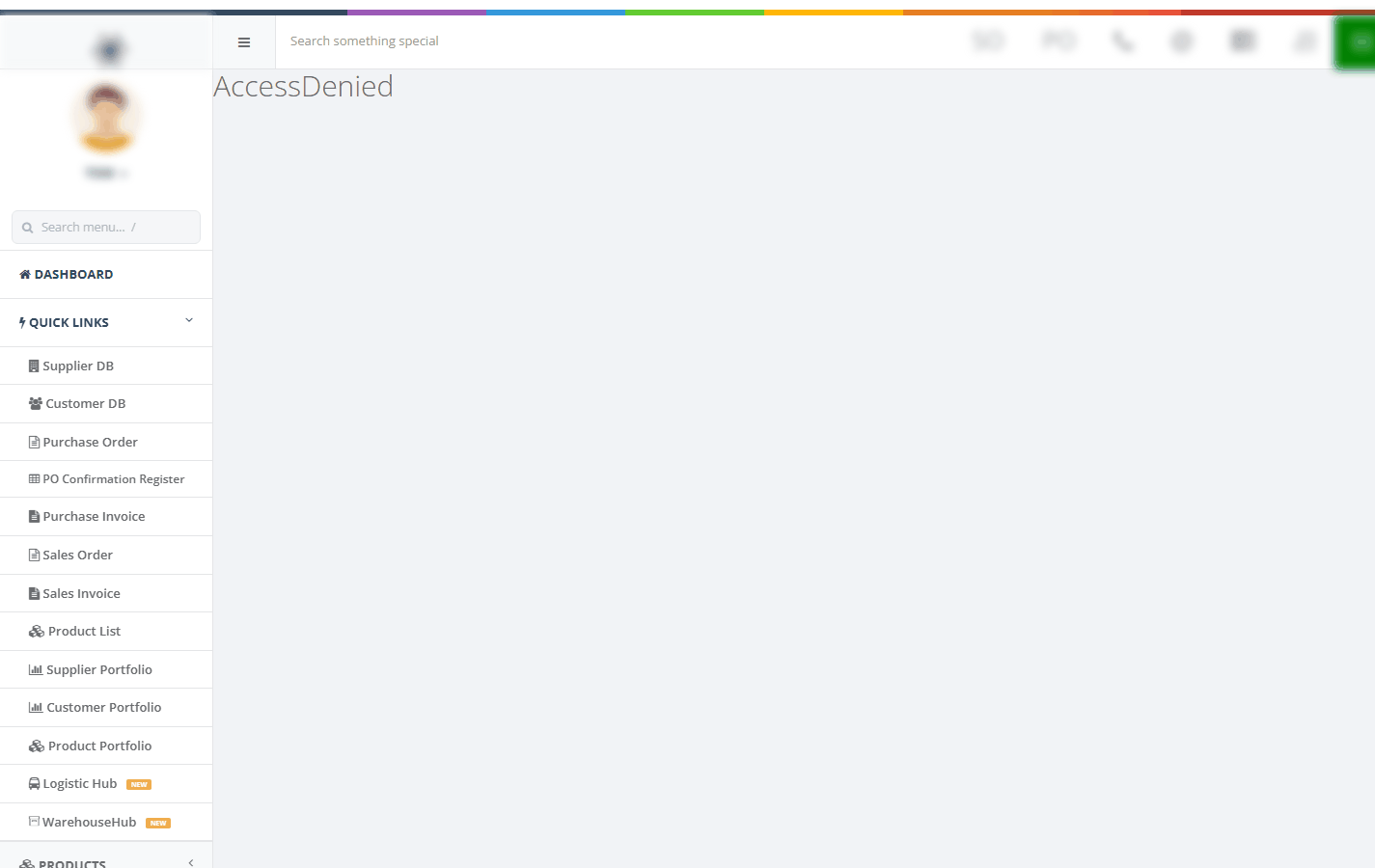
The Access Denied page, as everybody sees it when the right is missing or not installed.