Open this page when you cannot sign in, when PharmaERP signs you out while you work or when you cannot open a page. It is a map from what you see to the likely cause and the page where the fix is made. Users find their problem in the table and follow the link. Administrators use the same table to find the setting to change.
1 Before you start
Have this ready. It saves your administrator time and often shows the cause at once.
The exact text of the message or a description of what you saw if there was no message.
The time it happened and the page you were on or tried to open.
Whether it happens for you only or for colleagues too.
Administrators need:
A role with the AdminMember tick in Role Master to open Login Security, Error Log and Members. Rights are read when a person signs in, so sign out and in again after a change.
The person's e-mail address, to look up the failed attempt in Login Security. Each refused sign-in is recorded there with the real reason, even when the screen shows a general message.
Sign-in messages are deliberately short. Some do not say exactly what was wrong. The administrator can see the real reason in Login Security.
2 Step by step
2.1 Find your problem
Find what you see in the first column. Messages in quotation marks are shown exactly as on screen.
What you see | Most likely cause | Go to |
|---|---|---|
Red box "Enter Your EmailID and Password." | A field is empty or the e-mail is not an address | |
"Invalid email or password." | Wrong e-mail or password or the account is switched off | |
"Too many failed login attempts. Please try again later or contact administrator." | The account is blocked for 15 minutes | |
"Unauthorised location" | You are not at an office address allowed for you | |
"Time period expired" | It is outside your working hours | |
"Password reset is not enabled yet. Please contact administrator." | Forgot password does not send e-mails | |
Page Access Denied | Your role has no tick for that page | |
Red Signed out message with Sign in again | Your sign-in ended | |
Signed out a few minutes after the administrator changed your password | A new password ends open sessions | |
You land on the dashboard, not on the page you wanted | The way back to your page was not used | |
Technical error page or "Something goes wrong..." | An unexpected fault | |
Your day started or ended at a time you did not expect | Punch-in and punch-out rules | |
Still signed in on a second browser or still working after the shift ended | Sessions are checked in a particular way | |
A menu item you expect is missing | Your role has no tick for it |
2.2 What to tell your administrator
Send these five things. Do not send your password.
The message, word for word or a short description if there was none.
The date and time, as close as you can say.
The page you were on or tried to open.
Where you were: the office, home or a phone.
If the screen showed a reference such as RCV-1A2B3C, that reference.
3 Messages you may see
3.1 On the sign-in page
Message | What it means | What to do |
|---|---|---|
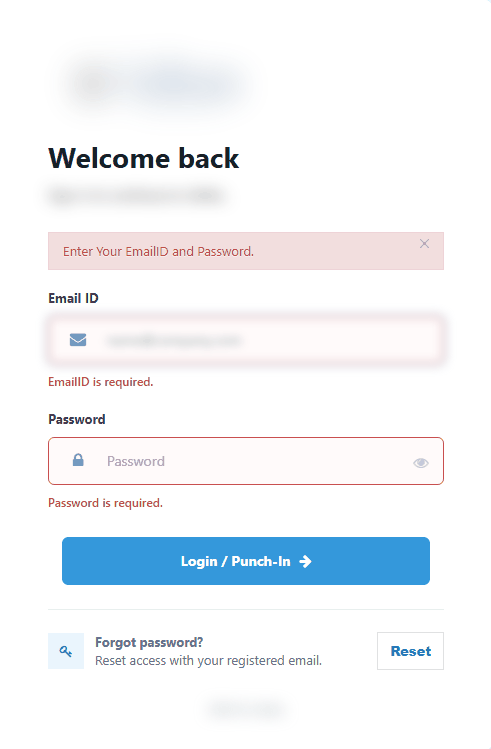
Enter Your EmailID and Password. | You clicked Login / Punch-In with a field empty or invalid. Nothing was sent. | Fill both fields. See Signing in. |
EmailID is required. | Email ID is empty. | Type your work e-mail address. |
Please enter a valid email address. | Email ID is not an e-mail address. | Type the full address. |
Password is required. | Password is empty. | Type your password. |
Invalid email or password. | The e-mail is unknown, the password is wrong or the account is switched off. | |
Too many failed login attempts. Please try again later or contact administrator. | The account is blocked for 15 minutes after 5 wrong passwords in a row. | See Locked out. |
Unauthorised location | Your e-mail and password are right, but the check on your office address refused you. | |
Time period expired | Your e-mail and password are right, but it is outside your shift. | See Time period expired. |
Something goes wrong. Please try again and contact administrator if the problem continues. | An unexpected error during sign-in. | Try once more, then see Server error page. |
Email is required. | Registered Email on the Reset password form is empty. | Type the address or click Back. |
Password reset is not enabled yet. Please contact administrator. | You clicked Submit on the Reset password form. No e-mail is sent. | See Forgot your password. |
3.2 While you work
Message | What it means | What to do |
|---|---|---|
Signed out - "Your sign-in has ended, so this page cannot load or save anything. Copy anything you typed and have not saved, then press Sign in again: after signing in you come back to this page." | Your sign-in ended while the page was open. | |
AccessDenied | You opened a page your role has no tick for. | See Access Denied. |
You have no enough permissions to request this resource. | A page asked for data you are not allowed to read. | Ask your administrator to check your role in Role Master, then sign in again. |
A list stays on "Processing..." | The list could not load because the session ended or a right is missing. | Refresh the page. If it stays, sign in again and see Access Denied. |
A browser alert such as "Failed to retrieve states" after a save | The save did not work. Your sign-in may have ended or a right was removed. | Sign in again and repeat. If it repeats, tell your administrator the time. |
A technical error page with a long text | An unexpected fault on a page. | See Server error page. |
3.3 Reasons an administrator sees in Login Security
In Login Security, open Login Attempts, search the person's e-mail and choose Failed in Result. The Failure Reason column gives one of these.
Failure Reason | What it means in plain words | What the administrator does |
|---|---|---|
INVALID_PASSWORD | The password was wrong or empty. | Ask the person to retry. After 5 in a row the account is blocked. |
UNKNOWN_USER | No account has that e-mail. The attempt shows "ID not matched". | Check the spelling. Create the account in Members if the person should have one. |
INACTIVE_USER | The account is switched off. | Tick the account active in Members if the person should work. |
LOCKED_OUT | Blocked after 5 wrong passwords. | Wait 15 minutes or set a new password in Members, which clears the block. |
IP_RESTRICTED | The internet address is not one of the person's allowed office addresses. | Check the person's offices in Members and the addresses in Access Locations. |
TIME_RESTRICTED | The office matched, but the time is outside the shift. | Check the shift in Access Shifts and the office's time zone in Access Locations. |
NO_PRIMARY_LOCATION | The office check is off, the hours check is on, the person has several offices and none is marked main. | Mark one office as primary in Members. |
Both IP_RESTRICTED and NO_PRIMARY_LOCATION show the person the same words, "Unauthorised location". Click the magnifier on the attempt to read the office and shift that were compared, with a plain explanation.
4 Troubleshooting
4.1 Wrong e-mail or password
If you are a user:
Check the e-mail address for typing mistakes. Capitals in the e-mail do not matter, but the password is case sensitive.
Check Caps Lock. Click the eye button to see what you typed.
Do not keep trying. After 5 wrong passwords in a row the account is blocked for 15 minutes.
If you are sure both are right, ask your administrator whether your account is active. See Account is inactive.
If you are an administrator:
Open Login Security, Login Attempts and search the person's e-mail.
If the reason is UNKNOWN_USER, compare the e-mail typed with the one in Members.
If the reason is INVALID_PASSWORD, set a new password in Members and give it to the person separately.
4.2 Account is inactive
The sign-in shows the same "Invalid email or password." for a switched-off account, so the person cannot tell.
If you are a user: ask your administrator whether your account is active.
If you are an administrator:
Open Members and search with status All.
Find the person. A new member starts inactive until Is User Active ? is ticked.
Tick it or use Active in the row menu and save.
Ask the person to sign in again. Check Login Security if it still fails.
4.3 Locked out
Five wrong passwords in a row block the account for 15 minutes, even if the next password is right.
If you are a user:
Wait 15 minutes without trying again.
Type your password carefully. Click the eye button to check it.
If you do not know the password, ask your administrator for a new one.
If you are an administrator:
Set a new password in Members. This clears the block. Login Security has no unlock button.
Tell the person the new password in a safe way, not by e-mail to a shared address.
After a block ends, one more wrong password blocks the account again at once. The counter is cleared only by a successful sign-in.
4.4 Unauthorised location
This message appears only after the password was accepted. Do not keep retrying the password.
If you are a user:
Check that you are on the office network and not on mobile data, home Wi-Fi or a VPN.
If you are at the office, ask your administrator to check your office location.
If you are an administrator:
Open the failed attempt in Login Security and read the Failure Reason and the explanation.
For IP_RESTRICTED, find the office's current internet address and compare it with the addresses in Access Locations. Add the address there if the office line changed.
Check in Members that the person is assigned to that office and that the office is active.
For NO_PRIMARY_LOCATION, mark one office as primary in Members.
If the person should sign in from anywhere, set IP Access to No in Members.
Ask the person to sign in again. The change applies at the next sign-in.
The Access Matrix in Login Security lists everyone whose settings stop them signing in, with the reason.
4.5 Time period expired
This message also appears only after the password was accepted.
If you are a user: sign in during your shift or ask your administrator to check your shift.
If you are an administrator:
Open the failed attempt in Login Security. It shows the matched office and shift.
Check the days and hours of the shift in Access Shifts.
Check the time zone of the office in Access Locations. Hours are read in that time zone. If the office has none, the company time zone applies.
Check the shift assigned to the person in Members. For a person with no time limit, link an all-hours shift or set Time Access to No.
Ask the person to sign in again.
A shift that ends at 23:59 refuses sign-in between 23:59 and midnight. Hours are checked at sign-in only, so a person already signed in is not thrown out when the shift ends.
4.6 Forgot your password
You cannot reset your password yourself. The Reset password form sends no e-mail and answers "Password reset is not enabled yet. Please contact administrator."
If you are a user: ask your administrator for a new password. See Signing in.
If you are an administrator: open the person in Members, type a new password in New Password and save. Tell the person separately. The change also ends the person's open sessions within about two minutes.
4.7 Access Denied
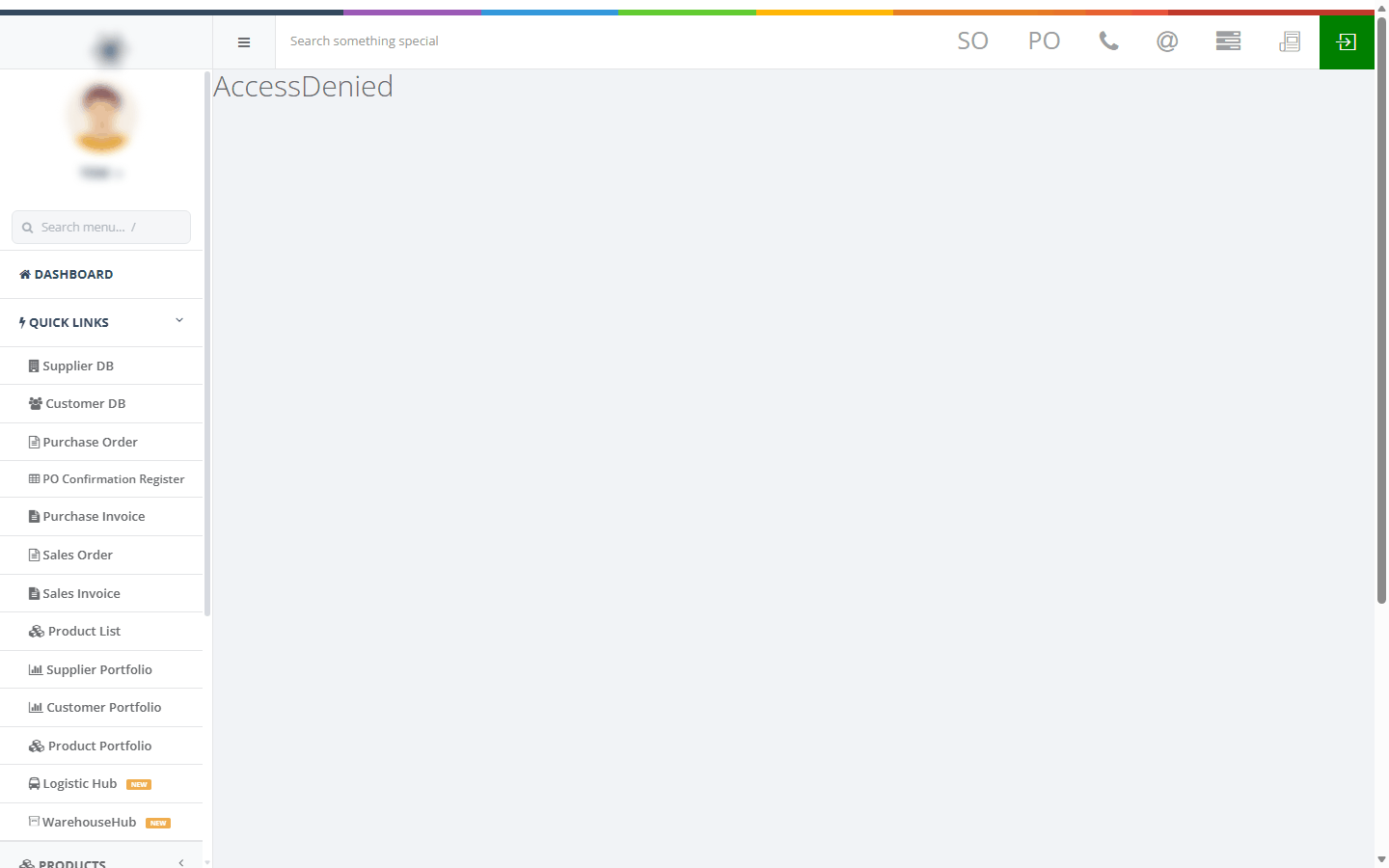
The Access Denied page, shown as the single word "AccessDenied", means your role has no tick for that page or action. It does not say which tick is missing.
If you are a user:
Use the menu on the left to go back to a page you can open.
Tell your administrator the name of the page you tried to open.
After the change, sign out with the green button and sign in again.
If you are an administrator:
Open the person's role in Role Master and tick the page and the action needed (View, Add, Edit or Delete).
Save, then ask everyone in that role to sign out and in. Rights are read at sign-in only.
If a whole group of pages is missing, check that the person is in the role you expect in Members.
Login Security, Error Log and Members need the AdminMember tick.
Being a super administrator does not skip the check. If the tick is missing, the page is refused for everyone.
4.8 The Signed out message
A red Signed out message with Sign in again appears when you press something that needs the server after your sign-in ended. A sign-in ends after 30 minutes without activity, when an administrator ends your session in Login Security or when your password is changed.

If you are a user:
Copy anything you typed and have not saved.
Click Sign in again.
Sign in. You return to the page you were on.
Paste your text and save again.
If you are an administrator:
Check in Login Security, Sessions, whether the session was ended.
If many people are signed out at once, check Error Log for entries at that time.
4.9 Signed out after a password change
A new password in Members ends every open session of that person within about two minutes. The person sees the sign-in page or the Signed out message.
If you are a user: sign in with the new password.
If you are an administrator: this is expected. Tell the person before you change the password. Ending a session in Login Security works the same way and can take about two minutes.
4.10 Sign-in goes to the dashboard
After you sign in again from the Signed out message or from a bookmark, PharmaERP takes you back to your page. It does not in these cases:
The sign-in did not start from a page, for example you opened the sign-in address yourself.
A different person signed in on the same browser. The way back is kept for the first person only.
More than 8 hours have passed. The way back works once, for the same person, within 8 hours.
If you are a user:
Open the page again from the menu.
To get back to your page next time, click Sign in again from the message rather than opening the sign-in address yourself.
If you are an administrator: nothing to change. If a person lands on Access Denied after signing in, see Access Denied.
4.11 Server error page
A technical error page or the message "Something goes wrong. Please try again, and contact administrator if the problem continues.", means something failed that is not about your rights.
If you are a user:
Try once more. If you were saving, check whether the record was saved before you repeat it.
If it repeats, send your administrator the time, the page and what you were doing. If a reference was shown, include it.
If you are an administrator:
Open Error Log and search for the reference or for the time and the page.
Read the Message and Source. Use Copy beside the technical details and send them to the developers with the time and the reference.
If the message came from the sign-in, check Login Security for the person's last attempt.
4.12 Punch-in and punch-out surprises
For staff, signing in starts the working day on the punch card and the green button ends it.
Closing the browser does not punch you out. At your next sign-in the open punch of an earlier day is closed at 17:00 of that day with the note "System Punch-out". Use the green button in the top bar to record the real time.
The Logout item in the menu under your picture does not sign you out. It only takes you back to the dashboard. The same is true in the phone menu. Use the green button.
No start time on Saturday and Sunday. Signing in at the weekend does not record a start time.
The administrator account "root" is never punched in.
Missing days are filled in. At sign-in, days since your last punch are filled as public holiday, leave or week-off.

If you are a user: always sign out with the green button, especially on a shared computer.
If you are an administrator: if a punch looks wrong, check when the person last signed in and out in Login Security, Login Attempts, filtered by the person's e-mail.
4.13 Session limits
If you are a user:
A sign-in lasts 30 minutes after your last click. Save often.
You can be signed in on two browsers at once. Signing in again does not end the first one, so sign out on each.
If you are an administrator:
To end someone's session, use Confirm revoke on the Sessions tab of Login Security. The person leaves at their next click, within about 2 minutes.
For a lost or stolen laptop, also set a new password in Members.
Deactivating a person does not sign them out. If access must stop at once, also change the password.
Changes to a shift, an office address or IP Access do not sign anyone out. They apply at the next sign-in.
5 Good to know
Rights are read once at sign-in. After a role change, the person must sign out and in again. See Role Master.
"Unauthorised location" and "Time period expired" mean the password was right. Check where and when the person signs in, not the password.
The sign-in never says which of e-mail, password or active status was wrong. Only Login Security shows the reason.
Accounts are blocked for 15 minutes after 5 wrong passwords in a row. The time and the count cannot be changed.
The Reset password form does not send e-mails. Passwords are set by an administrator in Members.
Only the green top-bar button signs you out.
See also: Signing in, Members, Role Master, Access Locations, Access Shifts, Login Security, Error Log.