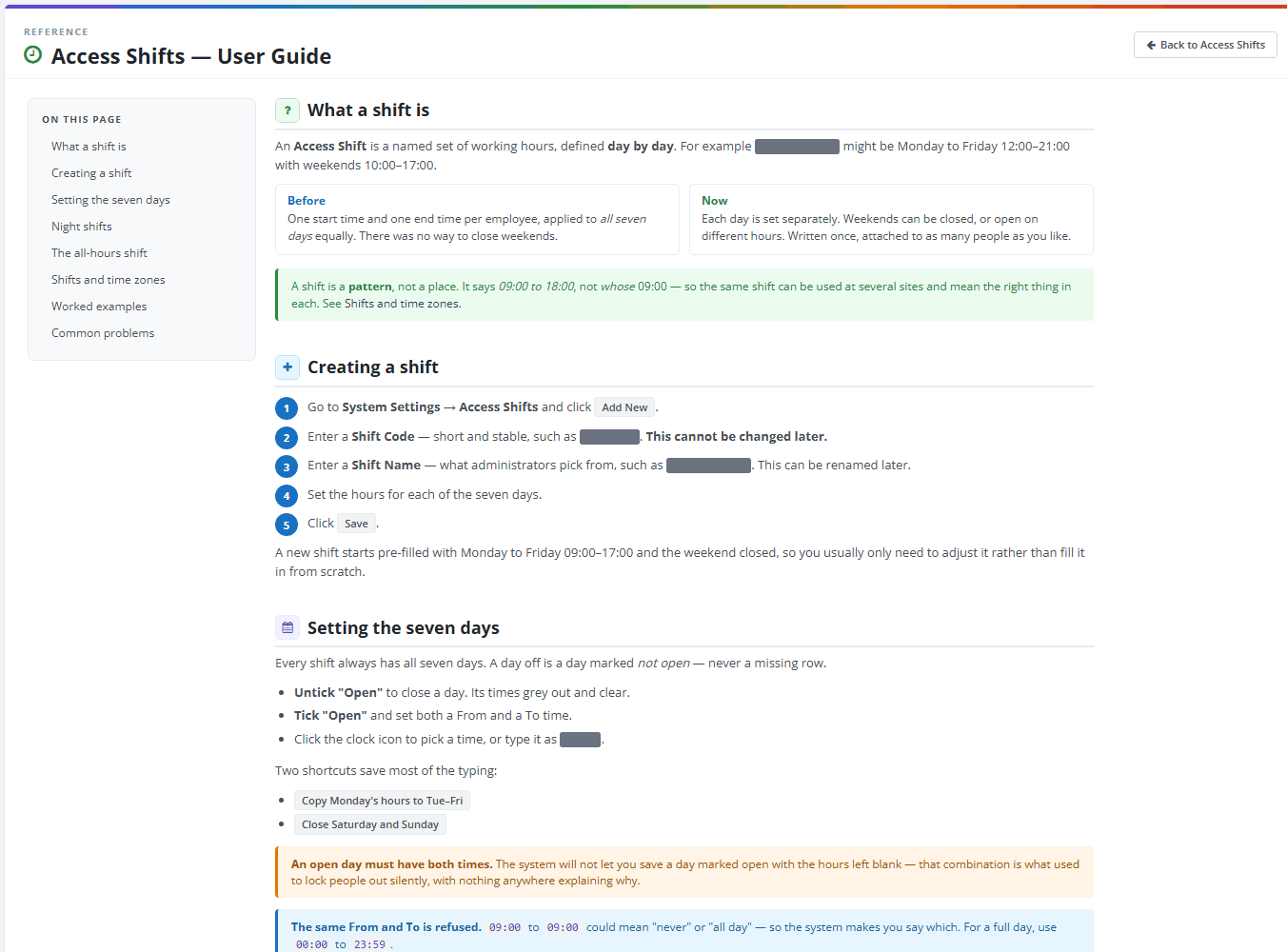
A shift is a set of working hours, day by day, that limits when staff may sign in to PharmaERP. For example, Day Shift can mean Monday to Friday 09:00 to 18:00 with the weekend closed. You write the hours once and link the shift to as many people as you need. Administrators who set up staff access use this page. People who review staff access, for example before an audit, use it to read shifts and their history. If a person sees "Time period expired" when signing in, the cause and the fix are in Time period expired at sign-in.
A shift says only which hours apply, never which place. The place, with its time zone, is an office on Access Locations. On the Members page each person is linked to an office and, for that office, to a shift. At sign-in PharmaERP finds the person's office, takes that office's shift and checks the current time in the office's time zone.
1 Before you start
Access you need. Your administrator sets these rights for Access Shifts in Roles.
View: open the page, Help, History and Who uses this.
Create: use Add New.
Update: use Edit.
Delete: use Deactivate and Activate.
Buttons and menu items you have no right for are not shown. Rights are read when you sign in. After a change in Roles, sign out and sign in again. See Signing in.
Nothing needs to exist before you add a shift. For a shift to affect anyone, three things must be true: an office exists on Access Locations, the person is linked to that office and shift on Members and Time Access is Yes on the person's record.
To find the page, open System Settings in the left menu. Under Roles & Access, click Access Shifts.
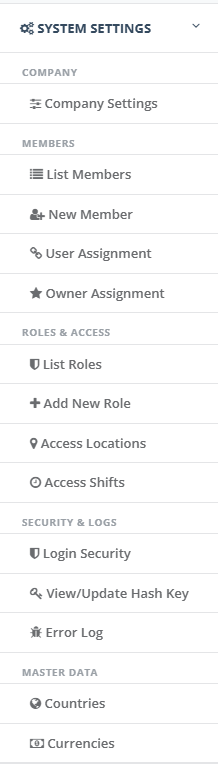
If Access Shifts is missing from the menu or you see an Access Denied page, your role has no View right. Ask your administrator or see I cannot sign in or cannot open a page.
1.1 The page at a glance
The page opens with the heading, the Help and Add New buttons, the Status filter and a search box. Below them is the list of shifts. At first it shows only active shifts, in code order. Each line shows the schedule, the number of open days, the number of people on the shift, its status and when it last changed. The Option button at the end of each line opens a menu with Edit, History and Deactivate or Activate, depending on your rights.
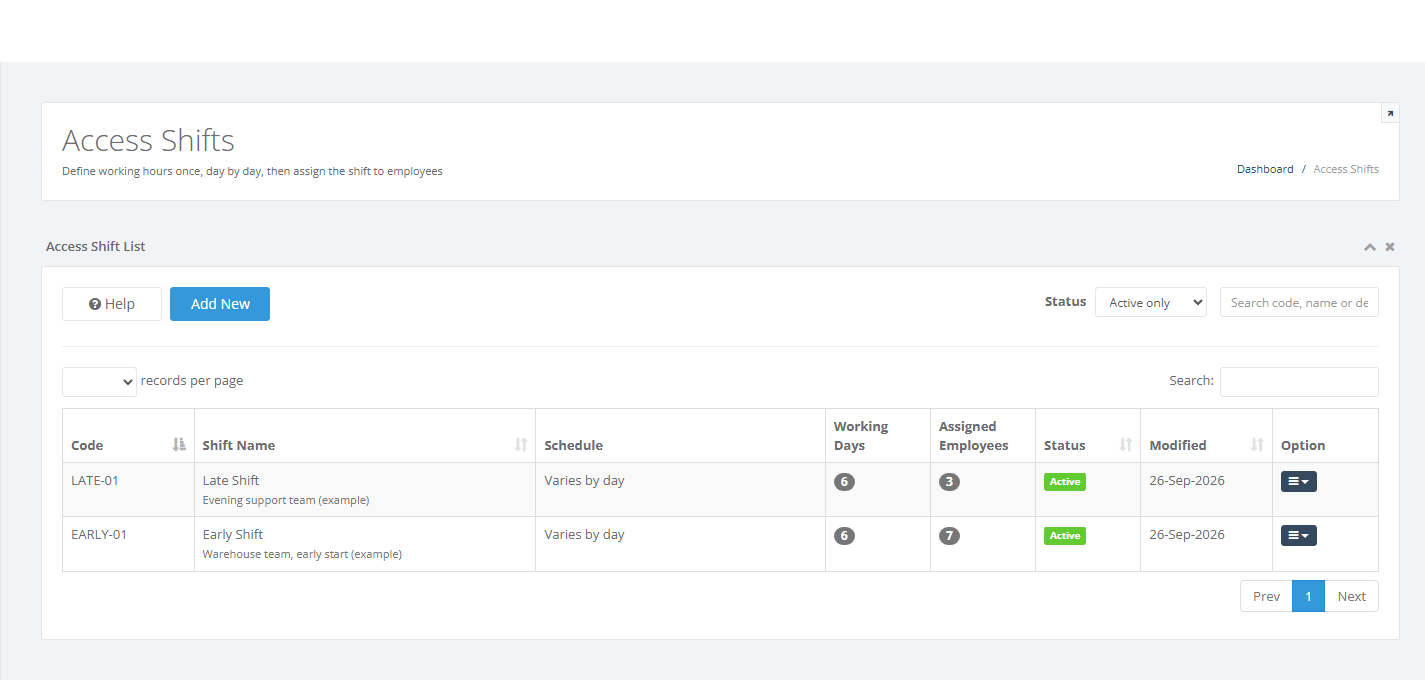

In the list, a red note under a shift name, "Every day closed - nobody on this shift can sign in", means no day of that shift is open. The Schedule column reads "Closed every day" for it. A yellow warning above the list can appear for the same reason. Open the shift with Edit and open at least one day.
2 Step by step
2.1 Find a shift
Check which shifts already exist before you add one or link a person, so that the same hours are not written down twice.
Open Access Shifts. The list shows active shifts in order of their code.
Type part of a code, name or description in the search box at the top right, for example DAY. The list narrows as you type. Capital letters do not matter.
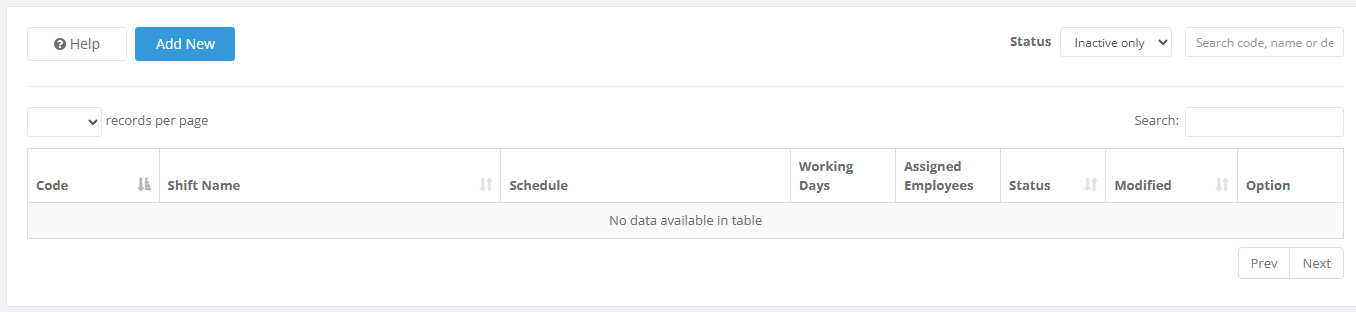
To see switched-off shifts, choose Inactive only (or All) in Status.
Click a column heading with arrows (Code, Shift Name, Status, Modified) to sort. Click again to reverse the order.
The Schedule column shows the week in short form, such as "Mon-Fri 09:00-18:00". When the open days have different hours it reads "Varies by day". A blue overnight label marks hours that run past midnight. If the records per page box is empty, the list shows all lines until you pick 10, 20, 50 or 100.
2.2 Add a shift with its weekly hours
You need the Create right. Decide the hours for each day and a short code that you will never need to change.
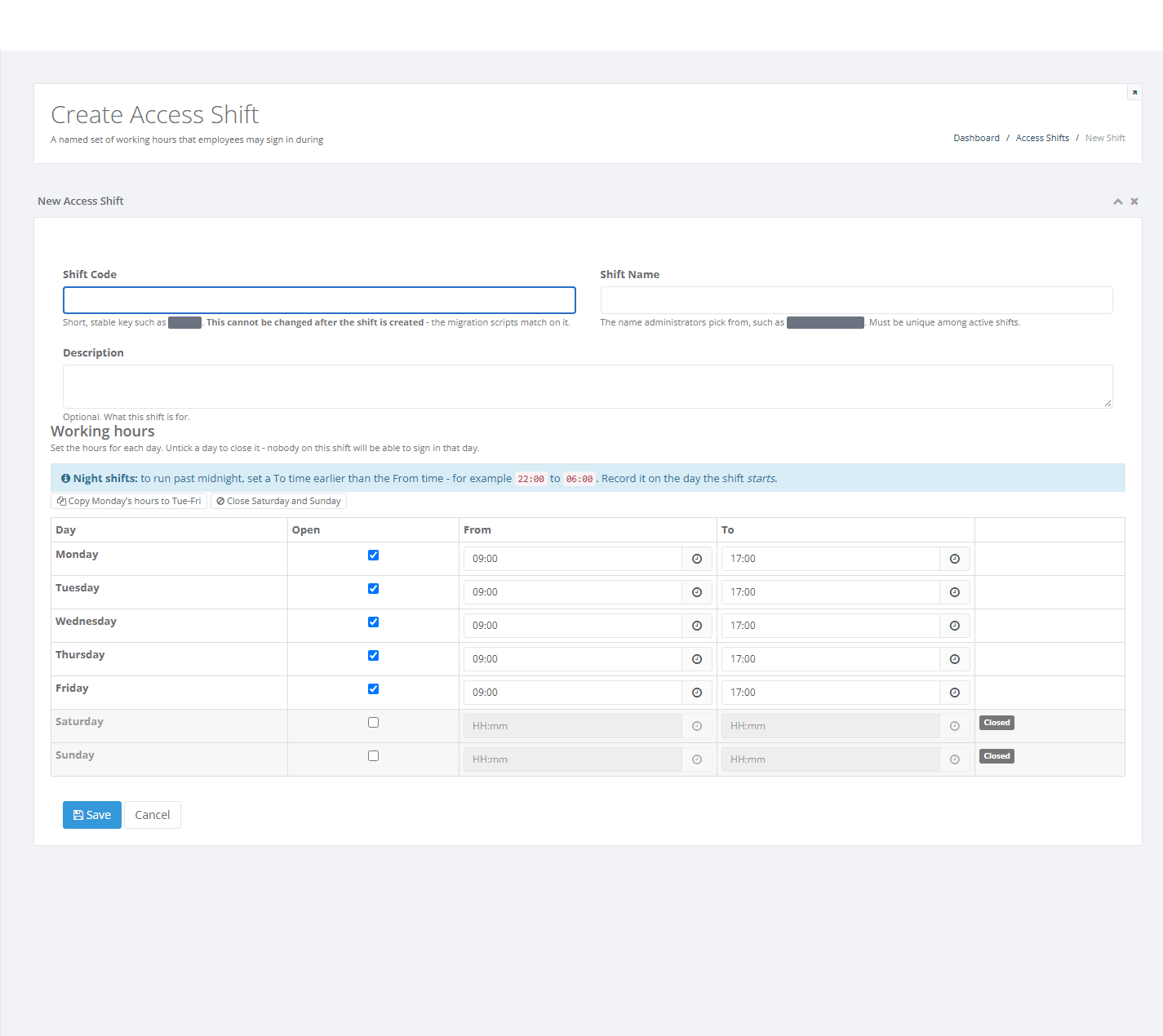
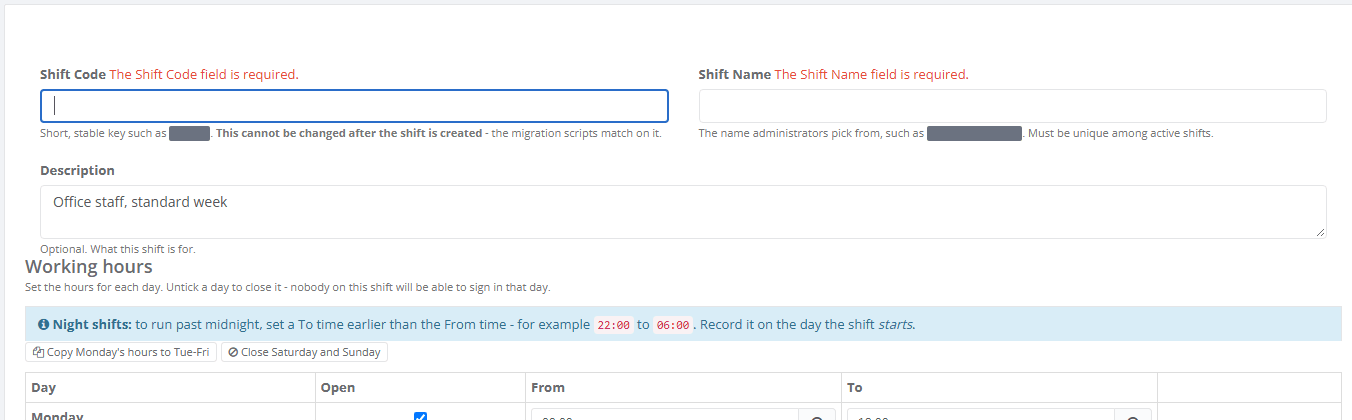
Click Add New. The form opens with a full week filled in: Monday to Friday open 09:00 to 17:00, Saturday and Sunday closed.
Type the Shift Code, for example DAY-01. Keep it short and stable. You cannot change it later.
Type the Shift Name, for example Day Shift. Administrators choose shifts by this name on Members.
Optionally type a Description.
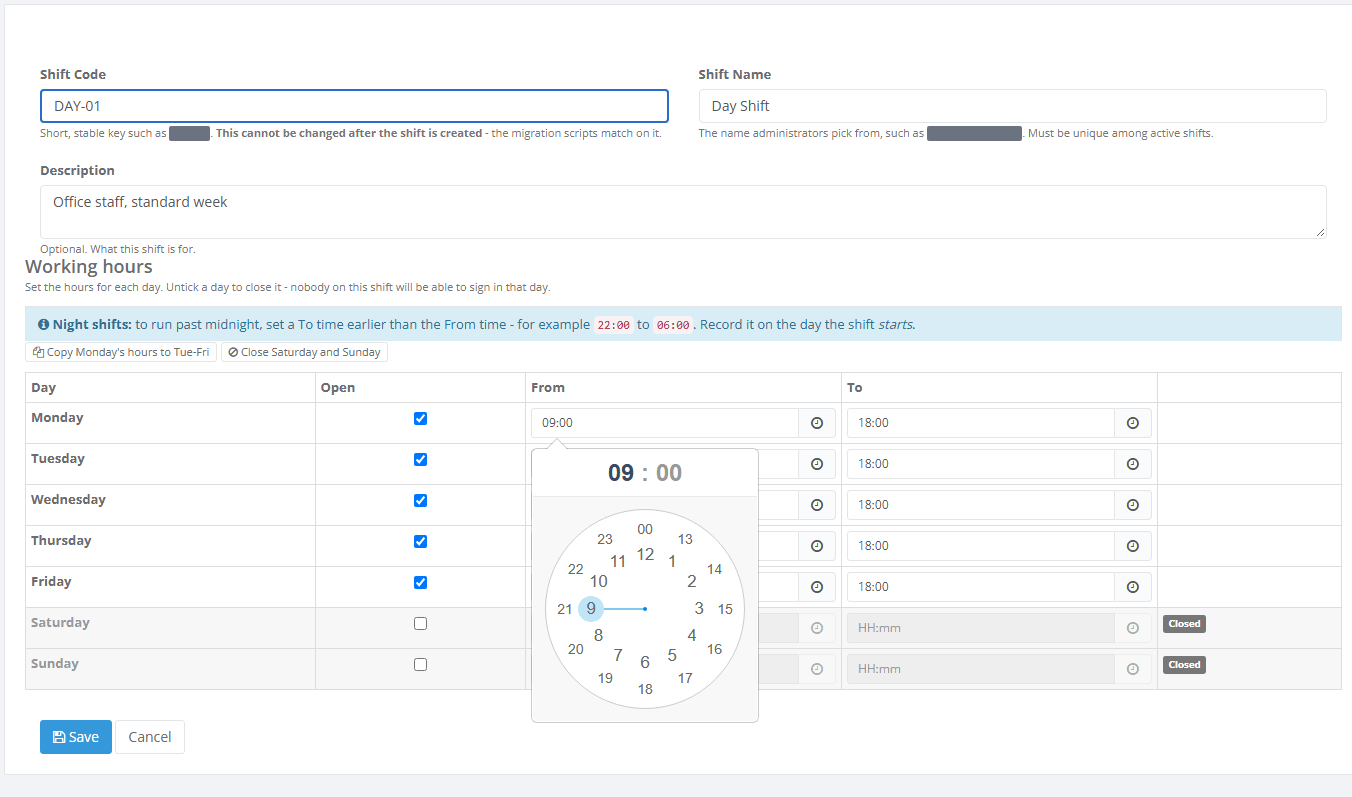
Under Working hours, change the times of each open day. Type them as hh:mm or click the clock symbol and pick the hour, then the minutes.
Untick Open on every day that is closed.
Click Save.
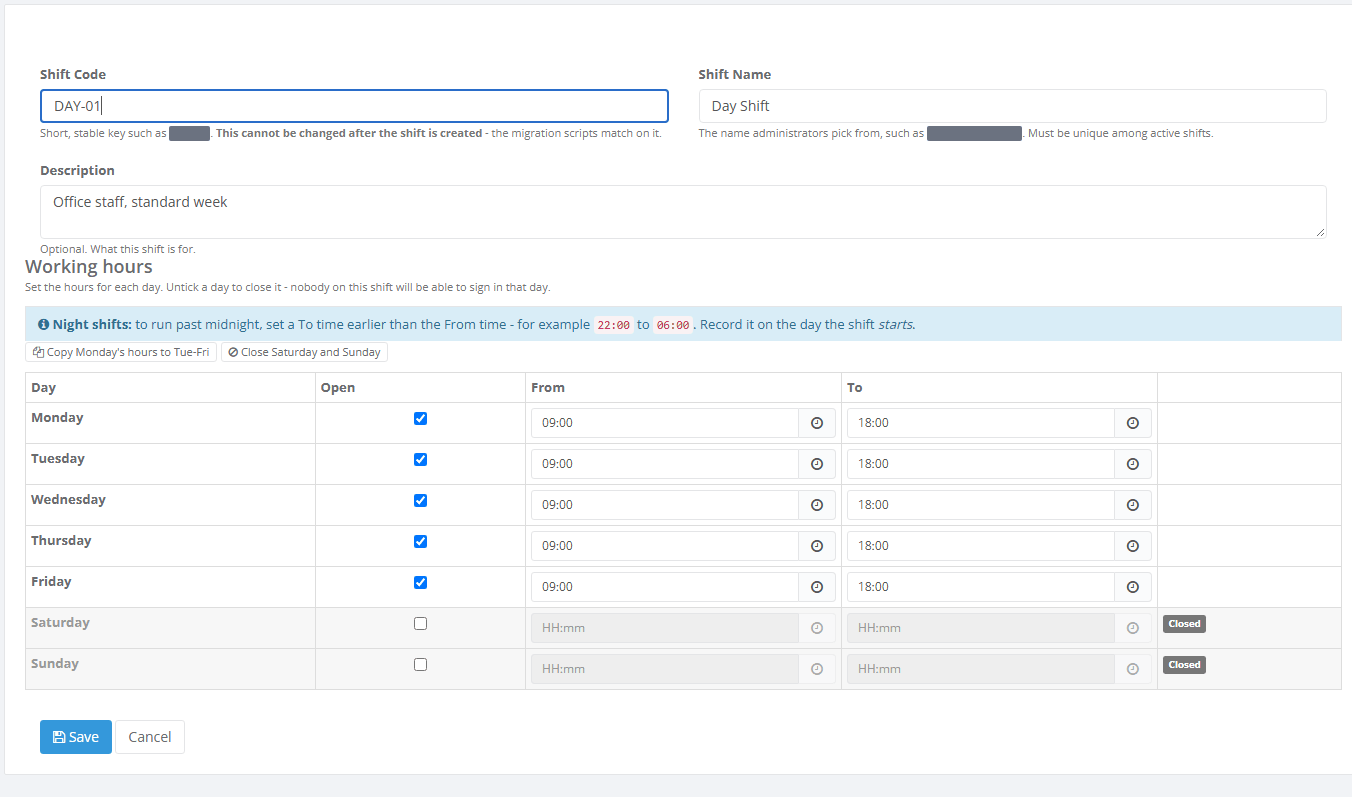
PharmaERP checks the form, then saves the shift and all seven days together. The shift is marked Active and one line, "Created", is written to its history. You return to the list with the green message "Saved Successfully". A new shift affects nobody until you link people to it on Members.
If the shift cannot be saved, the form stays open with your entries and a red Error! box lists every problem, one per line. Correct them and click Save again. Nothing is saved until every problem is fixed. A red message may also flash briefly with no text. You can ignore it. The box holds the real message. See Messages you may see.
2.3 Set up a night shift
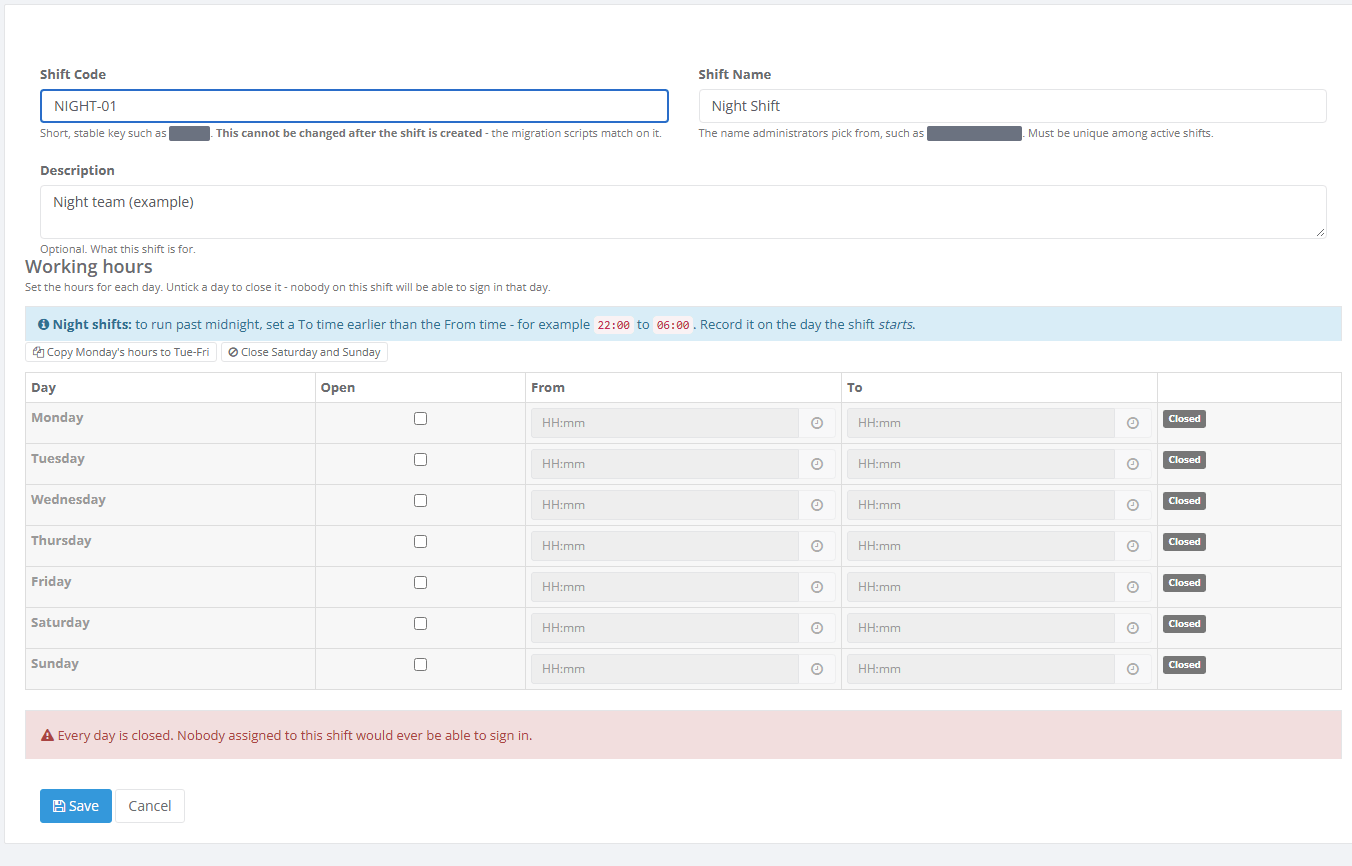
Some staff work through midnight, for example 22:00 to 06:00.
Click Add New. Type a Shift Code and Shift Name, for example NIGHT-01 and Night Shift.
On Monday, set From to 22:00 and To to 06:00. A blue overnight label appears. A To time earlier than the From time means "until that time the next morning". This is correct, not a typing error.
Click Copy Monday's hours to Tue-Fri, then Close Saturday and Sunday.
Click Save.
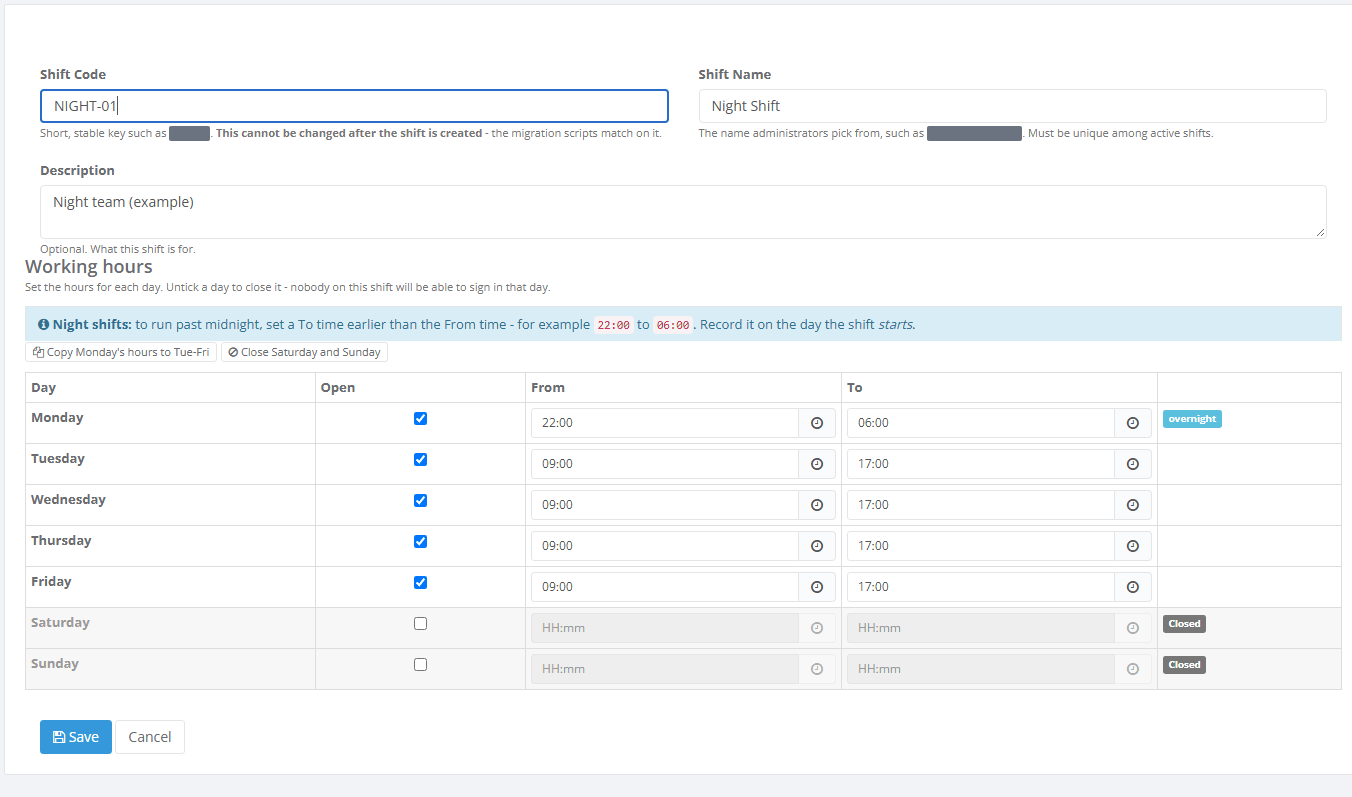
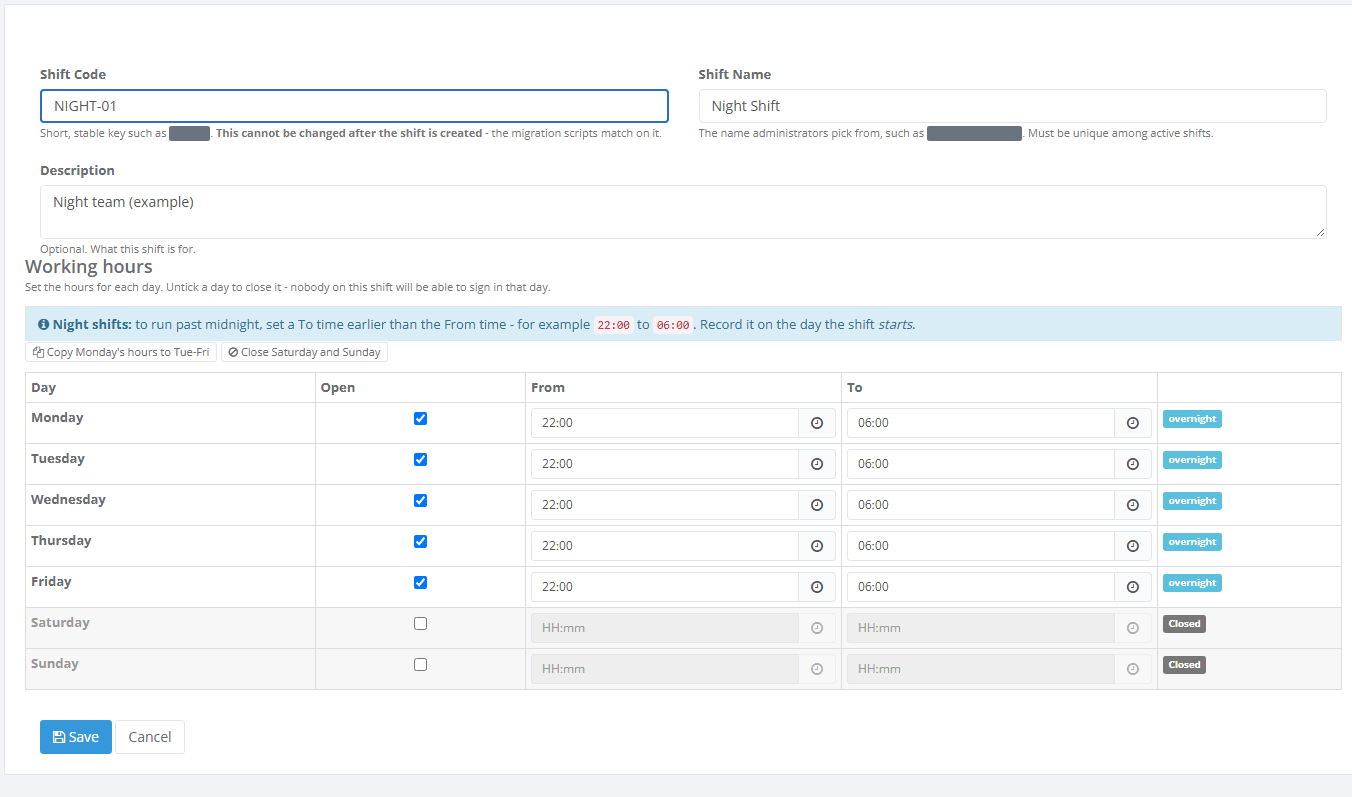
Write a night window on the day it starts. Friday 22:00 - 06:00 lets the person sign in at 02:00 on Saturday morning, even though Saturday is closed. See Time period expired at sign-in for how the check works.
2.4 Copy hours across days
In the working hours, set the hours for Monday.
Click Copy Monday's hours to Tue-Fri. Tuesday to Friday now show the same open tick and times.
Click Close Saturday and Sunday to untick both weekend days in one click.
Click Save.
Both buttons change only the screen. Nothing is saved until you click Save.
Unticking Open on a day clears its times. Ticking it again does not bring them back, so type the times again.
2.5 Change the hours of a shift
You need the Update right.
In the list, click the Option button of the shift and choose Edit.
Read the yellow box at the top. When people are linked to the shift, it says how many people are assigned and that any change applies to all of them at their next sign-in.
Change the hours. The Shift Code is grey and cannot be changed. You can change the name and the description.
Click Save.
If people are on the shift, PharmaERP asks "This change affects N employees assigned to this shift. It applies at their next sign-in. Continue?" Click OK to save or Cancel to go back.
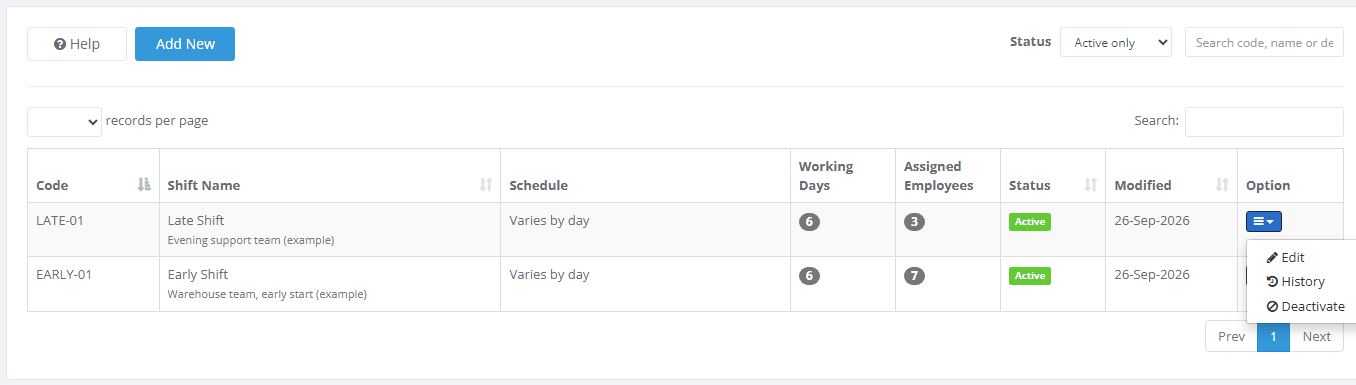
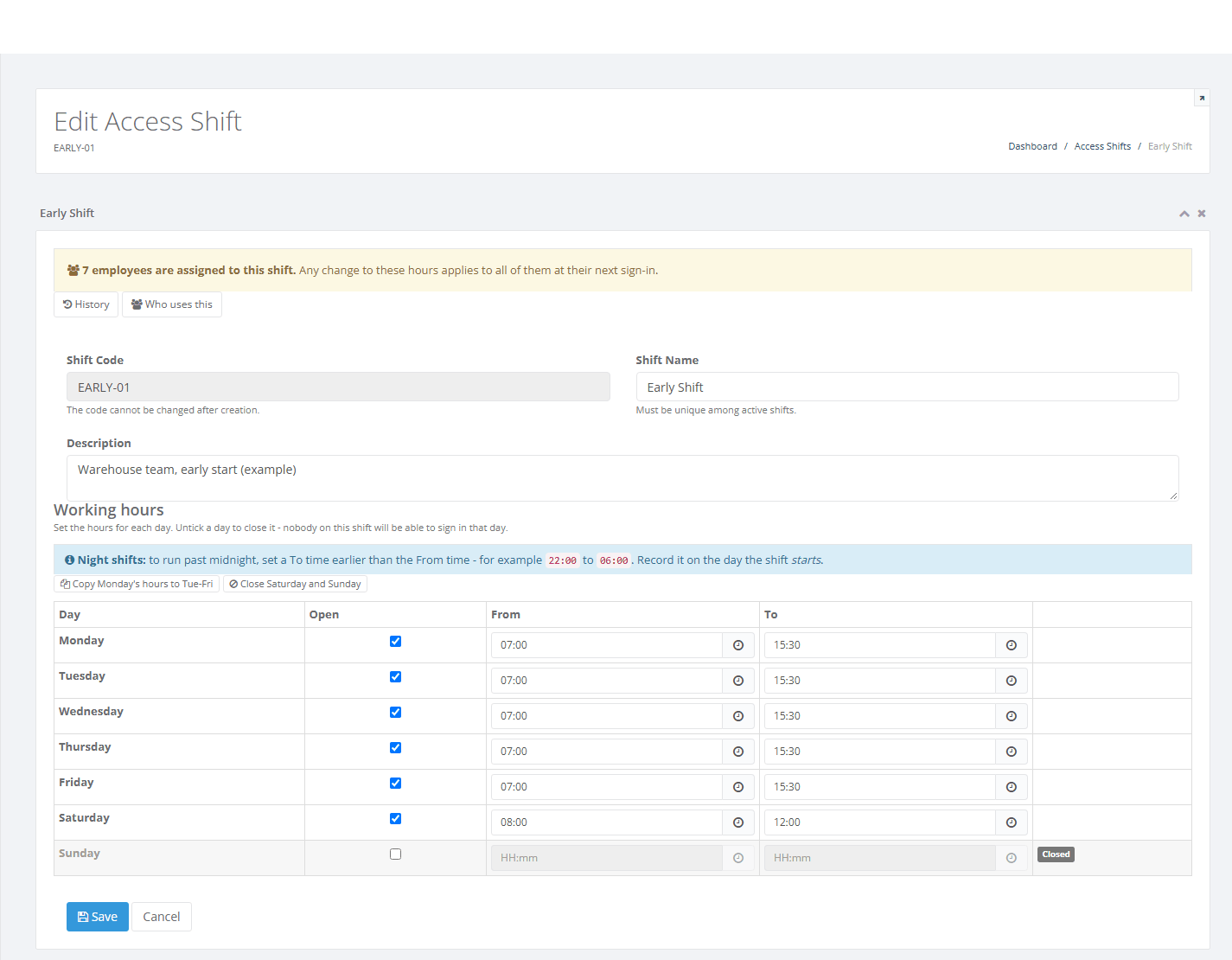
Only the days you changed are updated. Each change is written to the history with the old and new hours. PharmaERP does not notify the people concerned, so tell them yourself. The new hours apply the next time each person signs in. Anyone already signed in carries on.
2.6 See who uses a shift
Do this before you change or switch off a shift.
Open the shift with Edit or History.
Click Who uses this.
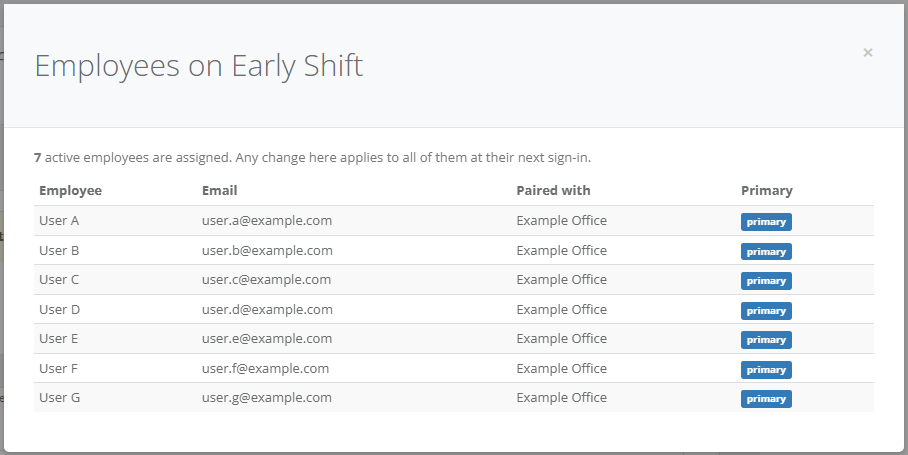
The window shows the number of active people and one line per person, with their e-mail address, the office where they hold the shift (Paired with) and whether it is their primary office. If nobody is linked, it says "No employees are assigned yet." Only active people with a current link are listed.
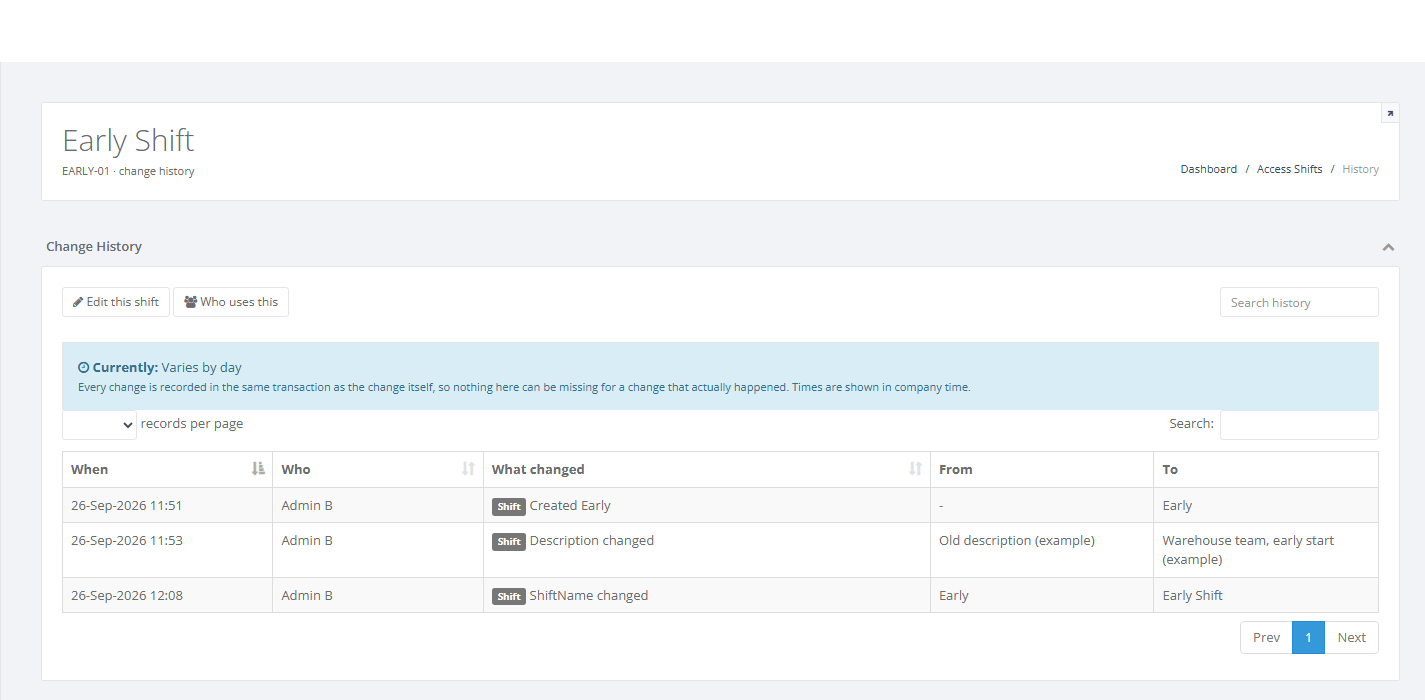
2.7 Read the history of a shift
Use the history to answer "who changed this shift, and when?", for example when a person says they were refused on a day they used to work.
In the list, click Option and choose History. You can also click History on the Edit page.
Read the Currently: line. It shows the hours of the shift today.
Read the list: When, Who, What changed, From and To. Times are in company time.
Type in Search history to narrow the list, for example Tuesday.
The list opens with the oldest change first. Click When to show the newest first. The history records the creation, every change of name or description, every changed day with its old and new hours and every switch off and on. The "Created" line records only the name, not the first week's hours. Who shows a first name only. Nothing can be edited or removed from the history.
2.8 Switch a shift off or on again
A shift is never deleted, so its history stays. You need the Delete right.
Click Who uses this and move everyone on the shift to another shift on Members first.
In the list, click Option and choose Deactivate.
Confirm the question "Deactivate this shift? Employees using it will no longer be able to sign in through it." with OK.
To bring a shift back, choose Inactive only in Status, click Option and choose Activate. No question is asked.
The shift now shows Inactive and disappears from the Active only list. If active people are still on it, PharmaERP refuses and nothing changes. Read Good to know before you rely on switching a shift off.
2.9 Link people to a shift on Members
You do this on the person's record, not on this page. You need the rights for Members.
Open Members and edit the person.
Set Time Access to Yes.
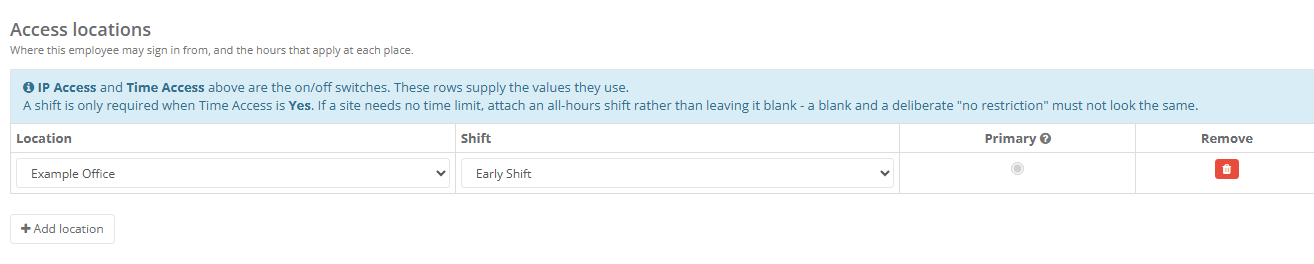
In the Access locations section, click Add location.
Choose the office in the Location column and the shift in the Shift column. Mark the row as primary.
Save the record.
Only active shifts are offered. The shift's Assigned Employees count goes up by one and the person appears in Who uses this.
2.10 Time period expired at sign-in
"Time period expired" appears on the sign-in page. It means the person signed in outside the hours of their shift. It is shown only to people whose Time Access is Yes. It is shown after the password was accepted, so the person's password is correct. The message does not say why on purpose. The reason, the office and the shift are recorded on Login Security.
2.10.1 How PharmaERP decides
PharmaERP takes the current day and time in the time zone of the person's office. If the office has no time zone, the company time zone applies. It then lets the person in if any one of these is true:
Today is open and the time is between From and To of today. The To time itself still counts, to the exact minute.
Today is open with an overnight window (To earlier than From) and the time is at or after today's From. The window carries on into tomorrow morning.
Yesterday had an overnight window and the time is before yesterday's To. This works even when today is closed.
If none is true, the person sees "Time period expired".
Example: a Day Shift of Monday to Friday 09:00 to 18:00, weekend closed.
The person signs in... | Result |
|---|---|
Tuesday 10:15 | Signed in |
Tuesday at exactly 18:00 | Signed in, because the end time itself still counts |
Tuesday at 18:00 and a few seconds | Refused with "Time period expired" |
Saturday 11:00 | Refused with "Time period expired", because Saturday is closed |
Tuesday 17:30, then keeps working until 19:00 | Keeps working, because hours are checked only at sign-in |
Example: a Night Shift of Monday to Friday 22:00 to 06:00, weekend closed.
The person signs in... | Result |
|---|---|
Wednesday 23:00 | Signed in, inside Wednesday's window |
Thursday 02:00 | Signed in, inside Wednesday's window that runs into Thursday |
Thursday 07:00 | Refused, because Wednesday's window ended at 06:00 and Thursday's starts at 22:00 |
Saturday 02:00 | Signed in, inside Friday's window, even though Saturday is closed |
Saturday 23:00 | Refused, because Saturday is closed and Friday's window ended at 06:00 |
Monday 02:00 | Refused, because Sunday has no window. Monday's window starts at 22:00 |
2.10.2 If you are a user
Check the day and the time on your computer and the time at your office. The hours follow your office's time, not your own.
Try again inside your working hours. Your password was correct.
If you should be allowed to sign in now, tell your administrator the day and time of the refusal and the office you work at.
2.10.3 If you are an administrator
Open Login Security and find the refused sign-in. Note the reason, the office and the shift that were matched.
Open Members and edit the person. Check that Time Access is what you intend, that the person has a row for this office with a shift and that one row is marked primary. A person with no shift on a row falls back to the old single start and end time on their record. If there is none, the person cannot sign in at all.
Open Access Shifts and open the shift with Edit. Check the row of the day of the refusal. Check that the day is ticked Open, that the hours cover the time and that a night window is written on the day it starts.
Open Access Locations and check the time zone of the office. A refusal at a time that looks allowed is usually a time-zone question.
Fix the cause. Either change the hours of the shift (see Change the hours of a shift) or link the person to another shift on Members. A change reaches each person at their next sign-in.
Tell the person to try again.
A change to a shift applies to everyone on it, at their next sign-in. Click Who uses this first to see who is affected. There is no start date and no preview.
For people who do not need any limit, link an all-hours shift. Enter 00:00 to 23:59 on every day. See Good to know for the one minute it does not cover. For other sign-in problems, see Signing in and I cannot sign in or cannot open a page.
2.11 Fields explained
Field | What to enter | Rules |
|---|---|---|
Shift Code | A short, permanent key such as DAY-01 | Required. Up to 30 characters. Must not be used by any other shift, active or inactive, in any upper or lower case. Cannot be changed after saving. |
Shift Name | The name administrators choose from, such as Day Shift | Required. Up to 100 characters. Must not equal the name of another active shift. |
Description | What the shift is for | Optional. Up to 500 characters. Describe the purpose, not the people. |
Day | Shown automatically | Always seven rows, Monday first. |
Open | Tick the days when people may sign in | Unticking a day closes it and clears its times. Ticking it again does not bring the times back. At least one day must be open. |
From | Start of the day's hours, as hh:mm | Required for an open day. 00:00 to 23:59. Must differ from To. |
To | End of the day's hours, as hh:mm | Required for an open day. A time earlier than From means the hours run into the next morning. Must differ from From. |
Status (list filter) | Choose which shifts to show | All, Active only (the default) or Inactive only. |
Search | Part of a code, name or description | Not case sensitive. |
3 Messages you may see
3.1 When you save a shift
Problems are listed one per line in a red Error! box above the form. Your entries stay on the screen.
Message | What it means | What to do |
|---|---|---|
Saved Successfully | The shift was saved and nobody is on it. | Nothing. Link people on Members. |
Saved. This change affects N employees assigned to this shift and applies at their next sign-in. | The shift was saved and people are on it. | Tell those people about the new hours. |
The Shift Code field is required. / The Shift Name field is required. | The code or the name is empty. The page shows this next to the field before sending. | Fill them in. |
Shift Code is required. / Shift Name is required. | The same problem, shown in the red box. | Fill them in. |
Shift Code cannot be longer than 30 characters. | The code is too long. | Shorten it to 30 characters or fewer. |
Shift Name cannot be longer than 100 characters. | The name is too long. | Shorten it to 100 characters or fewer. |
Description cannot be longer than 500 characters. | The description is too long. | Shorten it to 500 characters or fewer. |
Shift Code "..." is already in use. | Another shift, even an inactive one, has that code. | Choose another code. Open Inactive only in Status to see switched-off shifts. |
Another active shift is already called "...". | An active shift has that name. | Choose another name or deactivate the old shift first. See Switch a shift off or on again. |
Monday is marked as a working day but has no hours. Enter both a From and a To time or mark the day closed. | A day is ticked open but a time is empty or a time was typed in a form PharmaERP cannot read, such as 25:00 or 9.30. | Type both times as hh:mm or untick the day. |
Monday has the same From and To time. For a full day enter 00:00 to 23:59. | From equals To. | Change one of the times. |
Monday has a time outside 00:00-23:59. | A time such as "9" without minutes. | Type hh:mm, for example 09:00. |
Every day of this shift is closed, so nobody assigned to it would ever be able to sign in. Mark at least one day as a working day. | No day is ticked open. The form also warns "Every day is closed. Nobody assigned to this shift would ever be able to sign in." | Tick Open on at least one day. |
A shift must define all seven days. / Tuesday is missing - a shift must define all seven days. / Tuesday appears more than once. | The form was sent without all seven days. This does not happen in normal use. | Close the form, open it again and re-enter the hours. Contact support if it persists. See Error Log. |
Day value N is not valid - days run from 0 (Sunday) to 6 (Saturday). | A day of the week could not be read. This does not happen in normal use. | Open the form again and retry. Contact support if it persists. |
The shift could not be saved. Nothing was changed. | An unexpected failure while saving, for example someone saved the same code at the same moment. Nothing is saved. | Try again. If it persists, contact support and see Error Log. |
That shift no longer exists. | The shift you opened or are saving is not there. | Go back to the list and open it again. |
3.2 Questions and refusals on the list and Edit page
Message | What it means | What to do |
|---|---|---|
This change affects N employees assigned to this shift. It applies at their next sign-in. Continue? | You clicked Save on a shift that people use. | Click OK to save or Cancel to go back. |
Deactivate this shift? Employees using it will no longer be able to sign in through it. | You chose Deactivate. | Click OK to go on. Check Good to know first. |
This shift cannot be deactivated because N active employees are still using it. Move those employees to another shift first. | You tried to deactivate a shift that active people still use. Nothing changed. | Click Who uses this, then move each person to another shift on Members. Try again. |
The change could not be saved. Nothing was changed. | Activate or Deactivate failed. A common cause: while the shift was inactive, an active shift took its name. The message gives no reason. Also shown when you have no Delete right. | Rename one of the two shifts and try again. Ask your administrator to check the Delete right in Roles. Contact support if it persists. See Error Log. |
That list could not be loaded. | Who uses this failed to load. | Close and open it again. Contact support if it persists. |
No employees are assigned yet. | Nobody active is linked to the shift. | Nothing. Link people on Members. |
No data available in table | The list or history has nothing to show for this filter or search. | Change Status or clear the search box. |
3.3 Access and sign-in
Message | What it means | What to do |
|---|---|---|
Access Denied page | Your role lacks the right for what you tried. Examples: Edit this shift on the history page without Update or opening the page without View. | Ask your administrator to tick the right in Roles. Sign out and sign in again. See Signing in. |
The sign-in page appears while you work | Your session ended or you were signed out. | Sign in again. See Signing in. |
Time period expired | Shown on the sign-in page when a person signs in outside their shift. | Follow Time period expired at sign-in. |
4 Troubleshooting
4.1 The list is empty or a shift is missing
Check Status. The list opens with Active only. Choose All to include switched-off shifts.
Clear the search box. There are two search boxes and both filter the list.
If you still see nothing, you may have no View right. Ask your administrator to check it in Roles.
4.2 A button or menu item is missing
Check the right: Add New needs Create, Edit needs Update, Activate and Deactivate need Delete.
Ask your administrator to tick the right in Roles.
Sign out and sign in again, because rights are read at sign-in.
4.3 I saved a change and people are still refused
Open History and check the change was saved and which day it changed.
Check the person's row on Members: the office, the shift and the primary mark. The person may use a different shift than you changed.
Check the time zone of the office on Access Locations.
Tell the person to sign out, then sign in again. A change reaches a person only at their next sign-in.
4.4 I deactivated a shift and people can still sign in by it
This is expected. Switching a shift off hides it from Members but does not stop its hours applying to people still linked to it.
Open Members, edit each person and choose another active shift.
If the shift must be removed from use for good, do not rely on Deactivate alone. Move every person first.
4.5 A switched-on person has lost their shift
A switched-off person is not counted when you deactivate a shift, so the shift may have been deactivated under them.
When the person is switched on again, their row still points at the inactive shift and the Shift list shows only active shifts. Saving the record then clears the shift.
Open Members, edit the person and choose an active shift in the Shift column before you save.
4.6 Activate shows "The change could not be saved"
Open Active only in Status and look for an active shift with the same name as the one you want to bring back.
Rename one of the two shifts with Edit.
Try Activate again.
If none of this helps, send the day, the time and what you clicked to support and see Error Log for what to include.
5 Good to know
Switching a shift off does not stop it applying. A person still linked to an inactive shift keeps signing in by its hours. Move everyone to another shift before you deactivate.
Hours are checked only at sign-in. A person who is already signed in can keep working after the shift ends and a change you save reaches people only at their next sign-in.
00:00 to 23:59 is not quite all day. The end time counts only to the exact minute, so a person on such a shift is refused in the last minute of the day. 24:00 cannot be entered.
The hours are read in the time zone of the person's office. If the office has none, the company's time zone applies. See Access Locations.
On Members, the choice "-- No time restriction --" does not mean "no limit". For a person who should have no limit, link an all-hours shift instead.
Keep people's names out of the description. Everyone who can open this page can read it. Who uses this already shows who is on the shift.
Who uses this shows names and e-mail addresses to everyone with View. Give View only to people who may see this.
The Modified date in the list is in universal time and the history is in company time, so around midnight the two dates can differ by a day.
Two administrators editing the same shift: the later save wins. Both changes are in the history.
Nobody is notified when a shift changes. Tell the people concerned yourself.
See also: Signing in, Login Security, Roles, Error Log and I cannot sign in or cannot open a page.
The built-in Help page on this page repeats the main points: what a shift is, the seven days, night shifts, the all-hours shift, time zones, examples and common problems.
If a field is left empty, the browser shows its message next to the label before anything is sent.
If every day is unticked, a red box warns you before you save.