The Error Log is where you find out what went wrong when a user reports a problem. PharmaERP writes a log entry by itself at the moment something fails, is refused or ends unexpectedly and this page lets you search, filter and read those entries. It is used by the administrators who look after PharmaERP and by IT support colleagues who help users. Ordinary users do not normally see this page.
1 Before you start
You need the AdminMember - View tick in Roles (Role Master) to open the page, search, filter and read entries. To run a History Cleanup you also need the AdminMember - Delete tick.
There is no separate Error Log tick. The same AdminMember ticks also open the Members list, Login Security and the user and owner assignment pages, so give them only to people who may see everybody's activity. Ticks are read when a person signs in. After a change, the person must sign out and sign in again (see Signing in).
Nothing has to be set up first. Entries appear by themselves as soon as something is logged. The log shows a member number (for example ID 25), not a name. To find out who that is, look the number up in Members.
To open the page:
Sign in to PharmaERP.
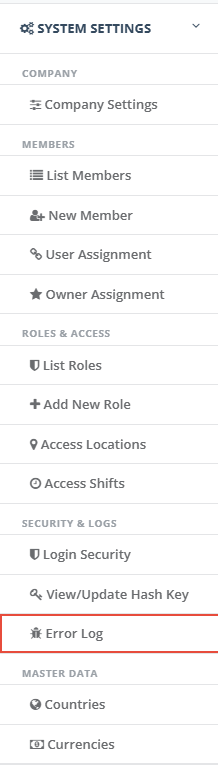
In the left menu, open System Settings.
Under the heading Security & Logs, click Error Log.
2 Step by step
2.1 The page at a glance
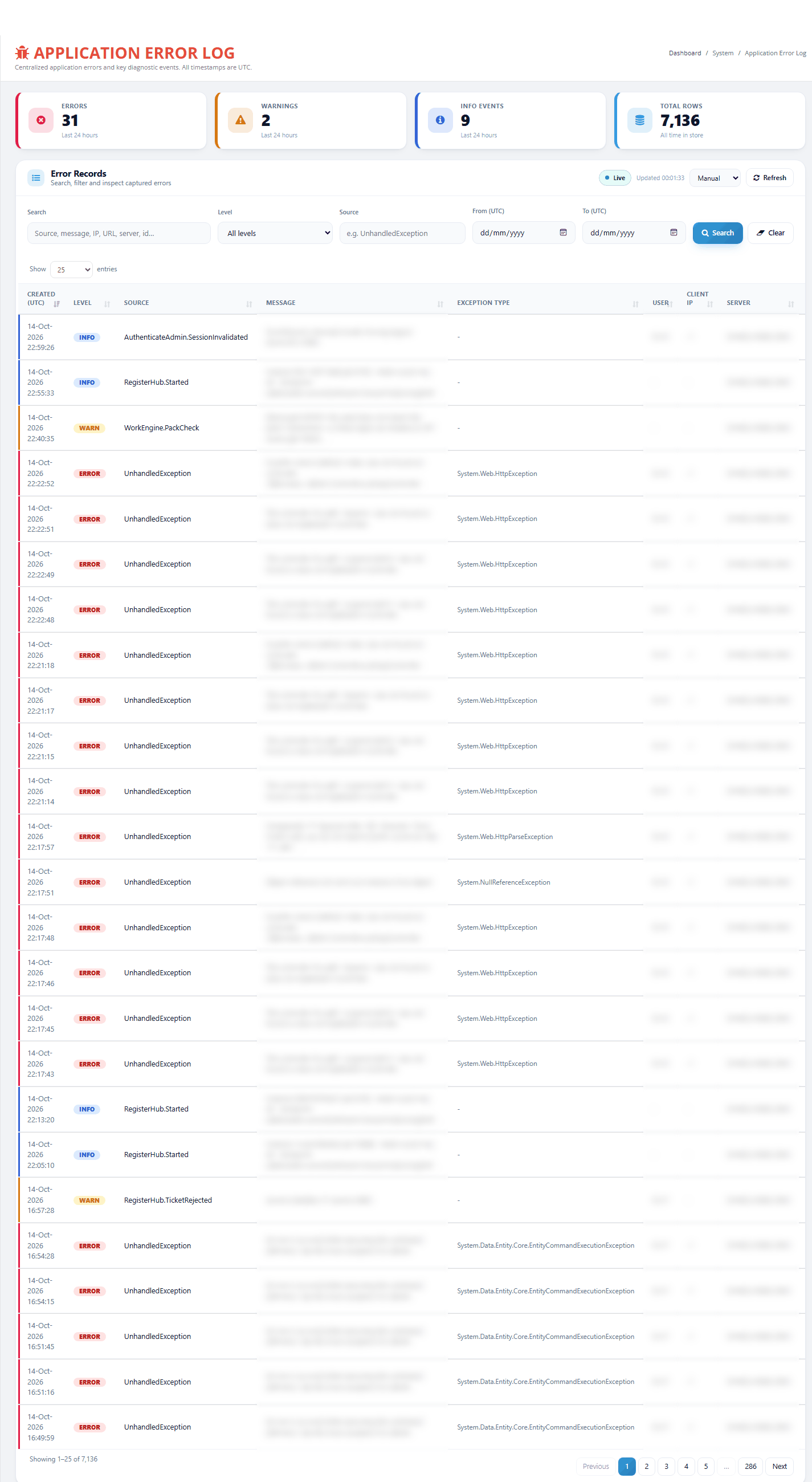
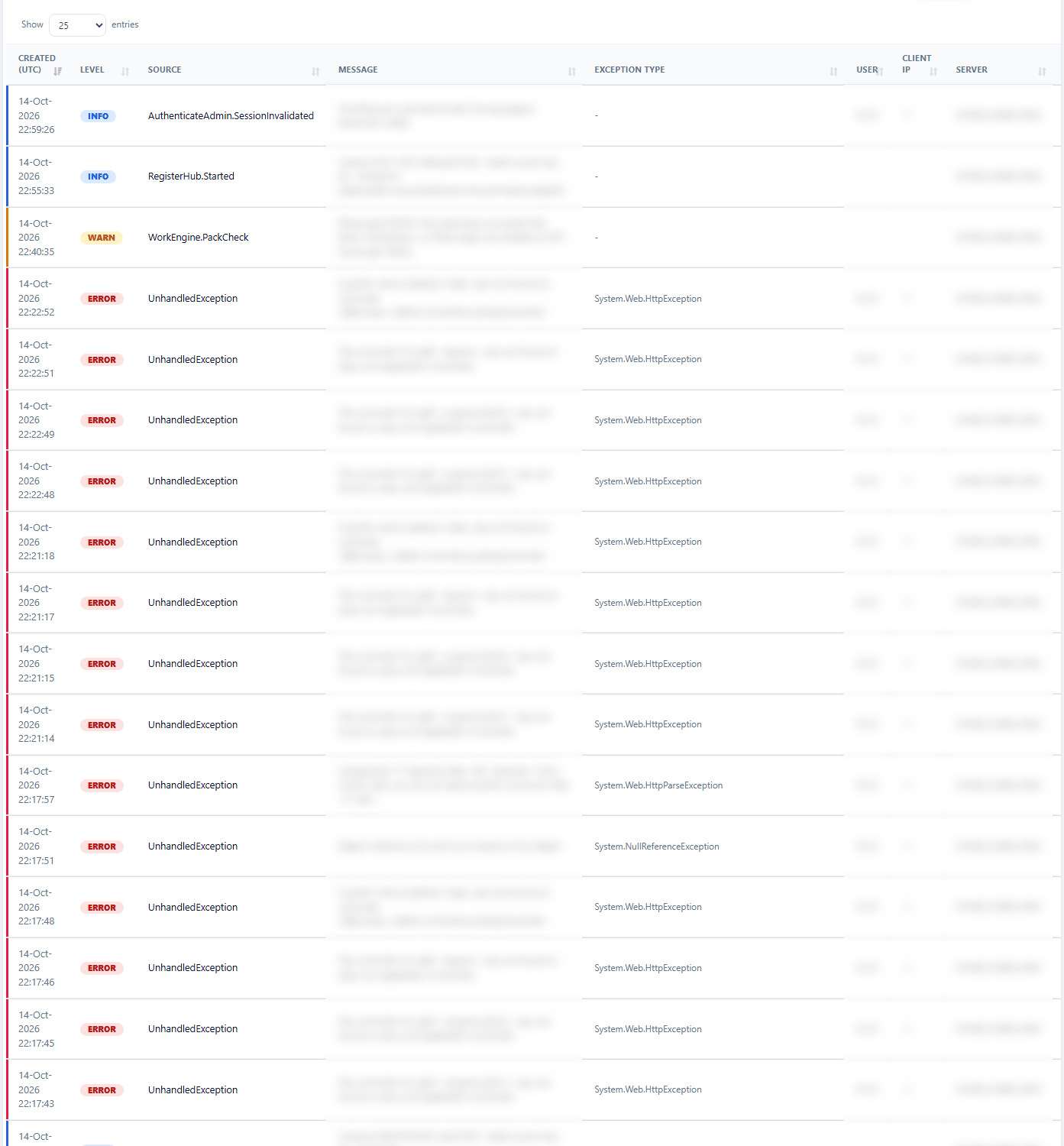
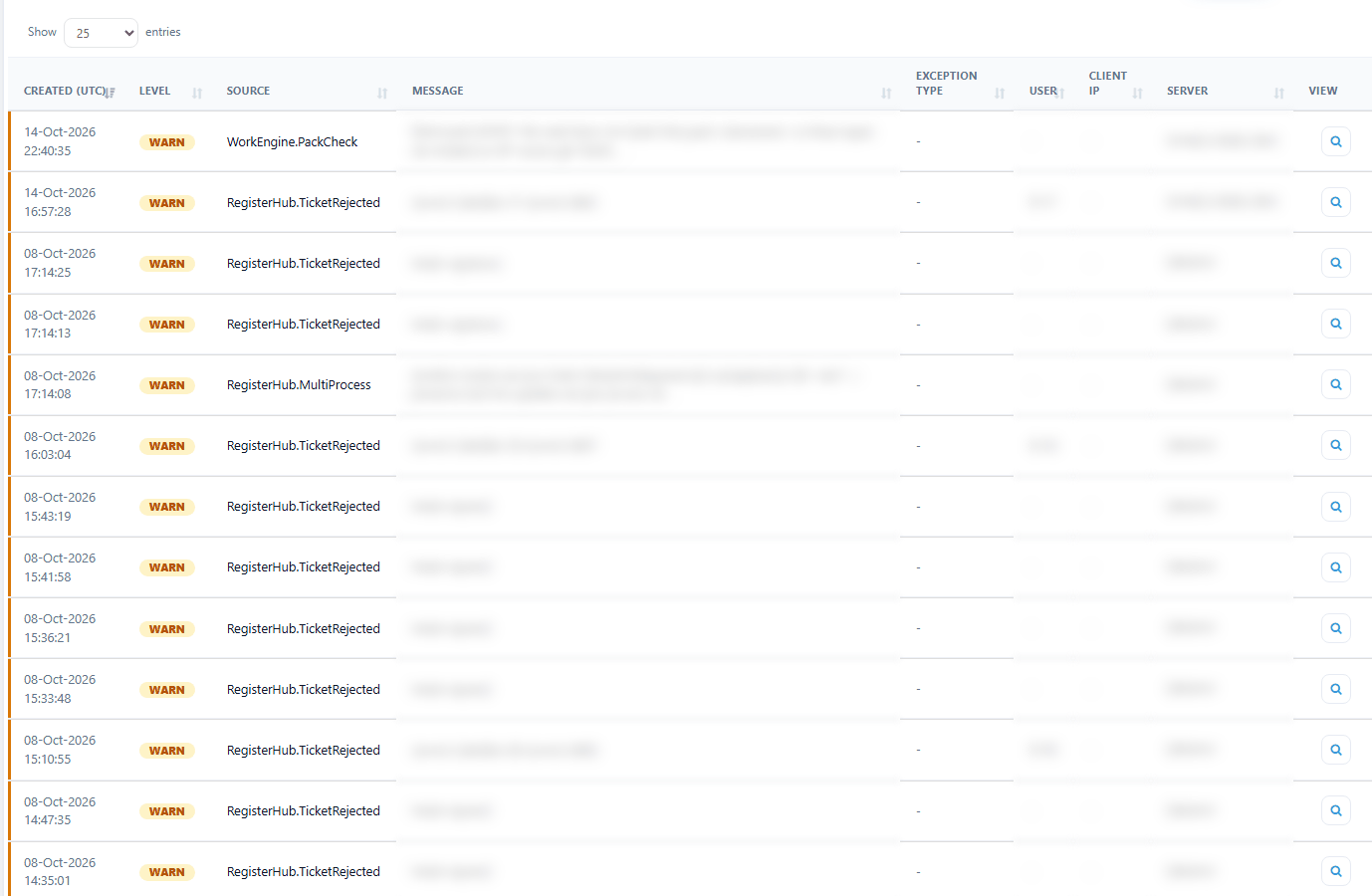
The page has four counters at the top: Errors (Last 24 hours), Warnings (Last 24 hours), Info events (Last 24 hours) and Total rows (All time in store). Below them are the tools, the filter bar and the list of entries, 25 per page, newest first. The History Cleanup box is also on this page. Click the magnifier button in View on a line to open its details from the right.

2.2 Find the entry for a user and a time
Ask the user for the time it happened, the screen they were on and the reference if the screen showed one (for example RCV-1A2B3C).
Open the Error Log.
If the user gave a reference, type it in Search and press Enter. If not, go to step 3.
Choose a Level. For a failure, choose ERROR. For a refused action or a sign-in that ended, choose WARN or INFO (see What the levels mean).
If you know the area, type part of its name in Source, for example WarehouseHub.
Pick the day in From (UTC) and To (UTC). The To day is included.
Click Search.
Look along the lines for the right time, the user's member number in User (for example ID 25) and a fitting Message. To search for one person, type their member number in Search. A number also finds the entry with that number, so check the User column.
Click the magnifier button in View on that line.
Times in the list are UTC. In British Summer Time, 10:15 in the office is 09:15 in the list. A late-evening event can also appear under the next day in the date filters.

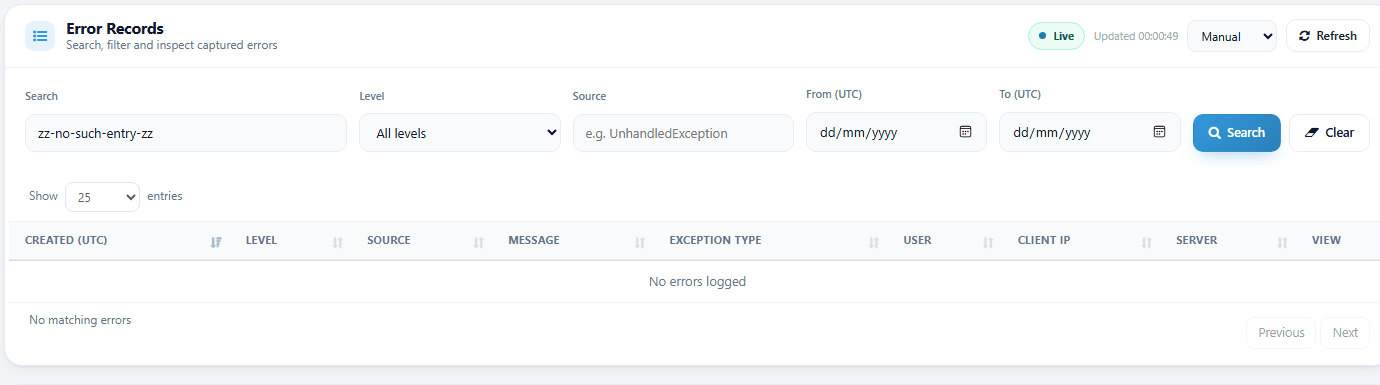
If nothing matches, the list says No errors logged and the line under it says No matching errors. The log is not empty; your filters found nothing. Widen the dates, clear Source, choose All levels or click Clear. Check that From is not later than To.
2.3 Read one entry and pass it on
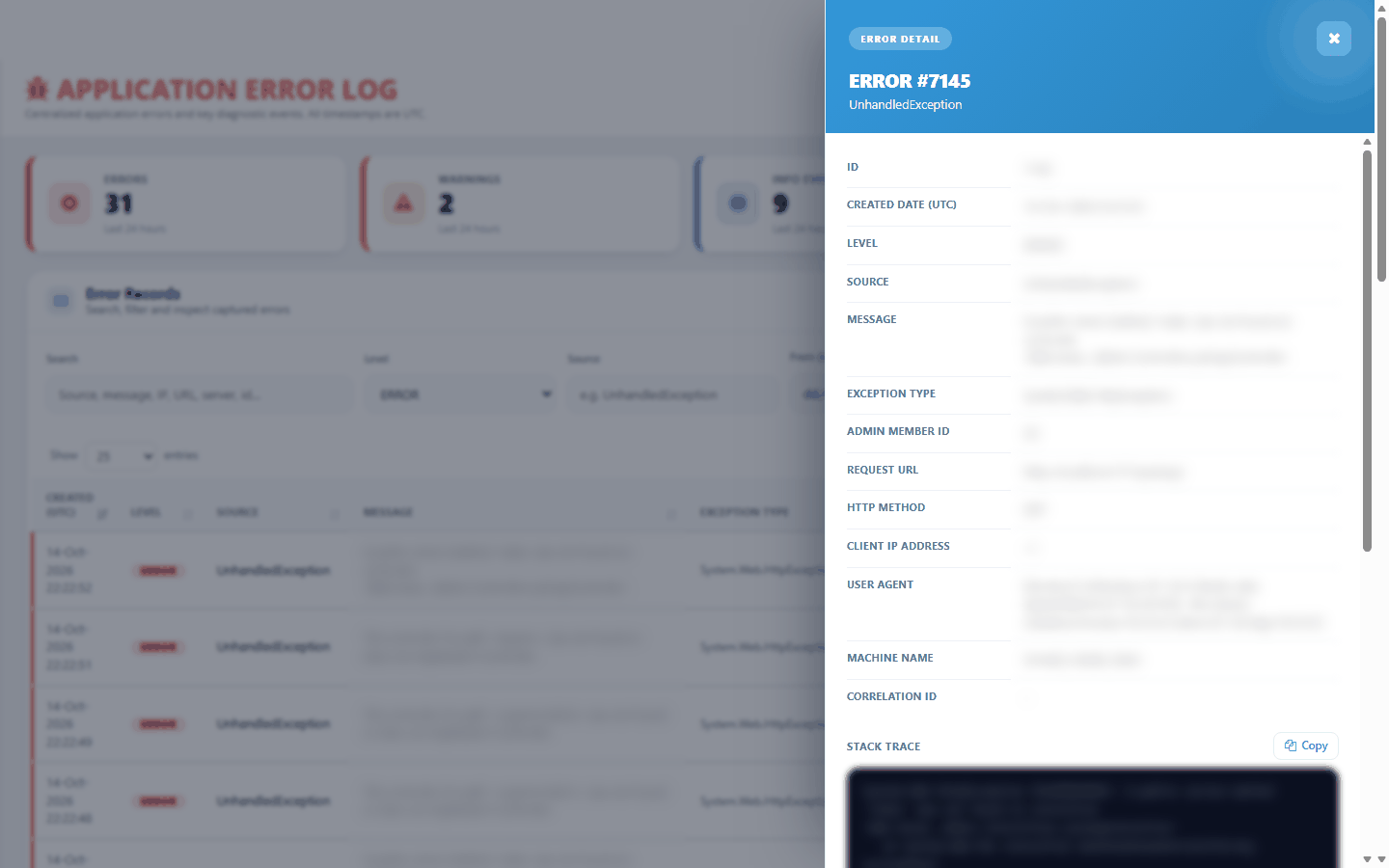
In the details panel, read the heading, for example ERROR #1234 and the Source under it.
Read Message. It says in one sentence what failed. Refused actions also name the role and the tick that would allow the action.
Check Admin Member ID, Request URL and Created Date (UTC) against what the user told you.
If a developer must look at it, click Copy beside Stack trace. The button shows Copied.
Paste the text into your message to the developer, together with the entry number, the time and the reference.
Close the panel with the X at the top, a click on the dark area beside it or the Esc key.
Afterwards you either act yourself, for example by giving the missing tick in Roles and asking the user to sign out and sign in again or the developer looks into it. The page has no "dealt with" status, so the entry stays in the log.
2.4 Keep an eye on the log
Look at the three 24-hour counters. A sudden jump in Errors (Last 24 hours) is worth a look.
Choose ERROR in Level and look at the Source and Message of the newest lines. Many identical lines usually mean one problem.
If you keep the page open, choose Every 30s or Every 60s in Auto refresh. Choose Manual to stop.
Click Refresh at any time to update the counters and the list at once.
Not every ERROR is a real problem. Requests for pages that do not exist, including automated internet scanners, are logged as ERROR too.
2.5 Remove old history (History Cleanup)
Use this only if you hold the AdminMember - Delete tick and only after agreeing the number of days to keep under your company's retention rule. The removal cannot be undone and is not recorded anywhere.
In History Cleanup, type the number of days to keep in Retention days (keep newer than). The suggested number is 90. The smallest allowed is 7; a smaller number is treated as 7 and a blank box or 0 is treated as 90.
Click Preview.
Read the note. It says how many entries are older than the window. Run Cleanup becomes available only when that number is more than 0.
Do not change the number after the preview. Click Run Cleanup.
In the browser box, click OK to delete or Cancel to stop.
Read the green message, which says how many entries were deleted.


3 What the levels mean
Every entry has a level, set when it is written. It never changes.
Level | Colour | What it means | Typical examples |
|---|---|---|---|
ERROR | Red | Something failed: a screen, a save or a background step. | A page that failed unexpectedly, a warehouse step that failed, a page address that does not exist. |
WARN | Amber | Something was refused or only partly done, without crashing. | A refused delete, a rejected live-update connection, background work at sign-in that did not finish. |
INFO | Blue | A notable event that is not a fault. | A sign-in that was ended by the system, the live-update service starting. |
4 What the common entries mean and how to fix them
The Source column tells you which part of PharmaERP wrote the entry. A part of the name is enough in the Source filter.
Source and level | What it means | What to do |
|---|---|---|
UnhandledException (ERROR) | A screen or data request failed unexpectedly or someone asked for a page that does not exist. The User column shows who was signed in. | Compare the time and Request URL with the user's report. If the screen failed, copy the Stack trace and send it to a developer. If the address does not exist, no action is needed. |
AdminPermission.Refused (WARN) | A user tried a protected delete (a customer's address, contact, bank detail or document or a supplier's document) without the right tick. The message names the user, the role and the tick. | Give the named tick to the role in Roles if the person should be allowed. Ask the user to sign out and sign in again. |
Customer.DeleteOutsideScope or Supplier.DeleteOutsideScope (WARN) | A delete was refused because the customer or supplier is outside the user's own records. | Check who owns the record in Owner Assignment and the user's assignments in User Assignment. |
AuthenticateAdmin.SessionInvalidated (INFO) | The system ended a user's sign-in: it was revoked, it expired or the site restarted. | Ask the user to sign in again. If they say they were signed out without reason, check the sessions in Login Security and see Signing in. |
AuthenticateAdmin.TouchLastSeen (WARN) | The check that keeps a sign-in alive failed once. | If the user was signed out or a page stopped responding, ask them to sign in again. If it repeats, see Login Security and report it. |
Login.LoginLog, Login.ServerInfo or Login.CurrencyRates (WARN) | Background work at sign-in (login history, server information, exchange rates) did not finish. The sign-in itself worked. | The user can carry on working. If it repeats, report it to support with the entry details. |
WarehouseHub, Warehouse, LogisticHub, LogisticJobDetail (ERROR or WARN) | A warehouse or logistics step (goods-in, dispatch, barcode look-up, delivery, booking or leg) failed or was refused. It may carry an RCV- or DSP- reference. | Search for the reference or the time. Read the Message. If it does not say how to fix it, send the entry to a developer. |
LogisticFlowHealth or WarehouseFlowHealth (ERROR or WARN) | A flow-health check or put-right failed. It carries an LFH- or FH- reference. | Search for the reference and send the entry to a developer. |
WorkEngine (ERROR or WARN) | The task engine could not raise or update tasks or found a difference in a pack check. It carries a WRK- reference. | Search for the reference and check the work in Work Engine Admin. Send the entry to a developer if it repeats. |
RegisterHub, TaskHub, WarehousePackHub (WARN or INFO) | The live connections that refresh screens and the bell. A rejected ticket or a start-up note. | Usually no action. If screens do not refresh for a user, ask them to reload the page and sign in again. |
BCSync.Job (ERROR) | The Business Central synchronisation job reported a failure. | Send the entry to a developer. |
If a user says "I cannot sign in" or "I cannot open a page", start with Sign-in problems. It lists the causes and the page that holds each fix, such as roles, office locations, working-hour shifts and Hash Key. Use the Error Log to confirm what happened at that time.
5 Messages you may see
Message | What it means | What to do |
|---|---|---|
Loading… | The list is being fetched. | Wait a moment. |
No errors logged | Nothing is listed. The log may be empty, but more often nothing matches your filters. | Read the line under the list. |
No matching errors | Nothing matches your search and filters. | Widen the dates, clear Source, choose All levels or click Clear. |
Failed to load error log. | The list could not be fetched. The message disappears after a few seconds. | Click Refresh. If it keeps failing, sign out and sign in again, then report it. |
Failed to load detail. | The details of one entry could not be fetched. | Click the magnifier again or refresh the page. |
Error log entry was not found. | The entry was removed, for example by a cleanup, after the list was shown. | Click Refresh. |
(no stack trace) | The entry has no technical details, for example a refusal or an event. | Nothing to copy. The Message has the information. |
Copied | The stack trace is on your clipboard. | Paste it into your message to the developer. |
Eligible to delete: N row(s) older than D days. | Shown after Preview. | Check N. If it is 0, Run Cleanup stays greyed out. |
Permanently delete error rows older than D days? This cannot be undone. | The browser asks before the cleanup runs. | Click OK to delete or Cancel to stop. |
Cleanup completed. Deleted N error log row(s) older than D days. | The cleanup finished. | Write down the number, because the system does not keep it. |
Cleanup failed. No rows were removed. Please try again or contact support. | The cleanup could not run. Nothing was deleted. | Try again later. Report it if it repeats. |
Cleanup request failed. | The request did not reach the system. | Refresh the page and try again. If it repeats, sign in again. |
Signed out (with Sign in again) | Your sign-in ended while the page was open. | Click Sign in again. You return to this page. See Signing in. |
Access Denied page | You do not hold the AdminMember - View tick. | Ask your administrator to add it in Roles, then sign out and sign in again. |
6 Troubleshooting
6.1 The reference a user gave is not in the log
Search for the time and the Source instead, with Level set to ERROR.
If the same fault happened twice within about 10 seconds, only the first entry is kept. Look for the earlier entry.
Entries written while the database could not be reached are not shown on this page. Report the time and reference to support.
6.2 Run Cleanup seems to do nothing
If you hold only the AdminMember - View tick, Preview works but Run Cleanup is refused and the page may show no message or an old one.
Ask your administrator to check that your role has AdminMember - Delete in Roles.
Sign out and sign in again, then repeat Preview and Run Cleanup.
6.3 The counters or the preview do not change
The counters and the cleanup preview do not show an error when they fail. Click Refresh.
If the numbers still do not change, reload the page. If you are signed out, sign in again.
6.4 The magnifier button in View is missing
On a small screen the last column can be pushed out of the list and there is no sideways scroll.
Zoom the browser out (Ctrl and minus), widen the window or filter to fewer lines.
6.5 If you are a user and saw an error page
Note the time, the screen you were on and any reference such as RCV-, DSP-, WRK-, LFH- or FH- shown on the screen.
Send these to your administrator. You cannot open the Error Log yourself.
For sign-in or access problems, see Sign-in problems.
7 Good to know
Cleanup cannot be undone and leaves no trace. Agree the number of days first and write down who ran it, when and how many entries were removed. The same Delete tick that removes members also removes log history.
All times are UTC. The list is one hour behind the office clock in British Summer Time. Only the Updated time next to the Live badge shows your local time.
The Live badge always pulses. The page reloads by itself only when Auto refresh is Every 30s or Every 60s. It goes back to Manual when you reopen the page.
The log is never emptied automatically. Old entries make searching slower, so agree a retention period.
The log holds personal data: member numbers, internet addresses, browser details and sometimes names inside messages. Use it only to solve the problem and share copied details only with the developers.
Anyone with the AdminMember - View tick sees every entry of every user.
Nothing on this page creates or changes an entry. Searching, sorting, opening details and copying only read the log. Run Cleanup is the only action that changes data.
See also Login Security for sign-in history and sessions, Members to look up a member number and Sign-in problems.