Everyone who signs in to PharmaERP belongs to one role, for example Sales Executive or Warehouse. The role decides which menu items a person sees, which pages open for them, whether they may add, change or delete records there and a set of finer Yes/No rules. The Role Master screen is the one place where you write this down. It is used by system administrators who manage access and by the managers who ask for access changes. It is also the place where an Access Denied page is fixed: see Fix Access Denied for a user.
1 Before you start
You need these ticks for the Role page in the SYSTEM section:
To do this | You need |
|---|---|
Open List Roles | IsView |
Open Add New Role and use Copy | IsCreate (and IsView to see the menu link) |
Open Edit and save changes to a role | IsUpdate |
Delete a role | IsDelete |
The Options menu shows Edit and Delete to everyone who can open the list and the Add New Role button on the list shows to everyone too. If you click one without the matching tick, the AccessDenied page opens. See Fix Access Denied for a user for how to get the tick.
To find the screen:
Sign in to PharmaERP.
In the left menu open System Settings.
Under Roles & Access choose List Roles or Add New Role.
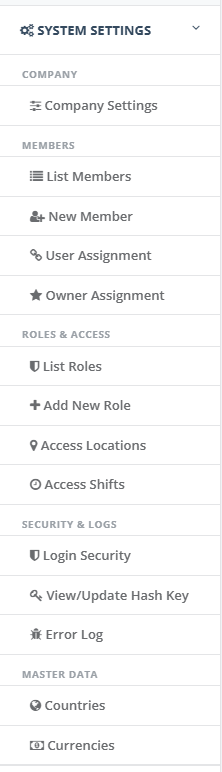
If you do not see List Roles in the menu, your role does not have IsView on the Role page. If you see List Roles but not Add New Role, you do not have IsCreate. Ask an administrator who holds the Role page or follow Troubleshooting.
To copy a role, the role you copy from must already exist. Giving a role to a person is done on the Members page, not here.
2 Step by step
2.1 Find a role and see who holds it
Do this before changing access. A change to a role reaches every member who holds it.
Open List Roles.
Type part of the role name or a member's name, in Search. The list and the Total badge update as you type.
Read Role Assigned User. Each badge is one member. Green is an active member, grey is an inactive member.
Click a column heading to sort. By default the list is sorted by Modified On, newest first. Options cannot be sorted.
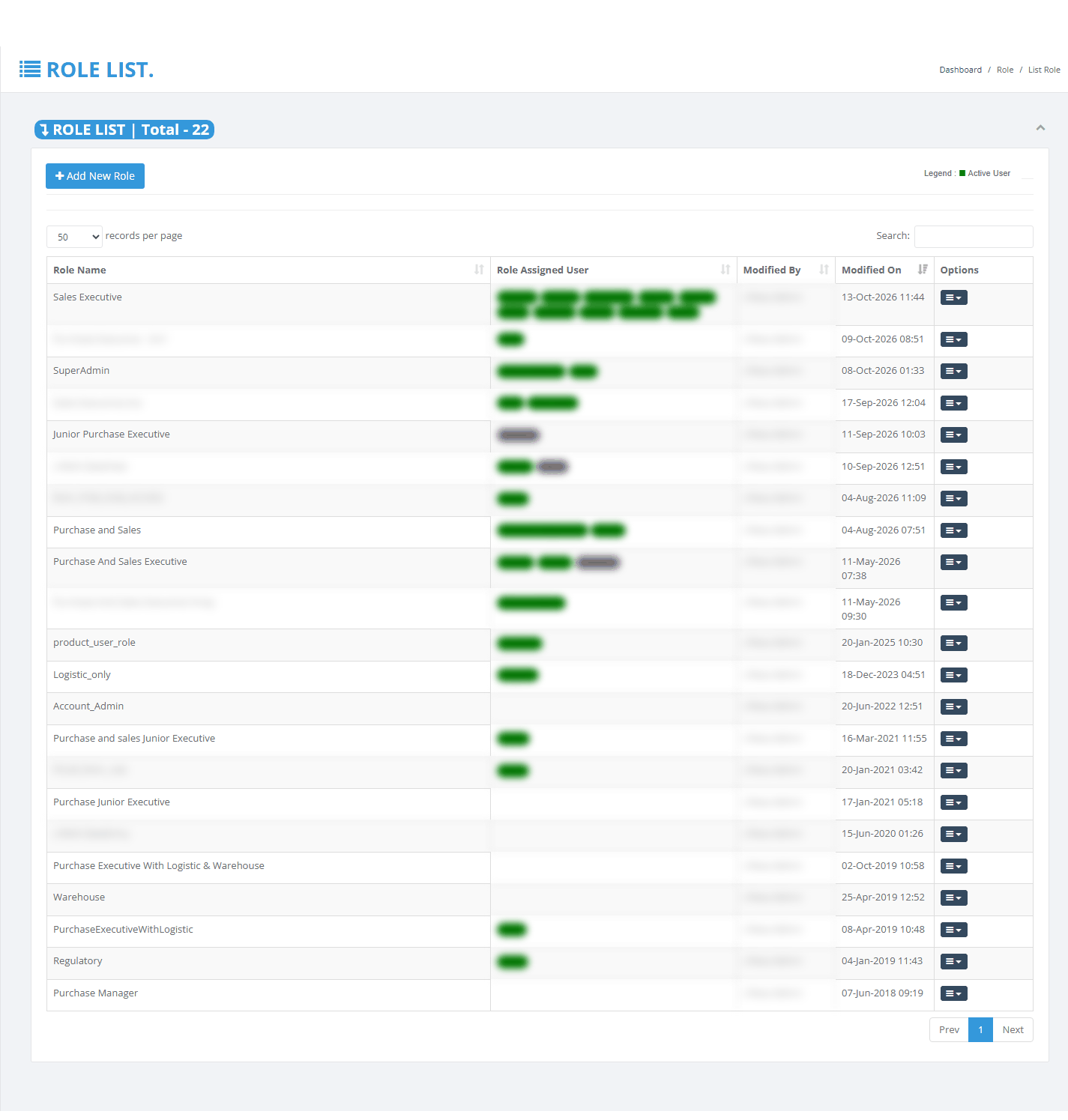
Searching changes nothing. The records per page box offers 10, 20, 50 or 100 rows, but the list always opens with 50 again after you reload it.
2.2 Add a role by copying an existing one
Use this when no role fits but an existing role is close. It saves ticking many boxes by hand.
Open Add New Role.
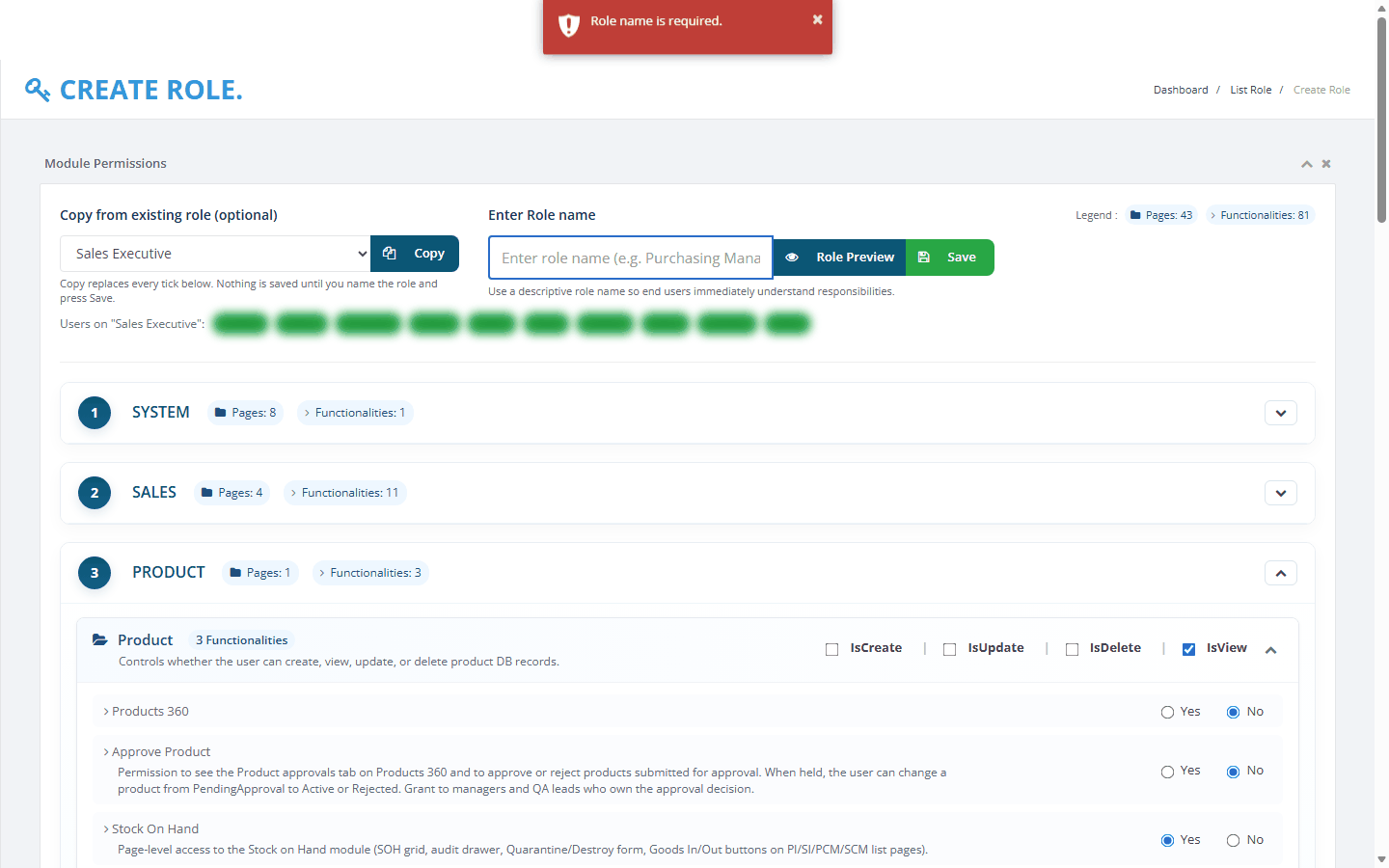
In Copy from existing role (optional) choose the role to copy, for example Sales Executive. The members who hold it are listed under the box.
Click Copy. Every tick on the page is cleared, then set exactly as in the chosen role. A green message tells you how many rows were copied.
Type the new name in Enter Role name.
Open the sections you want to change and adjust the ticks.
Click Role Preview to check the result, then click Close.
Click Save.
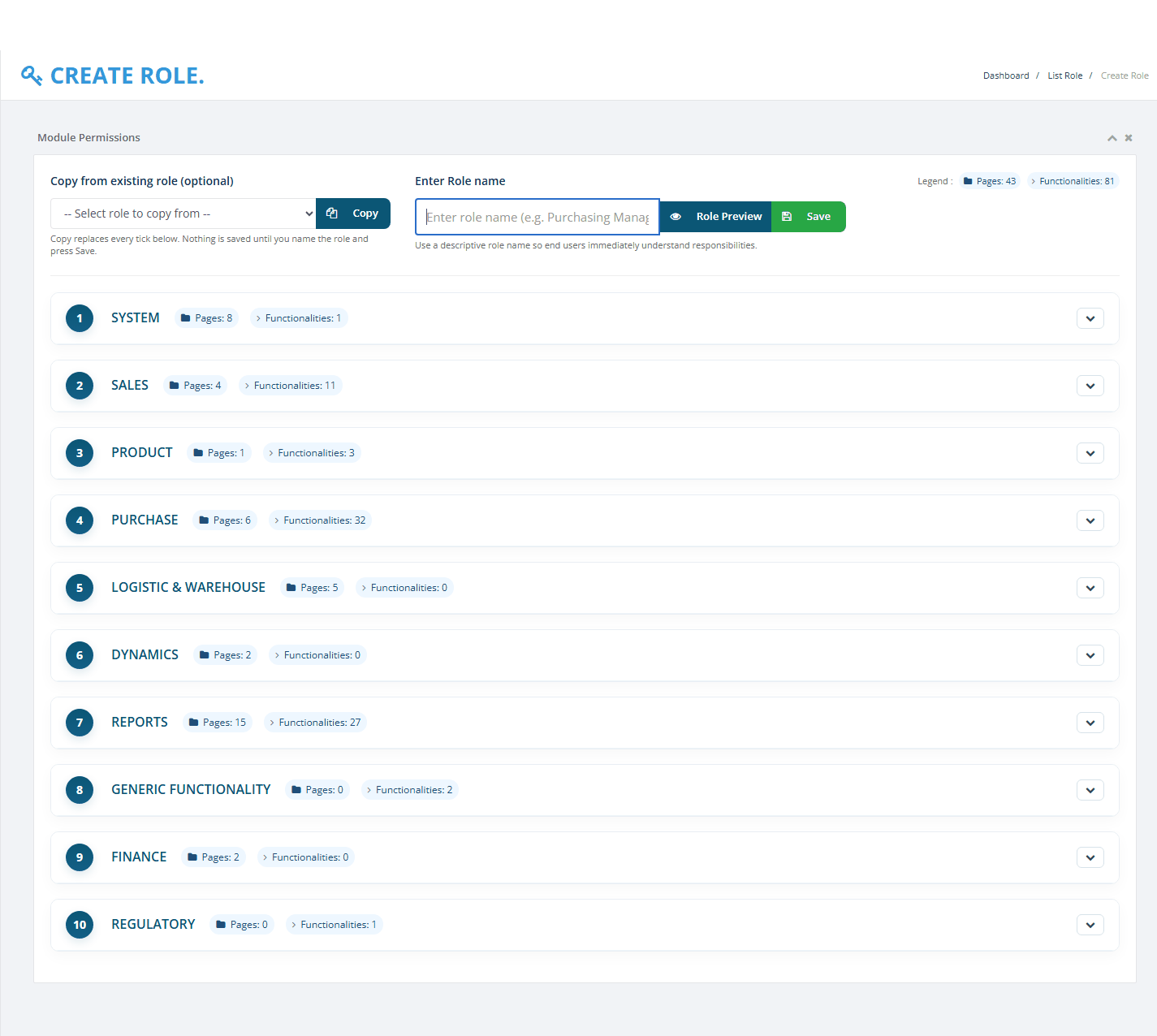
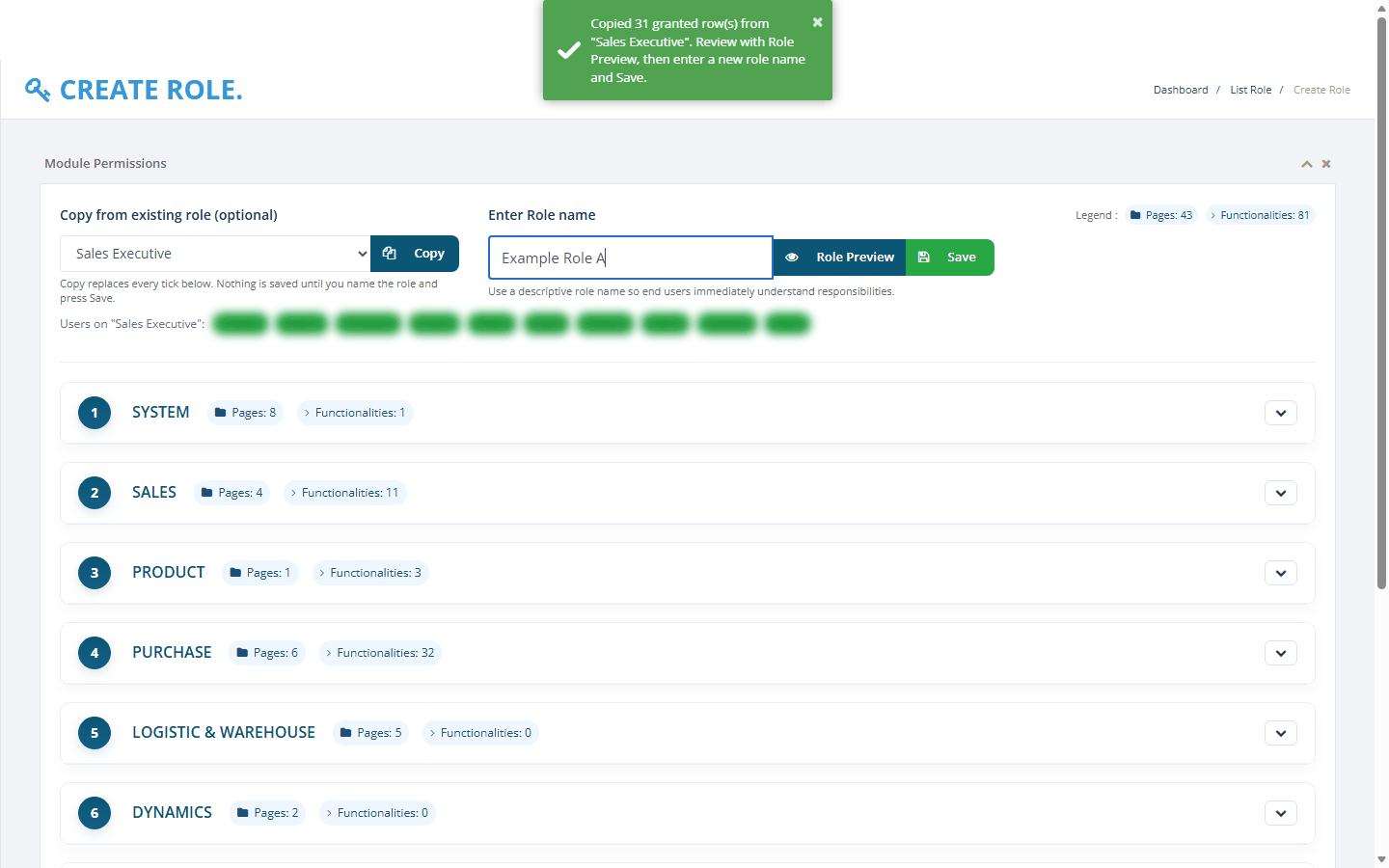
Nothing is saved until you click Save. Copy only changes the screen. After saving, give the role to the member on the Members page.
2.3 Add a role from scratch
Open Add New Role and leave Copy from existing role (optional) empty.
Type the role name in Enter Role name.
Open each section and tick what the role needs. Everything starts as unticked or No.
Check with Role Preview, then click Save.
Check the name before you spend time ticking. If the name is already used, the page opens again with every tick cleared.
2.4 Give rights to a role
Each page card has four ticks:
IsView: may open the page and see its menu link.
IsCreate: may add records.
IsUpdate: may change records.
IsDelete: may delete records.
A few pages use the ticks in their own way. Read the note under the page name.
Under a page you may see Yes/No rules, each with a short explanation. Choose Yes to give the rule or No to withhold it. A rule with neither chosen counts as No.
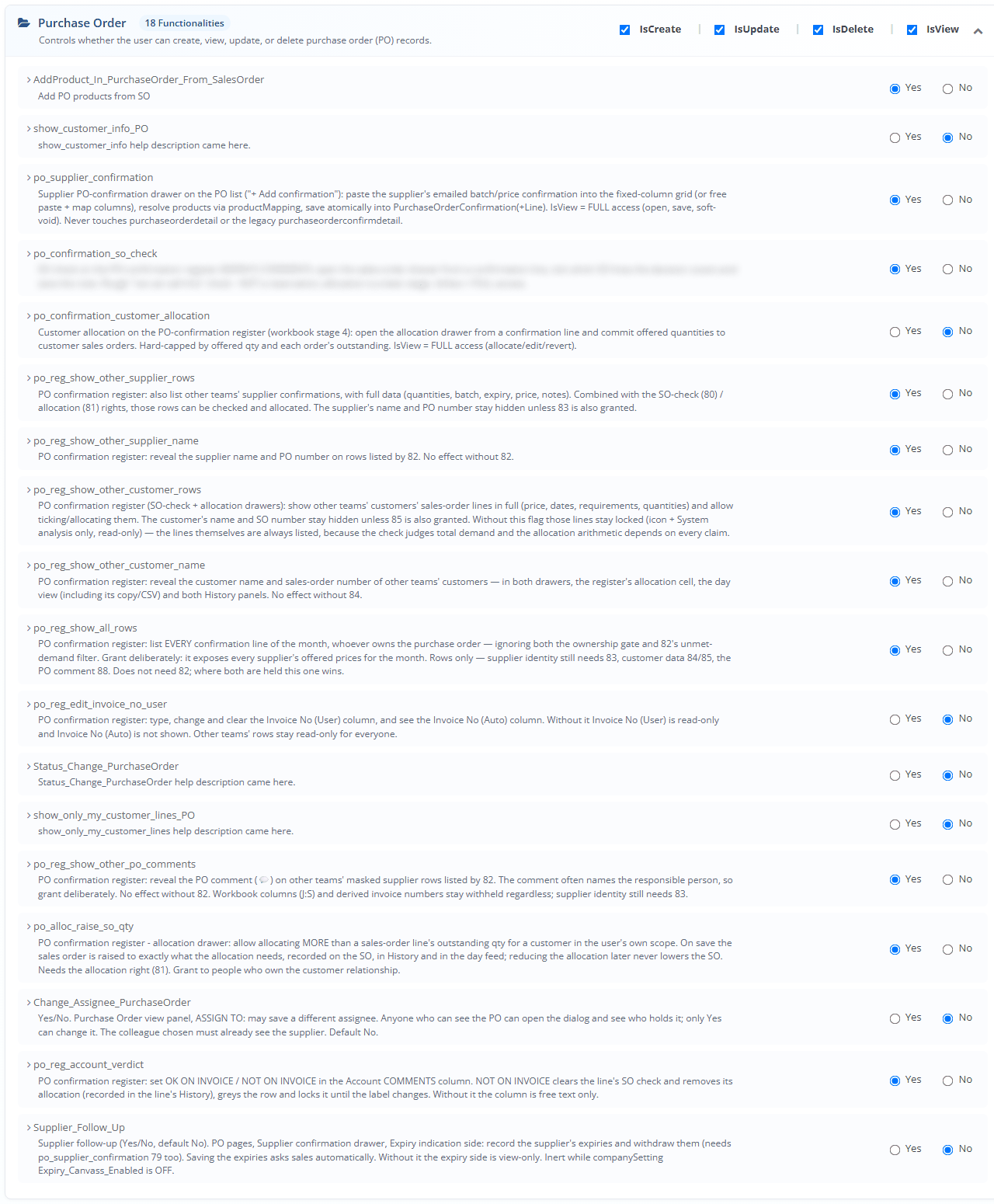
Some rules are shown together in a framed box with a chain icon and a title. The first rule in the box is the lead.
Set the lead rule to Yes.
Set the rules under it as needed.
While the lead rule is No, the rules under it are set to No, greyed out and locked. The note says "Set <lead rule> to Yes first." If any of them was Yes, a blue message lists the ones that were switched off. When you set the lead back to Yes, they unlock but stay No until you choose Yes.
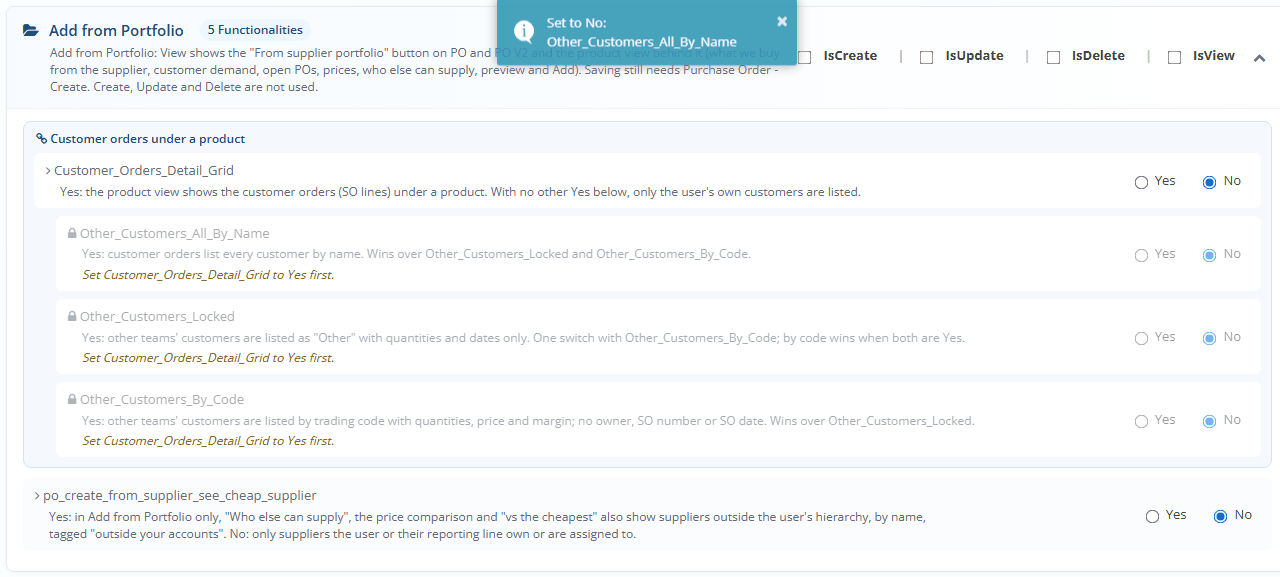
In the Customer orders under a product box, only one of Other_Customers_All_By_Name, Other_Customers_By_Code and Other_Customers_Locked can be Yes. Choosing one switches the others to No.
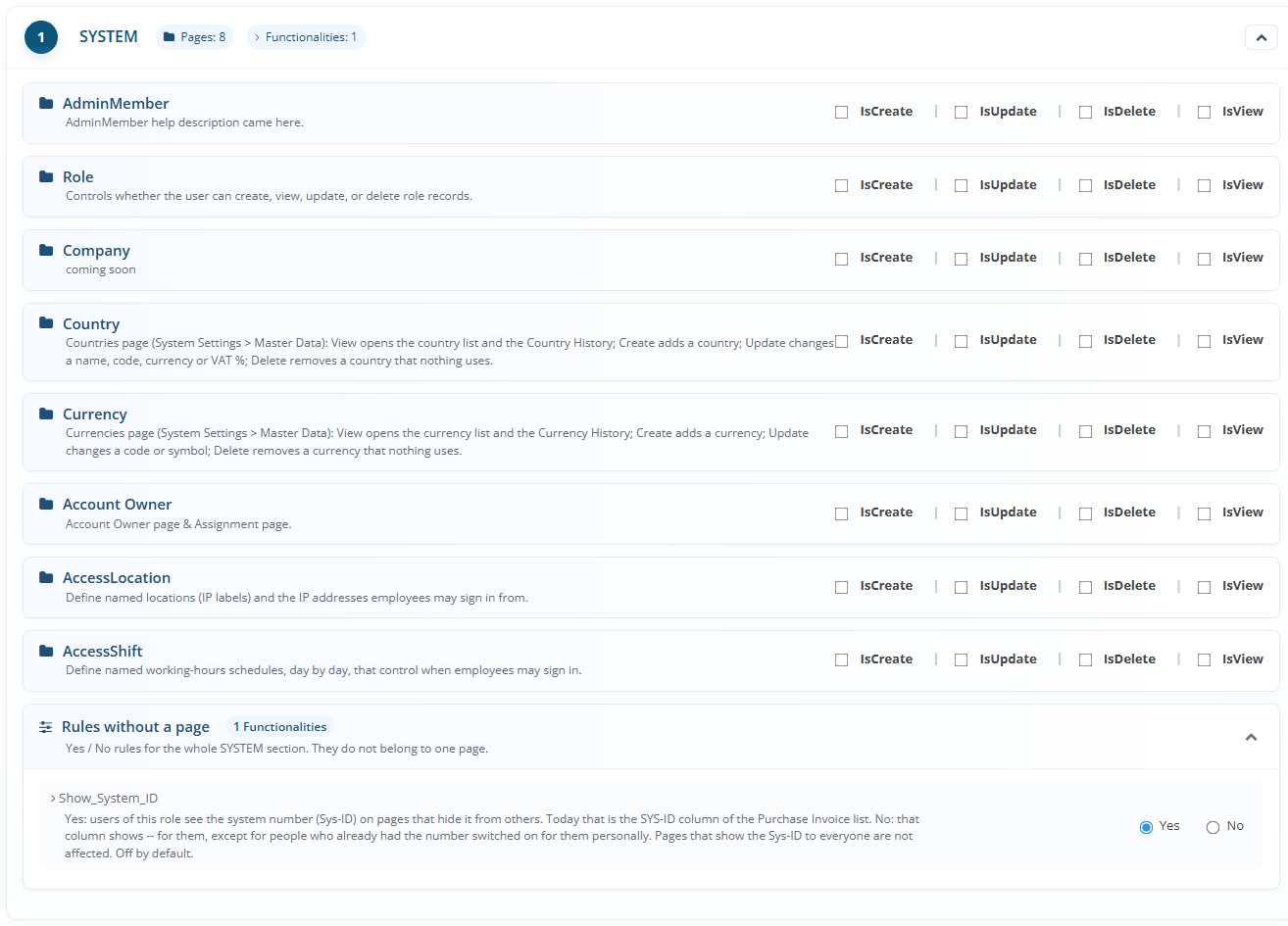
Some rules belong to a whole section and not to one page. They are listed together in a card called Rules without a page, for example Show_System_ID in SYSTEM.
2.5 Check a role with Role Preview
Click Role Preview at any time. A floating button also appears at the bottom right when you scroll down.
Read the list of pages with at least one tick and the rules set to Yes. The top shows counts such as pages with grants and functionalities granted.
Click Close to go back.
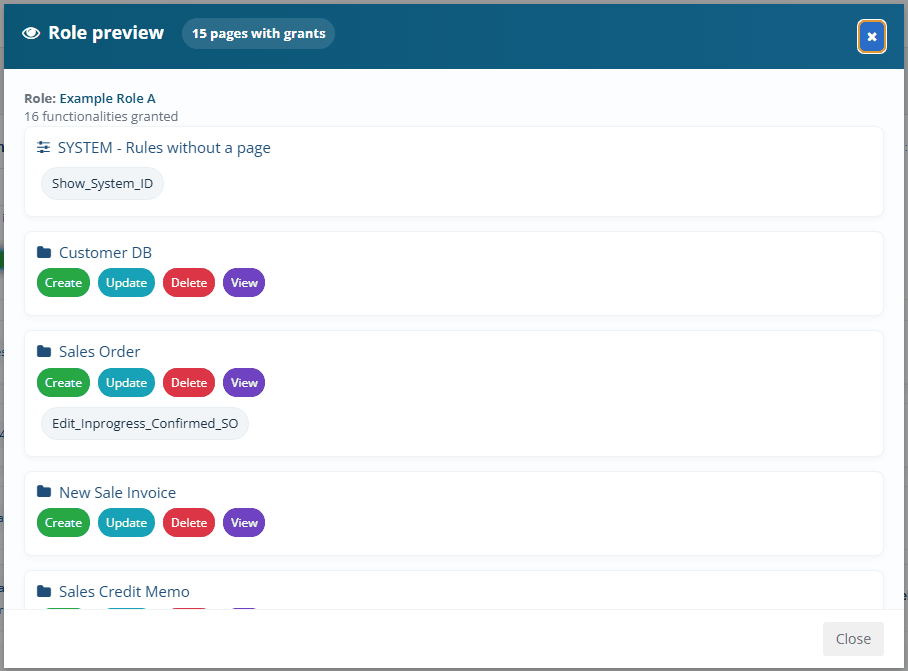
Role Preview shows what is on the screen, saved or not. Rules without a page are listed separately and are not counted as pages.
2.6 Change a role
Open List Roles.
Open the Options menu of the role and choose Edit.
Change the name in Role name if needed.
Open the sections and change the ticks.
Check with Role Preview, then click Save.
Ask the members of the role to sign out and sign in again. See When a change reaches people.
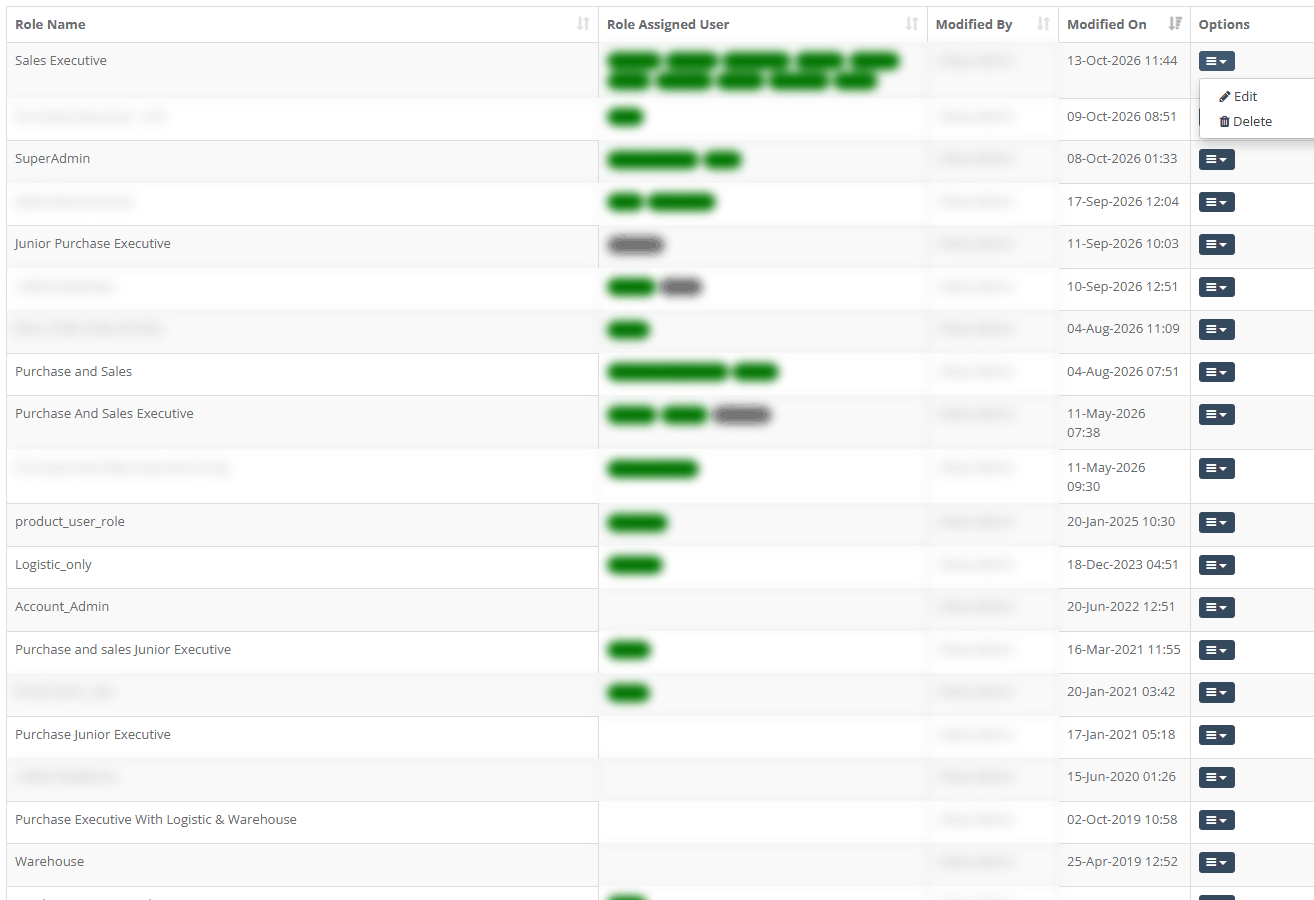
You return to the list with the message "Role <name> updated successfully !". If you type a name another role already uses, the old name is kept but the ticks are still saved. A change in capital letters only is ignored.
2.7 Fix Access Denied for a user
Use this when a person tells you they see AccessDenied when they open a page or a menu item is missing. The cause is almost always that the person's role has no tick for that page. You need the Role page with IsView and IsUpdate (see Before you start).
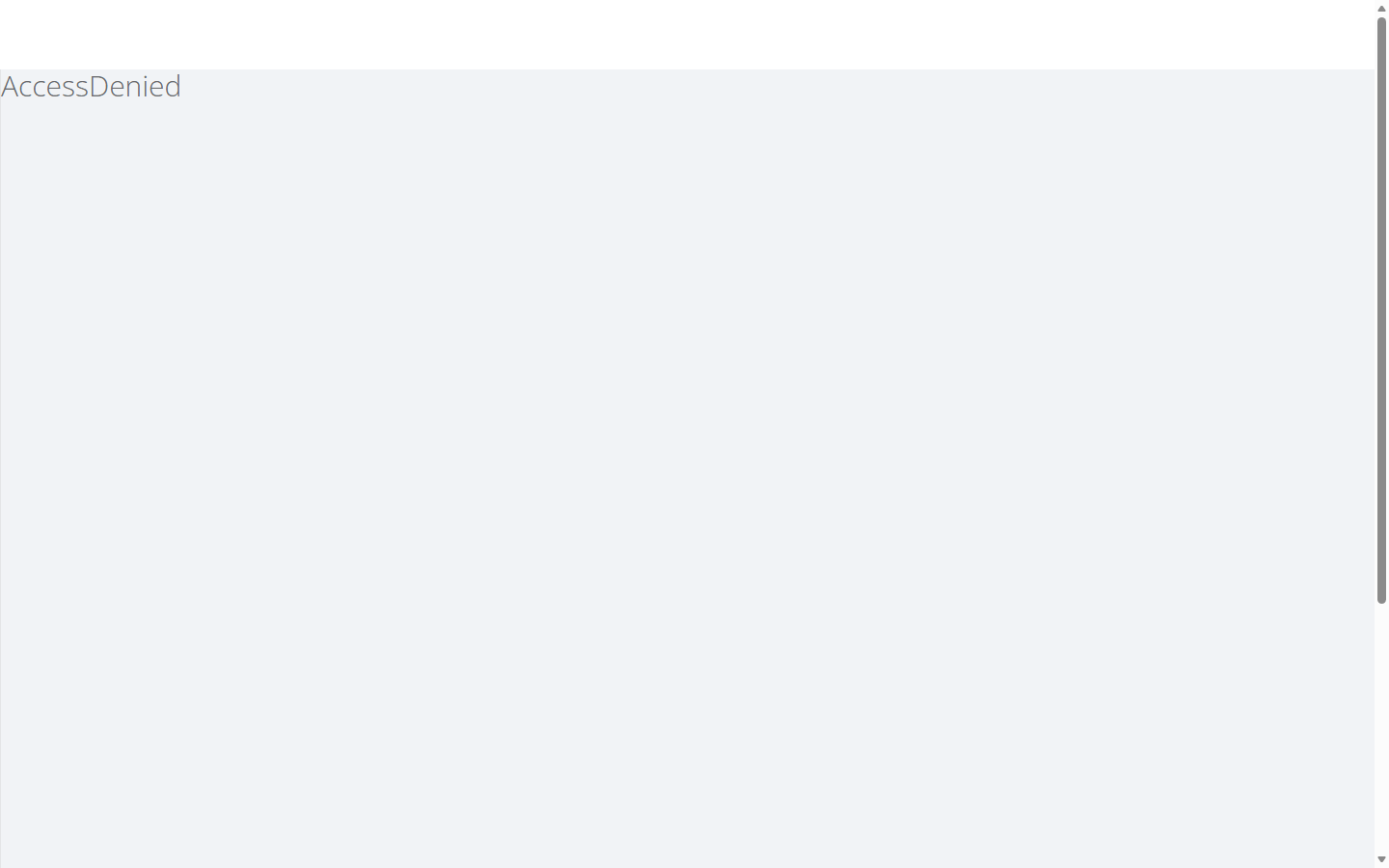
The page shows only the word AccessDenied. It does not say which tick is missing or whom to ask, so you find out from the person.
Ask the person for the exact name of the page they could not open and what they wanted to do there (open it, add, change or delete).
Find the person's role. Open Members, find the person and read their role. Or open List Roles and type the person's name in Search.
Check that other people do not share the role. In List Roles, read Role Assigned User. If several people hold the role, your change reaches all of them. If only one person should get the access, copy the role into a new role (see Add a role by copying an existing one) and give the new role to that person on the Members page. Then go to step 8.
Open the Options menu of the role and choose Edit.
Find the page. Open the section that holds it (for example PURCHASE for Purchase Order). If you are not sure, look at the page names inside each section.
On the page card, set the tick that matches what the person needs:
IsView to open the page. Without it the page and its menu link stay closed, whatever the other ticks say.
IsCreate to add records, IsUpdate to change them, IsDelete to delete them.
If the person needs a Yes/No rule under the page, choose Yes for it. Click Role Preview to check, then Close, then click Save. Wait for the green message.
Tell the person to sign out and sign in again. They get the new access only at their next sign-in. See Signing in for the steps.
Ask the person to try the page again.
If you cannot find the page in any section, it is not offered on this screen. Either it is switched off or its right does not exist yet. Nobody can open such a page, administrators included. Ask the development team.
If the person still sees AccessDenied after signing in again, see Troubleshooting and I cannot sign in or cannot open a page.
Having the SuperAdmin role does not open every page by itself. A SuperAdmin also needs the tick for the page, like everyone else.
2.8 Delete a role
Delete a role only when nobody holds it any more. Check that Role Assigned User is empty first. If members still hold it, move them to another role on the Members page.
In List Roles open the Options menu of the role and choose Delete.
Answer the question "Are you sure to delete this Role?" with OK or Cancel to stop.
The message "Role deleted successfully !" appears and the role leaves the list. You cannot undo this from the screen.
The screen may let you delete a role that still has members. If you do, those members get no rights at their next sign-in. Never delete a role that still has members. Never delete or rename SuperAdmin, because other parts of PharmaERP rely on it.
2.9 When a change reaches people
Members get new access the next time they sign in. Until then they keep what they had, including a right you just removed.
After you click Save, ask the members of the role to sign out.
Ask them to sign in again.
The rule See All Suppliers And Customers, where it exists on your system, reaches members within about one minute without signing in again. The page keeps no change history, only who saved last and when.
3 Messages you may see
Message | What it means | What to do |
|---|---|---|
Role name is required. | You clicked Save with an empty name. The form is not sent. | Type a name in Enter Role name or Role name and save again. |
The Role is already exist !!! Please enter other Role | The name is already used by another role on Add. Capital letters do not matter. | Choose another name. The ticks were cleared, so set them again or use Copy again. |
Role name | On Edit you renamed the role to a name another role has. | The ticks were saved. Choose another name if you still want to rename the role. |
Success! Role | The new role is saved. | Give the role to members on the Members page. They sign in again. |
Role | The change is saved. | Ask the members to sign out and sign in again. |
Please select modules for the role. | The form was sent without any rights rows. This should not happen from the screen. | Reload the page and try again. If it repeats, send the time and the role name to support and check the Error Log page. |
Invalid input. | The form could not be read and you return to the list. | Open the role again and repeat the change. If it repeats, tell support. |
Role not found. | Someone deleted the role while you were editing it. | Go back to List Roles. |
Role deleted successfully ! | The role is deleted. | None. Check that no member still needs it. |
This role is already asign to some user, so you can not delete this role | The delete failed because the role is in use. | Move the members to another role on the Members page, then delete again. |
Are you sure to delete this Role? | You chose Delete. | Click OK to delete or Cancel to stop. |
Please select a role to copy from. | You clicked Copy with no role chosen. | Choose a role in Copy from existing role (optional). |
The selected role no longer exists. | The role you chose to copy was deleted. | Choose another role or reload the page. |
Copied n granted row(s) from " | Copy worked. Nothing is saved yet. | Review with Role Preview, type the name and click Save. |
Unable to copy the selected role. Please try again. | Copy failed, for example because you were signed out. | Sign in again and retry. |
Set to No: | You set a lead rule to No while rules under it were Yes. They were switched off. | Nothing, unless you want to keep them. Then set the lead back to Yes and choose them again. |
Set | A rule under a lead rule is locked because the lead is No. | Set the lead rule to Yes, then set the rule. |
AccessDenied | You do not have the tick needed for the page or action. | See Fix Access Denied for a user. If you cannot open this page yourself, ask an administrator who holds the Role page. |
The login page opens instead of the page | Your session ended. | Sign in again. You come back to the page you wanted. |
A general error page opens | The page could not load the role, for example the role has no saved rights, the role does not exist or the name is longer than 200 characters. | Go back to List Roles. Use a shorter name. If it repeats, send the time and role name to support and check the Error Log page. |
4 Troubleshooting
4.1 I see AccessDenied or the menu item is missing
If you are a user:
Write down the page name and what you were trying to do.
Ask your administrator to give your role the tick for that page. Give them the page name.
After they tell you it is saved, sign out and sign in again. The new access starts only at your next sign-in.
If it still fails, see I cannot sign in or cannot open a page.
If you are an administrator:
Follow Fix Access Denied for a user.
If the tick is already set, check that the person holds the role you changed. Look on the Members page.
Check that the person signed out and in again after you saved.
If the page is not listed in any section of the role, ask the development team. Nobody can open a page that is switched off or has no right defined.
If the person also cannot reach PharmaERP from an office or at certain hours, check Access Locations and Access Shifts and Login Security.
4.2 I removed a right but the user still has it
The user has not signed in again since your change. Ask them to sign out and sign in again. See When a change reaches people.
4.3 I ticked a right but the user still cannot use it
Check that you clicked Save and saw the green message.
Check that the person holds this role, on the Members page.
Ask the person to sign out and sign in again.
Check the tick you set. A page needs IsView to open at all. Adding, changing or deleting needs IsCreate, IsUpdate or IsDelete.
For a Yes/No rule under a lead rule, check the lead rule is Yes.
4.4 Everything on the page was cleared after I clicked Save
You added a role with a name that is already used. The page opens again with every tick cleared. Choose another name, then set the ticks again or use Copy.
4.5 The list stays empty or does not refresh
If you are signed out, the list cannot load and no message appears.
Reload the page.
If the login page opens, sign in again.
If the list is still empty, check the Error Log page and tell support.
4.6 I cannot find a right in the role screen
Some rights are not shown on this screen:
Four Stock On Hand rules (AmendStock, ApproveStockMovement, BlockNegativeStock, ShowCustomerSupplierStockMovement) are not shown. You cannot give or remove them here. Ask the development team.
Pages switched off by the development team are not shown.
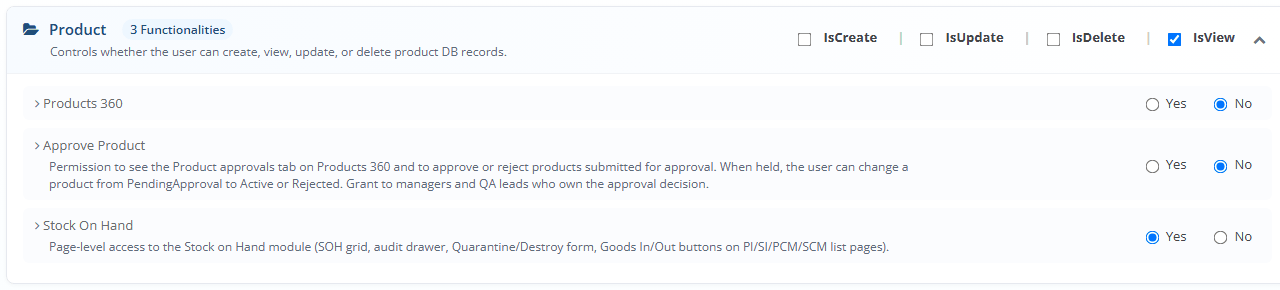
The legend at the top of the page still counts the four hidden Stock On Hand rules, so its numbers are higher than what you can see.
5 Good to know
Changes reach people only at their next sign-in. After saving, ask the members to sign out and in.
A role change affects every member of the role. To change one person only, copy the role into a new role and give it to that person on the Members page.
Pages and rules can differ between systems while new rules are rolled out. For example See All Suppliers And Customers and Return Register may look different on your system.
Role names must be unique, capital letters ignored and at most 200 characters. Spaces at the start and end are removed.
Roles cannot be switched off. A role is active until you delete it.
The role screen does not decide which customers or suppliers a person owns. That comes from Owner Assignment and User Assignment. Some Yes/No rules in a role widen or narrow what a person sees, for example See All Suppliers And Customers, Choose Owner When Adding and Show_Assigned_Customer_Data.
The page keeps no change history, only the last person and time. Keep your own record of who asked for an access change and when.
If two administrators edit the same role, the last Save wins for every tick on the page.
Nothing is sent by e-mail or notification when a role is saved.
See also: Signing in, I cannot sign in or cannot open a page, Members and Error Log.