Every customer and supplier has one owner. A user assignment gives another colleague extra access to a customer or supplier without changing the owner. The page calls the assigned person a data input user. An administrator uses this page when a sales or purchase manager asks for a colleague to work with an account they do not own. For example, a sales assistant enters orders for a salesperson's customers or a buyer covers a colleague's suppliers during a holiday. This page tells you how to assign and remove accounts, what every message means and what the colleague can and cannot see afterwards.
An assignment does not change the owner and does not give any new page rights. It only adds the account to what the colleague and the people above them in the reporting line, can see on pages that respect assignments. To change the owner, use Owner Assignment.
1 Before you start
You need the SYSTEM › Account Owner - View tick in Role Master to open the page, see the lists, assign and remove. No Create, Update or Delete tick is needed.
To see the menu link, you also need SYSTEM › AdminMember (List Members) - View. If you have the menu link but not Account Owner - View, the link opens an Access Denied page.
After your role changes in Role Master, sign out and sign in again. See Signing in.
The colleague must exist as a user in Members.
The customer or supplier must exist in Customer DB or Supplier DB. Its status does not matter: closed and inactive accounts are listed too.
To open the page, go to System Settings › Members › User Assignment. The page opens with the title Data Input User Assignment.
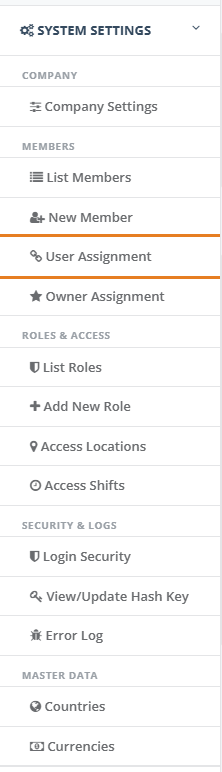
The Owner Assignment link below it is a different page. It changes the owner of an account. This page does not.
Account Owner - View lets the holder see every user and every account and assign or remove any of them, including for themselves. Give this tick only to administrators.
2 Step by step
2.1 Open the page and read the screen
The page opens with your own user chosen, Supplier ticked and the Assigned list showing your own assignments (usually none).
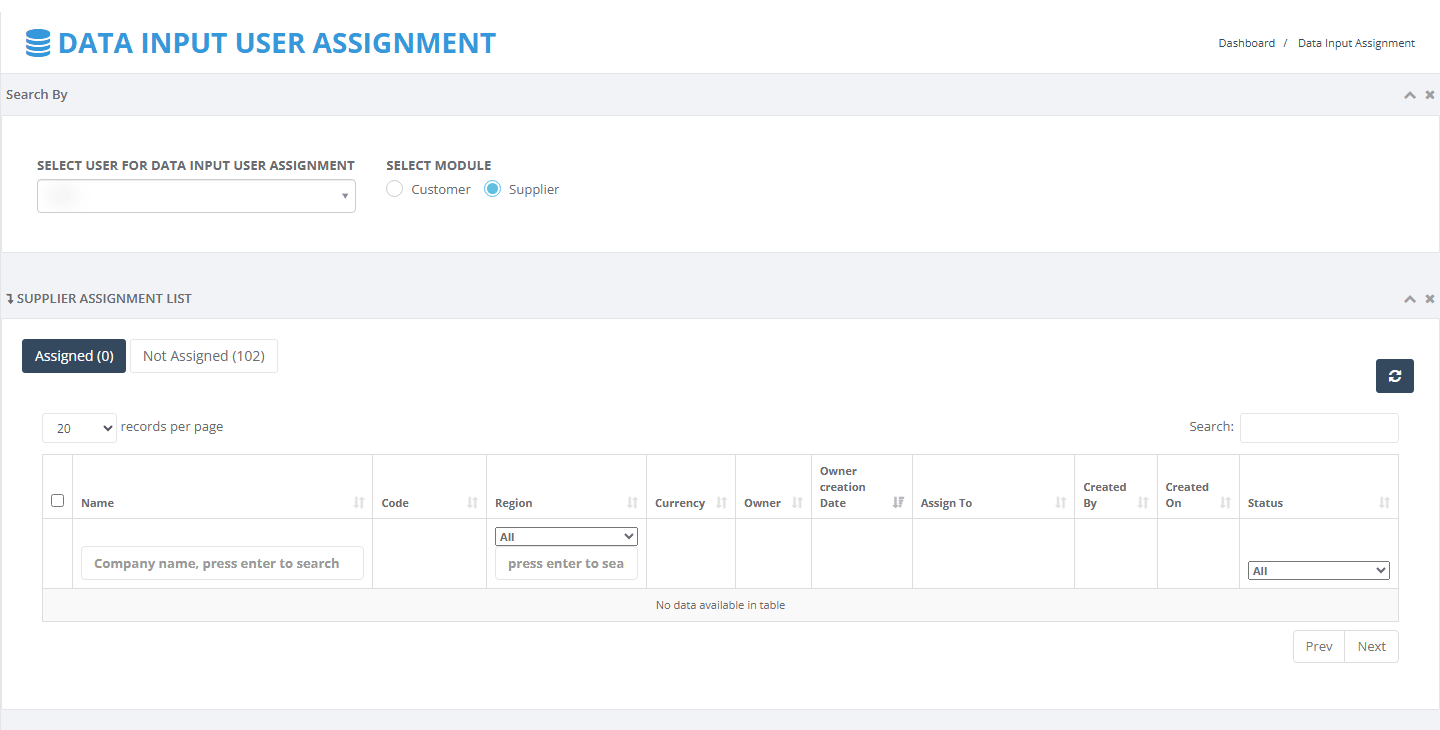
Search By panel: choose the colleague in SELECT USER FOR DATA INPUT USER ASSIGNMENT and the kind of account in SELECT MODULE (Customer or Supplier).
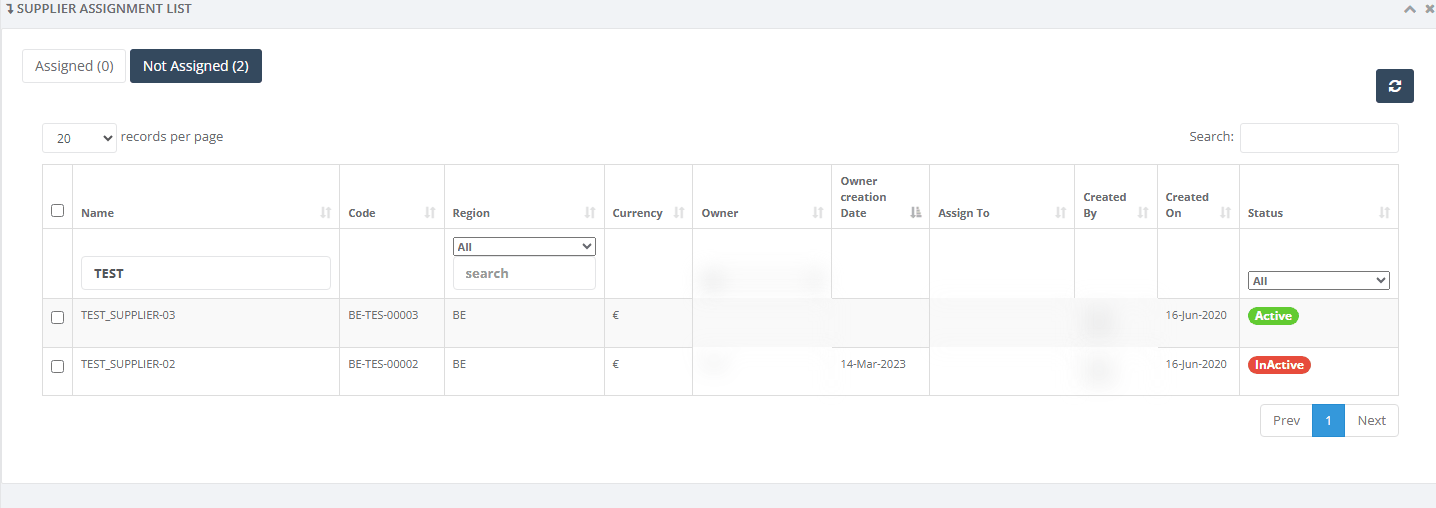
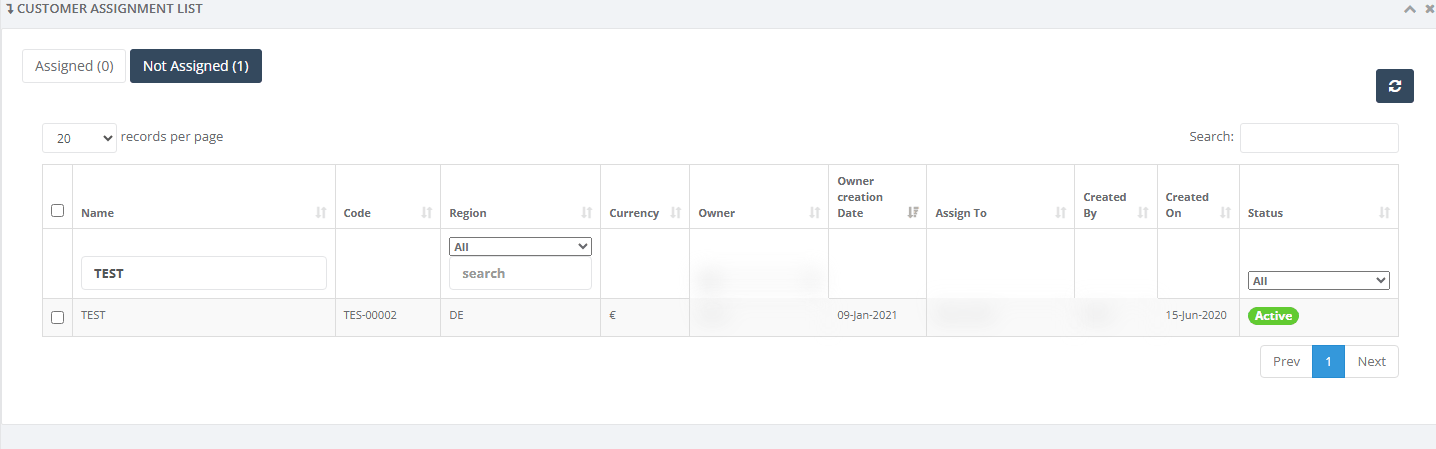
Two tabs: Assigned (n) shows the accounts this user already has. Not Assigned (n) shows every other account of the chosen kind, whoever else has it. The number is the count of rows.
Buttons: a green Assign (n) button appears on the Not Assigned tab and a red Unassign (n) button on the Assigned tab as soon as you tick rows. The round arrow clears all filters.
Above the list: choose 10, 20, 50 or 100 records per page (20 when the page opens) and use Search. A filter row sits under the column headings. Click a column heading to sort.

2.2 See which accounts a user already has
In SELECT USER FOR DATA INPUT USER ASSIGNMENT, start typing the colleague's name and choose it.
In SELECT MODULE, choose Customer or Supplier. Both lists reload.
Click Assigned.
The list shows every account of that kind assigned to the user. If the user has none, the list is empty and the button reads Assigned (0).
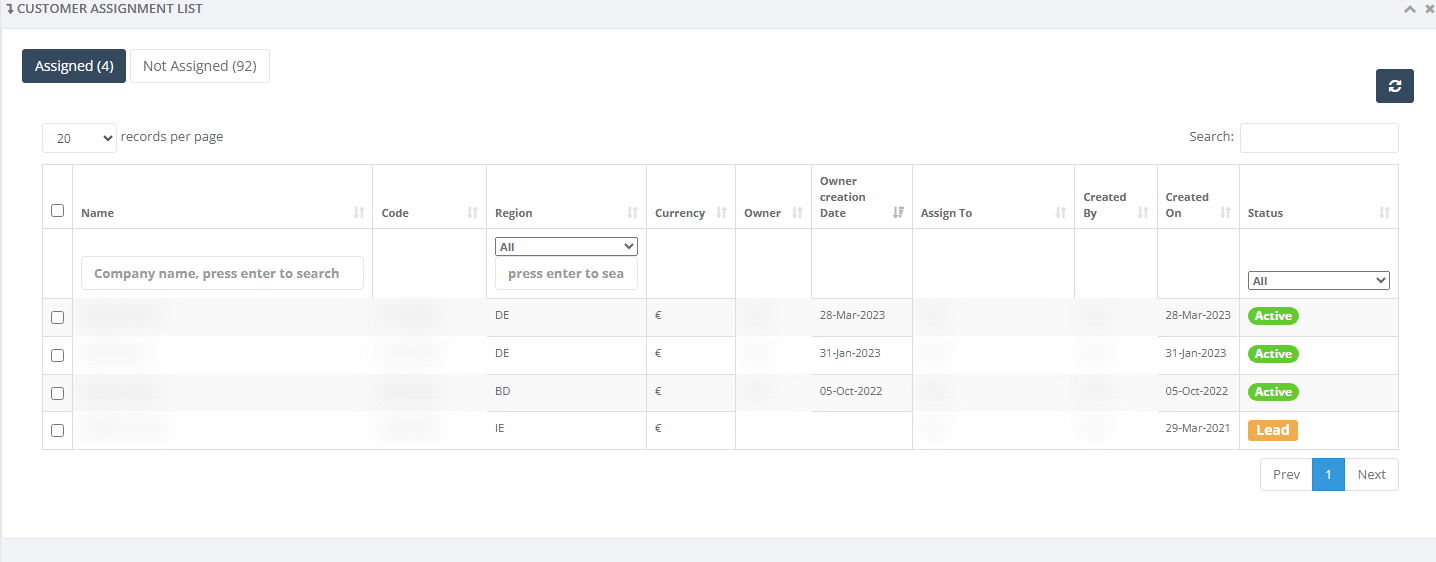
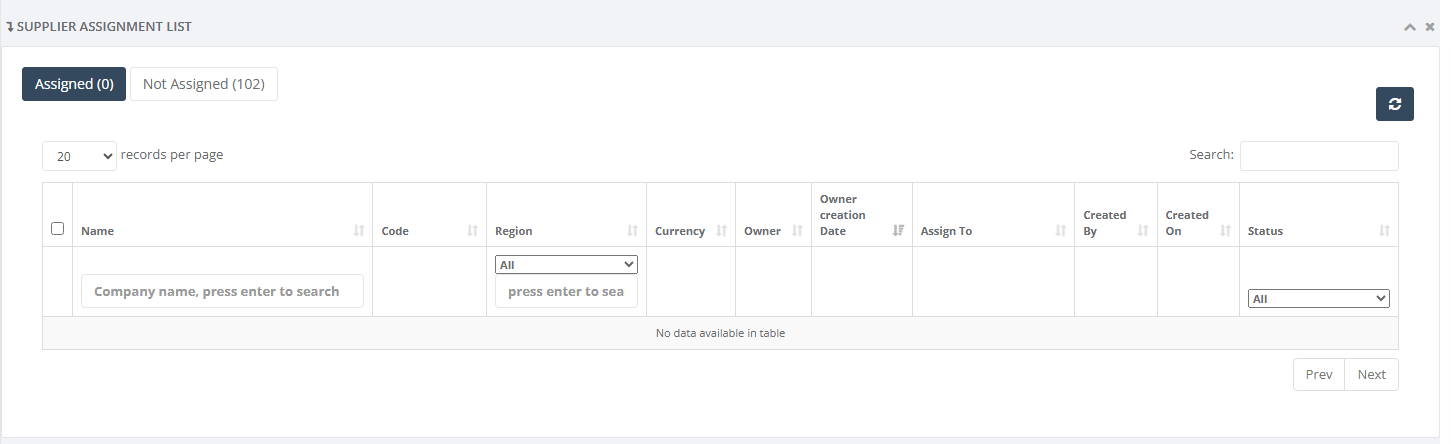
The list shows these columns: Name, Code, Region, Currency, Owner, Owner creation Date, Assign To (every active user the account is assigned to), Created By, Created On and Status.
2.3 Give a person access to a customer or supplier
Choose the user and the module.
Click Not Assigned.
Find the account. Type part of the name in the company name box under Name and press Enter or use the Region, Owner and Status filters. See Find an account.
Tick the box at the start of each row you want. The green button now reads Assign (1), with the number of ticked rows. The tick box in the heading ticks every row on the current page.
Click Assign (n).
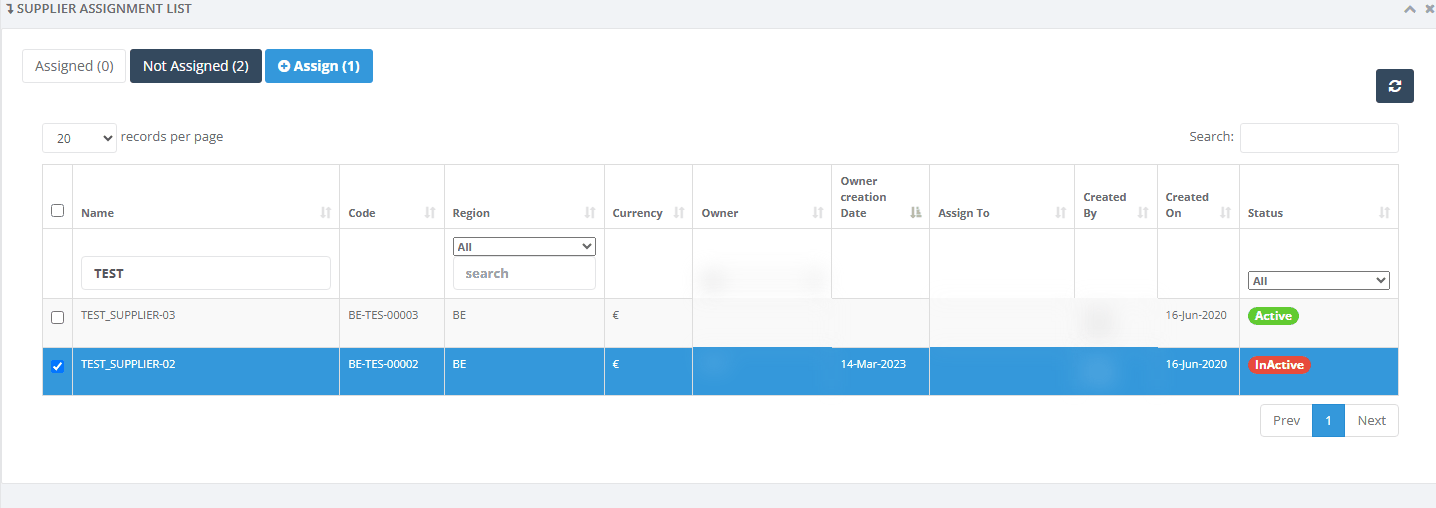
The message Assigned successfully appears, both lists reload and a popup opens. Nobody is notified, so tell the colleague that the account is now available. Accounts the user already had are left as they were.
Always choose a real user (not --Select--) before you tick and click. Only the rows ticked on the page you are looking at are assigned. If you change page, filter or sort after ticking, the ticks are cleared but the button may still show the old count. Tick again, then click.
2.4 Check the popup about other users
Straight after every assignment, a popup lists the other users who already have the same accounts, grouped by account. Use it to take the account away from them at the same time, for example when work moves from one assistant to another.
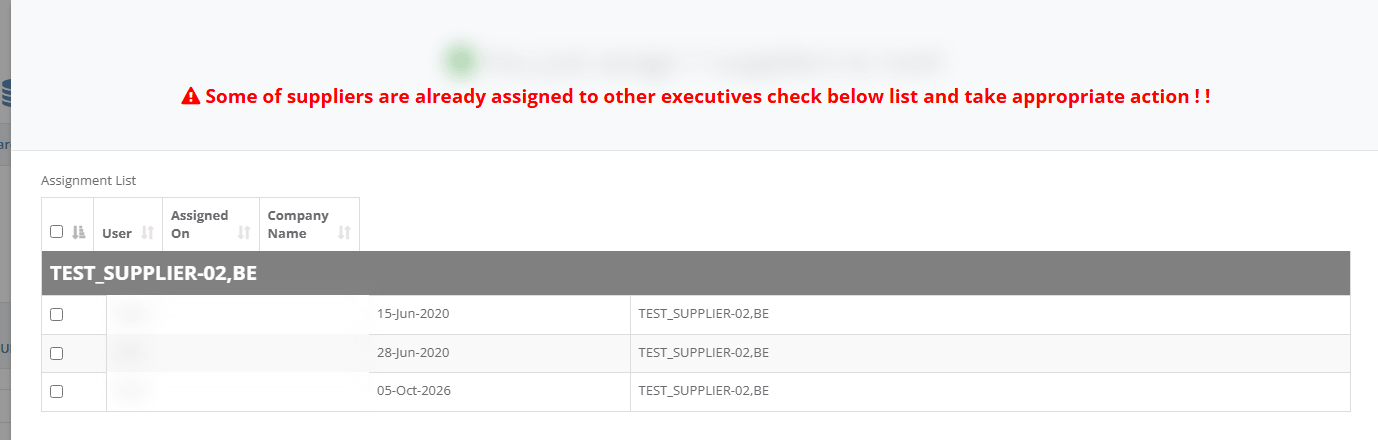
Read the list. Each grey band is one account. The rows under it are the other users who have it, with Assigned On.
If nobody else should keep the account, tick their rows (or the box in the heading for all) and click Unassign.
Otherwise click Close.
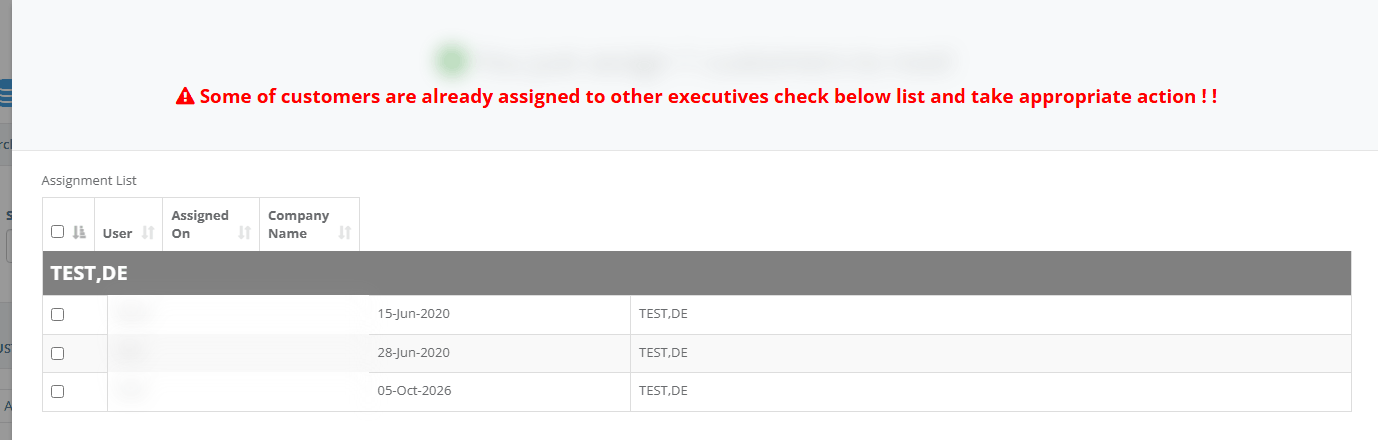
The popup always shows a red warning line, even when nobody else has the account. It can also list users who have a customer with the same internal number as the supplier you assigned or the other way round. Pressing Unassign on those rows changes nothing, even though the message says Unassigned successfully. Check the account name in the grey band and the side you are working on, before you unassign.
2.5 Remove access
Choose the user and the module.
Click Assigned.
Tick the accounts to remove. The red button reads Unassign (n).
Click Unassign (n).
The assignments are deleted at once. There is no confirmation question and no undo. If you remove the wrong one, assign it again. The message Unassigned successfully appears and both lists reload.
2.6 Find an account
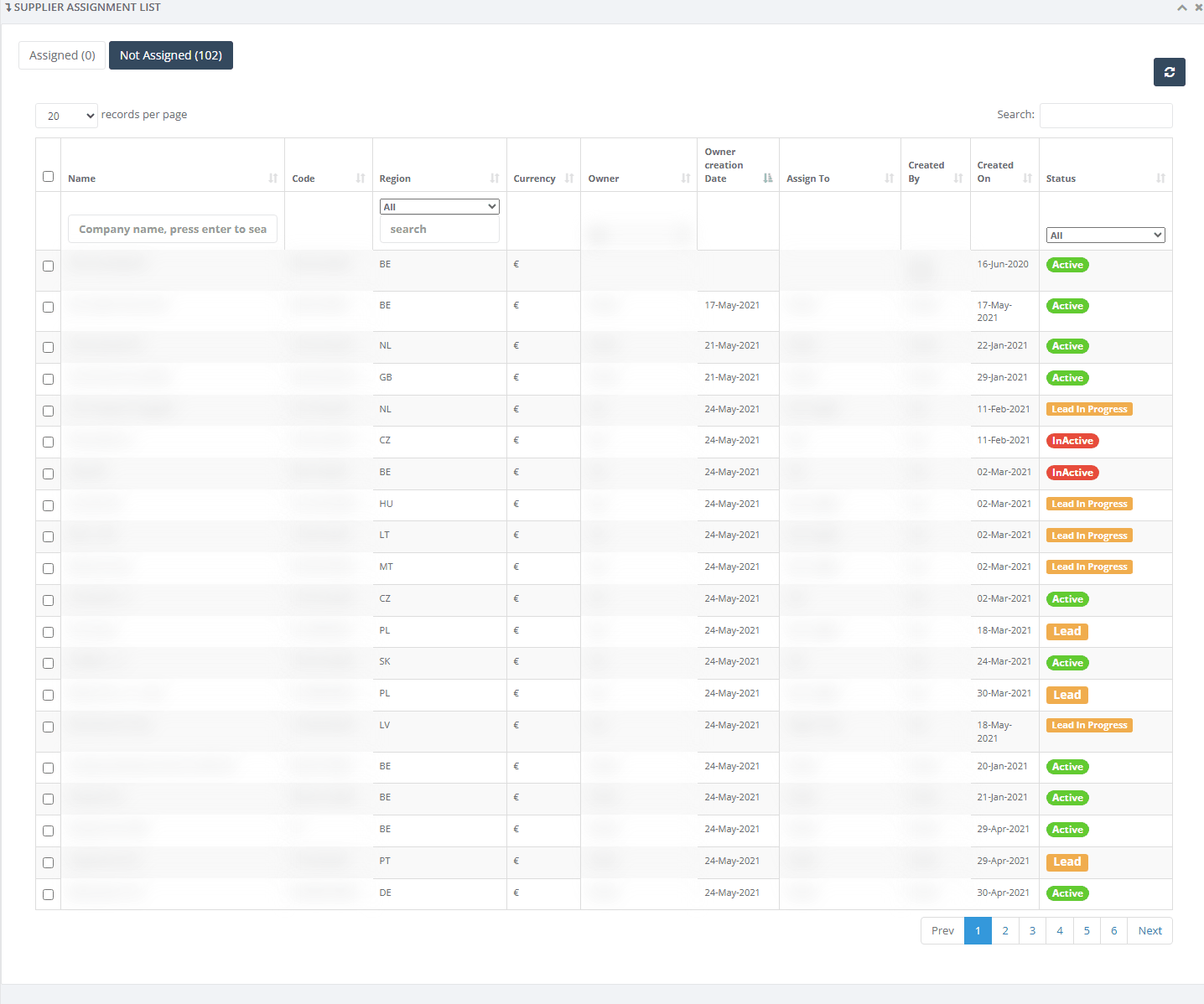
Company name box (under Name): part of the name. On the Not Assigned tab press Enter to search. On the Assigned tab the list reloads with every key you type.
Region: pick a country from the list or type an exact country code or country name in the box below it.
Owner (Not Assigned tab only): only accounts owned by that person. On the Customer side this filter has no effect, so use the Search box with the owner's name or read the Owner column.
Status: All, Lead, Lead - In Progress, Lead - Manufacturer, Lead - Generic Drug and Supplement, Lead - Future prospect, Onboarding - In Progress, Onboarding - Complete, Active, Inactive, Closed - Black Listed or Closed - Not relevant.
Search box (top right of the list): looks in name, code, region, currency and owner name.
Click a column heading to sort. Click again to reverse. The round arrow clears every filter and reloads both lists.
Sorting by Code, Created On or Assign To does not follow what the column shows. Use the filters to find a row instead.
2.7 Check that the colleague now sees the account
There is no Save button: Assign and Unassign save straight away. The colleague does not need to sign in again. From the next time they open or refresh a list, they and everyone above them in the reporting line can see the account on pages that respect assignments.
Ask the colleague to open a page that lists the account, for example Customer DB for a customer.
If the account is missing, read What the colleague sees after an assignment and Troubleshooting.
3 Messages you may see
Message | What it means | What to do |
|---|---|---|
Assigned successfully | The assignment was saved. | Check the popup, then tell the colleague. |
Unassigned successfully | The assignment was removed. It also shows when you unassign popup rows of the other side, which removes nothing. | Nothing. For popup rows, check the account name in the grey band first. |
Please select at least on supplier/customer to assign | You clicked Assign with nothing ticked. Nothing was sent. | Tick at least one row on the Not Assigned tab, then click Assign. |
Please select at least on supplier/customer to Unassign | You clicked Unassign with nothing ticked, on the list or in the popup. Nothing was sent. | Tick at least one row, then click Unassign. |
Failed to retrieve states. (a browser alert, which may have extra characters after it) | The save or removal did not work and nothing was changed. Usual causes: no user chosen (--Select--), your rights were removed or your session ended. | 1. Choose a real user. 2. If it repeats, sign in again (see Signing in) and retry. 3. If it still fails, ask your administrator to check your role in Role Master and send the time to support. They can find it in the Error Log. |
The list stays on Processing... | A list could not be loaded because your session ended, your right was removed or the server had an error. | Refresh the page. If it stays, sign in again. See Signing in and I cannot sign in or cannot open a page. |
Access Denied page | You opened the page without Account Owner - View. This also happens when you can see the menu link but do not have that tick. | Ask your administrator to tick Account Owner - View for your role in Role Master, then sign out and sign in again. |
Sign-in page appears instead of the page | Your session ended or was ended by an administrator. | Sign in again. See Signing in and Login Security. |
Server error page | The server could not finish the request. | Try again. If it repeats, note the time and send it to support. The details are in the Error Log. |
The red line Some of suppliers are already assigned to other executives... in the popup | A standing warning. It shows even when nobody else has the account. | Read the grey bands. If the list under them is empty, click Close. |


4 Troubleshooting
4.1 The page does not open or the menu link leads to Access Denied
If you are a user:
Ask your administrator for the SYSTEM › Account Owner - View tick.
Sign out and sign in again after they change it.
If you are an administrator:
Open Role Master and open the person's role.
Tick SYSTEM › Account Owner - View. The link in the menu is controlled by the separate SYSTEM › AdminMember (List Members) - View tick.
Ask the person to sign out and sign in again. Rights are read at sign-in.
4.2 The lists stay on Processing... or an alert appears when I click Assign
Refresh the page and choose the user again.
If it repeats, sign out and sign in again. Your session may have ended.
If it still fails, check that your role still has Account Owner - View in Role Master.
Send the time and the message to support. They can look it up in the Error Log.
4.3 I clicked Assign or Unassign and the button still shows a number, but nothing happens
The ticks were cleared when you changed page, filter or sort, but the button kept its old count. Tick the rows again and click the button.
4.4 The colleague cannot see the account after I assigned it
If you are an administrator:
On this page, choose the colleague, click Assigned and check the account is in the list. If it is not, assign it again.
Check that you chose the right side. A customer assignment does not open a supplier.
Ask the colleague to refresh the list. They do not need to sign in again.
Remember that an assignment does not give page rights. If the colleague cannot open the page at all, check their role in Role Master and see I cannot sign in or cannot open a page.
If the colleague is on a document list, read What the colleague sees after an assignment. Some document lists show only documents created by the colleague or their team.
If you are the colleague: refresh the list, then tell your administrator the account name and the page where you looked.
4.5 The colleague still sees an account after I removed it
The colleague may still see it another way: they own it, someone below them in the reporting line owns it or has it assigned or they hold the See All Suppliers And Customers right. To remove the other ways, change the owner in Owner Assignment, the reporting line in Members or the right in Role Master.
4.6 I removed an assignment from a creator and they still see the account
When a customer or supplier is added, PharmaERP gives the creator an assignment. If the creator also owns the account, removing the assignment here does not hide it from them. Change the owner in Owner Assignment.
4.7 The Owner filter shows an owner but the Customer list does not change
On the Customer side the Owner filter has no effect. Use the Search box with the owner's name or read the Owner column.
5 Good to know
5.1 What the colleague sees after an assignment
An assignment makes the account visible to the assigned user and to everyone above them in the reporting line. It does not look the same on every page.
Page or feature | Does the assignment make the account visible there? |
|---|---|
Customer DB and Supplier DB lists and opening the record | Yes. The colleague and their managers see and open the account. |
Customer and supplier pickers when creating orders, invoices, credit memos and opportunities; search boxes on reports; portfolios | Yes. The account can be picked. |
Purchase order, purchase invoice, purchase credit memo, sales order and sales credit memo lists | Partly. The colleague sees the account's documents only when they or someone below them, created the document. |
Customer and Supplier follow-up task lists | Yes, but only the colleague's own assignments count, not their managers'. These lists show nothing that is not assigned. |
Supplier and Customer activities reports | Yes. |
Supplier Line and Customer Line reports | Only when the viewer's role has Show assigned supplier data or Show assigned customer data ticked in Role Master. |
Sales opportunities list and two Customer dashboard boxes | Not reliable. They look at supplier assignments when they list customers. |
Assignment is not ownership. Use Owner Assignment to change who owns an account. Use this page to give extra access while the owner stays.
Assignment is not a right. The colleague still needs the page tick in Role Master to open a page. See also Members.
Many users can have the same account. Nothing makes an assignment exclusive. The popup only shows the others so you can remove them.
Closed and inactive accounts and users. You can assign accounts of any status. Inactive users stay in the user box and keep their assignments. The Assign To column hides them but the popup shows them. Remove their assignments when a user leaves.
Users who see everything. The main administrator and roles with the See All Suppliers And Customers right see every account on pages that support it, so assignments make no difference for them.
No history. Unassign deletes at once and nothing records who had access before. Before a large clean-up, take a screenshot or copy of the Assigned list.
Same person, both roles. A user can be both owner and assigned user of the same account.
Nobody is notified. Tell the colleague yourself.
Two administrators at once. If two administrators assign the same account to the same user at the same moment, it can be recorded twice. Check the Assigned list if you work at the same time as someone else.
Back to Step by step or Messages you may see.