The Currencies page keeps the list of currencies your customers and suppliers trade in. Each currency has a code (for example EUR) and a symbol (for example €). Every order, invoice, credit memo and PDF of a customer or supplier shows that party's currency. The list is usually kept by a system administrator or a finance lead. It is set up once and changed rarely. After reading this page you can find, add, change and delete a currency, read Currency History and fix the errors you may meet on the way.
1 Before you start
1.1 Access you need
To do this | You need |
|---|---|
See the menu item, open the list and Currency History | View |
Add a currency (the Add Currency button appears) | View and Create |
Change a code or symbol (the pencil appears) | View and Update |
Delete a currency (the bin appears) | View and Delete |
These ticks are set on the page "Currency" in the group SYSTEM of Roles. Ask your administrator for them. The ticks are read when you sign in. If your role changes, sign out and sign in again. Every person with View sees every currency and the whole history. A currency has no owner.
1.2 Records that must exist first
Nothing has to exist first. The page works with an empty list.
Currencies are linked to other pages in this order:
Keep the currency list here.
Give each country its usual currency on Countries. When a customer or supplier is added, choosing the country fills in the currency and the person confirms it.
Customers and suppliers then use the currency on all their documents.
For changes to be recorded in Currency History, your administrator must have the history feature installed. If it is not, you see a yellow notice (see Messages you may see). Changes are still saved, but they are not recorded.
1.3 Where to find the page
Sign in to PharmaERP. If you cannot, see Signing in.
In the left menu, open System Settings.
Under the heading MASTER DATA, click Currencies.
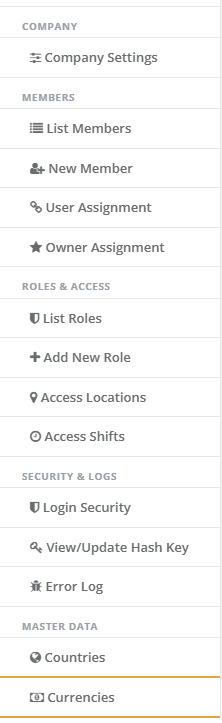
If Currencies is not in the menu, you do not have View. Ask your administrator to check your role in Roles.
Currency History has no menu item of its own. Open it with the Currency History button at the top right of the Currencies page or with the history icon on a currency's row.
1.4 The screen at a glance
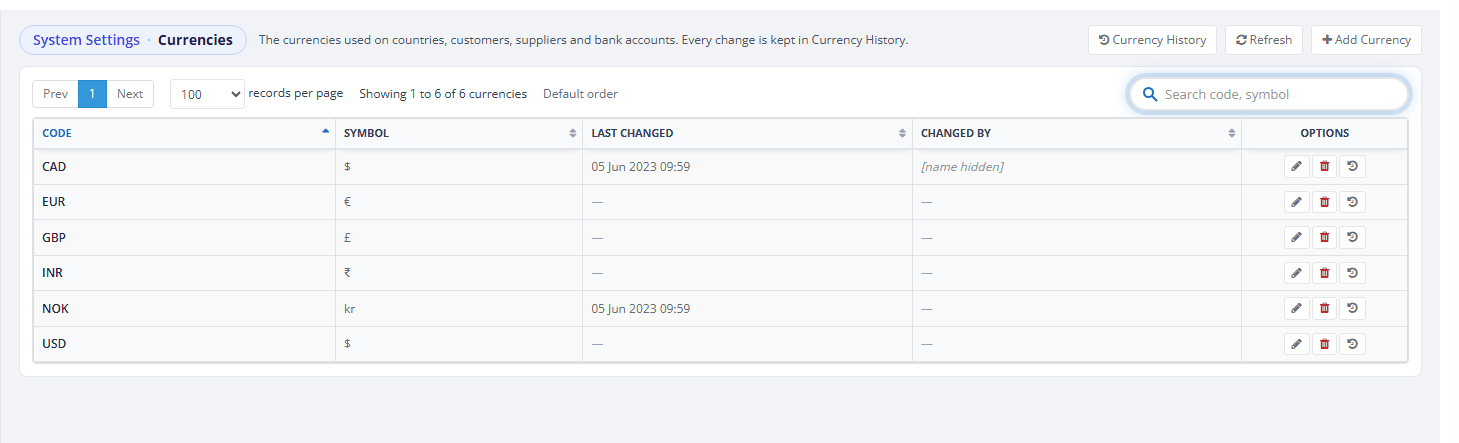
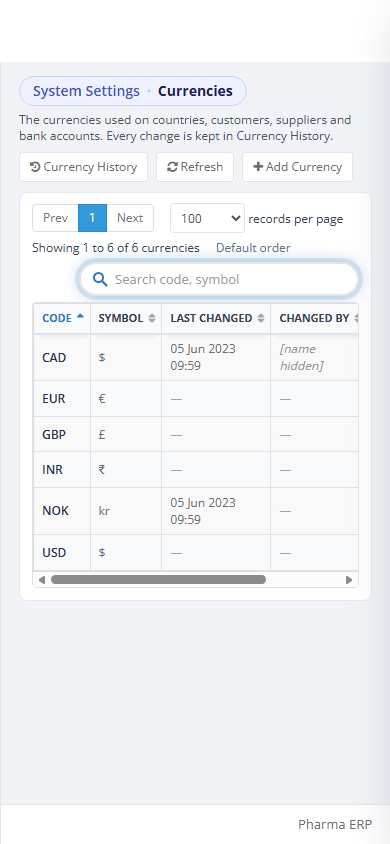
The page has a one-line heading with the buttons Currency History, Refresh and Add Currency. Below it is a paging row and the grid with the columns CODE, SYMBOL, LAST CHANGED, CHANGED BY and OPTIONS. Each row has three buttons under OPTIONS: the pencil (change), the bin (delete) and the clock (history of this currency).
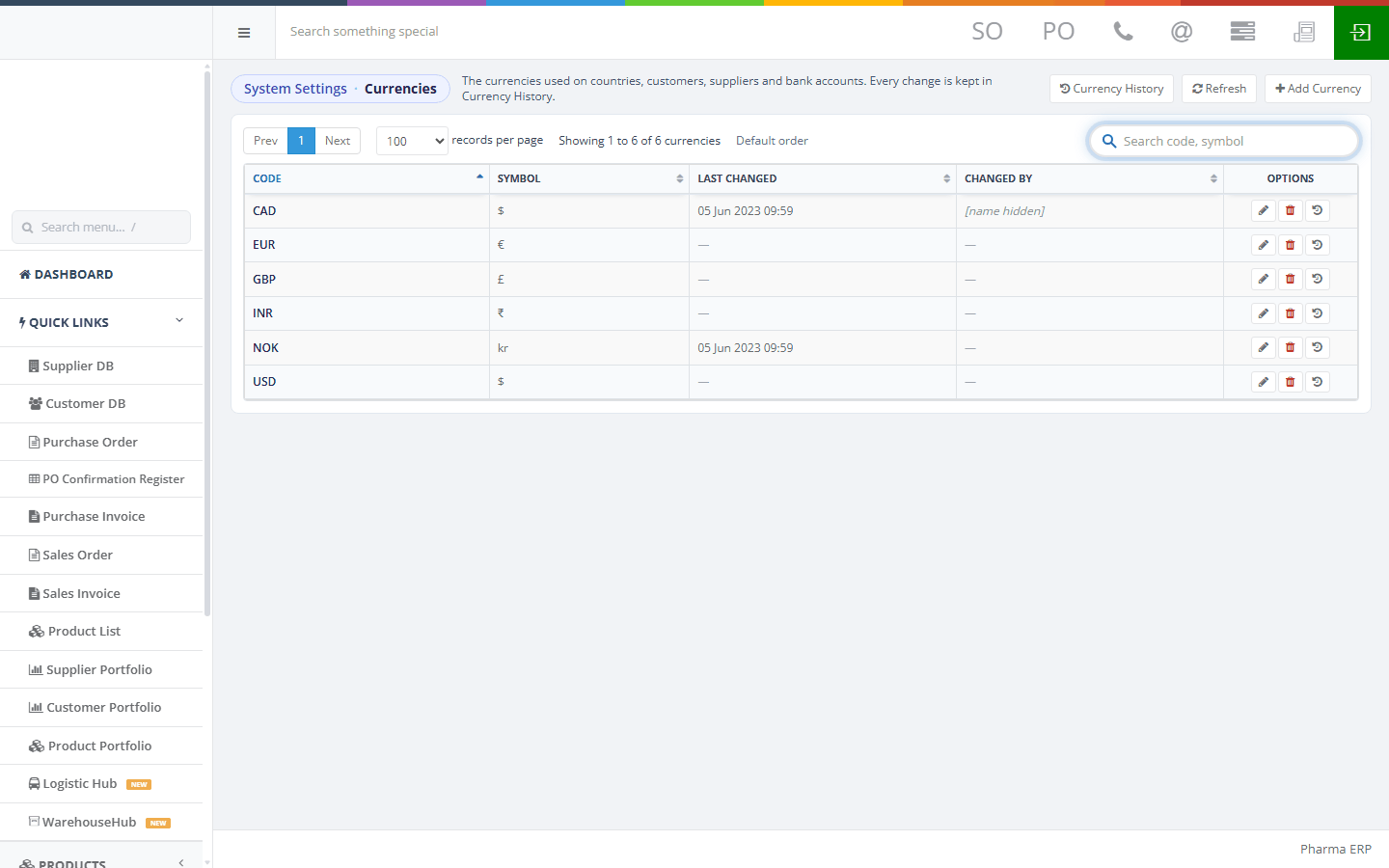
What you see depends on your ticks. A person with View only sees Currency History, Refresh and the history button on each row. The Add Currency button, the pencil and the bin appear only with Create, Update and Delete.
2 Step by step
2.1 Find a currency
Use this to check whether a currency is already on the list, for example before you add Swiss francs.
Open the Currencies page. All currencies load at once, sorted by code from A to Z.
Type part of a code or symbol in the search box, for example CH or Fr. The list narrows as you type. The count shows how many rows match, for example "Showing 1 to 1 of 1 currencies (of 6)."
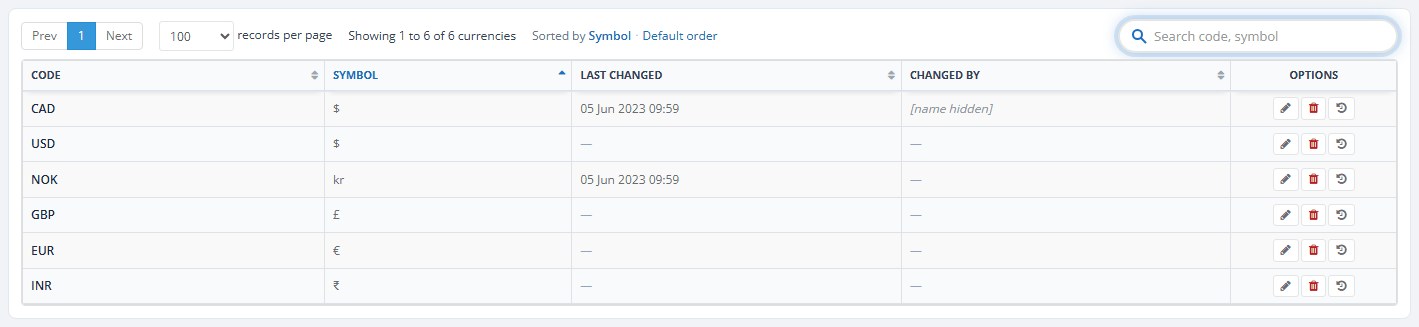
To sort, click a column heading: CODE, SYMBOL, LAST CHANGED or CHANGED BY. Click again to reverse. A note such as "Sorted by Symbol" appears. Click Default order to go back to codes A to Z.
To show more or fewer rows, choose the number of rows per page: 25, 50, 100 (the default) or 250. Use Prev and Next to move between pages.

If nothing matches, the grid says "No currencies match the search." The currency is not on the list yet, so you can add it.
On a phone or a small screen the buttons wrap under the heading and the grid scrolls sideways inside its box.
2.2 Add a currency
Add a currency when a new customer or supplier trades in a currency that is not on the list. You need the Create tick.
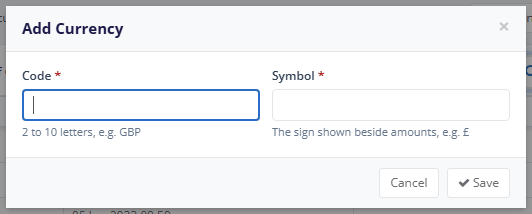
Click Add Currency at the top right. The Add Currency window opens with two empty boxes. Both are required.
In Code, type the international code, for example CHF. Letters are turned into capitals. Use 2 to 10 letters or digits.
In Symbol, type the sign to print beside amounts, for example Fr. Use up to 20 characters.
Click Save or press Enter.
After you save, the window closes, the message "CHF added." appears and the list reloads with CHF in it. LAST CHANGED shows today's date and time and CHANGED BY shows your name. If the save cannot finish, the window stays open and a red message at the top says what to fix. See Messages you may see.
The purchase team can now choose the new currency when they add a supplier in Supplier DB. To pre-fill it from a country, give that country the currency on Countries.
Adding a currency does not create an exchange rate for it. See Good to know.
2.3 Change a currency's symbol or code
Change a currency when a symbol was typed wrongly or the business wants a different sign. You need the Update tick.
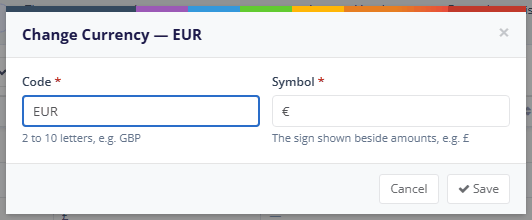
Find the currency and click the pencil in its OPTIONS cell. The Change Currency window opens with the current code and symbol.
Correct the Symbol or the Code.
Click Save.
If you changed the code, your browser asks you to confirm: "Change the code from X to Y? Every country, customer and supplier that uses X will show Y from now on." Click OK to go on or Cancel to stop.
After you save, "CHF saved." appears and the list reloads. If you click Save without changing anything, "saved." still appears but nothing is recorded and LAST CHANGED stays as it was.
Change a code only to correct a mistake. Orders and invoices do not keep their own copy of the currency. Every past and future document of every party in that currency shows the new code and symbol at once. Do not rename GBP, EUR, USD, INR, NOK or CAD. See Good to know.
2.4 Delete a currency
Delete a currency that was added by mistake and is not used anywhere. You need the Delete tick.
Find the currency and click the bin in its OPTIONS cell.
Your browser asks: "Delete the currency "X"? It is deleted only when nothing uses it. The delete stays in Currency History." Click OK.
If nothing uses the currency, "CHF deleted." appears and the row disappears. It is removed for good. If something uses it, nothing is deleted and a red message tells you where it is used. The system checks customers, suppliers, countries, company bank accounts, invoices and order links. To free the currency, move those records to another currency first or keep the currency. There is no way to switch a currency off while it is in use.
2.5 See who changed what: Currency History
Use Currency History to answer "who changed this currency, when, and what was it before?" You need the View tick.
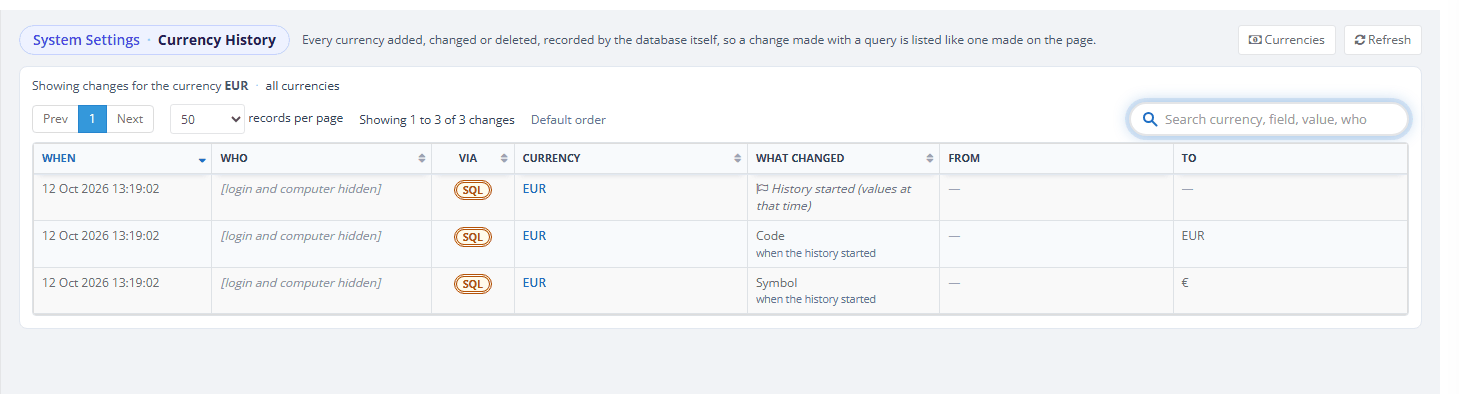
On the Currencies page, click Currency History to see all currencies. To see one currency, click the history icon on its row.
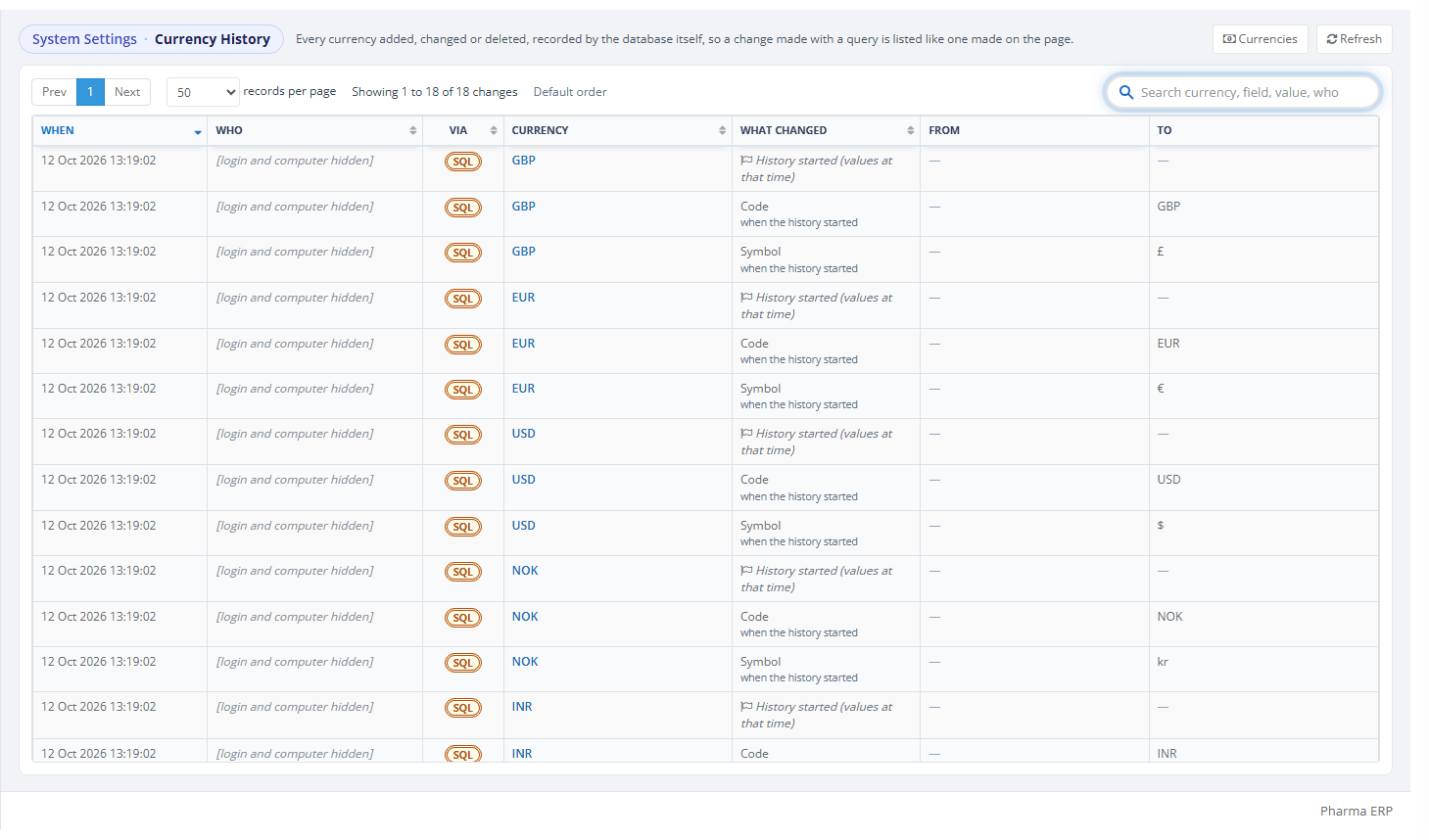
Read the list. The newest change is at the top. Each row is one changed item, with the columns WHEN, WHO, VIA, CURRENCY, WHAT CHANGED, FROM and TO.
VIA shows ERP for a change made in PharmaERP and SQL for a change made directly in the database. For a database change, WHO shows a database login and computer name instead of a person. Treat that as internal information.
WHAT CHANGED shows "Created the currency", "Deleted the currency", "History started (values at that time)" or the item that changed (Code or Symbol).
To find a change, type in the search box ("Search currency, field, value, who") or click a column heading to sort. The list shows 50 rows per page. FROM and TO cannot be sorted.
When you view one currency, click all currencies to see everything again.
Dates and times are shown in your company's time zone.
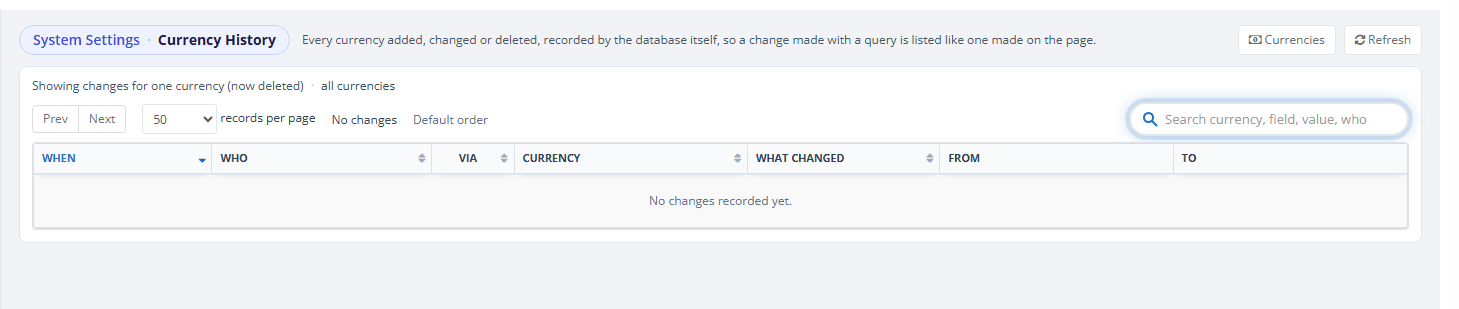
If you open the history of a currency that has been deleted, for example from an old link, the line reads "Showing changes for one currency (now deleted)". Its earlier changes, including the delete, are still listed. If there are none, the list says "No changes recorded yet."
3 Messages you may see
3.1 In the Add Currency and Change Currency windows
These appear in a red box at the top of the window. Nothing is saved until you fix them.
Message | What it means | What to do |
|---|---|---|
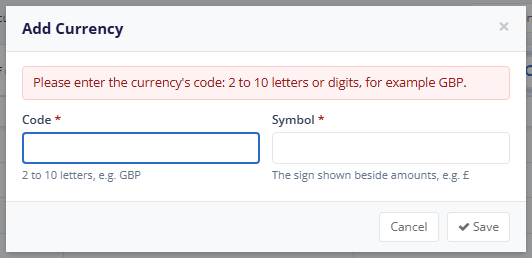
Please enter the currency's code: 2 to 10 letters or digits, for example GBP. | The code is empty, shorter than 2, longer than 10 or has other characters. | Type the international code, for example CHF. |
Please enter the currency's symbol, for example £. | The symbol is empty. | Type the symbol. |
The symbol can be 20 characters at most. | The symbol is longer than 20 characters. | Shorten it. |
The currency CHF already exists. | Another currency already has this code. The check ignores capitals, so gbp matches GBP. | Close the window and search for the existing currency. Use it or change it with the pencil. |
This currency no longer exists. Please refresh the list. | Someone deleted the currency while you were changing it. | Close the window and click Refresh. Add the currency again if you still need it. |
Create right on the Currency page (Role Master) is needed. | You tried to add a currency without the Create tick. | Ask your administrator to tick Create for you in Roles. Sign out and sign in again afterwards. |
Update right on the Currency page (Role Master) is needed. | You tried to change a currency without the Update tick. | Ask your administrator to tick Update in Roles. Sign out and sign in again afterwards. |
The currency could not be saved. Please try again. | The connection was lost, your sign-in ended or an unexpected error occurred. Nothing was saved. | Click Refresh, sign in again if asked and repeat the change. If it repeats, tell your administrator and see Error Log. |
3.2 On deleting
These appear as a toast message after you confirm the delete.
Message | What it means | What to do |
|---|---|---|
EUR cannot be deleted. It is used by ... (for example "102 supplier(s), 96 customer(s), 43 country(ies) and 2 company bank account(s)") | Something still uses the currency. The message names the first places it is used. Red, stays about 15 seconds. | Keep the currency or move those records to another currency first. Change countries on Countries. Change a customer or supplier in Customer DB or Supplier DB. |
EUR cannot be deleted: other records still use it. | The database refused the delete because another record still uses the currency. | Keep the currency and tell your administrator. |
Delete right on the Currency page (Role Master) is needed. | You do not have the Delete tick. | Ask your administrator to tick Delete in Roles. Sign out and sign in again afterwards. |
The currency could not be deleted. Please try again. | The connection was lost, your sign-in ended or an unexpected error occurred. | Click Refresh to see whether the row is still there, then try again. If it repeats, tell your administrator. |
3.3 Success messages
Message | What it means | What to do |
|---|---|---|
CHF added. | The new currency is saved and the list reloads. | Nothing. |
CHF saved. | The change is saved or you saved without changing anything. | Nothing. |
CHF deleted. | The currency is removed. | Nothing. |
3.4 Around the page
Message | What it means | What to do |
|---|---|---|
Access Denied (page) | You do not have the View tick. | Ask your administrator to tick View for the page "Currency" in Roles. Sign out and sign in again. |
You have no enough permissions to request this resource. | A browser box that can appear together with a "right ... is needed" message. It has the same cause. | Click OK, then follow the fix for that message. |
Signed out - Your sign-in has ended, so this page cannot load or save anything. | Your sign-in ended (timed out or signed out elsewhere) and you clicked Save, Delete or Refresh. A red notice with a Sign in again button appears. Nothing was saved. | Copy anything you typed. Click Sign in again. You come back to this page. See Signing in. |
The currencies could not be loaded. Please try again. | The list could not be read. | Click Refresh. If it repeats, tell your administrator and see Error Log. |
The history could not be loaded. Please try again. | Currency History could not be read. | Click Refresh. If it repeats, tell your administrator and see Error Log. |
Currency History is not installed on this database. | The history feature is missing. The yellow notice shows on the list and on the history page. The history page shows no grid. Changes are still saved, but not recorded. | Ask your administrator to install it. |
No currencies match the search. | Nothing in the list matches what you typed. | Change the search or add the currency. |
No changes recorded yet. | There is no history for this currency. | Nothing. |
Two of these questions come from your browser, not from PharmaERP: the one before a code change and the one before a delete. Answer them with the browser's own OK or Cancel.
4 Troubleshooting
4.1 The page does not open or the menu item is missing
If you are a user:
Sign out and sign in again, in case your role was changed recently.
If the Access Denied page appears or Currencies is not under MASTER DATA, you do not have View. Ask your administrator.
If the sign-in page appears instead, your sign-in ended. Sign in again. You return to this page. See Signing in.
If you are an administrator:
Open Roles and find the role of the person.
Tick View on the page "Currency" in the group SYSTEM. Add Create, Update or Delete only for people who need them.
Ask the person to sign out and sign in again, because ticks are read at sign-in.
If the person still cannot sign in or open pages, see Sign-in problems.
4.2 The Add Currency button, pencil or bin is missing
If you are a user: the button appears only with the matching tick (Create, Update, Delete). Ask your administrator.
If you are an administrator: tick the right on the page "Currency" in Roles. The person must sign out and sign in again.
4.3 The grid is blank
Click Refresh.
If the message "The currencies could not be loaded. Please try again." appears, wait a moment and click Refresh again.
If your sign-in ended, the red Signed out notice appears. Click Sign in again.
If it still fails, tell your administrator. An administrator can look for the error in the Error Log.
A grid with no rows and the text "No currencies match the search." only means the search box is not empty. Clear the search box.
4.4 I saved a change but it does not show on another page
The change shows on the other pages straight away. Reload the other page. If you changed a symbol or a code, every customer, supplier, country and bank account that uses the currency shows the new value. If you still see the old value, tell your administrator.
4.5 Rows with an empty CODE appear after an Excel import
Importing suppliers or customers from Excel can add extra currencies with no code and the symbol £ or €. In Currency History they show VIA as SQL. The imported parties may use one of these instead of GBP or EUR.
Do not delete the rows yet.
Tell your administrator.
An administrator moves the imported customers and suppliers to the proper currency in Customer DB or Supplier DB. Only then can the empty rows be deleted. The delete is refused while anything still uses them.
4.6 Price comparisons or conversions are empty for a currency
PharmaERP collects exchange rates only for GBP, EUR, USD, INR, NOK and CAD. Parties in any other currency, such as a newly added CHF, get no rate. Margin checks and price conversions for them stay empty. There is no screen where you can add a rate. Ask your administrator before you rely on conversions for another currency.
4.7 After midnight, purchase order screens show no rate or fail with an error
Rates are collected in the background after the first sign-in after midnight UTC (01:00 in UK summer time). Until then, the purchase order and purchase invoice headers show no conversion line for today. The "link to sales order" lists on purchase order and purchase invoice lines can fail with a server error.
Sign in once or ask a colleague to sign in and wait a minute.
Open the page again.
If a collection fails, no one is told on screen. An administrator can find a warning in the Error Log. The collection is tried again at a later sign-in.
4.8 EUR documents lose the European number format or rates stop for a currency
This happens when one of the six rate currencies was renamed. The rate lookups and the European number format on EUR PDFs find a currency by its code.
An administrator opens Currency History, finds the code change and notes the old code.
Change the code back to the original on the Currencies page. The browser asks you to confirm.
Rates return with the next daily collection.
5 Good to know
A change reaches the past. Documents keep no copy of the currency, so a corrected code or symbol also changes how every earlier order, invoice and PDF of those parties reads. Make changes deliberately.
Do not rename GBP, EUR, USD, INR, NOK or CAD. Exchange rates, margin checks and the European number format on EUR PDFs recognise them by code. Renaming one stops all three for every party in it. The confirmation box does not warn you about this.
New currencies have no exchange rate. PharmaERP collects rates once a day, after the first sign-in after midnight UTC and only for the six codes above.
Symbols can repeat. CAD and USD can both use $. Codes cannot repeat.
One code, one currency. The page refuses a second CHF. A currency added in another way could create a duplicate. Report any duplicate you see.
No exchange rate screen, no inactive status. A currency is either on the list or deleted. One that is in use cannot be deleted.
A deleted currency is not lost from the record. Currency History keeps a "Deleted the currency" line with the last code and symbol, so a technician can put it back.
Nothing is sent anywhere. Saving a currency sends no e-mail or notification and sends nothing to Business Central. Customers, suppliers and documents are not re-saved. They show the current code and symbol.
Currency lists elsewhere (Customer DB, Supplier DB, orders and opportunities) are refreshed when you save or delete, so the change shows there at once.
See also: Countries for the currency of a country, Roles for the ticks, Error Log for errors that repeat and the Master Data overview.