The Dashboard is the first page you see after you sign in. It shows your punch card and leave, how much contact you had with suppliers and customers, your open follow-ups and your recent activity. From here you can log a call or e-mail, close a follow-up that is no longer needed and read a supplier's or customer's contact history. This page also explains why you may see fewer cards than a colleague and what to do when a card is empty or does not load.
1 Before you start
1.1 Access you need
Your administrator gives rights in Roles. A change applies the next time you sign in.
To do this | You need this tick in Roles |
|---|---|
Open the Dashboard, see your punch card and leave | Nothing beyond being able to sign in |
See the supplier row (Supplier Activity, Supplier Tasks, Supplier Recent Activity) | Supplier DB - View |
See the customer row (Customer Activity, Customer Tasks, Customer Recent Activity) | Customer DB - View |
Log a call or e-mail and save it | Supplier DB - Create (supplier tab) or Customer DB - Create (customer tab) |
See the Close button and close a follow-up | Supplier DB - Create or Customer DB - Create |
Finish a generic task or post a comment on it | Supplier DB - Create |
See the SO and PO buttons in the top bar | SO Reports - View and PO Reports - View |
Three separate set-ups decide what you see:
Rights in Roles decide which rows of cards and which buttons you get.
Your user assignment decides which suppliers and customers appear on the follow-up and recent-activity cards. An administrator sets it in User Assignment.
Ownership and your reporting line decide which companies you can pick in the call window and whether Close and the history window open for a company. See Owner Assignment.
A user with no user assignment sees empty follow-up cards, even with every right ticked. Empty cards usually mean "not assigned", not "no work".
1.2 Records that must exist first
The supplier or customer must exist in Supplier DB or Customer DB.
To log a call for a company, it must belong to you or your team (you or someone who reports to you, owns it or is assigned to it). Otherwise it is not in the list or you see a Not available message.
A follow-up appears only after a call or e-mail log with a follow-up date has been saved.
To see a follow-up, your administrator must assign that supplier or customer to you or give you "all suppliers" or "all customers". For suppliers you must also have logged the latest call yourself, unless you see all suppliers.
1.3 Where to find the page
Sign in. The Dashboard opens at once. If your previous sign-in ended while you were on another page, you come back to that page instead (see Signing in).
At any time, click Dashboard at the top of the left menu, your picture above the menu or the company logo at the top left.
2 Step by step
2.1 Read the page layout
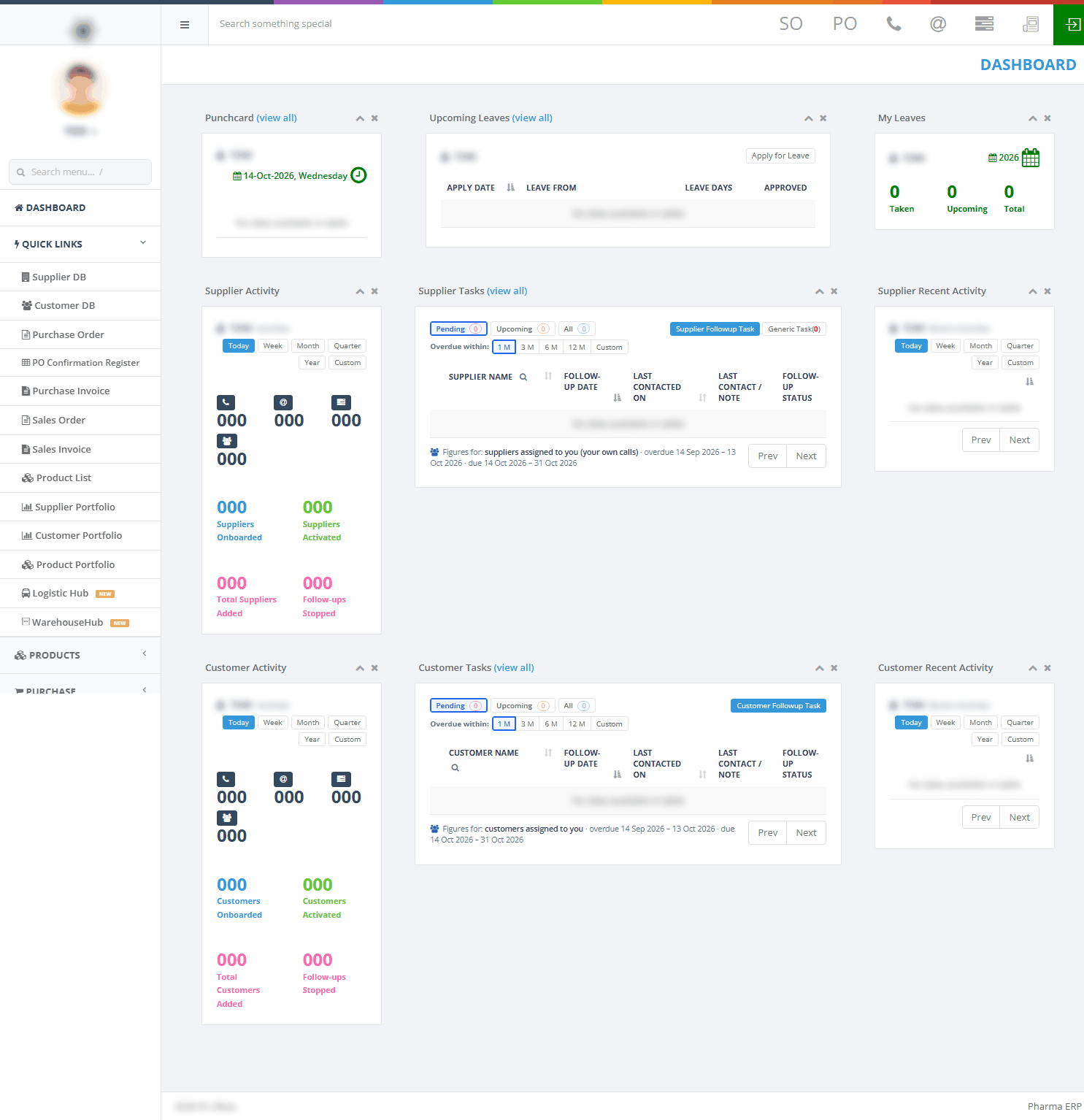
Area | What it is for |
|---|---|
Top bar (top right) | SO and PO sheets, phone (log a call), @ (log an e-mail), generic task icon, upload panel, green sign-out button |
Row 1: Punchcard, Upcoming Leaves, My Leaves | Your punch times today, your leave requests and your leave totals for the year |
Row 2: Supplier Activity, Supplier Tasks, Supplier Recent Activity | Your supplier contact counts, your open supplier follow-ups and your latest supplier actions |
Row 3: Customer Activity, Customer Tasks, Customer Recent Activity | The same three cards for customers |
Every card loads on its own. While its figures are on the way it shows Loading.... If they cannot be loaded it shows Could not load. with a Retry button and the other cards carry on. The arrow at the top right of a card folds it. The cross hides it until you open the page again.
2.2 Check your day: punch card and leave
Look at Punchcard. Each line shows an In time and an Out time. Logged In.... means you have not punched out yet. Click (view all) for the full punch card.
Look at Upcoming Leaves: Apply Date, Leave From, Leave Days and Approved (Yes or No). It shows five lines a page.
Look at My Leaves: Taken (leave days recorded on your punch card this year), Upcoming (days of leave from now on) and Total.

2.3 Apply for leave
On the Upcoming Leaves card, click Apply for Leave.
Pick Leave From and Leave To. Weekends cannot be picked. Tick Is Half for half a day.
Write a Note. It is required.
Click Save changes. You see "Your leave application submitted successfully to admin/manager". The Upcoming Leaves list and the My Leaves figures refresh.
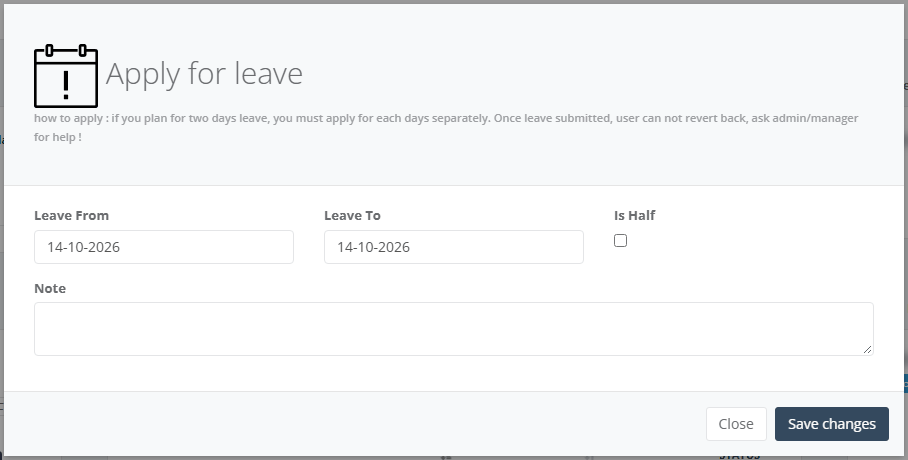
Your manager approves the request on the punch card pages and Approved then shows Yes. You cannot withdraw a request yourself. Ask your manager or administrator.
Book a half day as one date. Is Half counts as 0.5 day even if Leave From and Leave To are several days apart. The window does not check that Leave To is after Leave From, so check the dates before you save.
2.4 See your activity and drill into it
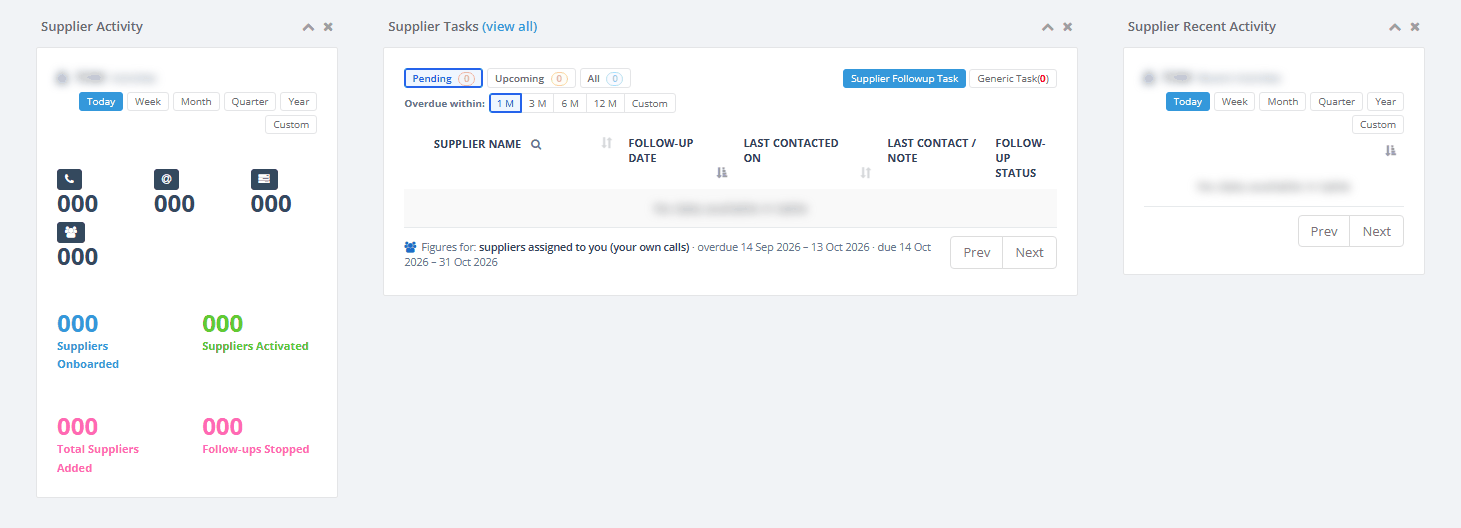
On Supplier Activity (or Customer Activity) pick the period: Today (default), Week (the last 7 days), Month (this calendar month), Quarter (from the first day of the month three months ago) or Year (this calendar year).
Read the counts: phone is calls, @ is e-mails, the list icon is generic tasks finished, the people icon is different suppliers or customers you worked on. The supplier card also shows Suppliers Onboarded, Suppliers Activated, Total Suppliers Added and Follow-ups Stopped.
Click a count or its blue icon, to open the list behind it.
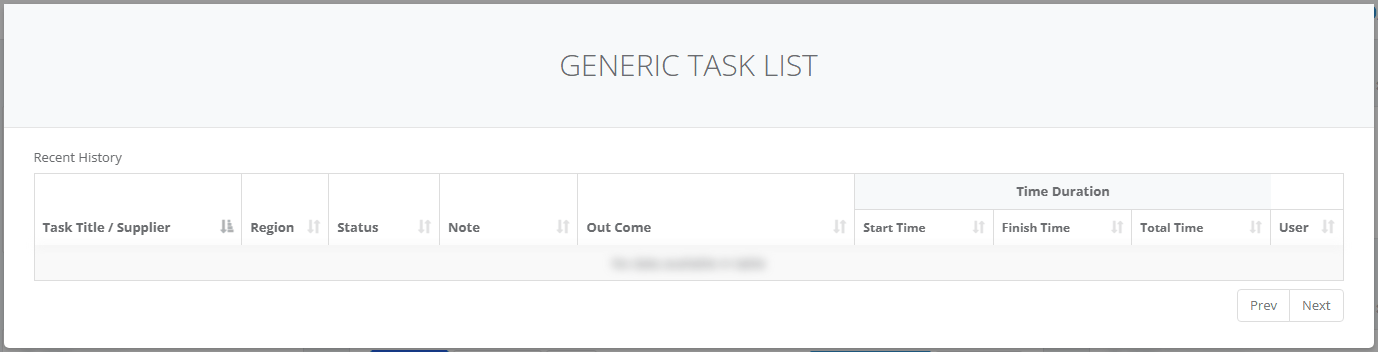
The figures are always your own. Notes on the counts:
Calls marked Call Not Answered are not in the phone count.
Suppliers Onboarded counts suppliers you moved to "Onboarding - In Progress", not to "Onboarding - Complete".
The generic-task count is the same number on the supplier and the customer card.
Periods follow UK winter time without daylight saving. In summer, just after midnight, Today still shows yesterday's figures for one hour.
Do not use Custom on the Activity cards. It does not work yet and the card shows Could not load. Use Today, Week, Month, Quarter or Year.
2.5 Work through your follow-ups
A follow-up is a promised contact: "I will contact this company again on this date". Supplier Tasks and Customer Tasks list the open ones.
Open the Pending tab (default) for follow-ups whose date has passed. Choose how far back with Overdue within: 1 M (default), 3 M, 6 M, 12 M or Custom.
Open Upcoming for follow-ups due today or later. Choose Due: Today, Week (to this Sunday), Month (default, to the end of this month), Quarter, Year or Custom.
Open All to see both. The round counters on the tabs show how many there are on each tab, whichever tab you are on.
Sort by clicking a heading: Supplier Name (Customer Name), Follow-up Date (oldest first by default) or Last Contacted On.
To look at one company only, click the magnifier next to the name heading and pick it from the list. The list holds only companies in the tab and period shown.
Read the line under the list. Figures for: says whose follow-ups you see (for example "suppliers assigned to you (your own calls)") and the date ranges used.
A red warning triangle marks an overdue follow-up. A yellow horn marks an upcoming one. With Custom you pick From and To, then click Apply.
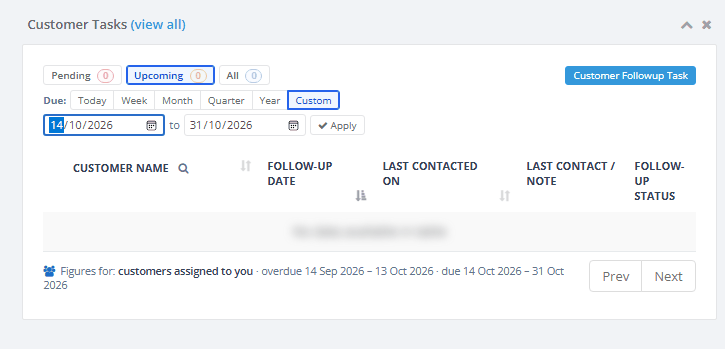
Follow-ups overdue for longer than the period you chose are not shown. If a company seems to be missing, choose 12 M or Custom before you conclude it has no follow-up.
2.6 Log a call or an e-mail and set the next follow-up
Use the phone or @ button on a follow-up line or the phone or @ icon in the top bar (see Log a call or e-mail from any page).
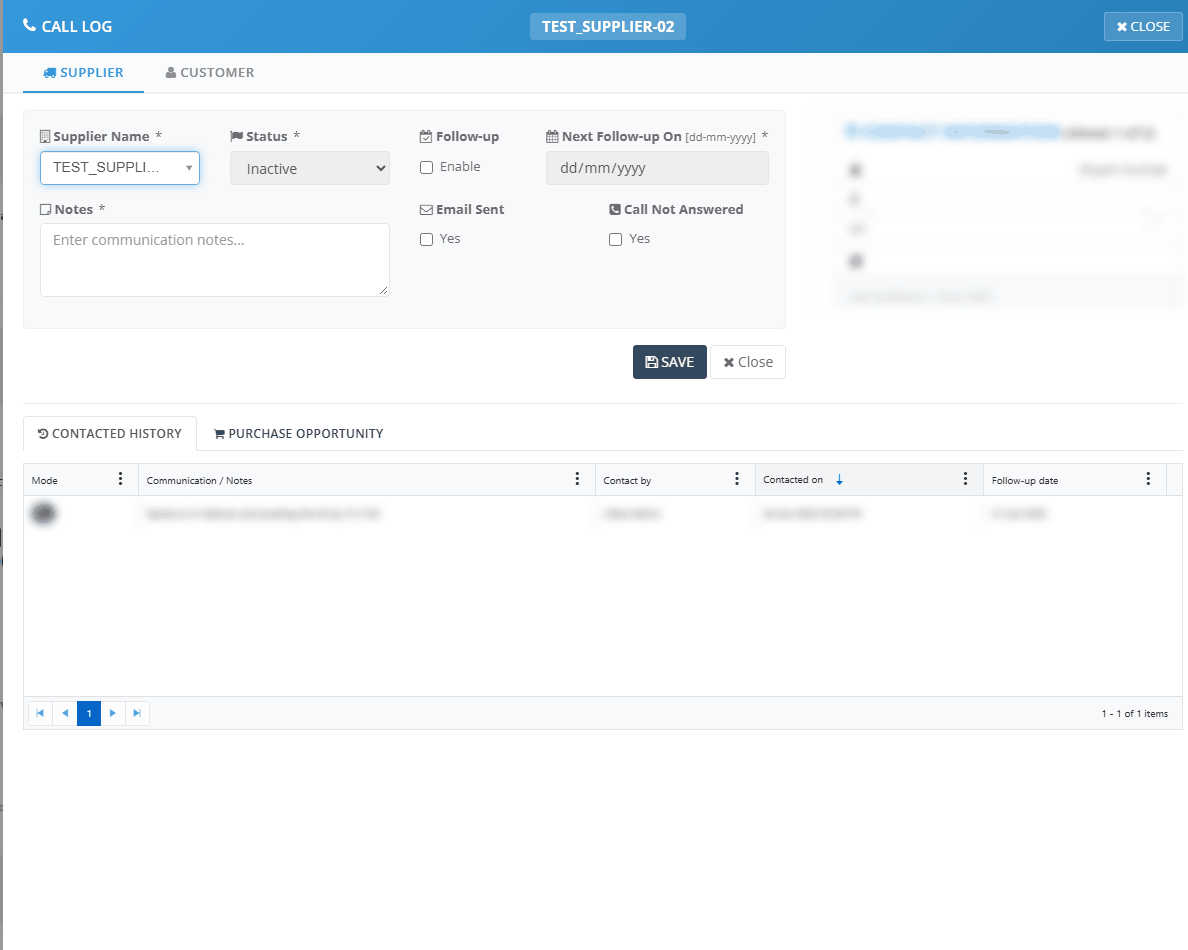
The window opens from the right. From a follow-up line the company is already chosen. From the top bar, pick the Supplier Name (or Customer Name) by typing to search.
Check Status. For Active, Inactive, Onboarding and Closed companies it is locked. For a lead you may move it on (for example to "Lead - In Progress"). Never leave it on Select.
If another contact is needed, tick Follow-up - Enable and pick Next Follow-up On. The picker allows dates from three months ago to one year ahead.
Write the Notes. They are required, up to 1,000 characters.
Tick Call Not Answered if nobody picked up. The log then counts as an unanswered call.
Click SAVE. The button shows Saving..., then you see "Supplier task saved successfully." (or "Customer task saved successfully."). The form clears, the history below shows the new line and the follow-up cards refresh.
If you do not tick Follow-up - Enable, saving the call closes the company's follow-up. It leaves the follow-up card and the history shows "Followup Stop". Tick it whenever you still need to contact the company again.
Email Sent on a call log is not stored. Write "e-mail sent" in the notes if it matters.
2.7 Close a follow-up that is no longer needed
Click Close at the end of the follow-up line. The button is shown only if you have the Create right.
Write the Outcome note. It is required, up to 1,000 characters. A counter shows how many you have used.
Click Close follow-up. You see "Follow-up closed." and the line leaves the list. The history keeps your note.
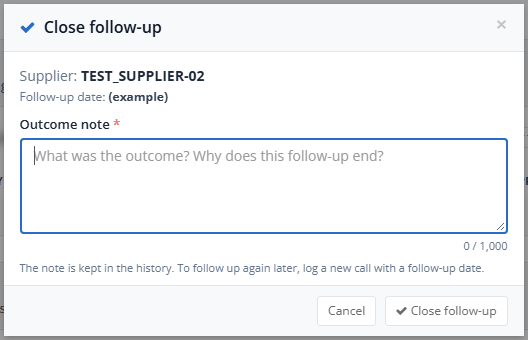
There is no re-open button. To follow up again later, log a new call with a follow-up date.
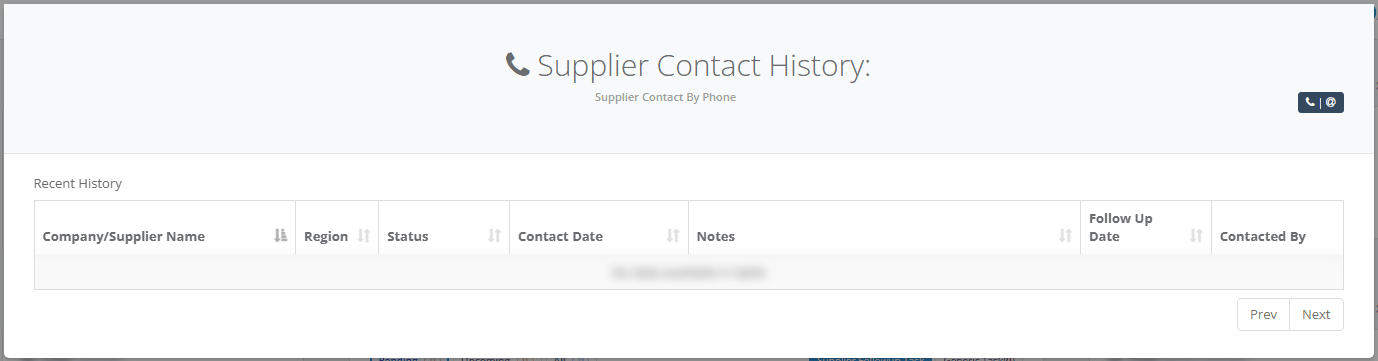
2.8 Read a supplier's or customer's history
Click the history icon (circular arrow) in front of a name on any Dashboard list.
Use the All kinds box to show only some kinds of entry: Call, Call not answered, Email, Follow-up stopped, Follow-up started, Generic task started, Generic task finished.
Sort by Contact Date, Task, Note or User. Times are shown on the company clock.

2.9 Work with generic tasks
A generic task is a to-do that is not a call or e-mail, started for you by yourself or by your manager, with an expected end date.
On Supplier Tasks, click Generic Task (n). The number is the open generic tasks. Each line shows the task, Started On, Expected End Date ("Today", "Tomorrow" or a date) and who assigned it ("Self" when you started it).
Click Finish (your own tasks) or Task Updates (tasks assigned by or to someone else).
Read the detail, the comments and the supplier's recent conversations. Write in the comment box and click Post Comment... to reach the other person.
To finish, write the Outcome (and the Task Name/Title if asked) and click FINISH. The task leaves the list and is counted on the Activity card.
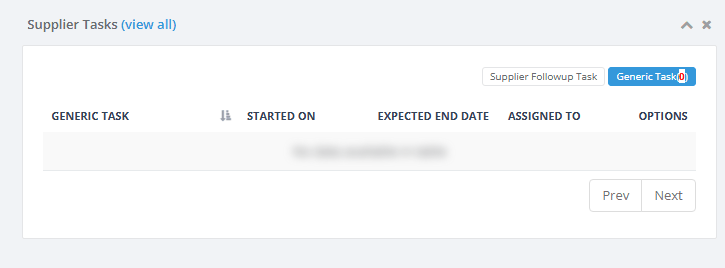
There is no Generic Task tab on Customer Tasks.
2.10 Use Recent Activity
Supplier Recent Activity and Customer Recent Activity list your latest actions in the period (Today by default): calls and e-mails, status changes, new companies, generic tasks and follow-ups stopped or started. Hover on View note to read a note. The history icon opens the full history.
2.11 Log a call or e-mail from any page
The top bar is on every page, not only the Dashboard.

Click the phone icon for a call or the @ icon for an e-mail. Both show the tooltip "Conversation by call".
The CALL LOG or E-MAIL LOG window opens with a SUPPLIER and/or CUSTOMER tab, depending on your rights. If you can see both, the CUSTOMER tab opens first.
Pick the company and continue as in Log a call or an e-mail and set the next follow-up.
Click CLOSE (or press Esc) to leave without saving.
2.12 Use Clear Cache
PharmaERP keeps some lists in the server's memory so pages open faster, such as countries, cities, currencies, units and packages. Clear Cache empties that memory so the next page reads the lists fresh. It helps only when a list was changed and a page still shows the old values.
Narrow the browser window (or use a phone) and open the menu under the arrow at the top right.
Click Clear Cache. There is no question and no message. The Dashboard reloads.
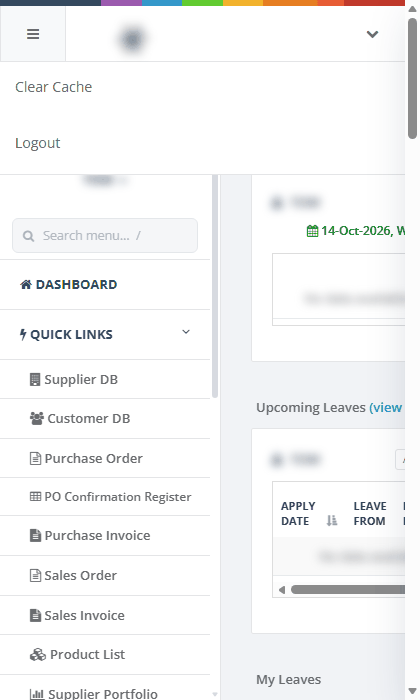
Clear Cache affects every user at once and the next pages load a little slower. Use it only when an administrator asks you to.
2.13 Other top-bar buttons
SO opens the Sales Order Sheet and PO the Purchase Order Sheet, if you have the rights.
The paper icon opens the upload side panel.
The green button signs you out. See Signing in.
The list icon with the tooltip "Start a Generic Task" does nothing when you click it. Ask your manager to start generic tasks another way.
3 Messages you may see
Message | What it means | What to do |
|---|---|---|
Loading... | A card is fetching its figures. | Wait a moment. |
Could not load. (with Retry) | One card's figures could not be loaded. The other cards are not affected. | Click Retry. Do not use Custom on Activity cards. If it keeps failing, tell your administrator and check the Error Log. If your sign-in ended, sign in again. |
No data available in table | A list has nothing for the period or scope you chose. | Change the period. If follow-up cards are always empty, ask your administrator to check your assignment in User Assignment. |
Please select a supplier. / Please select a customer. | You clicked SAVE without choosing a company. | Pick the company, then save. |
Please enter communication notes. | You clicked SAVE without notes. | Write the Notes, then save. |
Please select a follow-up date. | Follow-up - Enable is ticked but Next Follow-up On is empty. | Pick a date or untick Follow-up - Enable (which closes the follow-up). |
Supplier task saved successfully. / Customer task saved successfully. | The call or e-mail log was saved. | Check the new line in the history. If your Create right was removed, this message can appear although nothing was saved. See Troubleshooting. |
Failed to save supplier task. Please try again. (or customer) | The save failed. | Try again. If it repeats, send the time and the message to your administrator, who checks the Error Log. |
Unable to load supplier form. Please reload and try again. (or similar for customer) | The call window could not load its form or details. | Reload the page and open the window again. If it repeats, see Error Log. |
Not available yet - this part is still being tested. Please ask your admin and quote code DS-201 (or 202, 203, 204). | The company is outside your team, so you may not log a call, close a follow-up or open its history. | Ask your administrator or manager to check the owner and your reporting line in Owner Assignment and User Assignment. Quote the code. |
Please write an outcome note. | You clicked Close follow-up without a note. | Write the Outcome note. |
The note is too long (1,000 characters at most). | The outcome note is over 1,000 characters. | Shorten the note. |
Follow-up closed. | The follow-up was closed. | Nothing. The line leaves the list. |
This follow-up is already closed. | Someone closed it before you. | Nothing. The list refreshes. |
You do not have the right to close this follow-up (Supplier - Create). Please ask your admin. | You lack the Create right on that side. | Ask your administrator to tick Supplier DB or Customer DB Create in Roles, then sign in again. |
The follow-up could not be closed. Please try again. | The close failed. | Try again. If it repeats, tell your administrator, who checks the Error Log. |
The follow-up was not closed: another supplier has the same name and country. Please correct the supplier record first. | The company record itself breaks a rule, so it cannot be saved with the follow-up closed. | Ask the person who looks after Supplier DB or Customer DB to correct the company record (name, country or short code), then close the follow-up again. |
Not found. | The close request had no valid company or follow-up. | Reload the Dashboard and try again. |
Please pick whole dates. / The first date is after the second. | The Custom follow-up dates are incomplete or reversed. | Fix the From and To dates and click Apply. |
Warning - Please write note | You clicked Save changes on leave without a note. | Write the Note. |
Your leave application submitted successfully to admin/manager | The leave request was saved, not yet approved. | Wait for your manager to approve it. |
Warning - Please complete the field | You clicked FINISH on a generic task without the outcome or title. | Fill in the Outcome and Task Name/Title. |
Warning - Please write comment first and post.... | You clicked Post Comment... with an empty box. | Write the comment first. |
Failed to retrieve states.[object Object] | Posting a generic-task comment failed. The wording is a leftover and does not describe the real cause. | Try again. If it repeats, tell your administrator. |
A message that your sign-in has ended, with Sign in again | Your sign-in ended while the page was open. | Copy any unsaved text, click Sign in again and sign in. See Signing in. |
A message under the title of the history window | You may not read that company's history. | Ask your administrator to check your Supplier DB or Customer DB View tick in Roles and your reporting line. |
4 Troubleshooting
4.1 I see fewer cards than a colleague
If you are a user:
Row 1 (Punchcard, Upcoming Leaves, My Leaves) is shown to everyone.
The supplier row appears only with Supplier DB - View. The customer row appears only with Customer DB - View.
With neither tick you see row 1 only. Ask your administrator for the tick you need.
One special account sees only the Punchcard card. Ask your administrator if that is not what you expect.
If you are an administrator:
Open Roles and find the user's role.
Tick Supplier DB and/or Customer DB View (and Create if they log calls or close follow-ups). Save.
Ask the user to sign out and sign in again. Rights are read at sign-in.
4.2 The follow-up cards are empty
If you are a user:
Choose 12 M or Custom on the Pending tab. Old overdue follow-ups are hidden by default.
Read Figures for: under the list. It tells you whose follow-ups the card counts.
For suppliers, only follow-ups where you logged the latest call are shown (unless you see all suppliers). For customers, every assigned customer is shown.
If it still says nothing, ask your administrator to assign suppliers or customers to you.
If you are an administrator:
Open User Assignment and check the user has an assignment for suppliers and/or customers or "all".
A SuperAdmin account without an assignment also sees empty follow-up cards, even with every right ticked.
Ask the user to refresh the Dashboard.
4.3 A company is on my list but I cannot close it or open its history
You see the line because it is assigned to you, but Close and the history window also check ownership and your reporting line.
If you see "Not available ... DS-203" or "DS-204", ask your administrator or manager to check the company's owner in Owner Assignment and your place in User Assignment.
4.4 Save says "saved successfully" but the history line is missing
Open the history of the company with the history icon.
If the new line is not there, your Create right may have been removed. The window can still say "saved successfully".
Ask your administrator to check your rights in Roles. After a change, sign out and sign in again.
4.5 A card shows "Could not load."
If you are a user:
Click Retry on the card.
If you used Custom on an Activity card, choose Today, Week, Month, Quarter or Year.
If every card fails, your sign-in may have ended. Sign in again. See Signing in.
If one card keeps failing, note the card and the time and tell your administrator.
If you are an administrator:
Open the Error Log and look for entries at the time the user saw the problem.
Send what you find to support.
4.6 The sign-in page appears or I get Access Denied
If the sign-in page appears while you work, your sign-in ended. Sign in again. You return to the page you were on. See Signing in.
If you see Access Denied, you do not have the tick for that page. Ask your administrator to check Roles.
For other cases, see I cannot sign in or cannot open a page.
4.7 The Dashboard is slow or a page shows old list values
A page showing old values for a list such as countries or currencies may be reading memory kept by the server. Ask your administrator.
The administrator can use Clear Cache (see Use Clear Cache). It affects every user and the next pages load a little slower.
5 Good to know
The Dashboard is the landing page after sign-in. If your sign-in ended on another page, you return there instead. See Signing in.
Rights come from Roles and apply at your next sign-in. Which companies you see on the cards comes from User Assignment. Ownership comes from Owner Assignment.
Your Activity and Recent Activity figures are always your own.
A call without Follow-up - Enable closes the follow-up.
Never save a lead with Status on Select. Nothing stops it and the company's status then becomes blank. Pick the right lead status.
Quarter on the Activity cards means "since the first day of the month three months ago". Quarter on the Upcoming tab means the calendar quarter.
Customer Recent Activity for users who see "all customers" can show supplier entries under a customer name. Check the history window before you act on it.
Page size is 5 lines on cards and 20 on drill lists.
The bell and My tasks and punching in and out, are not part of this page.
See also: Error Log, Signing in, Roles.