Some partner companies also run PharmaERP. To pass purchase orders and sales invoices between the two systems as files, each side must know which partner is which. You record this on the partner's supplier or customer record: the partner's Central DB AccountID (its number in the central list of PharmaERP companies) and a Hash Key (a code you agree with the partner). This page shows how to read, link, change and remove that link, what you see when it is wrong and how to change it safely.
Only the Central DB AccountID decides where files go and whether an uploaded file is accepted. Nothing checks the Hash Key. A wrong or changed hash key breaks nothing, but a wrong or changed Central DB AccountID does. Treat the hash key as a reference code, not as a password.
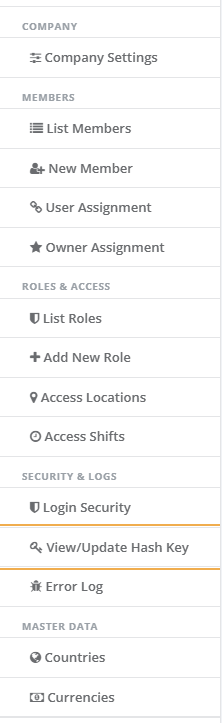
The menu item View/Update Hash Key and the View/Update Key button on Supplier DB do not open anything in this version. You link partners from the side panel of Supplier DB or Customer DB, as described below.
1 Before you start
To see System Settings › Security & Logs › View/Update Hash Key in the menu, you need the Create tick on the AdminMember page. This item does not open anything in this version. Ticks are set in Roles.
To work with a supplier's link, you need the View tick on the Supplier DB page. For a customer, you need the View tick on the Customer DB page. Ask your administrator to check your role in Roles. A role change applies the next time you sign in.
Changing a link needs no extra tick. Anyone who can open the side panel can save it.
You see only the suppliers and customers that your access allows. If the partner is not in your list, you cannot reach its link.
The partner must already exist as a supplier in Supplier DB and, if you also sell to it, as a customer in Customer DB.
Get the partner's Central DB AccountID (a whole number, for example 99001) from the partner. Agree the hash key with the partner.
Your own company's Central DB AccountID must be set by IT in Company Settings. If your own number is missing or wrong, uploaded files are refused even when the partner's link is correct.
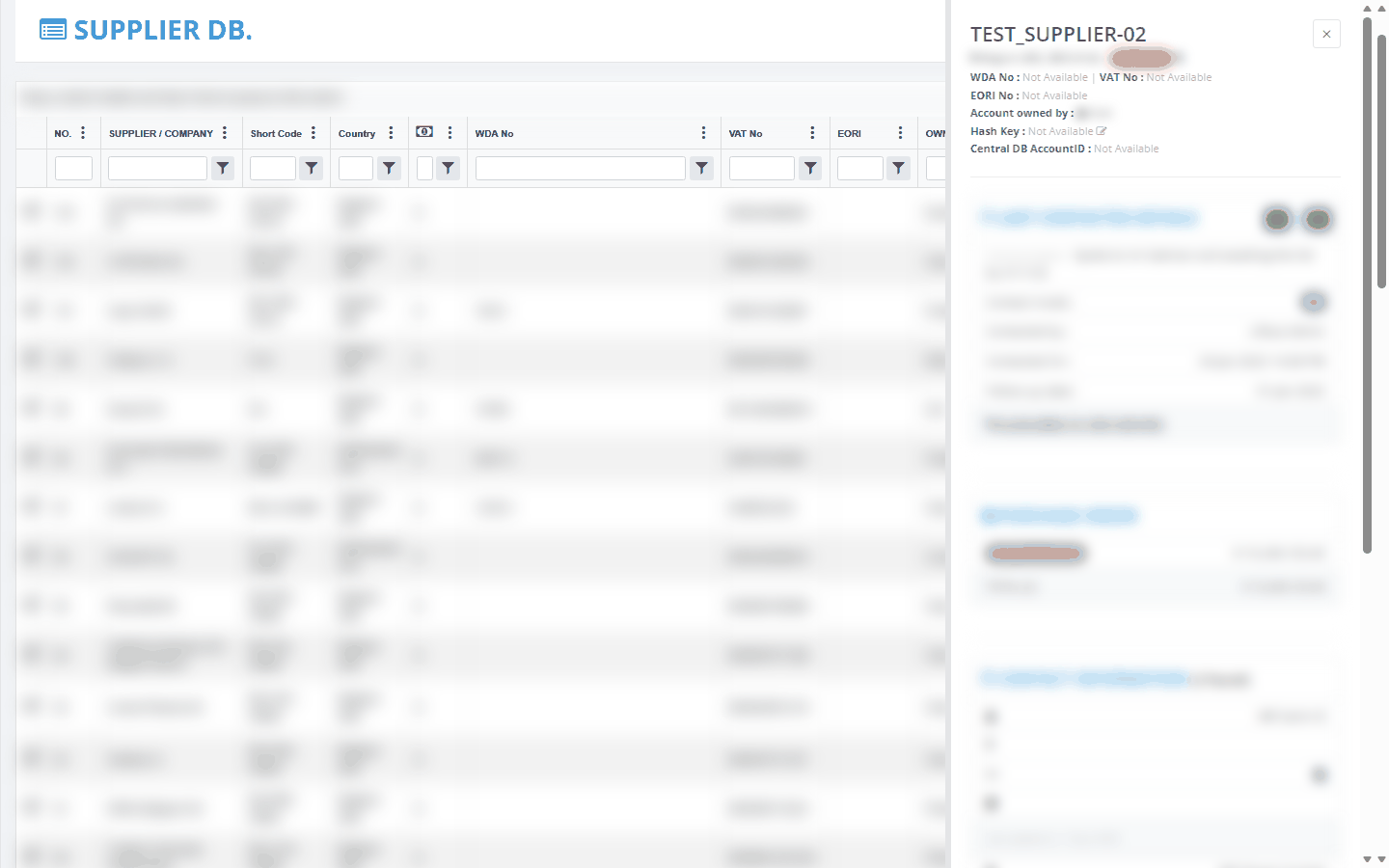
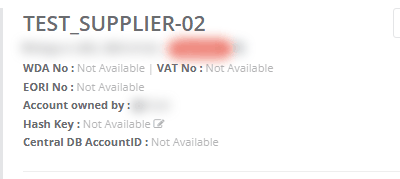
To find a link, open Purchase › Supplier DB (or Sales › Customer DB) and click the partner's row. The side panel opens on the right and shows Hash Key and Central DB AccountID. The pencil icon after Hash Key opens the window where you change the link.
2 Step by step
2.1 Check whether a partner is linked
Open Purchase › Supplier DB (or Sales › Customer DB).
Click the partner's row. The side panel opens.
Read Central DB AccountID. A number means the partner is linked. Not Available means it is not.
Read Hash Key. A code is shown or Not Available.
Checking changes nothing. A key without a number is not a link.
2.2 Link a supplier
Open Purchase › Supplier DB and click the supplier's row.
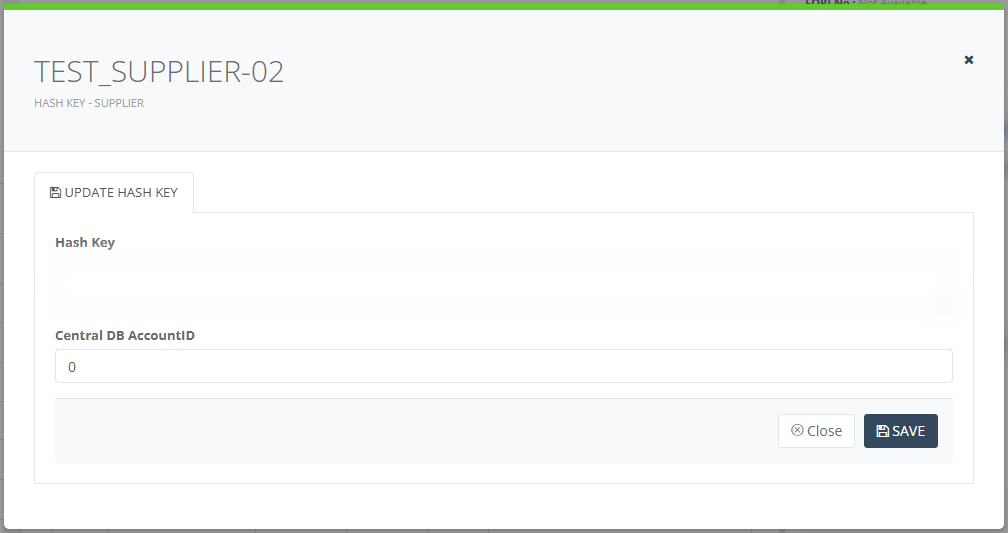
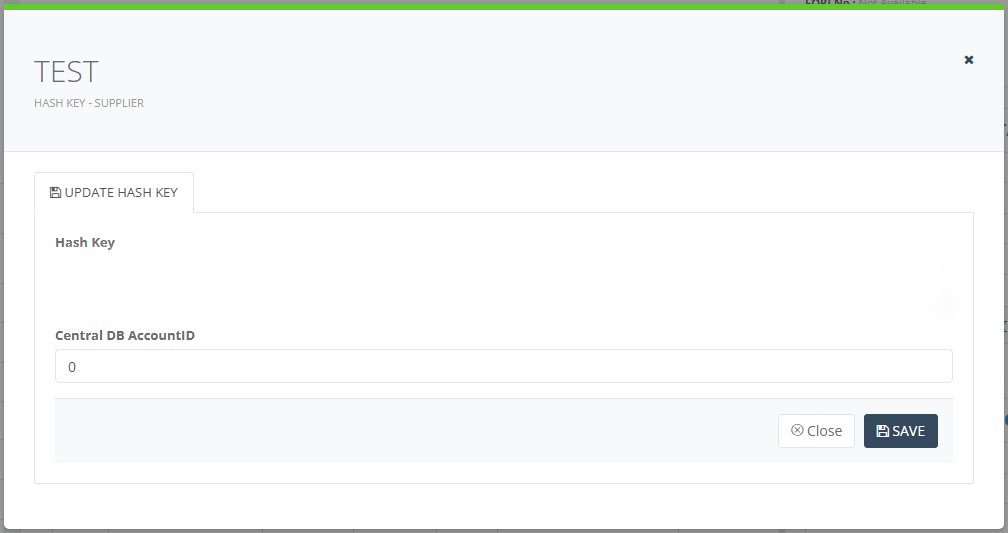
Click the pencil icon after Hash Key. The window opens with the supplier's name as its heading and the current values filled in.
Type the agreed code in Hash Key.
Type the partner's number in Central DB AccountID. Use digits only, with no spaces.
Click SAVE. The message Supplier hash key save successfully appears.
Click Close or the cross to close the window.
The window stays open after you save. The side panel behind it shows the new values.
2.3 Link a customer
Open Sales › Customer DB and click the customer's row.
Click the pencil icon after Hash Key.
Fill in Hash Key and Central DB AccountID as for a supplier.
Click SAVE. The message Customer hash key save successfully appears.
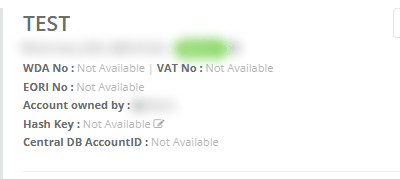
The small grey line under the customer's name says HASH KEY - SUPPLIER. Ignore it. The customer is saved correctly.
2.4 Change a link safely
Use this when the partner tells you its number or key changed. The system keeps no history of the link, so write down the old values first.
Tell the partner and your own IT contact when you will make the change. Files already prepared or received with the old number are affected (see the table below).
Open the side panel and write down the current Hash Key and Central DB AccountID.
Click the pencil icon after Hash Key.
Type the new values. Check the number digit by digit against what the partner sent you.
Click SAVE and wait for the success message.
Close the window and read the side panel again. Confirm it shows the new number and key.
If the partner is both a supplier and a customer, repeat steps 2 to 6 on the other record with the same number.
Ask the partner to send a test file or approve a small order, to confirm that files are accepted.
What a change does:
You change | Effect |
|---|---|
Hash Key only | Only the displayed code changes. Nothing else in PharmaERP reads it. |
Central DB AccountID to a new number | New files for this partner carry the new number. Files from the partner that still carry the old number are refused. Old files cannot be uploaded again. |
Central DB AccountID to a wrong number | New files go to the wrong partner or uploads fail with a message. PharmaERP does not check the number. |
Central DB AccountID to 0 | The link is removed. No more files are prepared for this partner. Files already prepared stay where they are. |
2.5 Remove a link
Write down the current values.
Open the side panel and click the pencil icon after Hash Key.
Type 0 in Central DB AccountID. Do not leave it empty.
Keep or change the Hash Key. It cannot be empty.
Click SAVE.
There is no delete button. The side panel then shows Not Available for Central DB AccountID.
2.6 Open the company hash key window (does not work in this version)
The company hash key window is meant for the system administrator, to show your company's number and key so you can share the key with customers.
Open System Settings in the left menu.
Under Security & Logs, click View/Update Hash Key.
Nothing opens, on any page and no message appears. The View/Update Key button on Supplier DB does nothing either. Customer DB has no such button.


To get your company's Central DB AccountID, ask IT. It is a company setting; see Company Settings. Agree hash keys with partners directly.
2.7 Fields explained
Field | What to enter | Rules |
|---|---|---|
Hash Key | The code agreed with the partner. | Required, although the window does not mark it. Any characters, up to 1000. Nothing checks it. |
Central DB AccountID | The partner's number in the central list of PharmaERP companies. | Required. Whole number only. 0 means not linked. Empty or letters make the save fail. |
SAVE | Stores both values on the record. | Replaces any earlier link. The window stays open. |
Close | Closes the window without saving. | None. |
3 Messages you may see
Message | What it means | What to do |
|---|---|---|
Please enter hash key ! | You clicked SAVE with an empty Hash Key. Nothing was saved. | Type the agreed code and click SAVE again. |
Supplier hash key save successfully | The supplier link was saved. | Close the window and check the side panel shows the new values. |
Customer hash key save successfully | The customer link was saved. | Close the window and check the side panel shows the new values. |
Saved Successfully (green, on the next page you open) | A reminder of the save you just made. Nothing was saved twice. | Nothing. |
something goes wrong please try again, if problem continues please report this bug to administrator | The save or the loading of the window failed. Usual causes: Central DB AccountID empty or not a number, Hash Key longer than 1000 characters or your session ended. | Use digits only in Central DB AccountID. Shorten the key. Sign in again if needed (see Signing in) and retry. If it repeats, send the time and what you did to your administrator and see Error Log. |
file of sender or receiver is not matched with system! | Shown when a partner's file is uploaded. No supplier (for an invoice file) or customer (for an order file) here has the number in the file or the file is not addressed to your company's number. | See "Uploaded file is refused" below. |
Access Denied | You opened Supplier DB or Customer DB without the View tick. | Ask your administrator to give your role the tick in Roles, then sign in again. See Sign-in problems. |
(nothing happens) on the menu item or on View/Update Key | The company hash key window does not open in this version. | Ask IT for your company's number. See Company Settings. |
(nothing happens) on the pencil | You opened the side panel from a page other than Supplier DB or Customer DB, for example the Regulatory page. That page has no hash-key window. | Open the partner from Supplier DB or Customer DB and use the pencil there. |
4 Troubleshooting
4.1 Uploaded file is refused with "file of sender or receiver is not matched with system!"
If you are a user:
Open Supplier DB (for a partner's invoice file) or Customer DB (for a partner's order file) and click the partner's row.
Read Central DB AccountID. If it is Not Available, link the partner as described above.
Ask the partner for the number it uses for itself and compare it digit by digit. Correct it if different.
Check that the number is on exactly one supplier record and one customer record. If two records carry the same number, the file goes to whichever PharmaERP finds first. Fix the wrong record.
Ask the partner to check that your company's number on their side is the one IT holds for you.
Upload the file again.
If you are an administrator:
Open Company Settings and check your own company's Central DB AccountID. Compare it with what the partner has recorded for you.
After you change your own number, each user needs to sign in again before it applies. Files from partners must carry the new number.
If the number on the record looks right but uploads are still refused, see the next item.
4.2 The side panel shows the link but uploads are still refused
A link saved while your session had already ended is stored without a user name. The side panel still shows it, but uploads from that partner can be refused.
Sign in again.
Open the partner's side panel and click the pencil icon after Hash Key.
Click SAVE again with the same values, while signed in.
Ask the partner to upload the file again.
If it is still refused, ask your administrator for help and give the time of the first save. See Error Log.
4.3 Files stopped being prepared for a partner
Open the partner's side panel and read Central DB AccountID. If it is Not Available, the number is 0 or missing. Files are prepared only when there is a number.
Link the partner again with the correct number.
If the number is there, ask your administrator to check your own company's number in Company Settings.
4.4 The window does not close or the screen stays grey after an error
Reload the page.
Open the partner again and read the side panel to check what was saved.
Save again if the values are wrong.
If it repeats, tell your administrator. See Error Log.
4.5 The menu item View/Update Hash Key is missing
This is normal if your role lacks the Create tick on the AdminMember page. The item does nothing in this version, so you do not need it.
To link a partner, use Supplier DB or Customer DB instead. If those are missing too, ask your administrator to check Roles and see Sign-in problems.
5 Good to know
A wrong Central DB AccountID sends files to the wrong place or makes uploads fail and PharmaERP does not check the number. Check it twice.
For a partner you both buy from and sell to, enter the same number on both records.
Give each partner's number to one supplier record and one customer record only.
Changing the Hash Key alone breaks nothing. The system never compares it with anything, so check the documents a file creates before you rely on it.
Anyone who can open the side panel can read the hash key in plain text. Do not show it on shared screens or in screenshots.
There is no history. Nobody can see who changed a link or what it was before. Write down the old values first.
If two people save at the same time, the last save wins.
Always save while signed in. Check the side panel after saving.
See also: Company Settings, Roles, Signing in, Error Log, Sign-in problems.