Use the sign-in page to get into PharmaERP at the start of the day and to sign out at the end of it. Every PharmaERP user needs it, from purchase and sales staff to warehouse staff, managers and administrators. For staff, signing in also records the start of the working day on the punch card, and signing out records the end.
Before you start
You need the following. Your administrator arranges all of it.
An active employee record with your work e-mail address and a password.
A role with the right ticks in Role Master, so you can open the pages you need.
Only if your company uses it: IP Access switched on for you and an office location, so you can sign in from the office only.
Only if your company uses it: Time Access switched on for you and a shift, so you can sign in during working hours only.
To open the sign-in page, open the PharmaERP address your company gave you in your web browser. The page also opens by itself whenever you open a PharmaERP page while you are not signed in.
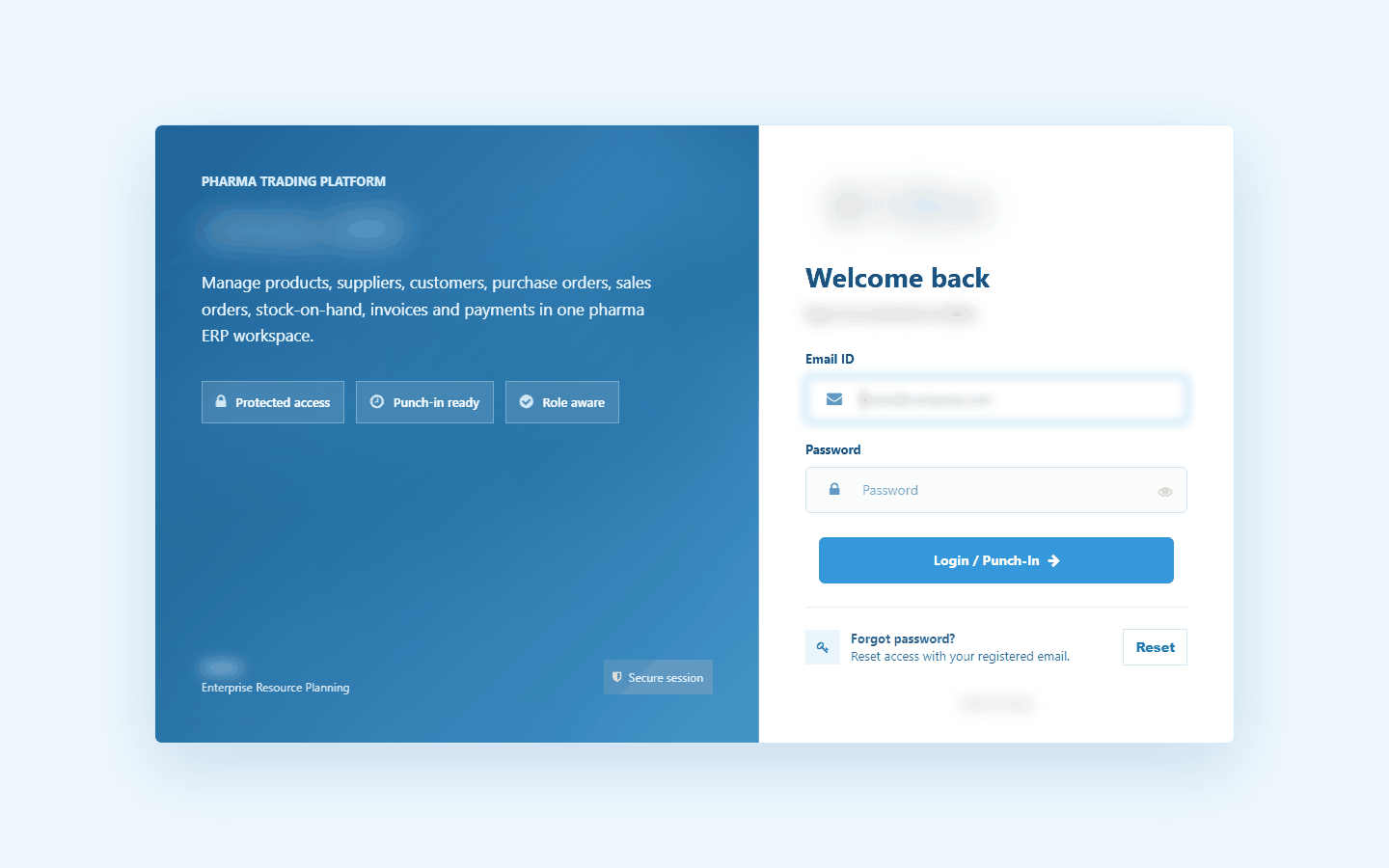
The sign-in page on a desktop
On the sign-in card you see Email ID, Password, the Login / Punch-In button and the Forgot password? strip. On a phone the company panel is hidden and the card fills the screen.
Step by step
Sign in at the start of the day
Type your work e-mail address in Email ID.
Type your password in Password. Click the eye button on the right if you want to check what you typed.
Click Login / Punch-In, or press Enter.
The system checks your e-mail address and password, and that your account is active and not locked. If your administrator switched them on for you, it also checks that you are at an allowed office address and inside your working hours. For staff, it records the start of the day on the punch card on weekdays. On Saturday and Sunday no start time is recorded.
After a successful sign-in you see the dashboard. If your previous sign-in ended while you were on a page, you come back to that page instead.
If the sign-in fails, the sign-in page comes back with a red message box above the fields. See "Messages you may see" below.
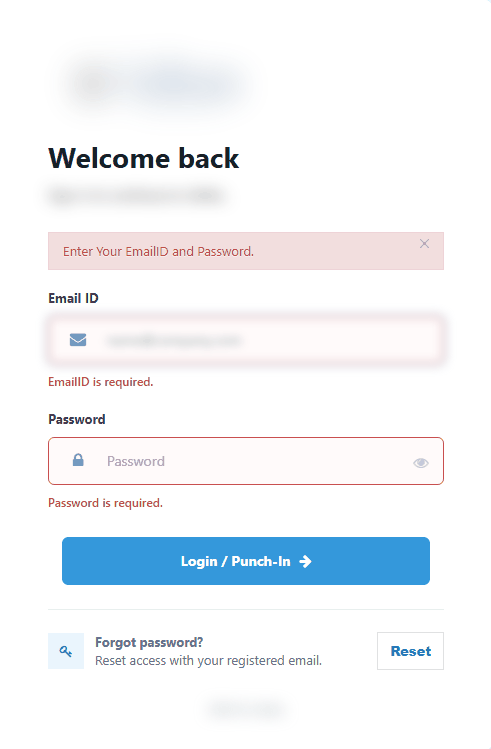
Clicking Login / Punch-In with empty fields shows a red message box
If you forgot your password
You cannot reset your password yourself in this version. No reset e-mail is sent.
On the sign-in page, click Reset in the Forgot password? strip. The card changes to Reset password.
Type your registered e-mail address in Registered Email.
Click Submit. To go back without sending, click Back.
The sign-in page comes back with the message "Password reset is not enabled yet. Please contact administrator."
Ask your administrator to set a new password for you on your employee record.
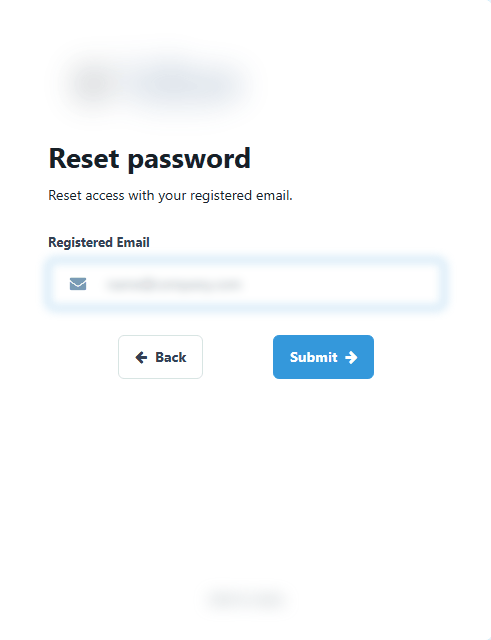
The Reset password form
If your sign-in ends while you work
A sign-in ends after 30 minutes without any activity, when an administrator ends your session, or when your password is changed. If you then press a button that needs the server, such as Save, a red Signed out message appears at the top of the page.
Copy anything you typed and have not saved.
Click Sign in again. The sign-in page opens.
Sign in as described above. You come straight back to the page you were on, not to the dashboard.
Paste what you copied and save again.
If you open a page from a bookmark while you are signed out, the same happens: after you sign in, you land on that page. The way back works once, for you only, within 8 hours.
If you see "Access Denied"
Each page needs a tick in your role. If the tick is missing, the system shows the Access Denied page. It does not say which tick is missing.
Use the menu on the left to go back to a page you can use.
Ask your administrator for the right. Tell them which page you tried to open.
After your administrator has saved the change, sign out and sign in again.
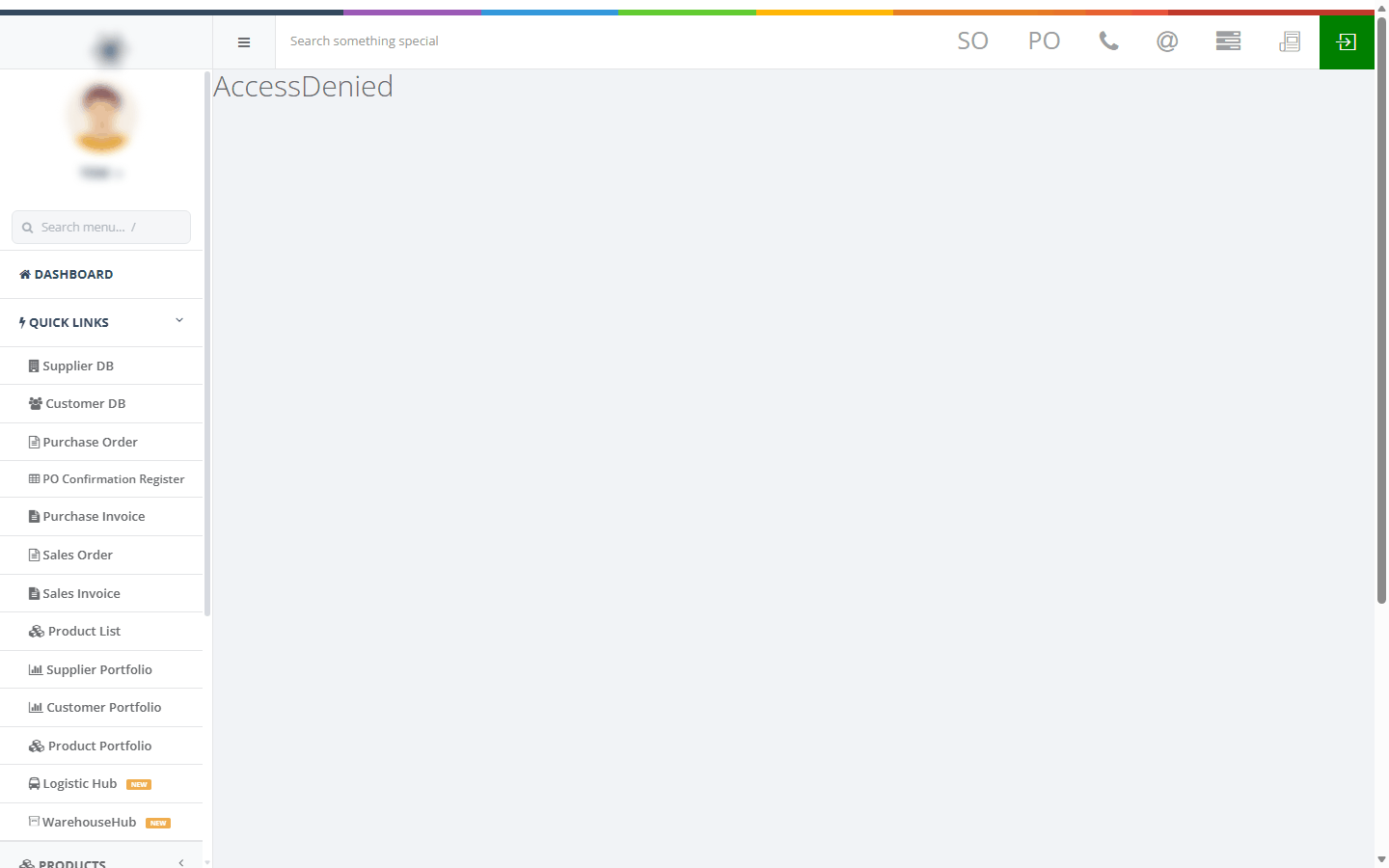
The Access Denied page
Sign out at the end of the day
Save your work.
Click the green button at the far right of the top bar. Its tooltip reads "sign out / punch-out".
The sign-in page appears. You are signed out, and for staff the end of the working day is recorded on the punch card.

The top bar with the green sign out / punch-out button on the right
Important: The Logout item in the menu under your picture, and in the phone menu, does not sign you out. It only takes you back to the dashboard. Always use the green button.
Messages you may see
Message | What it means | What to do |
|---|---|---|
Enter Your EmailID and Password. | You clicked Login / Punch-In with a field empty or invalid. | Fill in both fields. |
EmailID is required. | Email ID is empty. | Type your e-mail address. |
Please enter a valid email address. | Email ID is not an e-mail address. | Type the full address. |
Password is required. | Password is empty. | Type your password. |
Invalid email or password. | The e-mail is unknown, the password is wrong, or your account is switched off. | Check the e-mail and password, and Caps Lock. If you are sure they are right, ask your administrator whether your account is active. |
Too many failed login attempts. Please try again later or contact administrator. | Your account is locked for 15 minutes after 5 wrong passwords in a row. | Wait 15 minutes, then type your password carefully. Or ask your administrator. |
Unauthorised location | Your e-mail and password are right, but you are not at an office address allowed for you. | Sign in from the office network, or ask your administrator to check your office location. |
Time period expired | Your e-mail and password are right, but it is outside your working hours. | Sign in during your shift, or ask your administrator to check your shift. |
Something goes wrong. Please try again, and contact administrator if the problem continues. | An unexpected error. | Try once more. If it repeats, tell your administrator the time it happened. |
Email is required. | Registered Email on the Reset password form is empty. | Type the address, or click Back. |
Password reset is not enabled yet. Please contact administrator. | You clicked Submit on the Reset password form. | Ask your administrator for a new password. |
Signed out | Your sign-in ended while you were on a page. | Copy unsaved text, then click Sign in again. |
AccessDenied | You opened a page your role has no tick for. | Ask your administrator. Sign in again after the change. |
You have no enough permissions to request this resource. | A page asked for data you are not allowed to read. | Ask your administrator. |
Good to know
After a lock-out, one more wrong password locks you again at once. After the 15 minutes, type your password carefully.
"Unauthorised location" and "Time period expired" mean your password was right. Do not keep retrying the password. The issue is where or when you are signing in.
Your rights are read only when you sign in. After your administrator changes your role, sign out with the green button and sign in again.
Closing the browser does not punch you out. At your next sign-in the system closes the open punch at 17:00 of that day with the note "System Punch-out". Sign out with the green button to record the real time.
You can be signed in on two browsers at once. Signing in somewhere else does not end the first session, so sign out on each one.
On a shared computer, always sign out with the green button.