A member is a person's PharmaERP account. Everyone who works in PharmaERP signs in with their own member account. The account holds three things that decide what the person can do and see: the RoleID (the rights), the Managers (who the person reports to) and the access settings (where and when the person may sign in). Administrators use this screen to add members, change them, stop their access and check the history of every change.
Before you start
Access needed. The rights are ticked in Role Master.
To do this | You need |
|---|---|
See the member list, the change history and the access help | AdminMember - View |
Add a new member | AdminMember - View and Create |
Change a member, activate or deactivate them | AdminMember - Update |
Delete a member | AdminMember - Delete |
Rights are read when a person signs in. After a role is changed in Role Master, the person must sign out and sign in again. The View tick also opens other administration pages, so give it only to administrators.
These records must exist first:
The role you want to give the person must exist in Role Master.
The person's manager or managers must already be members. You pick them from the list of members.
If the person may sign in only from an office or only in working hours, the office must exist under System Settings › Access Locations, with its network addresses. The working-hours pattern must exist under Access Shifts.
A photo is optional (JPG, JPEG, PNG or GIF).
Where to find it:
Sign in to PharmaERP.
Open the left menu System Settings.
Under the caption MEMBERS, choose List Members to see everyone, or New Member to add someone.
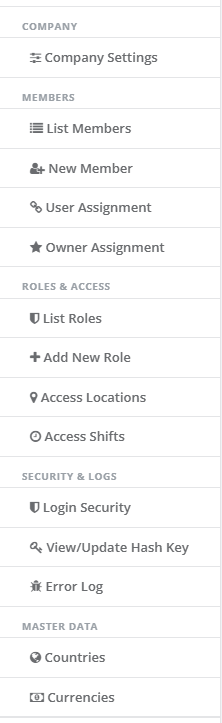
System Settings menu with the MEMBERS caption
The screen at a glance
List Members shows one row per member. The page shows every member to anyone allowed to open it, not only your own team.
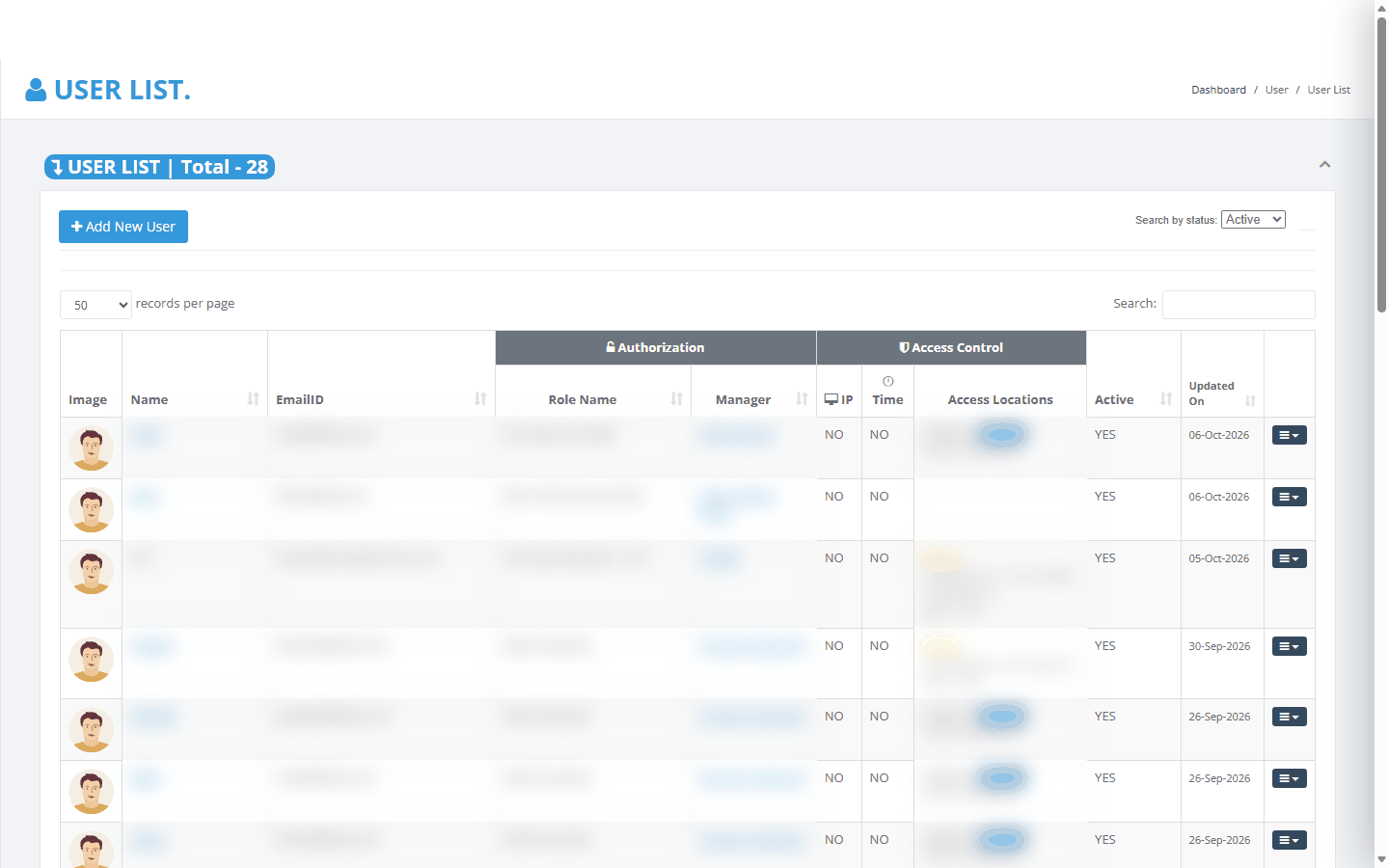
List Members
Area | What it is for |
|---|---|
Heading USER LIST. and the badge USER LIST | Total - n | n is how many members match the current filter and search. |
Add New User button | Opens the New Member form, the same as the menu item. |
Search by status | Active (the default), Inactive or All. |
records per page and Search | Rows per page (10, 20, 50 - the default - or 100) and a free-text search. |
The grid | Photo, name, e-mail, role, manager, the access switches and offices, active flag and date of the last change. |
The row menu (small dark button at the right of each row) | History, Deactive / Active, Edit, Delete. |
Step by step
Find a member
Open List Members. Only active members are shown at first.
To see people who have left, set Search by status to Inactive or All.
Type part of the name, surname, e-mail, role or manager name in Search. Typing yes shows only active members. Typing no shows only inactive ones.
Click a column heading to sort. Sort by Name, EmailID, Role Name or Manager.
Add a new member
Before you start, agree the role, the manager or managers, and the sign-in limits with the person's team leader.
Open New Member, or click Add New User on the list.
Fill in Name, Surname and Display Name. The display name is shown on screens and documents.
Enter EmailID. This is the address the person signs in with.
Type a starting Password. Tell the person separately.
Choose Gender. It only decides the default picture.
Set IP Access and Time Access. The form starts with both set to Yes. If the person may sign in from anywhere at any time, set both to No. Otherwise follow "Limit where and when a member may sign in" below.
Choose the RoleID.
Choose one or more Managers. Leave it empty only for someone at the top of the company.
Optionally choose a photo under Image.
Tick Is User Active ?. It is not ticked on a new form, and without it the person cannot sign in.
Click Save.
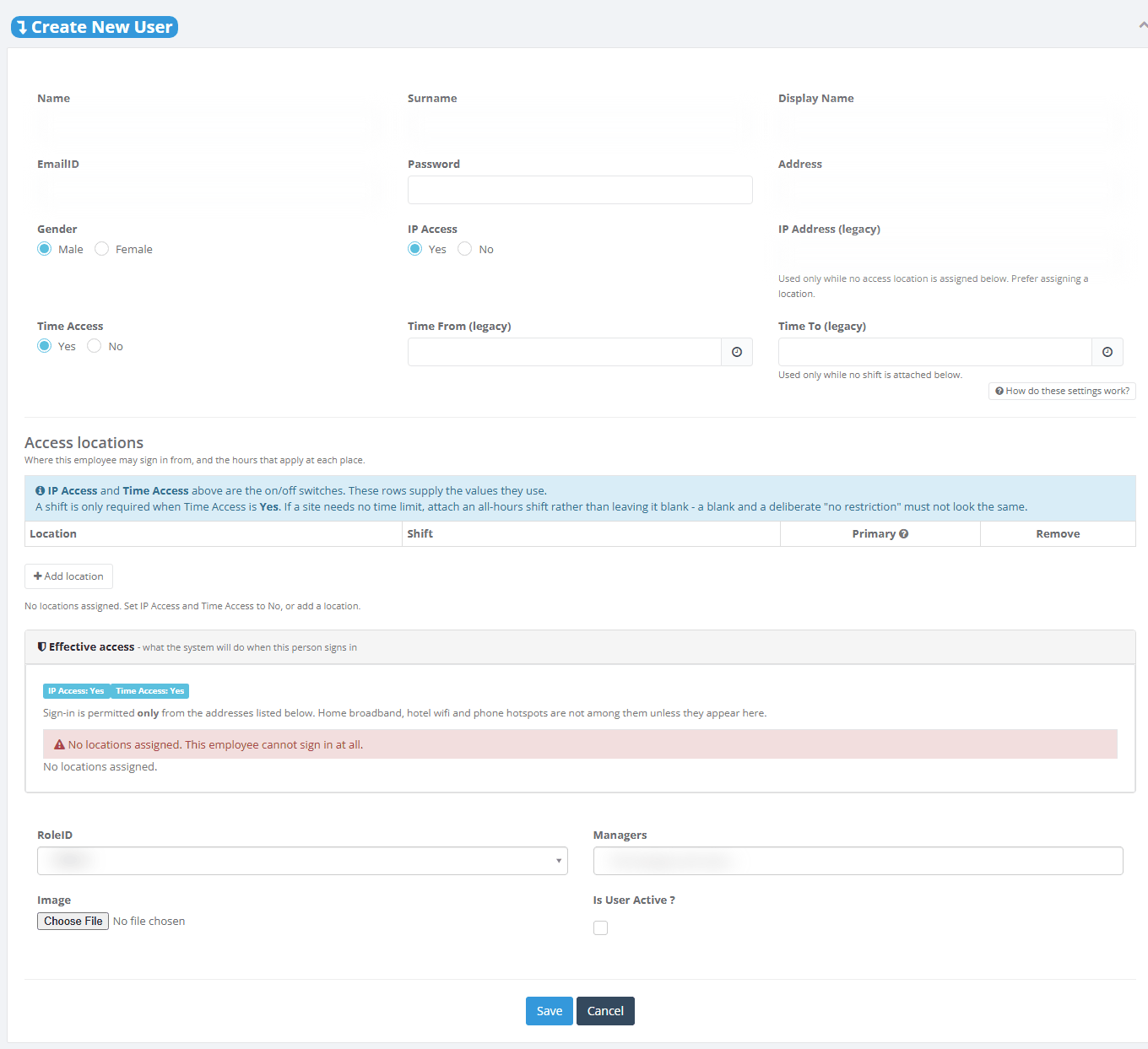
The New Member form as it opens
The list opens with a green message such as "User [name] created successfully !". If you left the active tick off, switch Search by status to Inactive to find the member.
If the form cannot be saved, it comes back with messages. The password, the photo, the radio buttons and the active tick go back to their starting values and must be entered again.
Limit where and when a member may sign in
The IP Access and Time Access switches say whether a check is made. The rows in the Access locations block say which office and which hours the check uses.
Set IP Access to Yes if the person may sign in only from an office network. Set Time Access to Yes if only during working hours.
In Access locations, click Add location and choose the office under Location.
If Time Access is Yes, choose the working-hours pattern under Shift. For an office with no time limit, choose an all-hours shift instead of leaving it empty.
If the person works at two offices, add a second row. Tick Primary on the office whose hours apply when IP Access is No. With one row it is ticked for you.
Read the Effective access panel below the rows. It shows, before you save, which network addresses are accepted and which hours apply, day by day.
Click Save.
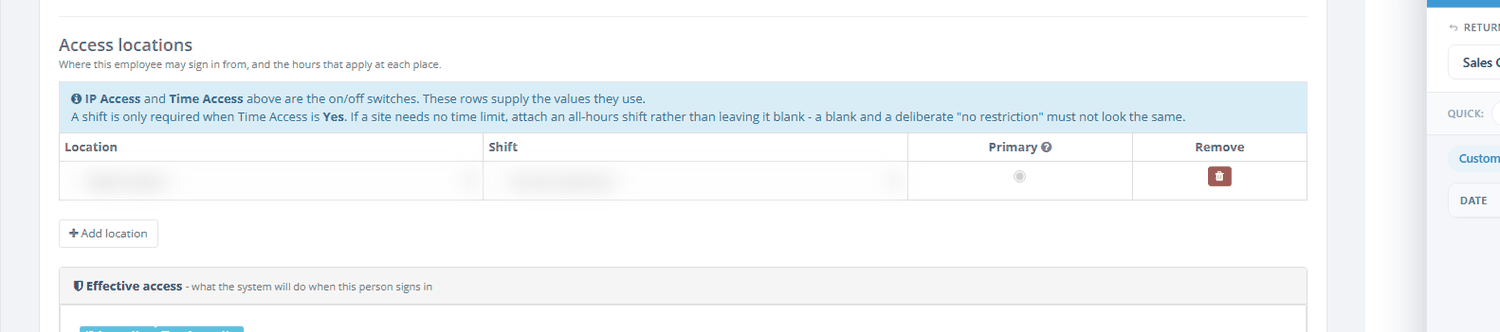
An access row with Location, Shift, Primary and Remove
If both switches are Yes and no office is added, the panel shows "No locations assigned. This employee cannot sign in at all."
At each sign-in, PharmaERP checks the network address against the office's addresses and the time against that office's shift, in the office's own time zone. A person who is refused sees only "Unauthorised location" or "Time period expired".
The IP Address (legacy), Time From (legacy) and Time To (legacy) boxes are the older way of doing the same thing. They are used only while the member has no office row. Prefer office rows.
Change a member, or set a new password
Find the member and open the row menu.
Choose Edit.
Change what is needed. For example, replace the manager under Managers, or pick a new RoleID.
To set a new password, type it in New Password. Leave it empty to keep the current password.
Click Save.
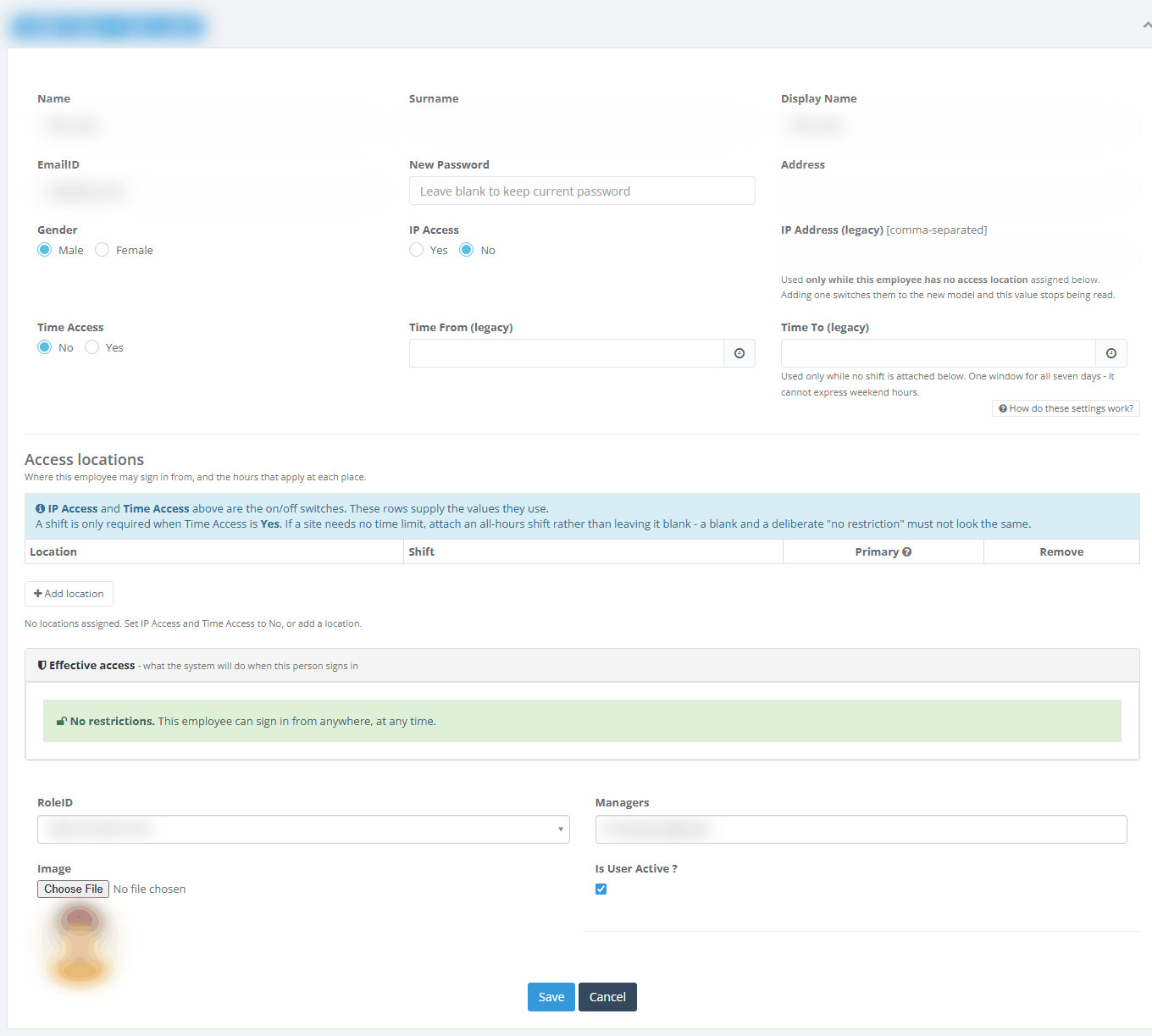
The Edit form
The member themself is not offered in the Managers list. When the member has one office row, it is automatically the primary one.
See the change history of a member
Open the row menu and choose History.
A panel opens on the right with every save, newest first, grouped by day.
Click "n relationship events" under a change to see which managers were added, removed or re-added.
Click Open this user to open the Edit form. Close the panel with the cross or the Esc key.
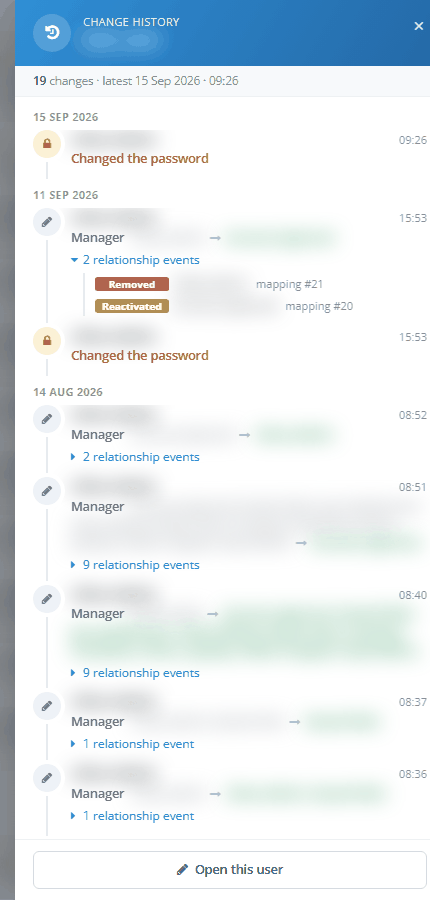
The change history of a member
Stop a member's access
Use this when someone leaves. The account stops working, but the history stays.
Find the member and open the row menu.
Choose Deactive. There is no confirmation question. The change happens at once.
The list shows "User [name] InActivated Successfully" and the member moves to the Inactive list.
To give the access back, set Search by status to Inactive, open the row menu and choose Active.
Delete a member
Delete removes a member for good. It only works for an account created by mistake that has never signed in and has no manager. For anyone else, use Deactive.
Open the row menu and choose Delete.
Confirm the question "Are you sure to delete this AdminMember?".
Read the message that follows.
Fields explained
Field | What to enter | Rules |
|---|---|---|
Name | First name | Required. Up to 50 characters. |
Surname | Family name | Optional. Up to 100 characters. |
Display Name | Name shown on screens and documents | Required. Up to 50 characters. |
EmailID | The sign-in name | Required. A valid address of up to 50 characters, ending in 2 to 4 letters. A "+" is refused. It must not belong to another member. |
Password / New Password | The sign-in password | Required on New Member. On Edit, only to change it. Up to 50 characters. Strength is not checked, so choose a strong one. |
Gender | Male or Female | Preset to Male. Decides the default picture only. |
IP Access | Yes or No | Preset to Yes on New Member. Sign in only from an office network. |
IP Address (legacy) | Allowed network addresses, comma separated | Needed only if IP Access is Yes and there is no office row. |
Time Access | Yes or No | Preset to Yes on New Member. Sign in only during working hours. |
Time From (legacy) / Time To (legacy) | One daily window | Needed only if Time Access is Yes and no shift is on the rows. The same window applies to all seven days. |
Location (access row) | The office | Required for each row. Only offices that are switched on. Each office once. |
Shift (access row) | The working-hours pattern | Required when Time Access is Yes, unless the legacy hours are filled. Choose "-- No time restriction --" or a shift. |
Primary (access row) | The office whose hours apply when IP Access is No | Exactly one row. Ticked automatically with one row. |
RoleID | The member's role | Required. Menus and rights follow from the next sign-in. |
Managers | Who the member reports to | Optional. One or more members. Not the member themself, and no loops: someone who reports to the member cannot become their manager. |
Image | A photo | Optional. JPG, JPEG, PNG or GIF. File name up to 98 characters. Reduced to 75 pixels wide. |
Is User Active ? | Tick to let the member sign in | Not ticked on a new form. |
What happens after you save
If anything is wrong, nothing is saved and the form comes back with messages.
PharmaERP checks that the e-mail is not used by another member, and that the managers are not the member themself or someone who reports to them.
The password is stored scrambled. Nobody can read it, not even administrators.
The member, the manager links and the office rows are saved together: either all of it is saved or none of it. Removed managers and offices are switched off, not erased.
Every changed field is written to the change history, with who, when, and the old and new value. Password values are never shown.
The list opens with a green message.
A new password signs the member out of any open session within about two minutes.
No e-mail or notification is sent to the member or their manager. No customers or suppliers are given to the member. Use User Assignment or Owner Assignment for that.
When changes take effect:
E-mail, password, active flag and access settings apply at the member's next sign-in.
A new role applies at the member's next sign-in.
A new manager changes what the old and new managers see on purchase, sales and report pages straight away.
Messages you may see
Message | What it means | What to do |
|---|---|---|
The Name field is required. / The Display Name field is required. / The EmailID field is required. | A required box is empty. | Fill it in. |
The EmailID field is not a valid e-mail address. | The e-mail is not an address. | Correct it. |
The RoleID field is required. | No role was chosen. | Choose a role. |
Password Resources.ErrorMessageResource.IsRequire | A new member was saved without a password. | Type a password. |
EmailID Resources.ErrorMessageResource.EmailForamt | The e-mail has a "+" or an ending longer than 4 letters. | Use another address. |
EmailID 200 Resources.ErrorMessageResource.LettersAllowToEnter | The e-mail is longer than 50 characters. | Use a shorter address. |
The EmailID is already exist !!! Please choose other EmailID | Another member has exactly this e-mail. | Check whether the person already has an account. Set Search by status to All. |
IP Access is Yes but this employee has no access location and no legacy IP address. Assign a location, or set IP Access to No. | IP Access is Yes with nothing to check against. | Add an office row, or set IP Access to No. |
Time Access is Yes but this employee has no access location and no legacy hours. Assign a location with a shift, or set Time Access to No. | Time Access is Yes with no hours. | Add an office row with a shift, or set Time Access to No. |
Select a shift for [office], or set Time Access to No. | An office row has no shift while Time Access is Yes. | Choose a shift. Use an all-hours shift if needed. |
[office] has no IP addresses. This employee would be unable to sign in from there. | IP Access is Yes and the office has no network address. | Ask the administrator of Access Locations to add them, or set IP Access to No. |
Mark exactly one location as primary. / Only one location can be primary. | No primary office, or several. | Tick Primary on one row. |
[office] is no longer an active location. Remove it or reactivate the location. | The office was switched off after it was given. | Remove the row, or ask for the office to be switched back on. |
A user cannot be their own manager. / A selected manager does not exist. | Wrong manager. | Pick another manager. |
"[name]" already reports to this user - selecting them as manager would create a cycle. | The chosen manager reports to this member. | Pick someone above the member. |
User [name] created successfully ! / updated successfully ! | The member was saved. | Nothing. |
User [name] Activated Successfully / InActivated Successfully | Active or Deactive was chosen in the row menu. | Nothing. |
This user has manager relationships (past or present). Deactivate the user instead of deleting, so hierarchy history is preserved. | Delete was chosen for a member who has or had a manager. | Use Deactive. |
Unable to delete | Delete was chosen for a member who has signed in or has other records. | Use Deactive. |
Good to know
A new member starts inactive and fully restricted. Set the switches and tick Is User Active ? on purpose every time.
Deactivating does not sign the person out. If they are signed in, they keep working until they sign out or are idle long enough. When access must stop at once, also change their password. That ends open sessions within about two minutes.
A person who leaves keeps their customers and suppliers. Deactivating does not move them. Use Owner Assignment to hand them to a colleague.
Passwords are not checked for strength, and capital letters in an e-mail are not checked for duplicates. Agree a company rule, and search with Search by status set to All before adding someone.
A role change needs a new sign-in. Ask the person to sign out and in again. A manager change works straight away.
Delete rarely works. Use Deactive to stop an account.