The Error Log is where you find out what went wrong when a user reports a problem. PharmaERP writes a log entry by itself at the moment something fails, and this page lets you search, filter and read those entries. It is used by the administrators who look after PharmaERP and by IT support colleagues who help users. Ordinary users do not normally see this page.
Before you start
You need the AdminMember - View tick in Role Master to open the page, search, filter and read entries. Your administrator can give it to you. To run a History Cleanup you also need the AdminMember - Delete tick.
Note: There is no separate Error Log tick. The same AdminMember ticks also open the Members list, Login Security and the user and owner assignment pages. Ticks are read when you sign in, so after a change you must sign out and sign in again.
Nothing has to be set up first. Entries appear by themselves as soon as something is logged.
To open the page:
Sign in to PharmaERP.
In the left menu, open System Settings.
Under the heading Security & Logs, click Error Log.
The screen at a glance
The page has four counters at the top: Errors (Last 24 hours), Warnings (Last 24 hours), Info events (Last 24 hours) and Total rows (All time in store). Below them are the tools, the filter bar and the list of entries, 25 per page, newest first. The History Cleanup box is also on this page. Click the magnifier button in View on a line to open its details from the right.
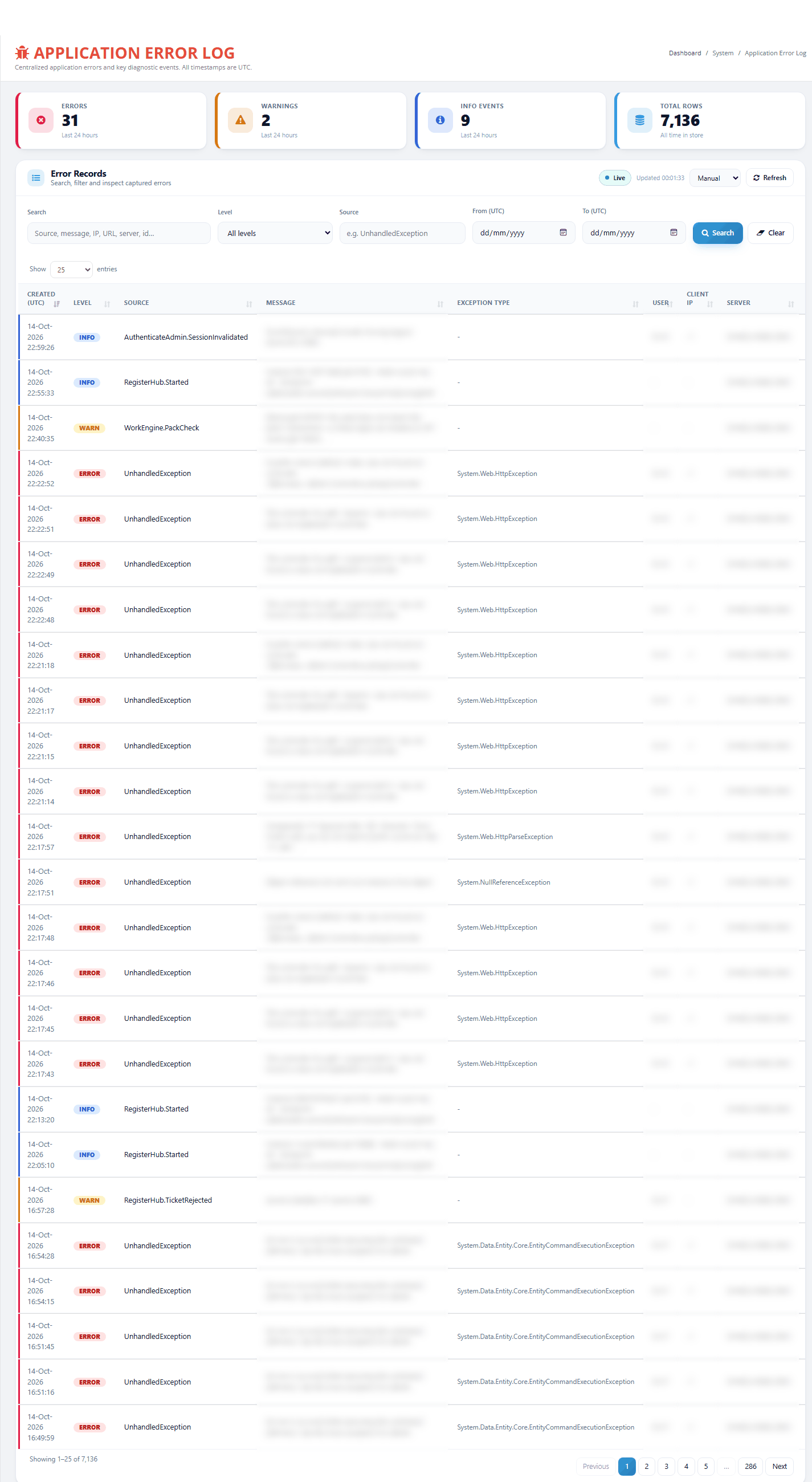
The Error Log page
Step by step
Find the error a user reported
Open the Error Log (see Before you start).
If the user gave you a reference, for example RCV-1A2B3C, type it in Search and press Enter. If the user gave no reference, go to step 3.
Choose a Level. For a failure, choose ERROR.
If you know part of the area, type it in Source, for example WarehouseHub.
Pick the day in From (UTC) and To (UTC).
Click Search.
Look along the lines for the right time, the user's member number in User and a fitting Message.
Click the magnifier button in View on that line.
Times are UTC. In British Summer Time, 10:15 in the office is 09:15 in the list.
If nothing matches, the list says No errors logged and the line under it says No matching errors. The log is not empty; your filters simply found nothing. Widen the dates, clear Source, or choose All levels.

The filter bar and the tools above the list
Read one entry and pass it on
In the details panel, read the heading, for example ERROR #1234, and the Source under it.
Read Message. It says in one sentence what failed. Some messages also say how to fix it.
Check Admin Member ID, Request URL and Created Date (UTC) against what the user told you.
If a developer must look at it, click Copy beside Stack trace. The button shows Copied.
Paste the text into your message to the developer, together with the entry number, the time and the reference.
Close the panel with the X at the top, a click on the dark area beside it, or the Esc key.
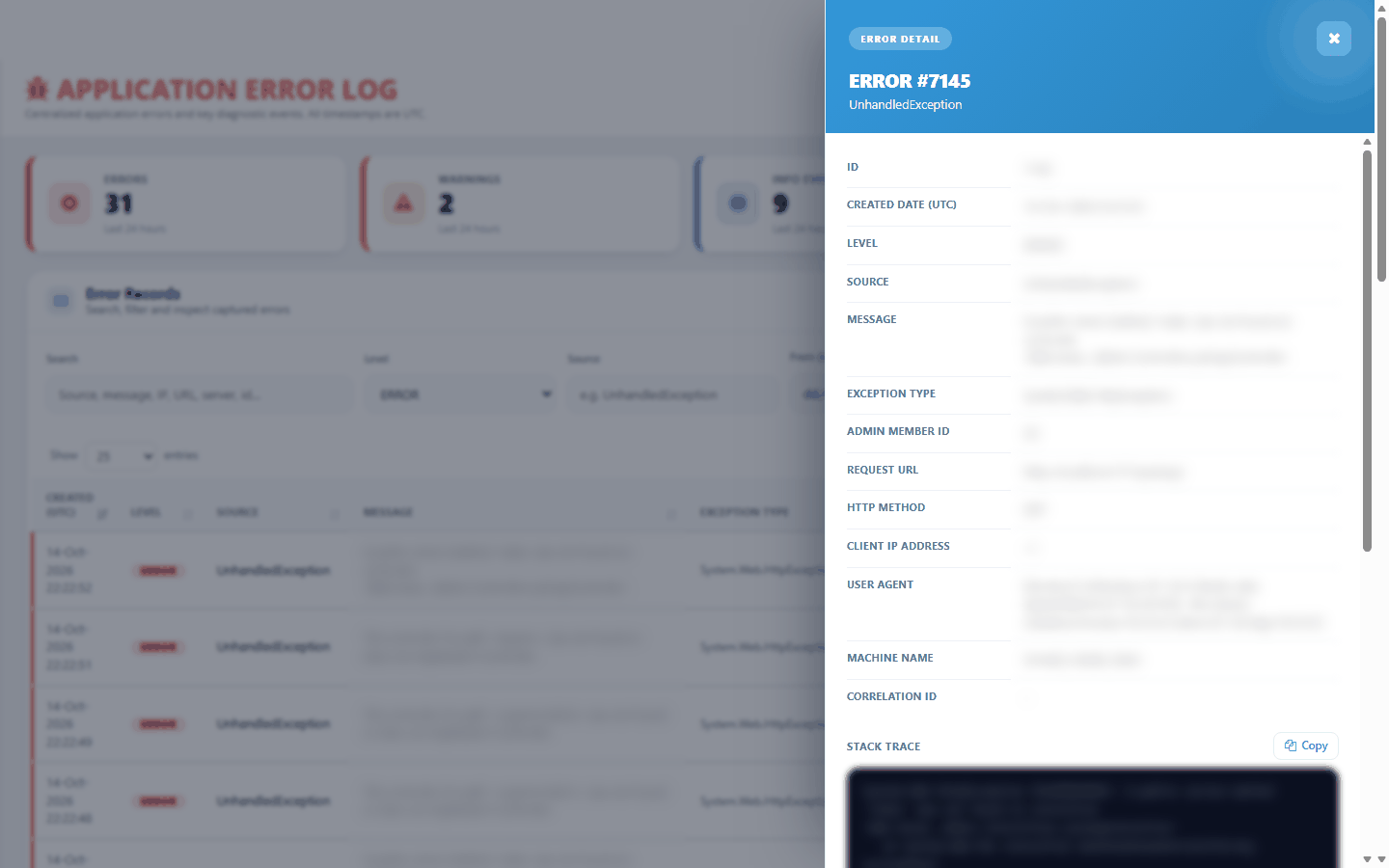
The details panel of one entry
Afterwards you either act yourself, for example by giving the missing tick in Role Master and asking the user to sign out and sign in again, or the developer looks into it. The page has no "dealt with" status, so the entry stays in the log.
Keep an eye on the log
Look at the three 24-hour counters. A sudden jump in Errors (Last 24 hours) is worth a look.
Choose ERROR in Level and look at the Source and Message of the newest lines. Many identical lines usually mean one problem.
If you keep the page open, choose Every 30s or Every 60s in Auto refresh. Choose Manual to stop.
Click Refresh at any time to update the counters and the list at once.
Not every ERROR is a real problem. Requests for pages that do not exist, including automated internet scanners, are logged as ERROR too.
Remove old history (History Cleanup)
Use this only if you hold the AdminMember - Delete tick, and only after agreeing the number of days to keep under your company's retention rule. The removal cannot be undone and is not recorded anywhere.
In History Cleanup, type the number of days to keep in Retention days (keep newer than). The suggested number is 90; the smallest allowed is 7.
Click Preview.
Read the note. It says how many entries are eligible to delete. Run Cleanup becomes available only when that number is more than 0.
Do not change the number after the preview. Click Run Cleanup.
In the browser box, click OK to delete, or Cancel to stop.
Read the green message, which says how many entries were deleted.

The History Cleanup box before a preview
If the cleanup fails, a red message says "Cleanup failed. No rows were removed." Nothing was deleted. If it says "Cleanup request failed.", the request did not reach the system. Refresh the page and try again.
Columns explained
Column | What it shows |
|---|---|
Created (UTC) | When the entry was written, to the second, in UTC. Newest first by default. |
Level | ERROR (red), WARN (amber) or INFO (blue). |
Source | The part of the system that wrote the entry. |
Message | What happened, in one sentence. Long messages are cut; the full text is in the details. |
Exception Type | The technical kind of error. Empty for events. |
User | The member number of the person signed in, or "-". Look the person up in Members. |
Client IP | The internet address the request came from. Personal data. |
Server | The web server that wrote the entry. |
View | The magnifier button that opens the details. |
Request URL | In the details: the screen that was being used. May contain record numbers. |
Correlation ID | In the details: the reference a screen showed to the user, if there was one. |
Stack trace | In the details: the technical trail for developers. Use Copy to copy it. |
Messages you may see
Message | What it means | What to do |
|---|---|---|
Loading… | The list is being fetched. | Wait a moment. |
No errors logged | Nothing is listed. The log may be empty, but more often nothing matches your filters. | Read the line under the list. |
No matching errors | Nothing matches your search and filters. | Widen the dates, clear Source, choose All levels, or click Clear. |
Failed to load error log. | The list could not be fetched. | Click Refresh. If it keeps failing, sign out and sign in again, then report it. |
Failed to load detail. | The details of one entry could not be fetched. | Click the magnifier again, or refresh the page. |
Error log entry was not found. | The entry was removed, for example by a cleanup, after the list was shown. | Click Refresh. |
(no stack trace) | The entry has no technical details. | Nothing to copy. The Message has the information. |
Copied | The stack trace is on your clipboard. | Paste it into your message to the developer. |
Eligible to delete: N row(s) older than D days. | Shown after Preview. | Check N. If it is 0, Run Cleanup stays greyed out. |
Permanently delete error rows older than D days? This cannot be undone. | The browser asks before the cleanup runs. | Click OK to delete, or Cancel to stop. |
Cleanup completed. Deleted N error log row(s) older than D days. | The cleanup finished. | Write down the number, because the system does not keep it. |
Cleanup failed. No rows were removed. Please try again or contact support. | The cleanup could not run. | Try again later. Report it if it repeats. |
Cleanup request failed. | The request did not reach the system. | Refresh the page and try again. |
Signed out (with "Sign in again") | Your sign-in ended while the page was open. | Click Sign in again. You return to this page. |
Access Denied page | You do not hold the AdminMember - View tick. | Ask your administrator. |
Good to know
Cleanup cannot be undone and leaves no trace. Agree the number of days first, and write down who ran it, when and how many entries were removed.
All times are UTC. The list is one hour behind the office clock in British Summer Time. Only the Updated time next to the Live badge shows your local time.
The log holds personal data: member numbers, internet addresses and browser details. Use it only to solve the problem, and share copied details only with the developers.
A reference may not be found. If the same fault happens twice within about 10 seconds, only the first entry is kept. Search for the time and the Source instead.
If the View column disappears on a small screen, zoom the browser out (Ctrl and minus) or widen the window.