Every customer and every supplier in PharmaERP belongs to a country. The list of countries is kept in one place, the Countries page. Each country has a name, a short code, a default currency and a VAT %.
The country you pick on a customer or supplier is used in many places. Lists show the country code next to the name, for example Example Pharma Ltd. (DE). The system suggests the currency from the country. A new supplier's short code starts with the country code. Sales order and invoice lines record a country of origin, and logistics pages describe a shipment as going from one country to another.
The list is usually kept by a system administrator or master-data keeper. It changes rarely: a customer or supplier comes from a country that is not yet listed, a name is misspelt, or a default currency is wrong.
A second page, Country History, shows every addition, change and deletion made to the list, who made it and when. Changes made outside PharmaERP, for example a correction made directly in the database, also appear there.
Before you start
Your administrator gives you these ticks on the Role Master page Country. A change to your ticks takes effect the next time you sign in.
To do this | You need this tick | Ask |
|---|---|---|
See the Countries menu item, open the list and open Country History | Country - View | Your administrator |
Add a country | Country - View and Create | Your administrator |
Change a country | Country - View and Update | Your administrator |
Delete a country | Country - View and Delete | Your administrator |
Records that must exist first:
The currency you want to give a country must already be on the Currencies page. If it is missing, ask the person who looks after currencies to add it first.
To find the page:
Sign in, then open System Settings in the left menu.
Under Master Data, choose Countries.
Country History has no menu item of its own. Open it with the Country History button at the top of the Countries page, or with the clock icon on a country's row.
The screen at a glance
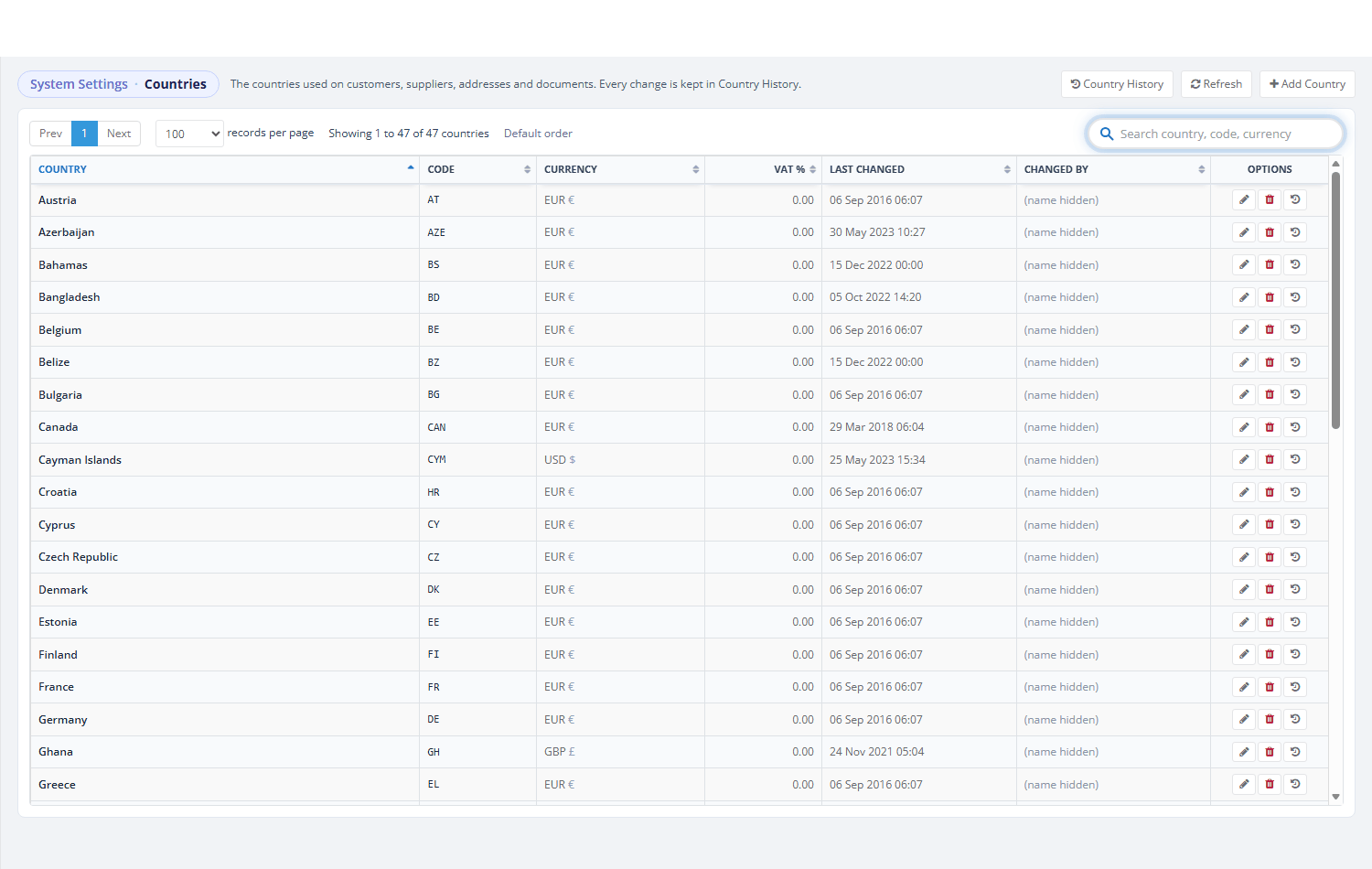
The Countries page, sorted by country name
Area | What it is for |
|---|---|
Heading System Settings · Countries | Tells you where you are. |
Buttons on the right | Country History opens the full history. Refresh loads the list again. Add Country (only with the Create tick) opens an empty form. |
Paging row | Prev, page numbers and Next move between pages. It also shows how many countries are listed and a sort note that says Default order or the column you sorted by. |
Search box | Finds countries by name, code or currency as you type. |
The grid | One row per country: Country, Code, Currency, VAT %, Last changed, Changed by, Options. Click a heading to sort. |
Options on each row | Pencil = change (Update tick). Bin = delete (Delete tick). Clock = this country's history. |
Step by step
Find a country
Open System Settings › Master Data › Countries.
Type part of the name, the code or the currency in the search box, for example ger.
The list narrows as you type. The search looks anywhere in the name, so ger finds Germany and any other country with those letters inside its name.
Clear the search box to see every country again.

Searching for "ger" narrows the list
To sort, click a column heading. Click again to reverse. Text columns start A to Z. VAT % and Last changed start with the highest or newest. Empty cells always go to the end. The sort note then reads, for example, Sorted by Code · Default order. Click Default order to go back to sorting by country name.
Add a country
Use this when a customer or supplier comes from a country that is not in the list yet. You need the Create tick. First check with the search box that the country is not already there under another spelling.
Click Add Country at the top right. An empty form opens.
Type the Country name, for example Testland.
Type the Code, for example TL. Small letters are turned into capitals.
Choose the Currency that a new customer from this country should usually get, or leave (none).
Leave VAT % at 0 unless your business has agreed a figure.
Click Save. You can also press Enter in any box.
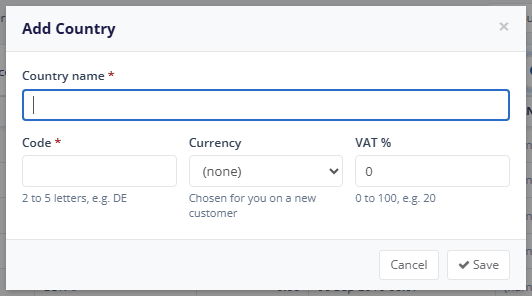
The empty Add Country form
The form closes, a green message Testland added. appears and the list reloads with the new country. The country can be picked straight away on the customer and supplier forms.
If the country cannot be saved, a red line appears at the top of the form and the box concerned is outlined in red. Correct it and click Save again.
Change a country
Use this when a name is misspelt, the default currency is wrong, or the VAT % needs updating. You need the Update tick.
Find the country, for example Germany, with the search box.
Click the pencil in its Options column. The form opens titled Change Country — Germany, filled with the current values.
Change what you need, for example the Currency.
Click Save.
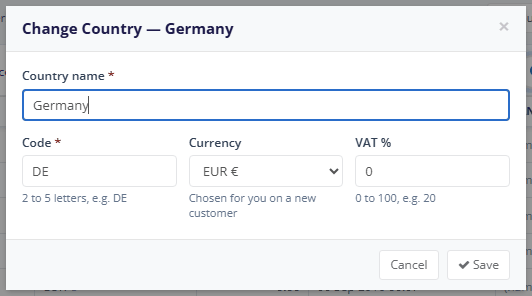
Changing a country
The form closes, Germany saved. appears, and the row shows the new values with your name under Changed by and the time under Last changed. If you save without changing anything, nothing is recorded and Last changed stays as it was.
If a colleague deleted the country while your form was open, you see This country no longer exists. Please refresh the list. Close the form and click Refresh.
The currency you give a country is only a suggestion for new customers and suppliers. Customers and suppliers that already exist keep their own currency.
Important: PharmaERP takes the company's home (base) currency from the currency of the country your own company is registered in. Changing that country's currency changes the home currency shown on invoices and payments for every user the next time they sign in. Do not change it unless the business has decided to, and agree it with finance first.
Change a country's code
A code change needs extra care because some records copy the code when they are saved.
Click the pencil on the country's row and type the new code.
Click Save.
A question appears: Change the code of Testland from TL to TX? Sales order lines already saved with TL keep TL. Only new entries use TX. Click OK to go ahead or Cancel to stop.
After the change, every list that shows the name with its code uses the new code at once. Records that copied the old code keep it: saved sales order lines, the country of origin on invoice lines, and the short codes of suppliers added before the change.
Delete a country
Use this when a country was added by mistake or twice. You need the Delete tick. A country can only be deleted when nothing uses it.
Find the country and click the bin icon in its Options column.
A question appears: Delete the country "Testland"? It is deleted only when nothing uses it. The delete stays in Country History. Click OK.
If nothing uses the country, it disappears from the list and Testland deleted. appears.
If customers, suppliers, cities, orders or other records still use it, nothing is deleted. A red message says where it is used, largest numbers first. It stays for about 15 seconds.
A deleted country cannot be brought back with its old identity. If you add it again, it is a new country, and records that still referred to the old one are not linked to it. Country History keeps the deleted country's last name, code, currency and VAT %.
Read Country History
Use Country History to answer "who changed this and when?", for example when a customer was given an unexpected currency.
On the Countries page, click Country History (all countries) or the clock icon on a row (one country).
The newest changes are at the top. Use the search box to find a country, a field (for example VAT), a value or a person.
Click a country name in the grid to see only that country's changes. Click all countries to go back.
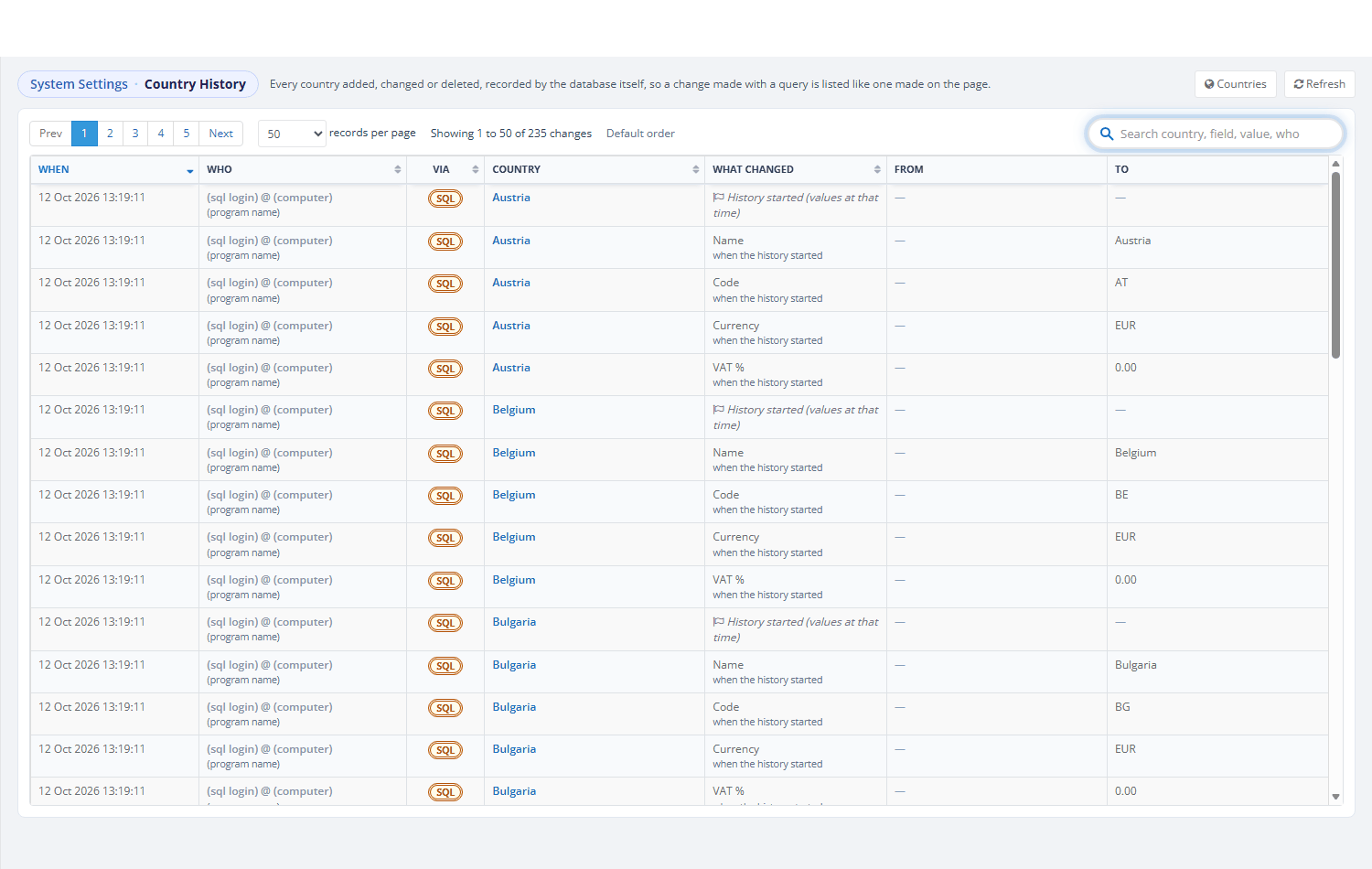
Country History, newest changes first
The first rows for each country are History started rows. They hold the values of the country on the day the history was switched on.
See how a country is used on customers and suppliers
When someone adds a customer or supplier and picks its Country, the system fills the Currency box with that country's currency. The person can still pick another currency before saving. On the customer form, the list of company bank accounts is also reloaded for that currency.

Picking a country on the customer form fills the Currency box
For a supplier, the short code that the system creates when the supplier is saved starts with the country code, for example BE-ABC-00012. Customer short codes do not contain the country.
Fields explained
Add / Change Country form
Field | What to enter | Rules |
|---|---|---|
Country name | The name people will see and pick. Required. | Up to 200 characters. Must differ from every other country's name; capital letters do not make a name different. |
Code | A short code for the country. Required. | 2 to 5 letters A-Z or digits 0-9, kept in capitals. Must differ from every other country's code. Use the international two-letter code where possible. |
Currency | The currency a new customer or supplier from this country usually uses. Optional. | (none) or a currency from the Currencies page. |
VAT % | A VAT rate for the country. Optional; empty means 0. | A number from 0 to 100 with at most 2 decimals, written with a dot (7.5, not 7,5). It is recorded and shown on the list. |
Cancel / Save | Close without saving, or check and save. | Enter in any box also saves. |
Country History grid
Field | What it shows | Rules |
|---|---|---|
When | Date and time of the change, in company time. | Newest first by default. |
Who | The PharmaERP user who made the change. | For a change made outside PharmaERP, a database login and computer name appear instead of a person. |
Via | Where the change was made. | ERP (blue badge) = made in PharmaERP. SQL (amber badge) = made outside PharmaERP. |
Country | The country's name at the time. | Click it to see only that country. |
What changed | Which value changed, or a marker. | Markers: Created the country, Deleted the country, History started. |
From / To | The value before and after the change. | — for a new country, a deleted country or a marker. |
What happens after you save
Adding: the system checks the name and code again, makes sure the currency still exists and that no other country has the same name or code. It stores the country with you as the person who added it. The addition is written to Country History. There is no number sequence: the code is what you type.
Changing: only the values you really changed are written to the history, one line each, with the old and new value. A change of capital letters only (De to DE) counts as a change.
Deleting: the system first looks for every record that still holds the country. If there is one, it stops and tells you where. If there is none, the country is removed for good and the history records Deleted the country with its last values.
Elsewhere in PharmaERP: the customer and supplier forms and other pages that list countries show the change the next time they are opened. Existing customers, suppliers and documents are not changed. They keep their country, and anything that copied the code or name keeps the copy.
Messages you may see
Message | What it means | What to do |
|---|---|---|
Please enter the country's name. | You saved with an empty name. | Type the name. |
Please enter the country's code: 2 to 5 letters or digits, for example DE. | The code is missing, too short or has other characters. | Type 2 to 5 letters or digits. |
VAT % must be a number with 2 decimals at most, for example 20 or 7.5. | VAT % is not a number, has a comma or has more than 2 decimals. | Use a dot and at most 2 decimals. |
VAT % must be between 0 and 100. | VAT % is above 100. | Enter 0 to 100. |
A country named "Germany" already exists. | The name is taken (capital letters do not matter). | Use the existing country, or correct the spelling. |
The code DE already belongs to another country. | The code is taken. | Choose another code, or check the other country. |
That currency is no longer in the Currency list. Please pick another. | The currency was removed while the form was open. | Pick another currency. |
This country no longer exists. Please refresh the list. | Someone deleted the country while you were changing it. | Click Refresh. |
X cannot be deleted. It is used by ... | The country is still used. | Leave it. If the country really is a mistake, ask the colleagues who look after the customers, suppliers or orders named in the message to change their country first, then try again. |
X added. / X saved. / X deleted. | The action worked. | Nothing. |
The countries could not be loaded. Please try again. | The list could not be fetched. | Click Refresh. If it repeats, tell your administrator the time it happened. |
The history could not be loaded. Please try again. | The history could not be fetched. | Click Refresh. If it repeats, tell your administrator the time it happened. |
Country History is not installed on this database. | The history has not been switched on. | Tell your administrator. Until then, changes are not recorded. |
Good to know
A country has no status and cannot be switched off. It is either in the list or deleted.
A code change does not reach saved records. Choose the code carefully when you add a country.
The check for "in use" does not see everything. It finds customers, suppliers, cities, orders and other records that point at the country, but not country codes written on invoice lines, country names on logistics pickups or company settings that list countries. Only delete a country you are sure was added by mistake.
Check the currency on a new customer or supplier before saving. If many countries suggest the same currency, ask your administrator whether the list needs correcting.
An older "add country" box still exists on some old forms. It adds a country with a name only. Add countries on this page instead.