Login Security shows you who is signed in to PharmaERP right now, every sign-in attempt, and the real reason a sign-in was refused. It also lets you end a session that should not be open, clear old sign-in history, and check in the Access Matrix who may sign in from which office and at what times.
Administrators who look after staff accounts use this page. People who review staff access, for example before an audit, use it too. The page changes none of the settings on Members, Access Locations or Access Shifts. It shows their effect and the history.
Why it matters: when a colleague says "PharmaERP says Unauthorised location" or "Time period expired", the message on their screen does not give the reason. This is on purpose, so an outsider cannot learn how an account is set up. You look up the real reason here.
Before you start
To do this | You need | Ask |
|---|---|---|
Open Login Security and the Access Matrix, filter the lists, open the evidence panel, preview a clean-up, download the matrix | AdminMember: View in Role Master | Your administrator |
End (revoke) a session, expire a reset link, run a clean-up | AdminMember: Update as well | Your administrator |
Open a person from the Access Matrix (their name is a link to Members) | AdminMember: Update | Your administrator |
Rights are read when you sign in. After a change in Role Master, sign out and sign in again.
To find the page:
Sign in to PharmaERP.
Open System Settings in the left menu.
Under Security & Logs, click Login Security.
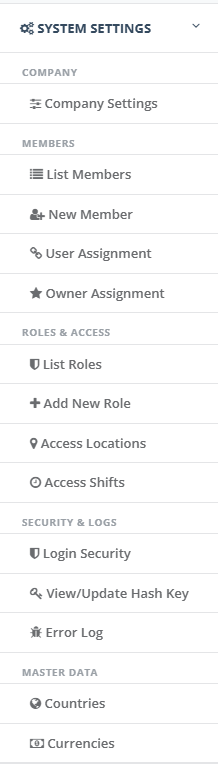
System Settings menu with Login Security under Security & Logs
For the matrix, click the blue Access Matrix button at the top of Login Security. For the matrix to show offices and hours, the offices must exist in Access Locations, the hours in Access Shifts, and the person must be assigned to them on Members.
The screen at a glance
Area | What it is for |
|---|---|
Heading and Access Matrix button | Name of the page and the way to the matrix of who may sign in from where and when |
Four tiles | Online users, Failed attempts (last 24 hours), Active reset tokens, Expired active sessions |
Tab bar | Sessions, Login Attempts, Reset Tokens, History Cleanup. On the right: Live, the time of the last refresh, the auto-refresh choice and Refresh |
Filter bar | Narrow the open list (search text, status, internet address, dates) with Search and Clear |
The list | One line per session, attempt or reset link, with a magnifier to see all details and, where allowed, a red action button |
Evidence panel | Slides in from the right and shows every recorded detail of one line |
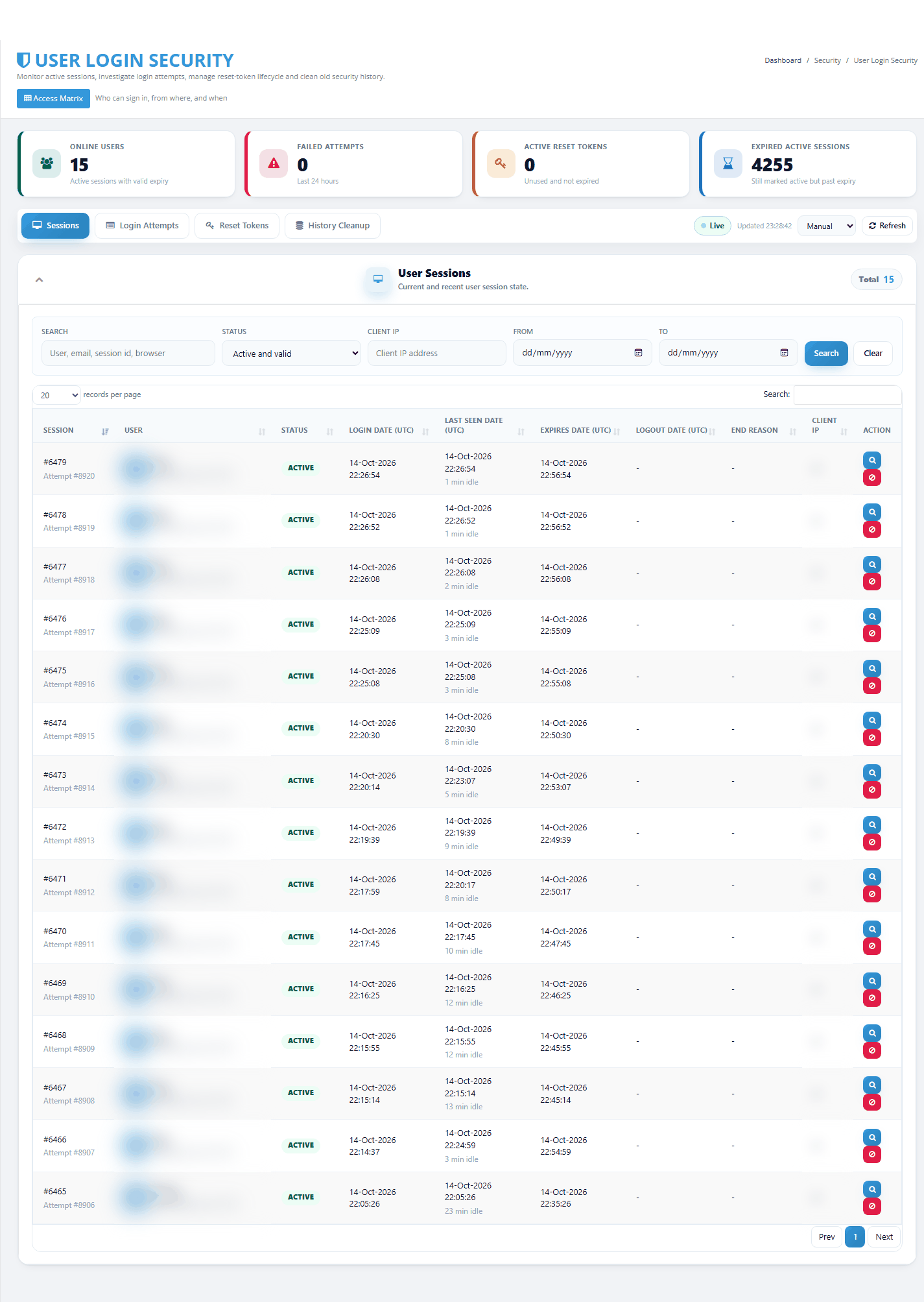
Login Security as it opens: tiles, tab bar and the Sessions list
Step by step
See who is signed in now
Open Login Security. The Sessions tab opens with Status set to Active and valid.
Read the list. Each line is one signed-in browser: the person, when they signed in, when PharmaERP last saw them (with "x min idle"), when the session ends if they do nothing, and the internet address they came from.
To follow the list live, pick Every 30s or Every 60s in the box next to Refresh. The tiles and the list then update while the page stays open.
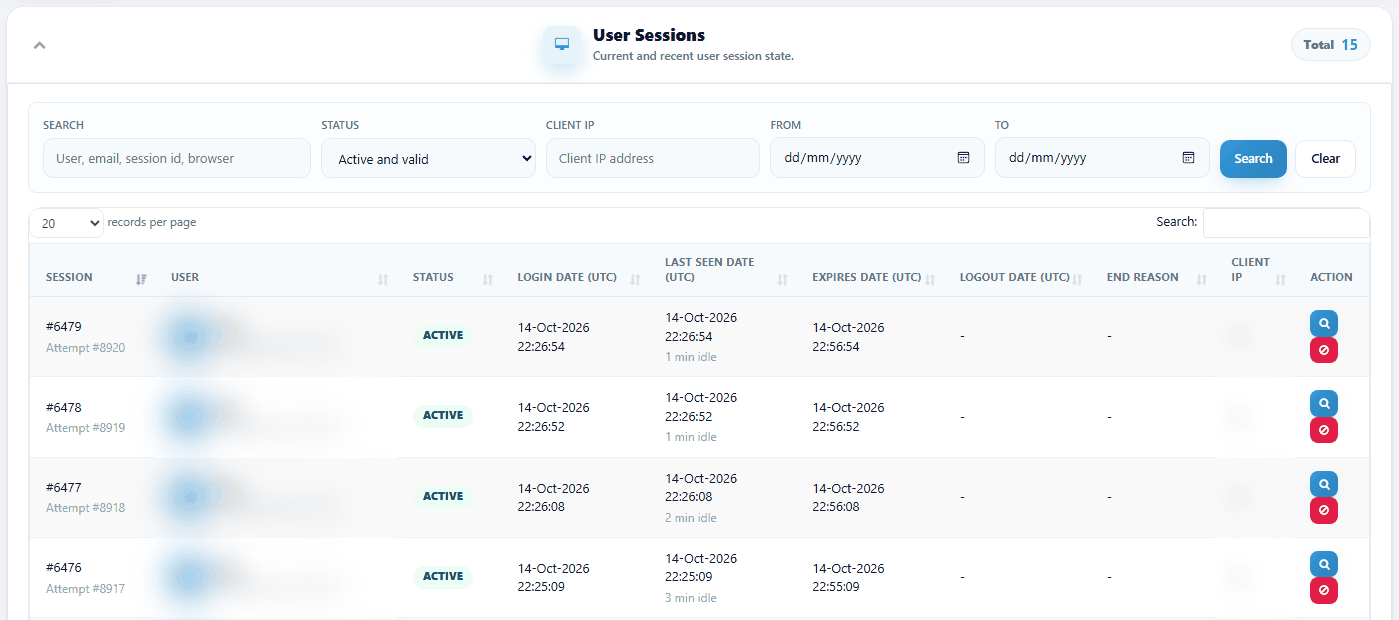
Sessions tab with the filter bar and the first lines
The Online users tile and the total above the list show the same number. It counts sessions, so one person signed in from two browsers counts twice.
Find out why someone could not sign in
Click the Login Attempts tab.
Type the person's e-mail address in Search and choose Failed in Result. You can also set From and To to today. Click Search.
Look at the Failure Reason column of the newest line. The list is newest first.
Click the magnifier on that line. The evidence panel shows the reason, the office and shift the check compared against, and an Explanation in plain words.
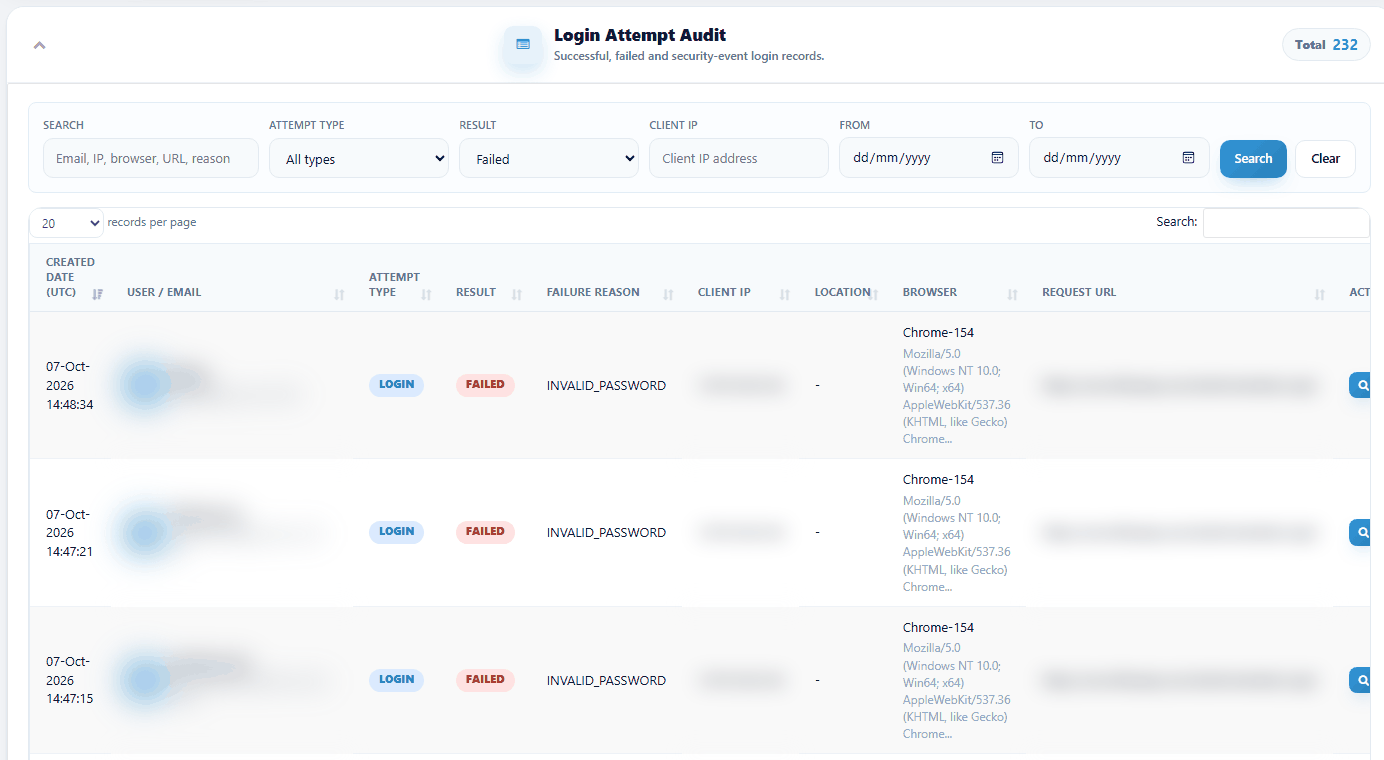
Login Attempts filtered to failed attempts
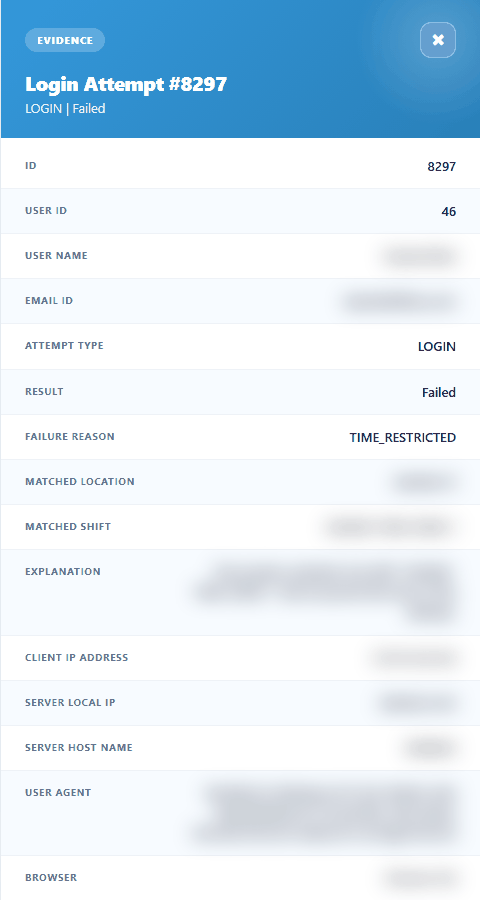
Evidence panel of a refused attempt with matched office, matched shift and explanation
Failure Reason | What it means | What you usually do |
|---|---|---|
INVALID_PASSWORD | Wrong password, or e-mail or password left empty | Ask the person to try again. After 5 in a row the account is blocked for 15 minutes |
UNKNOWN_USER | No account with that e-mail | Check the spelling. Create the account on Members if needed |
INACTIVE_USER | The account is switched off | Switch it on in Members if the person should work |
LOCKED_OUT | Blocked after 5 wrong passwords | Wait 15 minutes, or set a new password on Members, which also clears the block |
IP_RESTRICTED | The internet address is not one of the person's offices | Check the person's offices on Members and the office addresses in Access Locations |
TIME_RESTRICTED | The office matched but the time is outside the shift | Check the shift in Access Shifts or the person's hours |
NO_PRIMARY_LOCATION | Office check off, hours check on, several offices and none marked primary | Mark one office as primary on Members |
After you fix the setting, the person tries again. Their next attempt appears at the top of the list.
End (revoke) a session
Use this when a laptop is lost, a colleague left a shared computer signed in, or a session looks suspicious. You need AdminMember: Update.
On the Sessions tab, find the line. Search by name, e-mail, address or session number.
Click the red button with the no-entry sign at the end of the line.
Read the confirmation box and click Confirm revoke. Click Cancel to leave it.
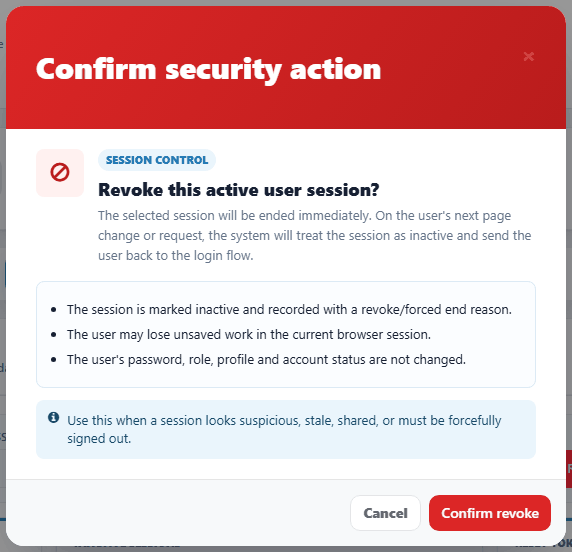
Confirmation box shown before a session is ended
The session is marked ended with the reason FORCED, and a "session revoked" line is added to Login Attempts. The person's live screens stop updating at once. Their password, role and profile do not change. You see the green message "Session revoked successfully." and the line changes to Ended.
The person is sent to the sign-in page at their next click. This can take up to about 2 minutes.
Look at all the details of one line
Click the magnifier on any line of Sessions, Login Attempts or Reset Tokens.
The evidence panel slides in from the right with every recorded value.
Close it with the X or the Escape key.
Clean up old history
Do this only when the business has agreed how long to keep sign-in history. You need AdminMember: Update.
Click the History Cleanup tab. PharmaERP counts what could be removed with the default periods (365, 90 and 30 days).
If the business has agreed other periods, change the days and click Preview Cleanup. The three cards show how many records would go.
Click Run Cleanup. PharmaERP counts again and shows a confirmation box with the numbers.
Click Delete eligible records to remove them, or Cancel.
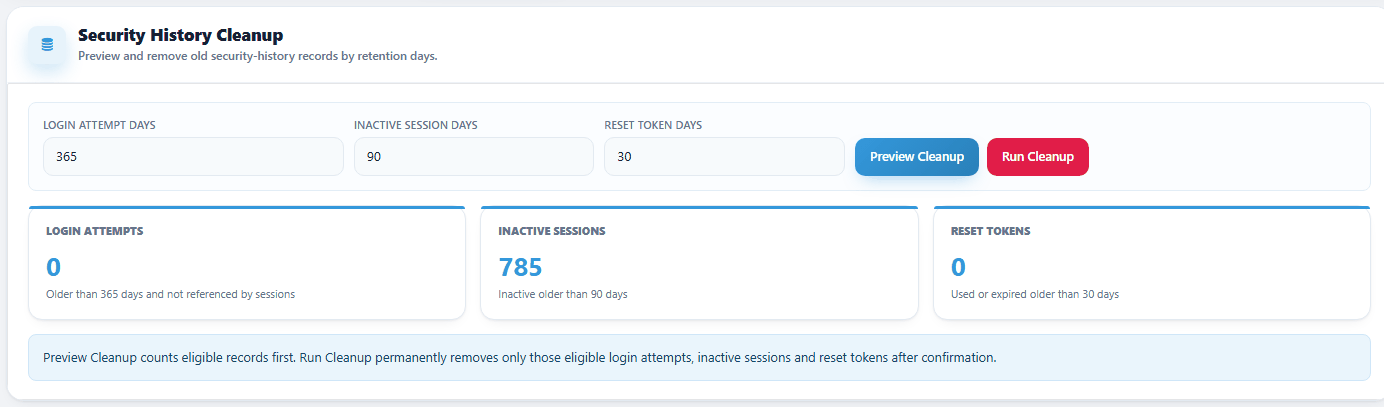
History Cleanup after the automatic preview
Warning: The records are deleted permanently. There is no undo. Sessions that are still marked open are never removed.
Check who can sign in from where and when
Use the Access Matrix before an audit, after changing an office address or a shift, or to make sure nobody is locked out by a wrong setting.
On Login Security, click Access Matrix.
Read the banners. A red one tells how many employees have a setting that stops them signing in (with Show only these). A blue one counts employees still on the old ("legacy") settings.
Narrow the list with Location, Shift, Status or Search name or email.
Read the Status column: OK, legacy, or CANNOT SIGN IN followed by the reason or reasons.
Click Export CSV to download the same list for the audit file.
For each CANNOT SIGN IN line, click the person's name (needs Update) or open the office or shift page, and correct the setting.
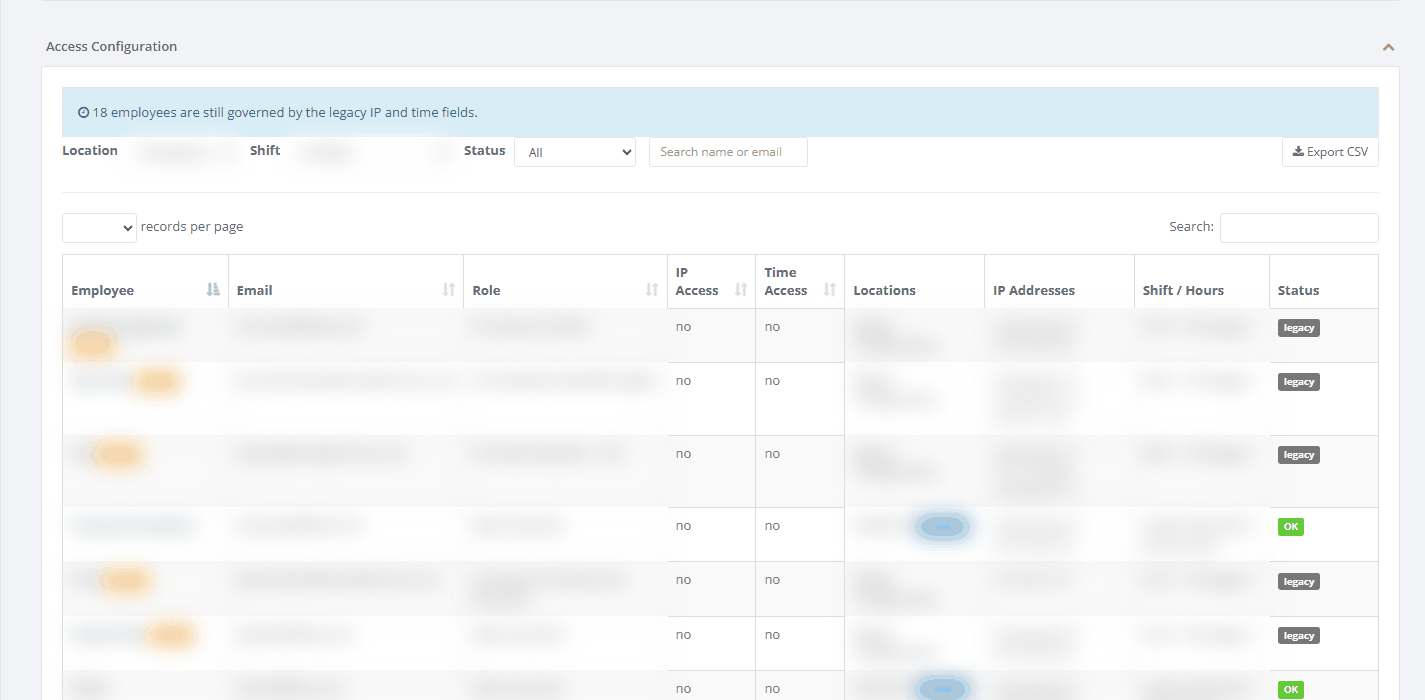
Access Matrix with the banner, the filters and the first employees
Reset links
The Reset Tokens tab is meant to list password-reset links and let you expire one that should not be used. In this version PharmaERP does not send reset links, so the list is always empty.
Fields and columns explained
Name | What it shows |
|---|---|
Online users | Sessions that are open and have not timed out. Counts sessions, not people |
Failed attempts | Refused sign-ins in the last 24 hours, all staff |
Active reset tokens | Reset links not used and not expired. Always 0 in this version |
Expired active sessions | Sessions never closed because the person closed the browser or stopped working |
Status (Sessions filter) | Active and valid (default), Active but expired, Logged out, Forced or revoked, All sessions |
Login Date (UTC) | When the session started |
Last Seen Date (UTC) | Last time PharmaERP noted activity, plus "x min idle" |
Expires Date (UTC) | When the session ends if nothing more happens (last seen plus 30 minutes) |
Logout Date (UTC) / End Reason | When and how it ended: LOGOUT (signed out) or FORCED (revoked). Empty while open |
Attempt type | LOGIN, LOGOUT or SESSION_REVOKED appear in practice |
Result | SUCCESS (green) or FAILED (red) |
Failure Reason | Why a sign-in was refused. See the table above |
Location | Country or town of the address. Always "-" in this version |
Login attempt days | Keep attempts younger than this. At least 30 |
Inactive session days | Keep ended sessions younger than this. At least 7 |
Reset token days | Keep used or expired reset links younger than this. At least 7 |
Matched Location / Matched Shift | The office and shift the check compared against. Empty for an address refusal |
IP Access / Time Access | Whether the office and hours checks are switched on for the person |
Locations | Assigned offices. The main one is marked "primary", switched-off ones "inactive" |
Shift / Hours | The shift and its hours per office, or the old hours marked "(legacy)" |
Status (Access Matrix) | OK, legacy, or CANNOT SIGN IN with the reasons |
Session statuses: ACTIVE (open and recently used), EXPIRED (still open but unused for more than 30 minutes), LOGGED OUT (the person signed out), ENDED (an administrator revoked it).
Messages you may see
Message | What it means | What to do |
|---|---|---|
Session revoked successfully. | The session was ended | Nothing. The person will be signed out |
Current session cannot be revoked from this screen. Please use logout. | You tried to end your own session | Use sign out instead |
Session is already inactive. | The session had already ended | Refresh the list |
Session was not found. / Login attempt was not found. / Reset token was not found. | The record was removed, for example by a clean-up | Refresh the list |
No eligible security history found for the selected retention days. | Run Cleanup found nothing to remove | Nothing, or change the days |
Cleanup completed. Deleted N login attempts, N inactive sessions and N reset tokens. | The clean-up finished | Note the numbers for your records |
Cleanup failed. No partial cleanup was kept. Please try again or contact support. | Nothing was deleted | Try again later. Call support if it repeats |
Action completed. (yellow) | The action was refused because your role lacks Update. Nothing changed | Ask for AdminMember Update |
Action failed. Please try again or contact support. | The request failed | Reload the page and try again |
Unable to load security summary. / Unable to load detail. / Unable to load purge preview. | A count or detail could not be read | Reload the page. You may have been signed out |
Unauthorised location | Sign-in screen: office address or main-office problem | Look up the attempt |
Time period expired | Sign-in screen: outside the shift hours | Look up the attempt |
Too many failed login attempts. Please try again later or contact administrator. | Account blocked for 15 minutes | Wait, or set a new password on Members |
Password reset is not enabled yet. Please contact administrator. | Sign-in screen: forgot password | Set a new password on Members |
Good to know
Without AdminMember: Update, the Revoke, Expire and Run Cleanup buttons still show, but the action is refused and a yellow "Action completed." appears. Check the list and ask for the Update right.
Revoking is not instant. For a lost or stolen laptop, also change the password on Members.
The page does not record which administrator revoked a session or ran a clean-up. Keep your own note of date, time and reason if you need it for an audit.
There is no unlock button. Setting a new password on Members clears a block.
Expired active sessions keeps growing, because sessions that simply time out are never closed. It is not a list of problems to act on.
All dates and the From and To filters use UTC. The downloaded matrix file contains e-mails and addresses, so store it securely.
Before using the Cannot sign in filter, choose 100 in records per page so every employee is on one page.