A location is an office, warehouse or internet line that your staff are allowed to sign in from. You write down its internet (IP) addresses once, and then link employees to it. When the provider changes an office address, you change it on the location and everyone linked to it is covered at their next sign-in. The system administrator uses this screen, together with the IT or office manager who knows which internet connections each office uses.
Before you start
You need these rights in Role Master. Ask your administrator if you do not have them.
To do this | Right you need |
|---|---|
See the menu entry, the list, History and Who uses this | Access Locations - View |
Add a location | Access Locations - Create |
Change a location and its addresses | Access Locations - Update |
Deactivate or activate a location | Access Locations - Delete |
Link an employee to a location | Members - Create / Update |
Rights are read when a person signs in. After a change in Role Master, the person must sign out and sign in again.
Before you add a location, find the internet address of each office line. From a computer in that office, search the web for "what is my IP". The address shown is the one PharmaERP sees. Ask the internet provider whether the address is fixed ("static"). A changing address locks people out when it changes. If the office is in another country than head office, also know its time zone.
To open the screen:
Sign in to PharmaERP.
Open System Settings in the left menu.
Under Roles & Access, click Access Locations.
The screen at a glance
The list shows one row per location: code, name, addresses, time zone, how many employees use it, status and last change. The toolbar above it has Help, Add New, the Status filter and a search box. The Option button on each row opens a menu with Edit, History and Deactivate / Activate, depending on your rights. An amber banner appears when active locations have no IP address.
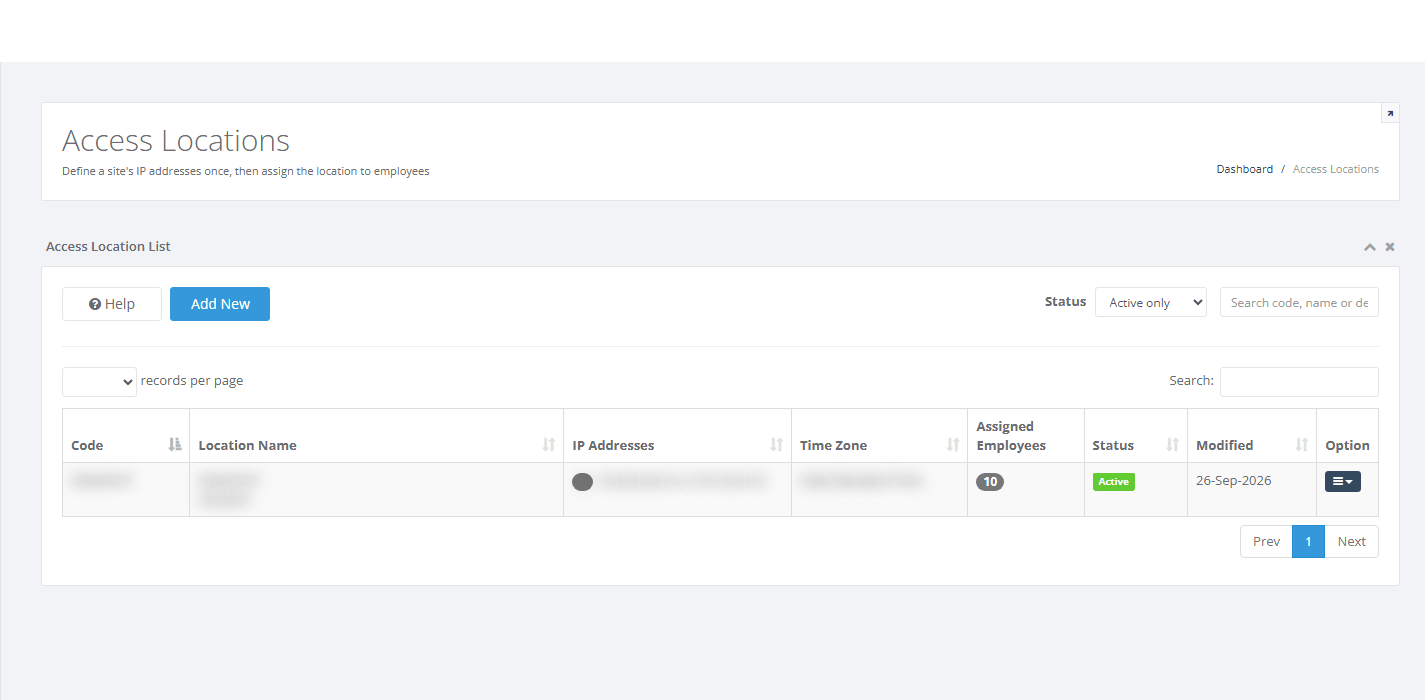
The Access Locations list
Step by step
Find a location
Open Access Locations. The list shows active locations only at first.
Type part of the code, name or description in Search code, name or description. The list narrows after a short pause.
To see closed locations, change Status to Inactive only or All.
Click a column heading (Code, Location Name, IP Addresses, Time Zone, Status, Modified) to sort.
The search does not look inside addresses. To find which location holds an address, open the likely locations, or try to add the address. The warning names the location that already has it.
Add a new location
Add a location when a new office, warehouse or line comes into use, before you link employees to it.
Click Add New. The form Create Access Location opens.
Type the Location Code, for example EX-OFFICE. It turns into capitals when you leave the box. It cannot be changed later, so choose it carefully.
Type the Location Name. Everyone sees this name. You can change it later.
Optionally, type a Description, for example the provider or floor.
Leave Time Zone on Company time zone unless the office is in another country than head office. In that case, choose that country's zone.
Under IP Addresses, click Add IP Address for each line. Type the address and, if you like, a Label, for example Main line.
Click Save.
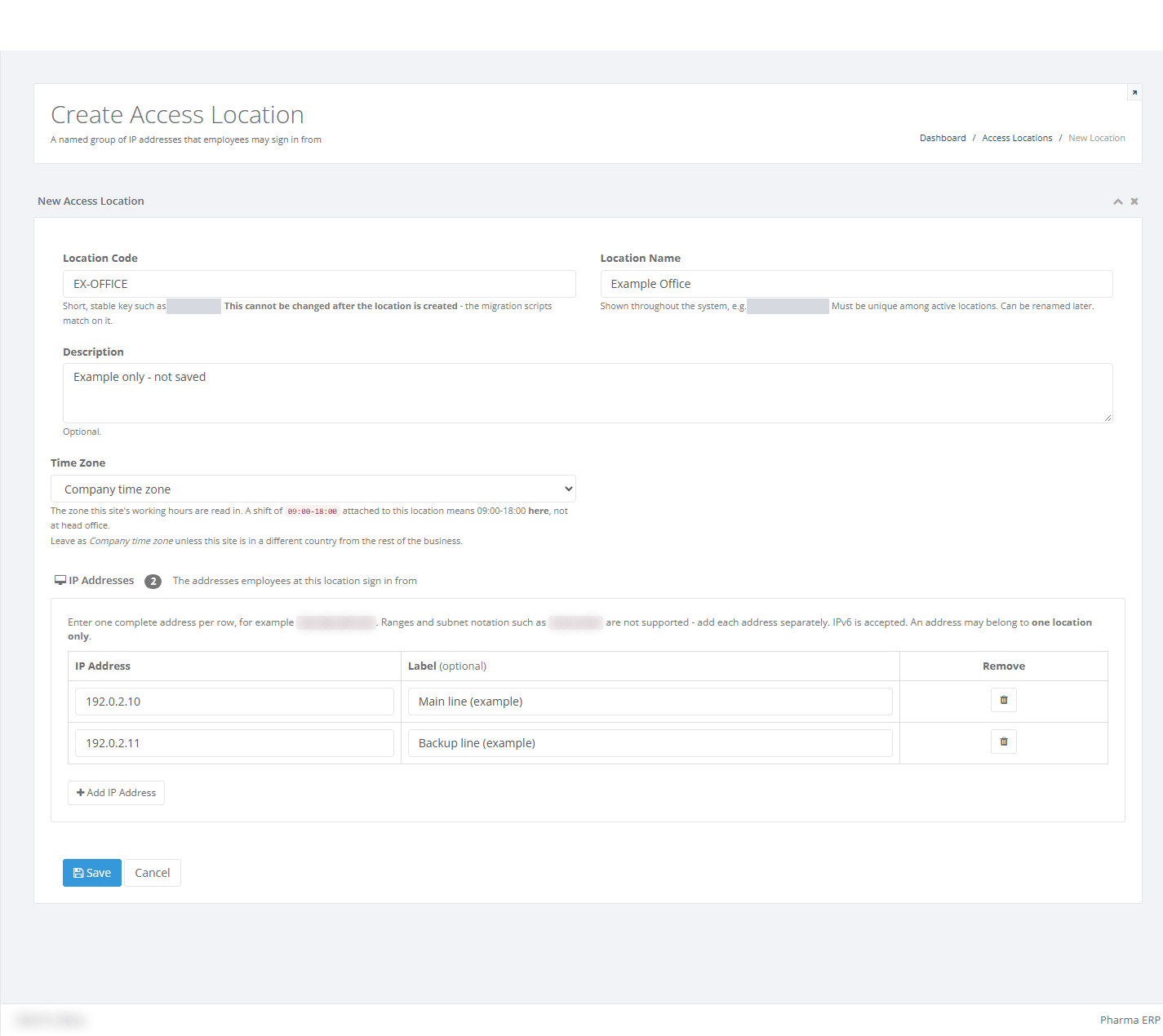
The Create Access Location form filled in with two addresses
The system stores the location as active and writes the standard spelling of each address (for example 192.0.2.011 becomes 192.0.2.11). It also adds History lines. You return to the list with a green message. If you saved without any address, you see an amber warning instead.
If the location cannot be saved, the form stays open with a red box that lists every problem. Correct them and save again. Nothing is stored until all problems are fixed.
Next, link the employees of this office to the location (see Link employees to a location).
Change an office address
This is the main job of the screen. When the provider changes a line, staff are refused at their next sign-in until the location is updated.
Find the location, click Option, then Edit.
Read the amber note at the top: "N employees are assigned to this location. Changes here affect all of them."
Click Add IP Address, type the new address, and click Save. Both the old and the new line now work.
If the browser asks "This change affects N employees who currently sign in from this location. Continue?", click OK to save or Cancel to go back.
When the new line is confirmed working, open Edit again, click the bin next to the old address, and click Save.

The row menu of a location
A removed address is not deleted. It is kept and listed under Previously removed on the Edit form, and History records who removed it and when. If you add the same address again later, the old record comes back.
People who are already signed in keep working. The new addresses are used from each person's next sign-in.
See who uses a location
Check this before you rename a location, change its addresses or close it.
Open the location with Edit (or History).
Click Who uses this.
Read the window, then close it with the cross.
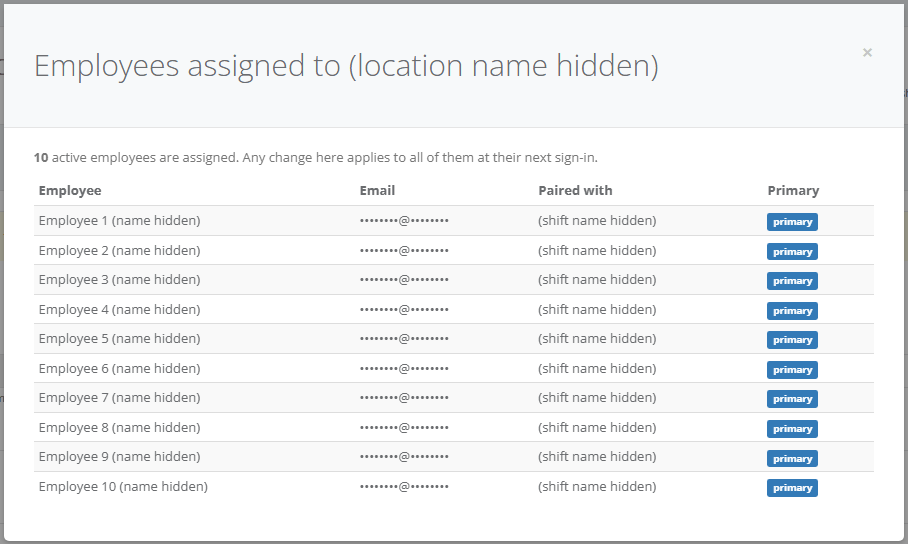
The Who uses this window
The window lists every active employee with an active link to the location: Employee, Email, Paired with (the shift they work there) and Primary. The primary location decides which hours apply when the employee's IP Access is No.
Read the history of a location
Click Option, then History. You can also click History on the Edit form.
To find a change, type a word, user or value in Search history.
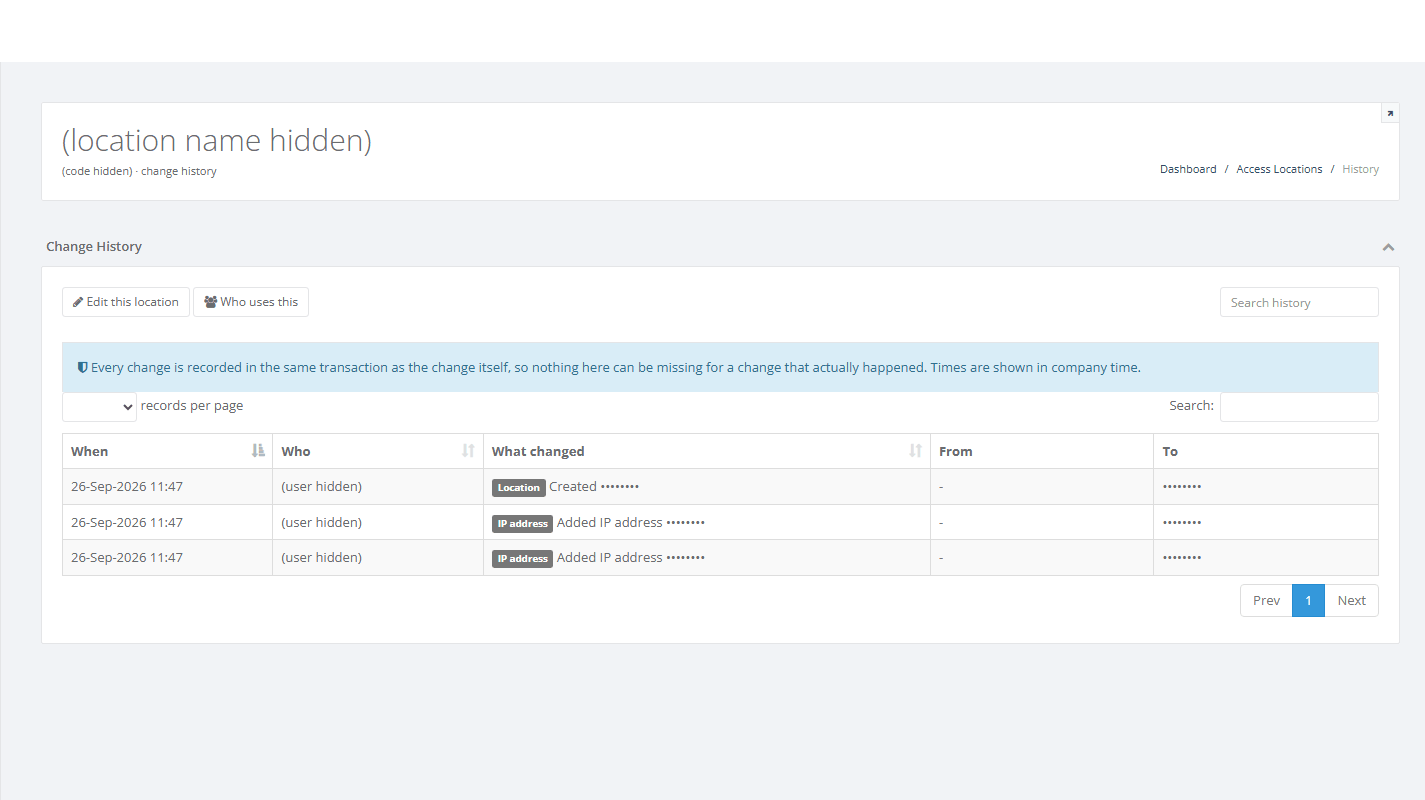
The History page of a location
Each line shows When (company time), Who, What changed (for example "Location - Created" or "IP address - Added IP address") and the value From and To. History keeps names as they were at the time.
Close or reopen a location
Locations are never deleted, so their history stays readable. Close a location when an office closes or a line is given up.
Open Who uses this. If employees are still linked, move them to another location on the Members page first.
Click Option, then Deactivate.
When the browser asks "Deactivate this location? Employees assigned to it will no longer be able to sign in through it.", click OK.
The list refreshes. The location is now under Status Inactive only.
To reopen it, show Inactive only, click Option, then Activate. No question is asked.
If active employees are still linked, the system refuses and nothing changes. A closed location still keeps its addresses. Another location cannot use them until you open the closed location with Edit and remove them.
Link employees to a location
A location only takes effect for employees who are linked to it and whose IP Access is Yes. You do this on the employee record.
Open System Settings, then List Members. Find the employee and click Edit.
Under Access locations, click Add location and choose the location. If Time Access is used, also choose a shift.
Mark one row as Primary.
Set IP Access to Yes (and Time Access as the business requires).
Save the employee.
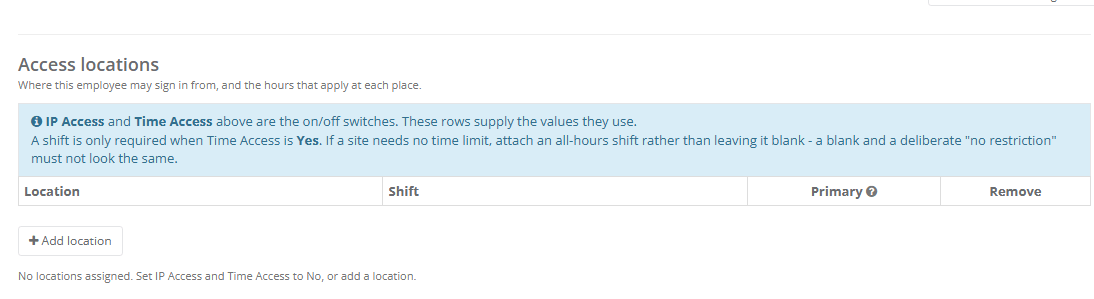
The Access locations block on an employee record
The employee form refuses to save when IP Access is Yes and a chosen location has no address, or when a chosen location has been deactivated. For more on this form, see the Members guide.
What the employee sees at sign-in
When an employee with IP Access Yes signs in, PharmaERP first checks the e-mail and password. Then it compares the address the sign-in comes from with the active addresses of the employee's own active locations.
From an approved address, the employee is admitted.
From any other connection, such as a home connection, the employee sees Unauthorised location and stays on the sign-in page.
If Time Access is also Yes, the shift is checked in the location's time zone. Outside the hours, the message is Time period expired.
For someone who works from home or travels, do not register home connections, because they change. Set that employee's IP Access to No instead. Time Access still works.
Fields explained
Field | What to enter | Rules |
|---|---|---|
Location Code | A short, stable key for the location. | Required. Up to 30 characters. Must not be used by any other location, active or inactive. Shown in capitals. Cannot be changed on Edit. |
Location Name | The name everyone sees. | Required. Up to 100 characters. Must differ from every other active location. |
Description | A free note. | Optional. Up to 500 characters. Shown in grey under the name in the list. |
Time Zone | The time zone the location's working hours are read in. | Optional. Company time zone (default) or one of the listed zones. |
IP Address (each row) | One internet address of the location. | Optional, but without one nobody who needs the check can sign in. One complete address per row: four numbers 0-255 separated by dots, or an IPv6 address. No ranges ("-"), no subnets ("/"). Up to 45 characters. An address can belong to one location only. |
Label (each row) | Your note for the line. | Optional. Up to 100 characters. |
Status (list filter) | Which locations the list shows. | All, Active only (default) or Inactive only. |
Search code, name or description | Part of a code, name or description. | Not case-sensitive. Does not search addresses. |
Messages you may see
Message | What it means | What to do |
|---|---|---|
The Location Code field is required. / The Location Name field is required. | You saved with an empty code or name. | Fill the field. |
Location Code "X" is already in use. | The code exists on another location, even an inactive one. | Choose another code. |
Another active location is already called "X". | The name matches an active location. | Choose another name, or deactivate the old location first. |
Incomplete address. | An address has fewer than four parts. | Type the full address. |
Subnet notation is not supported. Enter each address separately. / Ranges are not supported. Enter each address separately. | An address contains "/" or "-". | Add each address on its own row. |
That is not a valid IP address. / That is not a valid IPv6 address. | The text is not an address. | Correct or remove the row. |
Enter an IP address, or remove this row. | An address row is empty. | Type an address or click the bin. |
One or more IP addresses are not valid. Correct the rows marked in red, or remove them. | A row is red when you save. | Correct the red rows. |
IP address "X" is already assigned to location Y. An address can belong to only one location. | Another location, even an inactive one, has this address. | Remove it from the other location first (open it with Edit), then add it here. |
Saved. This location has no IP address yet, so nobody assigned to it with IP Access set to Yes will be able to sign in until one is added. | You saved without addresses. | Add the addresses before you link employees. |
This change affects N employees who currently sign in from this location. Continue? | You are saving a location that has linked employees. | Click OK to save or Cancel to review. |
This location cannot be deactivated because N active employees are still assigned to it. Reassign those employees to another location first. | You tried to close a location that is still in use. | Use Who uses this and move the employees on the Members page. |
That location no longer exists. | The location was opened from an old link. | Refresh the list. |
Unauthorised location | On the sign-in page: an employee with IP Access Yes signs in from an address not on their locations. | Check the office address ("what is my IP") against the location, and check the employee's locations on the Members page. |
Time period expired | On the sign-in page: the sign-in is outside the employee's shift. | See the Access Shifts guide and check the location's time zone. |
Good to know
Changes apply at the next sign-in. Removing an address, closing a location or switching IP Access on does not sign anybody out.
A closed location keeps its addresses. If a line moves to another office, remove it from the old location first (open it with Edit, even when inactive), then add it to the new one.
If two people edit the same location at the same time, the last to save wins, and an address the other person just added can disappear. Agree who edits, and check History afterwards.
The Deactivate option is offered even when it will be refused. Check Who uses this first.
Time zone matters across countries. A shift of 09:00-18:00 at a location in another country is read in that location's time zone. A wrong zone refuses staff at times they believe are allowed.
Employees with no location yet, or whose locations are all closed, are still checked against the old address list on their employee record. Use the Access Matrix (Login Security) to see who is still on the old list.