Every customer and every supplier in PharmaERP has one person who is responsible for it: its Account Owner. For customers this is usually the salesperson, and for suppliers it is usually the buyer. The owner decides, together with the reporting line above them, who can see the account and its orders, invoices and credit memos. Use the Owner Assignment page to change an owner, for example when someone joins, leaves or takes over a region, when territories are re-organised, or when an account has no owner. It is used by the system administrator, usually at the request of a sales or purchasing manager.
When a customer or supplier is added, the person who adds it becomes its owner automatically. After that, Owner Assignment is the only place where the owner can be changed. It is not available on the account's edit page.
Before you start
You need these rights in Role Master:
To do this | You need this right |
|---|---|
See the Owner Assignment link in the menu | SYSTEM › AdminMember (Members) - View |
Open the page, look up owners and change owners | SYSTEM › Account Owner - View |
The View right alone lets you change owners. There is no separate right for changing. Give the Account Owner right only to people who should be able to re-assign any account in the company.
Rights are read when you sign in. After your role changes, sign out and sign in again.
The person who will become the owner must already exist on the Members page. The customers and suppliers must already exist on Customer DB and Supplier DB.
Who reports to whom is set on the Members page. It decides which managers see an owner's accounts.
To open the page, sign in and choose System Settings › Members › Owner Assignment in the left menu. The page opens with your own name selected and Supplier chosen.
The screen at a glance
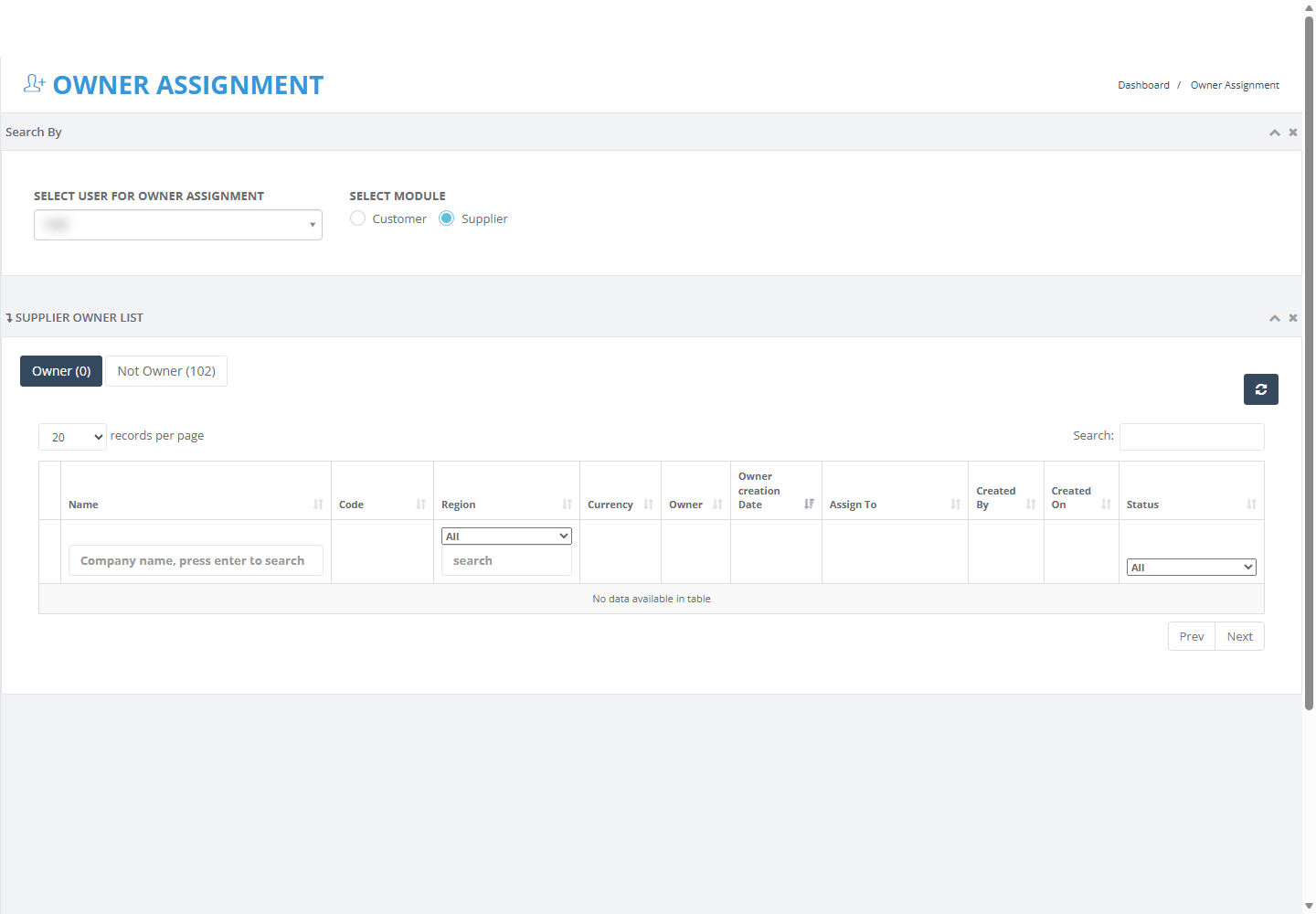
Owner Assignment as it opens
Area | What it is for |
|---|---|
SELECT USER FOR OWNER ASSIGNMENT | The person whose accounts you want to see, or who will become the owner. |
SELECT MODULE | Customer or Supplier: which kind of account the list shows. |
Owner (n) tab | The accounts the selected person owns now. Read-only. |
Not Owner (n) tab | Every other account, owned by someone else or by nobody. Tick accounts here to give them to the selected person. |
Assign (n) button | Appears when you tick accounts. Gives them to the selected person. |
Reset button (round arrows) | Clears every filter and reloads both tabs. |
Step by step
See which accounts a person owns
In SELECT USER FOR OWNER ASSIGNMENT, choose the person. Type part of the name to find it.
In SELECT MODULE, choose Customer or Supplier.
Stay on the Owner tab. The number in brackets is how many accounts the person owns.
To narrow the list, use the boxes above the columns or the Search box.
Each row shows the account with its owner, the date that person became owner, the people it is assigned to, who created it and its status. You cannot change anything on the Owner tab. A person who owns nothing on that side gets an empty list.
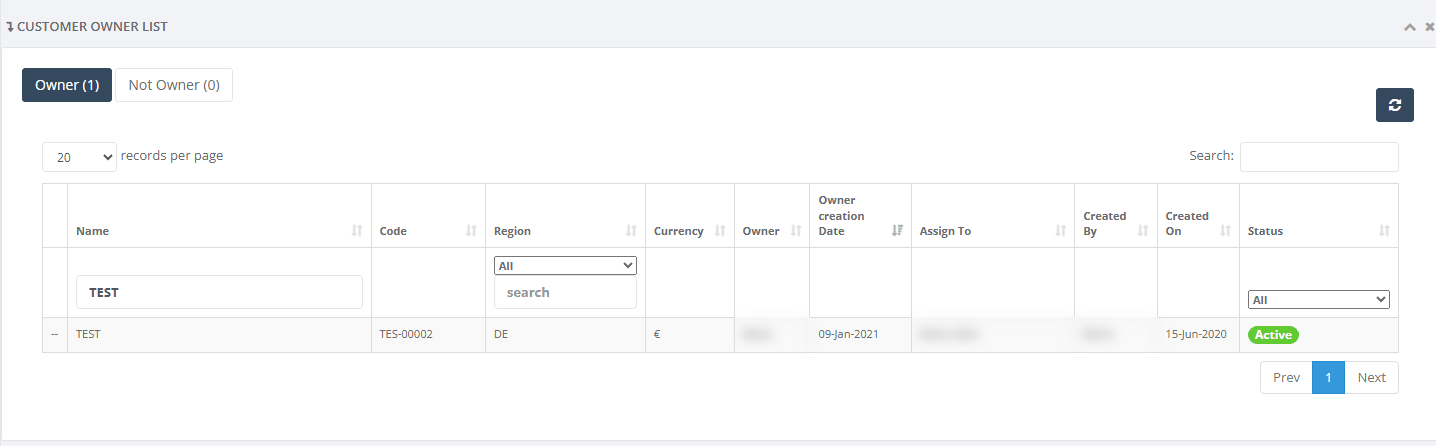
Owner tab filtered to one account
Give an account to a new owner
Use this when an account has no owner, its owner has left, or the work is moving to another person. The steps are the same when the account already has another owner. In that case the Owner column on the Not Owner tab shows the current owner's name.
In SELECT USER FOR OWNER ASSIGNMENT, choose the new owner.
In SELECT MODULE, choose Customer or Supplier.
Open the Not Owner tab.
Find the account. Type part of its name in the Company name box above the Name column and press Enter.
Tick the box at the start of the account's row. The row turns blue and the Assign (1) button appears next to the tabs.
Check the selected person and the ticked rows once more. The page does not ask "Are you sure?".
Click Assign (1). A grey "SAVING...." screen appears for a moment.
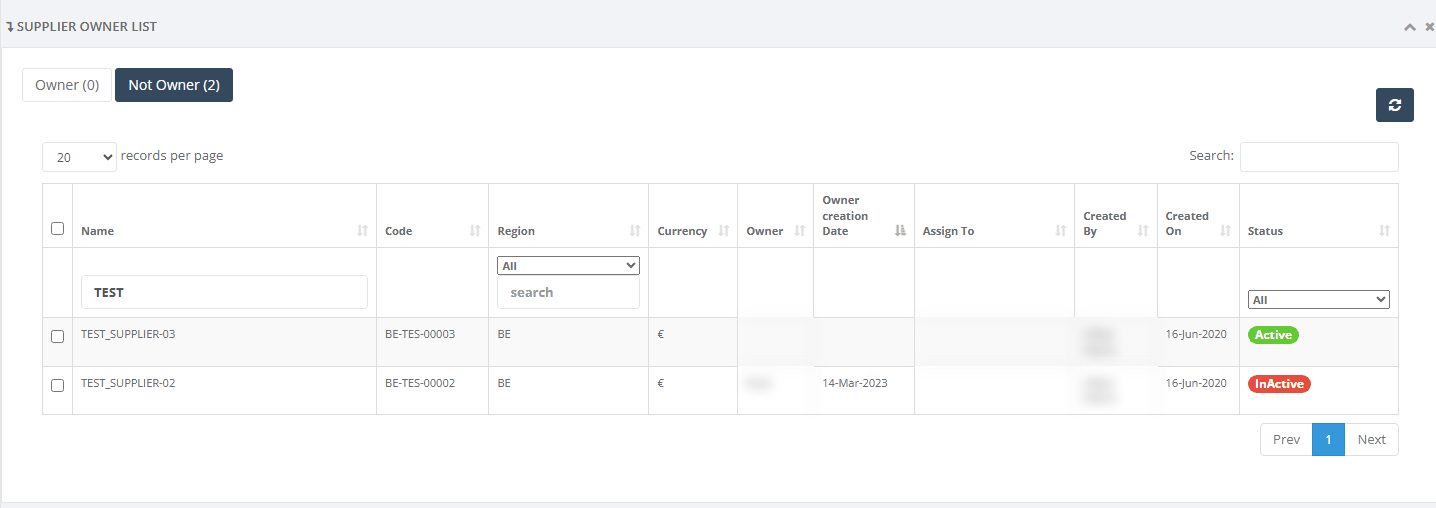
Account without an owner on the Not Owner tab
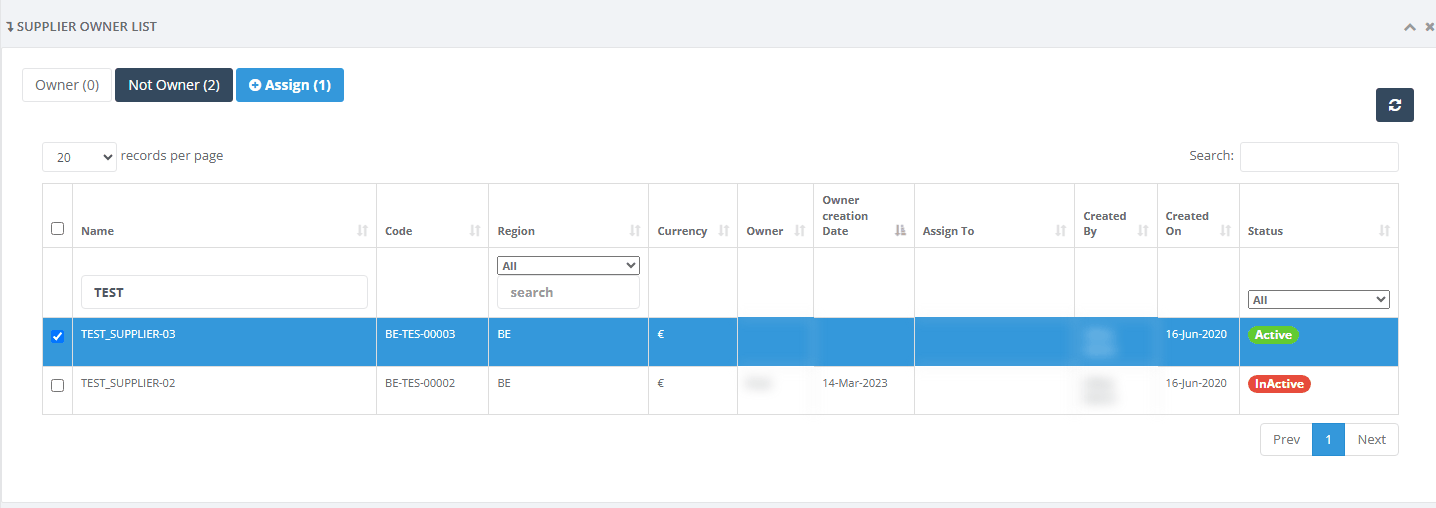
Account ticked and Assign (1) shown
When the save works, a green message Ownership assigned successfully appears and both tabs reload. The account is now on the new owner's Owner tab, with today's date as Owner creation Date.
Important: Nothing is saved until you click Assign. No e-mail or notification is sent to anyone, so tell the new owner yourself.
Give several accounts at once
Choose the new owner and the side (Customer or Supplier), then open the Not Owner tab.
Filter the list so it shows only the accounts you want, for example by Region or Status.
Tick each account, or tick the box in the column heading to tick every row on the current page. A page shows 20 rows by default. Use records per page to show up to 100.
Check the number on the button, for example Assign (12), and click it.
Warning: If you change a filter, the page or the sort after ticking, the ticks are cleared but the Assign button can stay on screen. Tick again just before you click Assign.
Check the result
Choose the new owner and the side.
Open the Owner tab and look for the accounts you moved.
If you saw an error, reload the page first. When several accounts were ticked, some may already have moved.
Fields explained
Field | What to enter | Rules |
|---|---|---|
SELECT USER FOR OWNER ASSIGNMENT | The person whose accounts are listed and who becomes the owner when you click Assign. | Required. Every user is listed, including people who have left. Your own name is selected first. |
SELECT MODULE | Customer or Supplier. | Required. Supplier is selected when the page opens. |
Tick box (row) | Tick the accounts to give to the selected person. | Only on the Not Owner tab. The box in the heading ticks every row on the current page. |
Search (top right) | Text to look for as you type. | Looks in Name, Region, Currency, Owner and Created By. It does not look in Code. |
Company name (above Name) | Part of the account name. | On the Not Owner tab, press Enter. On the Owner tab, the list refreshes as you type. |
Region box | A country, or All. | Applies when changed. |
Region text box | The whole country code or the whole country name, for example BE. | Part of a code finds nothing. |
Status box | One account status, or All. | Applies when changed. |
records per page | 10, 20, 50 or 100. | 20 is the default. |
The Status column shows the account's own status from Customer DB or Supplier DB. You cannot change it here. Some labels differ from the names in the Status box. Onboarding - Complete shows as "Potential Suplier", Onboarding - In Progress shows as "Supplier Onboarding", and Closed - Not relevant shows as "Dead".
What happens after you save
The new person is the owner from that moment. If someone else owned the account, they stop being the owner. The earlier ownership is kept as history, but no screen shows it. Ask IT if you need to know who owned an account before.
Nothing else about the account changes. Its details, status, assigned people, existing orders and invoices stay as they were.
The new owner, the people above them in the reporting line, and anyone the account is assigned to, see the account in Customer DB or Supplier DB, in the customer or supplier boxes of orders and invoices, and in reports. The owner and the people above the owner see all of its orders, invoices and credit memos.
People who do not report to the new owner and are not assigned to the account do not see it.
The previous owner's team may stop seeing the account or some of its documents. The previous owner keeps seeing the account only if it is also assigned to them on the User Assignment page. Even then they see only the orders and invoices that their own team created.
Who may submit and approve the account's orders and invoices also starts from the owner and the owner's managers. An account with no owner gives Submit and Approve buttons to nobody except the main administrator account.
Each ticked account is saved one at a time. If something goes wrong half-way, the accounts already processed keep their new owner.
Tip: Warn people before you move their accounts. If they still need to work on an account, add them on the User Assignment page.
Messages you may see
Message | What it means | What to do |
|---|---|---|
Ownership assigned successfully | The accounts now belong to the selected person. | Nothing. Check the new owner's Owner tab if you wish. |
Please select at least on supplier/customer to assign | You clicked Assign with nothing ticked, usually because the list reloaded after you ticked. | Tick the accounts again, then click Assign. |
Failed to retrieve states.[object Object] | A browser pop-up. The save did not go through, for example because your session ended, your right was removed or no person was selected. | Click OK, reload the page and check the Owner tab. Sign in again if needed. Tell IT if it repeats. |
No data available in table | Nothing matches the person, side and filters. | Check the person and side. Click the Reset button to clear the filters. |
Access Denied | Your role does not have Account Owner - View, even if you can see the menu link. | Ask your administrator for the right, then sign in again. |
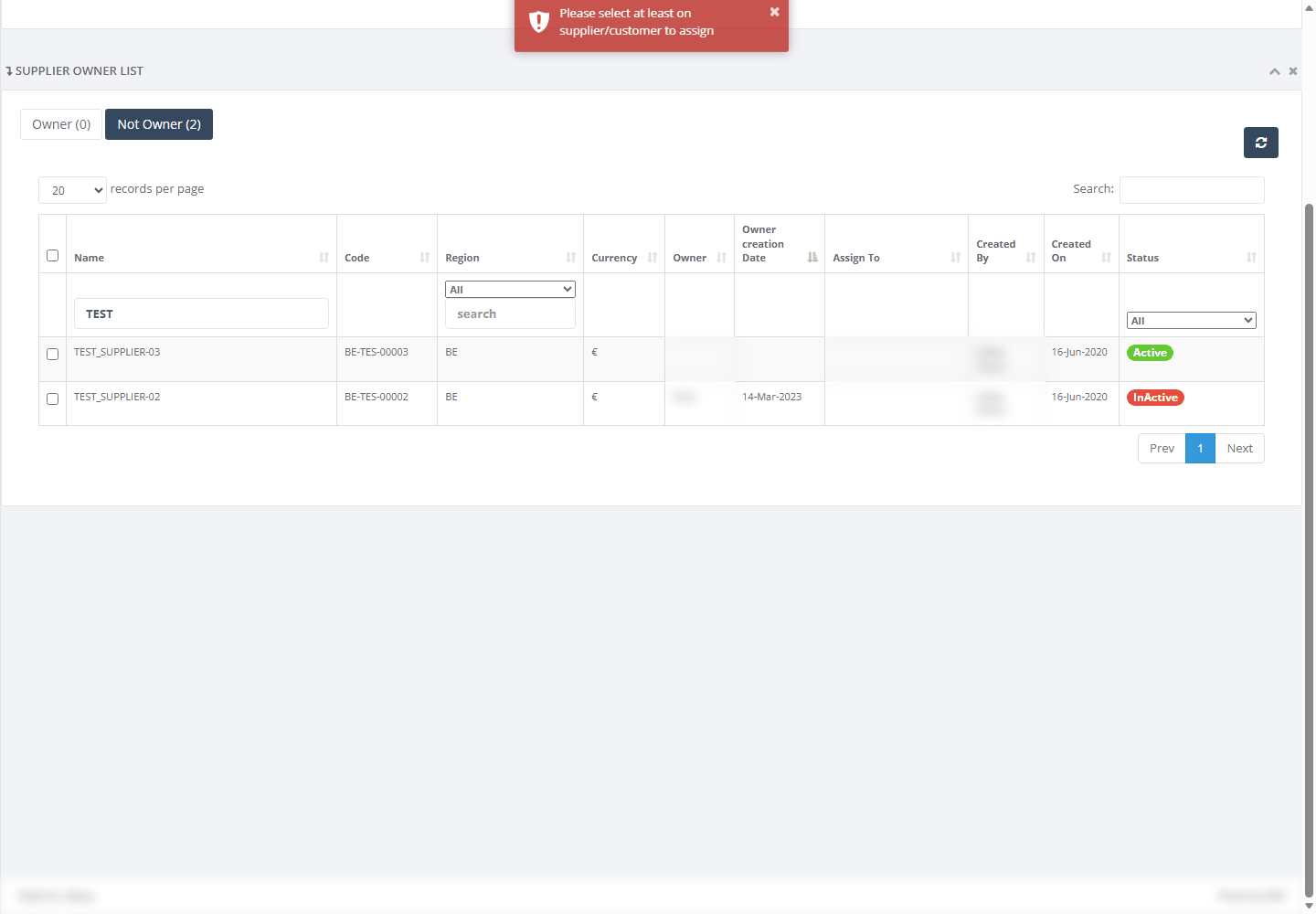
Message shown when Assign is clicked with nothing ticked
Good to know
User Assignment is a different page. It adds extra people to an account and does not change its owner. Owner Assignment changes the one owner.
Anyone who can open this page can give any account in the company to anyone, without a confirmation question. Keep the right to a very small group.
People who have left are still offered in SELECT USER FOR OWNER ASSIGNMENT, and the page accepts them. Do not choose them. Move their accounts to active people.
Do not leave --Select-- in the user box. The rows of the previously chosen person stay on screen, and Assign then fails with the browser pop-up. Always choose a real person.
Click Assign once and wait for the message. A double-click, or the page open in two browser tabs, can create two owners. If an account shows different owners on different pages, report it to IT.
Accounts imported from spreadsheets have no owner, so ordinary users cannot see them until you give them an owner here.
Some list features behave differently from what you may expect. Clicking the Code heading does not sort by code. Clicking Assign To sorts by code, and clicking Created On sorts by Owner creation Date.
An older version of this page may still open from a saved address. Its button does nothing. Always use Owner Assignment in the menu.