Company Settings is the list of named switches and values that decide how PharmaERP behaves for your company. Examples are whether stock is posted when goods come in, or which layout a sales invoice PDF uses. Each setting has a name (Keys), a Value and a Description. Other pages look up a setting by its exact name when they need it.
System administrators use this page to find, change, add and delete settings. The page also holds Setting History, which shows who changed which setting, when, and from what to what. Ordinary purchase, sales and warehouse users do not open this page, but a setting changed here changes what their own pages do.
Note: The page does not check that a value makes sense. It stores whatever text you type, and each page that uses the setting decides how to read it.
Before you start
The page is controlled by the Company page in the SYSTEM section of Role Master. Each tick allows one kind of work.
To do this | You need this tick | Ask |
|---|---|---|
See the menu link, open the list and open Setting History | SYSTEM > Company > View | Your administrator |
See the ADD button and add a setting | SYSTEM > Company > Create | Your administrator |
See the edit button on a row and change a value | SYSTEM > Company > Update | Your administrator |
See the delete button on a row and remove a setting | SYSTEM > Company > Delete | Your administrator |
Rights are read when you sign in. If your administrator changes the Company ticks for your role, sign out and sign in again to see the change.
Nothing has to exist before you open the page. To change a setting, it must already be in the list. IT normally creates settings with a release.
To find the page:
Sign in to PharmaERP.
In the left menu open System Settings.
Under the heading Company, click Company Settings.
For the change history, click Setting History at the top right of the page. There is no separate menu link.
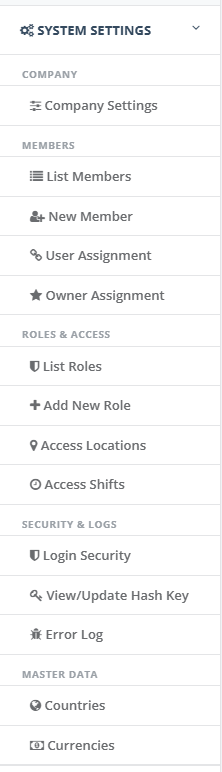
The left menu with System Settings, the Company heading and the Company Settings link
The screen at a glance
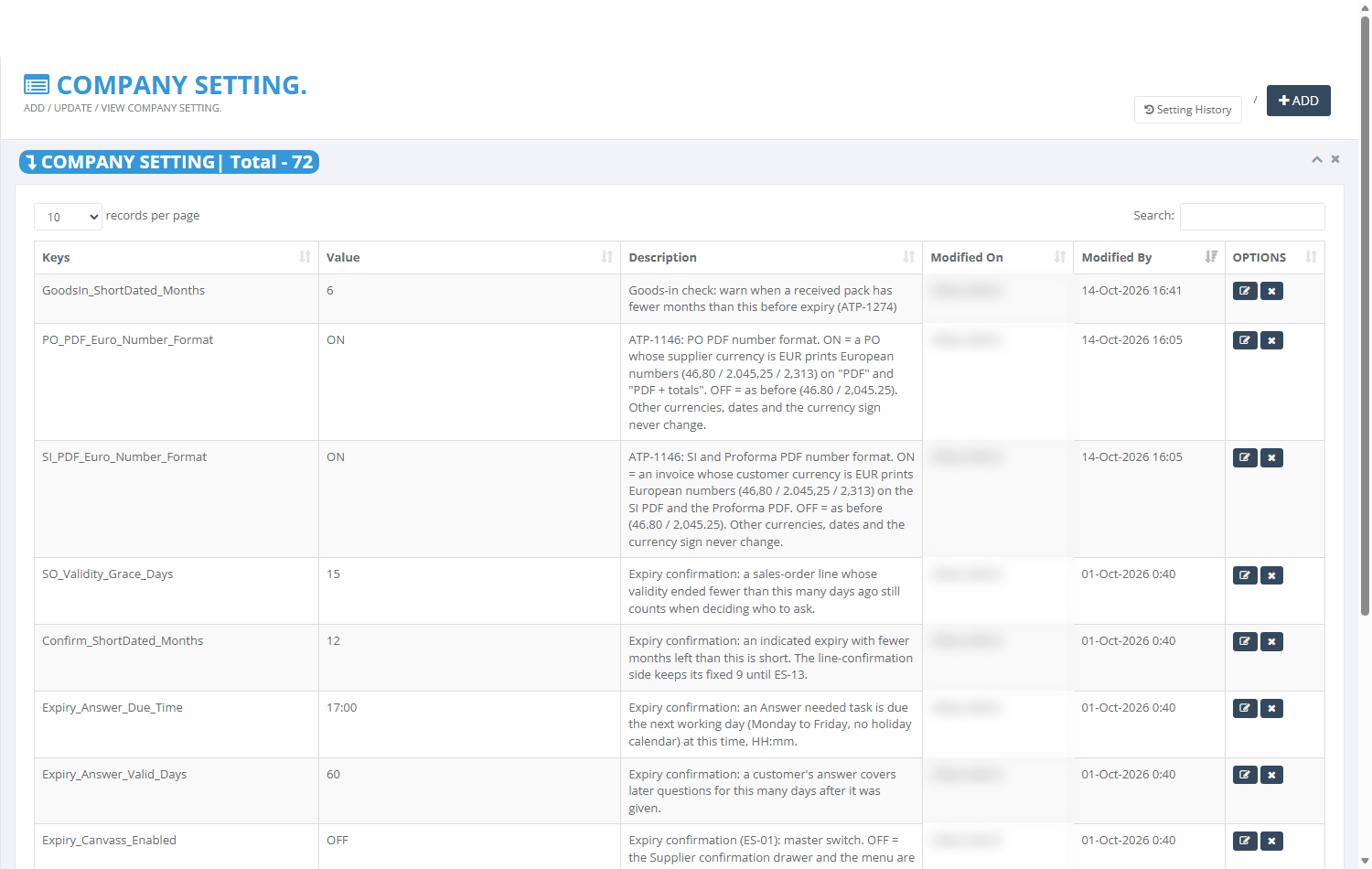
Company Settings: the first page of the settings list
Area | What it is for |
|---|---|
Heading COMPANY SETTING | The page name. |
Setting History button | Opens the list of every change made to the settings. |
ADD button | Opens an empty dialog to add a new setting. Shown only with the Create tick. |
Badge COMPANY SETTING | Total | How many settings match the search. Without a search it is the number of settings the page can show. |
records per page | How many rows each page shows: 10, 20, 50 or 100. Your choice is remembered in this browser. |
Search | Type part of a key, value, description or the name of the person who last changed it. The list filters as you type. |
The list | One row per setting: Keys, Value, Description, Modified On, Modified By, OPTIONS. Click a column heading to sort. |
Row buttons in OPTIONS | Pencil changes the setting (Update tick). Cross deletes it (Delete tick). |
Paging under the list | Prev, page numbers, Next. |
Step by step
The examples below use one case. The warehouse manager asks you to warn the goods-in team earlier about short-dated stock: packs with fewer than 9 months to expiry instead of 6. The setting is GoodsIn_ShortDated_Months.
Find a setting
Open Company Settings. The list opens with the most recently changed settings first.
Type part of the name in Search, for example GoodsIn or PDF. The list and the Total badge update as you type.
Read the Value and Description of the row. To see more rows at once, choose 100 in records per page.
To sort, click a column heading. Click again to reverse.
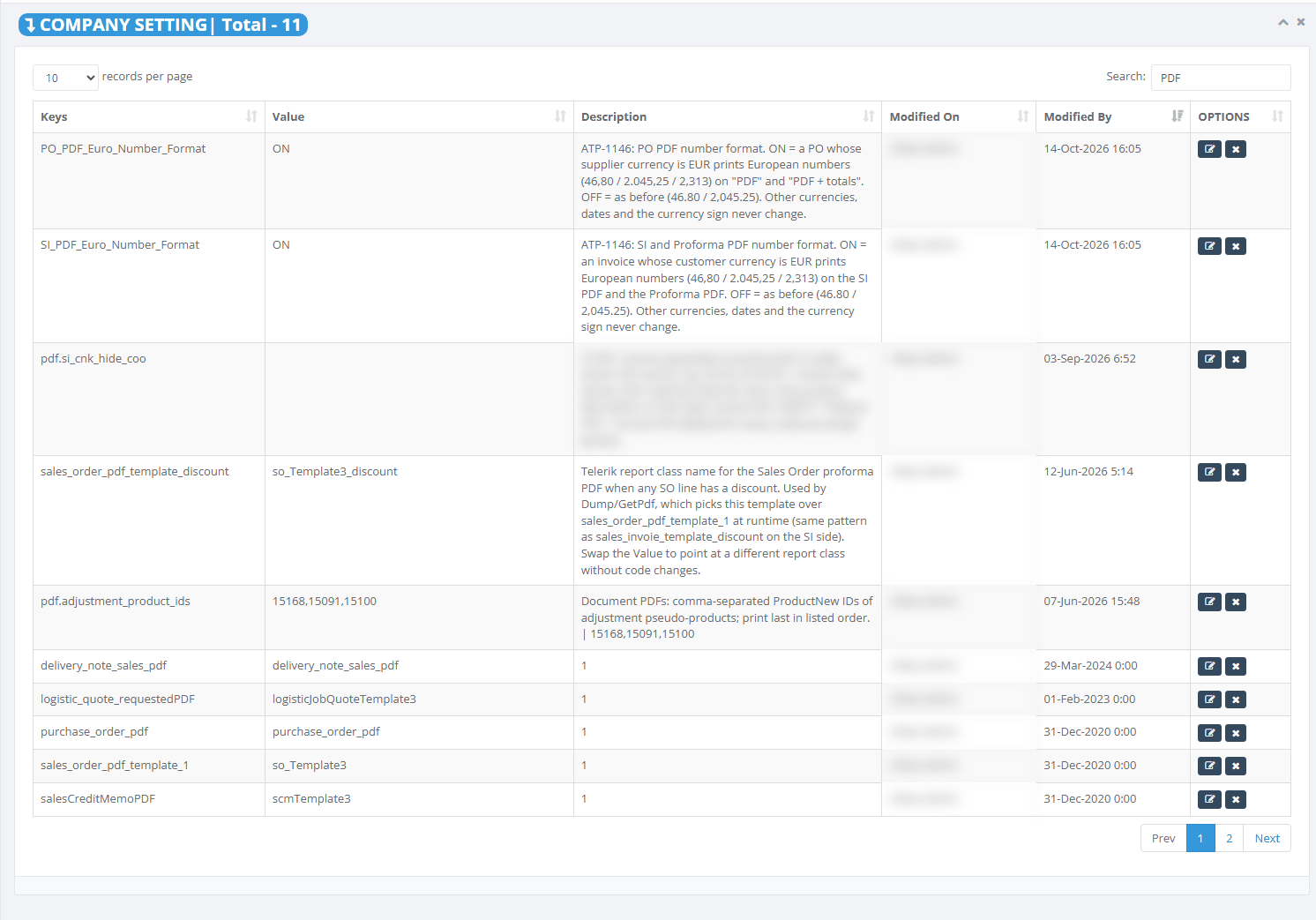
Search for PDF: 11 settings match
Only the matching rows stay on screen. If nothing appears, check the spelling. Two settings are never shown on this page, so ask IT if you cannot find one that should exist.
Change a setting's value
You need the Update tick. Before you change a setting, check what it controls and when the change takes effect (see the section Settings you are likely to change).
Search for GoodsIn_ShortDated and find the row.
Click the pencil button in OPTIONS. The Add/Update Company Setting dialog opens with Keys greyed out. A key cannot be renamed.
Change Value from 6 to 9.
Click Submit.
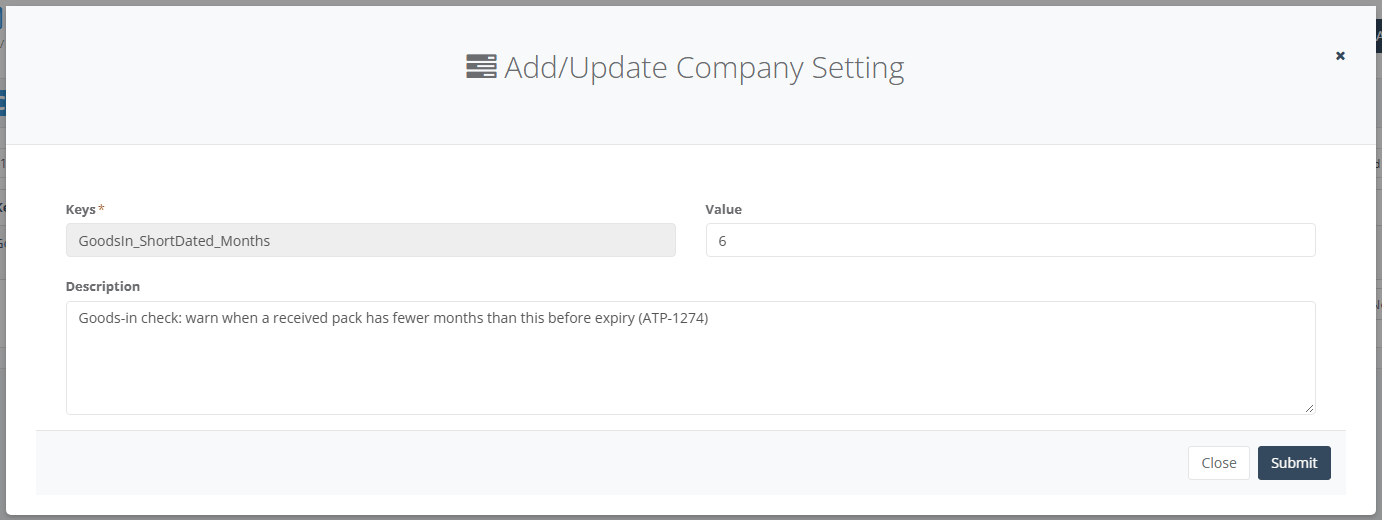
The Update dialog for GoodsIn_ShortDated_Months with Keys greyed out
The message Company Setting updated successfully! appears, the dialog closes and the list refreshes. The row shows the new date and the name of the person who changed it. If Setting History is installed, it records the change from 6 to 9.
Important: Only Value is saved when you change a setting. A change to Description in this dialog is not saved, although the success message appears. Ask IT to change a description.
If Value is empty, the message Warning - Please enter Value! appears. If nothing happens after Submit (no message, the dialog stays open), the save was refused. For example, your Update tick may have been removed. Close the dialog, sign in again and retry, or ask your administrator.
Add a new setting
A new key does nothing unless the program already looks for that exact name. Add a setting only when IT gives you its exact key and value. You need the Create tick.
Click ADD at the top right. The empty Add/Update Company Setting dialog opens.
Type the exact Keys given by IT. Use letters, digits, underscores and dots, at most 50 characters. Capital letters matter to the program.
Type the Value and a short Description of what the setting does.
Click Submit.
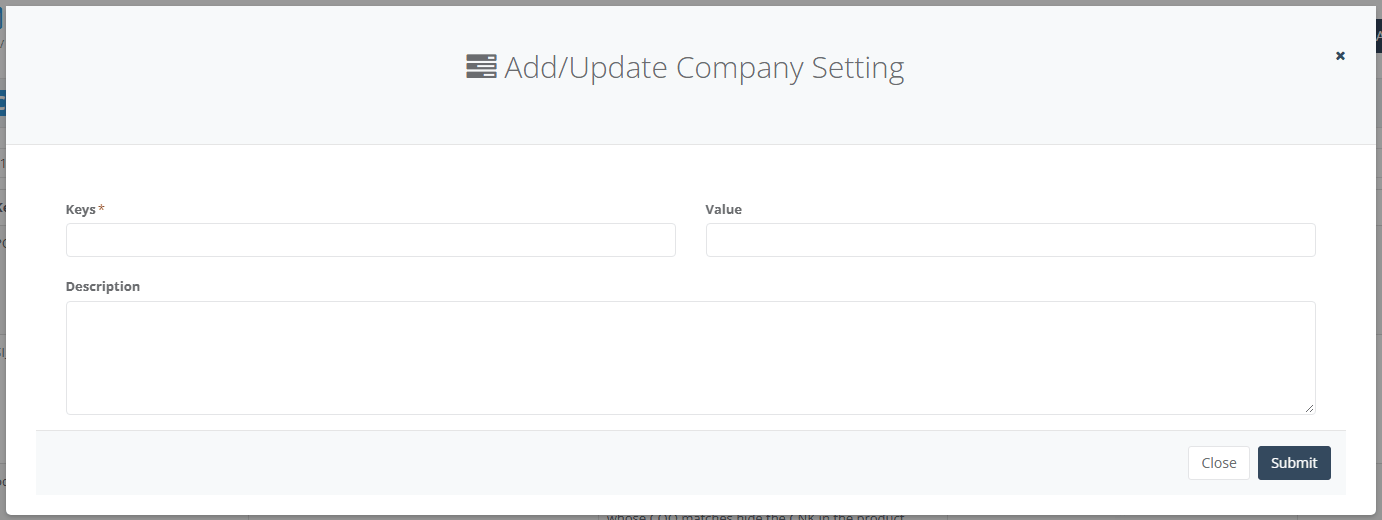
The empty Add dialog with Keys, Value and Description
The page first checks that no setting with the same key exists. Capitals are ignored in this check. The message Company Setting created successfully! appears and the list refreshes. A setting added here is never stored as a secret. Passwords and similar values must be added by IT.
A key longer than 50 characters, a value longer than 500 or a description longer than 1000 fails to save with no message. Shorten the text and try again.
Delete a setting
Delete a setting only when IT confirms it is no longer used. You need the Delete tick. Deleting is permanent. The only copy of the old value is in Setting History, if it is installed.
Find the row.
Click the cross button in OPTIONS.
The browser asks Are you sure you want to delete this Company Setting? Click OK to delete or Cancel to keep it.
The message Company Setting deleted successfully! appears and the list refreshes. The page does not check whether the program still uses the setting. Deleting a setting that a page needs makes that page fall back to a default or fail. The success message can appear even if nothing was deleted, so check that the row has gone.
Read the Setting History
Use this when behaviour has changed and you want to know who changed which setting and when. You need the View tick.
On Company Settings, click Setting History.
The list shows every change, newest first, with the columns When, Who, Via, Setting, What changed, From and To.
Type in Search (key, field, value or person), or click a setting name to see only that setting.
Click all settings to go back to every setting. Click Refresh to reload. Click Company Settings to return to the list.
How to read the lines:
A changed field shows its old value in From and its new value in To.
Secret settings show a lock and the word hidden instead of values.
Created the setting, Deleted the setting and Audit started mark the start, the end and the first record of a setting.
Via ERP means the change was made through the ERP. Via SQL means IT changed it with a database script. A script change shows the computer and program instead of a person's name.
If the notice The setting audit is not installed on this database appears, no changes are being recorded. Ask IT to install the history.
Make sure a change reaches the users
Some settings are read every time they are needed. Others are copied into each user's session at sign-in and kept until sign-out.
After changing a setting that takes effect at next sign-in, ask the affected users to sign out and sign in again.
Check the effect yourself on the page that uses the setting, after you sign in again.
The top-bar Clear Cache link does not refresh this copy. Signing in again does.
Settings you are likely to change
"At once" means the program reads the setting each time. "Next sign-in" means users get the change when they next sign in. Switches count as on only for ON, TRUE, YES or 1. Anything else counts as off.
Setting | What it controls | Example/notes |
|---|---|---|
Enable_Stock_On_Hand | Switch: stock is posted on goods in and goods out | At once. Off if missing. |
Warehouse_Stock_Check | Switch: goods in and out are blocked when stock would go negative | At once. Off if missing. |
GoodsIn_ShortDated_Months | The goods-in check warns below this many months to expiry | At once. 6 if missing. |
WarehouseHub_GoodsInPending_Days_Back | Older goods-in pending deliveries load separately as Overdue | At once. 60 if missing. |
AutoClose_PO_Days_Back, AutoClose_PCM_Days_Back, AutoClose_SI_Days_Back, AutoClose_SCM_Days_Back | Creating a new document closes old ones older than this many days | At once. -1 turns it off. |
PO_PDF_Euro_Number_Format | Switch: euro purchase orders print 2.045,25 | At once. Applies when the supplier currency is EUR. |
SI_PDF_Euro_Number_Format | Switch: euro sales invoices and proformas print 2.045,25 | At once. Applies when the customer currency is EUR. |
Payment_Due_Days | Default payment due days for customers and the invoice due date | Next sign-in. |
Link_At_Add_SI_Drawer | Switch: the newer Add from SO drawer on sales invoices | At once. Off if missing. |
Expiry_Canvass_Enabled | Switch for asking customers to accept short expiry | At once. The menu link changes at next sign-in. |
Company details such as invoiceAddress, VATRegNo, BankAccountNo | Printed on PDFs | Next sign-in. Blank on the PDF if missing. |
About 13 settings in the list are not used by the program at all, for example TimeZoneById and VAT. Changing them changes nothing.
What happens after you save
The dialog checks that Keys and Value are filled in. On Add it also checks whether the key exists.
The ERP checks your right again: Create for a new setting, Update for a change.
On a change, only the value is replaced. The description stays as it was.
The row records you as the last person who changed it, with the current time.
If the history is installed, one history line is written for each changed field, marked Via ERP with your name.
The success message appears and the list reloads.
Nothing else is created or linked. A setting has no number, status, owner or notification.
Messages you may see
Message | What it means | What to do |
|---|---|---|
Warning - Please enter Keys! | Submit on Add with no key | Type the key. |
Warning - Please enter Value! | Submit with no value | Type the value. |
Company Setting Key already exists ! | The key is already in the list | Change the existing setting instead. |
Company Setting created successfully! | The new setting was saved | Check the new row. |
Company Setting updated successfully! | The change was saved | Check the value. The description is not saved. |
Are you sure you want to delete this Company Setting? | You clicked the cross button | OK deletes, Cancel keeps it. |
Company Setting deleted successfully! | You confirmed the delete | Check that the row has gone. |
The setting audit is not installed on this database. | Setting History is not installed | Ask IT to install it. |
The setting history could not be loaded. Please try again. | The history list failed to load | Click Refresh, or sign in again. |
Access Denied | You opened the page without the View tick | Ask your administrator. |
No message and the dialog stays open | The save was refused or failed | Check the text lengths, sign in again, ask IT. |
Good to know
Some changes reach users only after they sign out and sign in again. About 30 settings work this way.
The headings Modified On and Modified By are swapped. Modified On shows the person and Modified By shows the date. Sorting by Modified On sorts by name.
Anyone with the View tick sees secret values, such as passwords, in plain text in the list. Give the Company page only to people who may see them.
Saving can fail silently if a key or value is too long, a right is missing or your session has expired. After an important change, reload the list and check the value.
Do not type HTML (text in angle brackets) in a value or description. The list shows it as formatting.
Without Setting History installed, nobody can see who changed a setting. Check with IT that it is installed on your company's database.