System Settings is where administrators set up PharmaERP for the people who work in it. Here you decide who can sign in, what each person can see and do, where and when they may sign in, and which company-wide settings and lists the other modules use. It also holds tools to check sign-ins, errors and automatic tasks.
Most screens in this module are used by administrators. Other staff only meet the Sign in page.
Where to find it
Sign in to PharmaERP.
In the left menu, open System Settings.
Choose a group and then a screen. The groups are Company, Members, Roles & Access, Security & Logs and Master Data.
You only see the items your role allows. If an item is missing, ask your administrator.
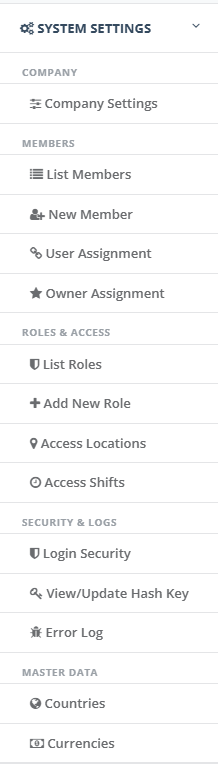
The System Settings menu with the Roles & Access and Security & Logs groups
What you can do here
Screen | What it is for | Who usually uses it |
|---|---|---|
Sign in | Sign in with your work e-mail address and password. Your first sign-in of the working day starts your punch card. | Everyone |
Company Settings (group Company) | Keep the company-wide settings, each with a name, a value and a description. Setting History shows who changed what. | Administrators |
Members (group Members: List Members, New Member) | Create and manage staff accounts: role, managers, and the sign-in checks for each person. | Administrators |
User Assignment (group Members) | Give a colleague extra access to a customer or supplier without changing its owner. | Administrators |
Owner Assignment (group Members) | Change which person owns a customer or supplier. | Administrators |
Role Master (group Roles & Access: List Roles, Add New Role) | Create roles and decide which menus and pages each role can open and use. | Administrators |
Access Locations (group Roles & Access) | Record each office and its internet addresses, so people can be limited to signing in from the office. | Administrators |
Access Shifts (group Roles & Access) | Record working days and hours, so people can be limited to signing in during working hours. | Administrators |
Work Engine Admin (group Roles & Access) | Check the automatic tasks the system creates, and repair a task that was not created. | Administrators |
Login Security (group Security & Logs) | See who is signed in, the sign-in attempts and the real reason a sign-in was refused. | Administrators |
View/Update Hash Key (group Security & Logs) | Keep the reference codes that link a partner company to your supplier and customer records. | Administrators |
Error Log (group Security & Logs) | Look up what went wrong when a user reports a problem. | Administrators |
Master Data (group Master Data) | Countries and Currencies are available. Cities, Units, Packages, Product Types, Customer Categories and Customer Status are not switched on yet. | Administrators |
Setting up the system for the first time
Follow these steps in order. Each step needs the ones before it.
Currencies - Add the currencies your company trades in.
Countries - Add the countries and give each one a currency from the list.
Role Master - Create the roles your staff need. A role must exist before you can give it to a person.
Access Locations - Add each office and its internet addresses. Do this only if some people may sign in from the office only.
Access Shifts - Add the working days and hours. Do this only if some people may sign in during working hours only.
Members - Add each person with their role and managers. Link them to a location and shift if their sign-in is limited. Managers must already be members.
Company Settings - Check the company-wide settings and change a value when the business is ready.
User Assignment and Owner Assignment - Once customers and suppliers exist in Customer DB and Supplier DB, give extra people access to them or change their owner. The people must already be members.
View/Update Hash Key - If you exchange documents with a partner company, add its codes to the supplier and customer records. The partner must already be set up there.
After the setup, use Login Security and Error Log to check sign-ins and problems, and Work Engine Admin to check automatic tasks.
Access you need
Your role decides what you see in the menu. A role is a named set of rights kept in Role Master. For each page, a role can allow four kinds of work:
View: see the menu item and open the page.
Create: add new records.
Update: change records.
Delete: remove records, or switch them off.
Buttons and menu items that you have no right for are not shown. Some screens share a right. For example, the right for the member list also opens Login Security, Error Log and the assignment pages, so give it only to people who may see everybody's activity.
Rights are read when you sign in. After an administrator changes a role, the person must sign out and sign in again to see the change.
Note: Work Engine Admin needs a one-off set-up by your IT team before anyone can be given the right to open it.
Words used in this guide
Word | Meaning |
|---|---|
Role | A named set of rights that decides which menus and pages a person can open and what they may add, change or delete. |
Right (tick) | One permission on a role, such as View, Create, Update or Delete for a page. |
Member | A person with an account in PharmaERP. |
Manager | The person a member reports to. A manager sees the customers and suppliers owned by the people below them. |
Account owner | The person responsible for a customer or supplier. It decides who sees that account and its documents. |
Assignment | Extra access to a customer or supplier for a colleague. The owner stays the same. |
Location | An office with its internet addresses and time zone. |
IP Access | A setting on a member that lets them sign in only from the addresses of their location. |
Shift | The working days and hours in which a member may sign in. |
Time Access | A setting on a member that lets them sign in only during their shift. |
Hash key | A reference code agreed with a partner company. It is stored and shown but not used as a password. |
Central DB Account ID | The number that identifies a company in the central list. It links a partner to your supplier and customer records. |
Tip: Each screen has its own page in this section with step-by-step instructions.